Draft. This article is awaiting technical review and may change — if anything here conflicts with advice from our team, follow the team.
Add or deactivate a portal user for your clinic
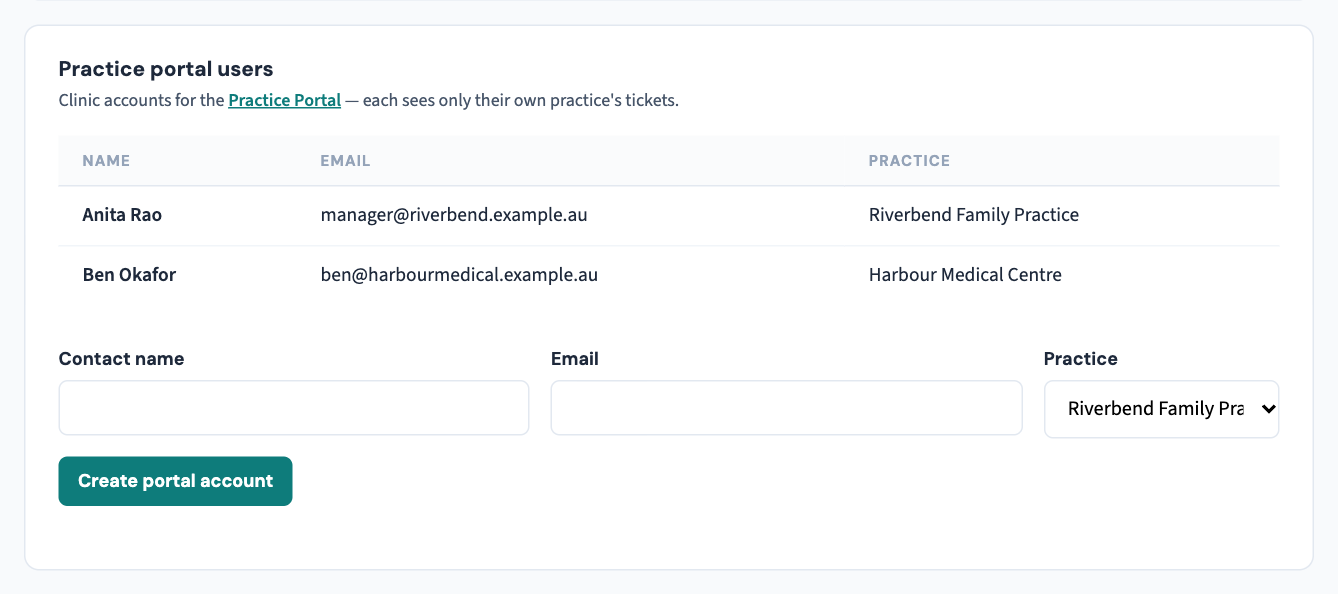
Portal accounts are set up by Curaeon for your practice — a quick ticket adds or removes a colleague, and each account sees only your own practice's tickets.
Add a user
- Raise a ticket (or reply on any open one) with the person's name and work email, and confirm they work at your practice. Ask your practice manager to send it if you can — it's the request we'll verify against.
- We create the account and send a temporary password, shown once. They sign in at the Practice tab and choose their own password.
Deactivate a user (staff leaving)
Raise a ticket naming the person; we remove their access the same day. Their tickets stay with the clinic, nothing is lost. Make it part of your leaver routine the day someone finishes — an ex-staff member's active login is the kind of thing privacy audits ask about.
Two rules worth adopting
- No shared logins. "reception@" accounts make it impossible to know who asked for what — and requests like data exports need a real, accountable person.
- Review the list quarterly. Ask us for your practice's current list of portal accounts and check it against your staff list — two minutes, and stale accounts are obvious.
If the only person who knew about the portal has left, call us on 1300 XXX XXX — we'll verify against your clinic's registered details and set up a new account (we deliberately don't do this by email alone).
Related articles
- KB-001 — Getting started with the Curaeon support portal — Getting started with the Curaeon support portal
- KB-002 — Reset your password or MFA for the support portal — Reset your password or MFA for the support portal