Draft. This article is awaiting technical review and may change — if anything here conflicts with advice from our team, follow the team.
Reset your password or MFA for the support portal
Get back into support.curaeon.com.au in a couple of minutes — password resets are self-service; MFA resets need a quick identity check.
Before you start
You'll need access to the email address on your portal account. The same steps work on the Curaeon Accounts and Sales CRM sign-in pages — every Curaeon sign-in shares one account.
Reset your password
- On the sign-in page, choose Forgot your password?
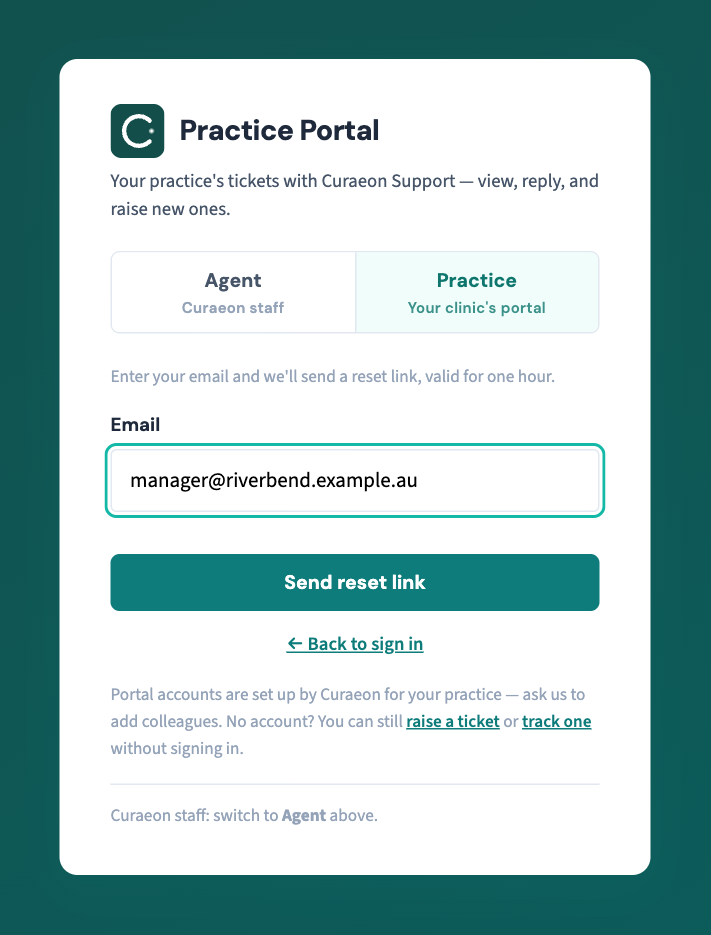
- Enter your work email address and select Send reset link.
- Open the email (check junk folders) and follow the link within one hour. The link works once.
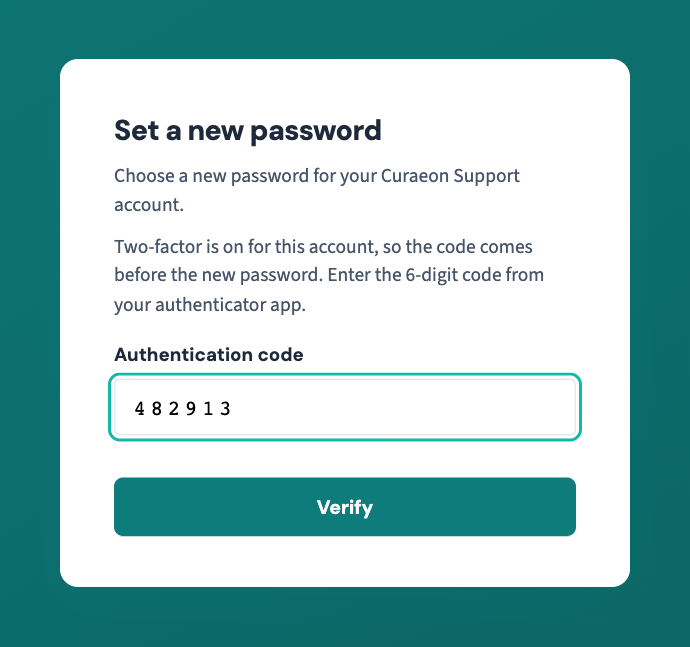
- If two-factor is on for your account, enter the 6-digit code from your authenticator app first — a reset link proves you own the email, and the code proves it's you.
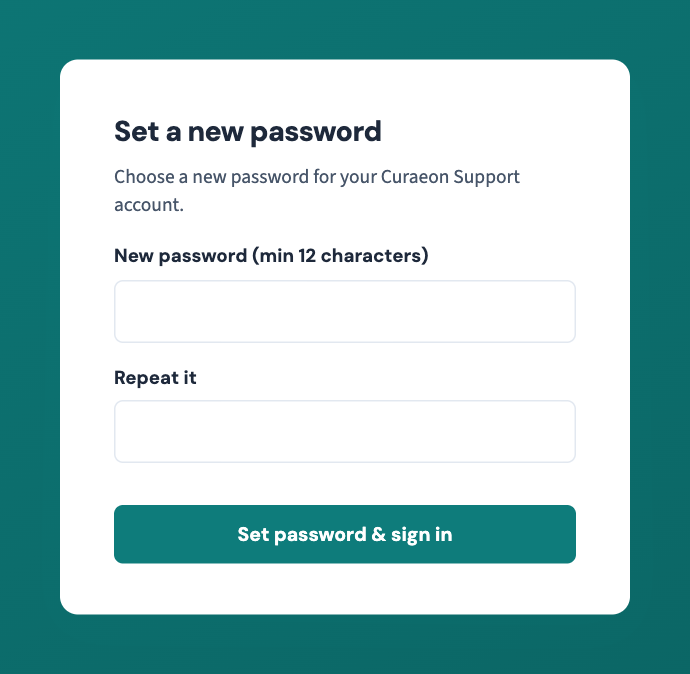
- Choose a new password — at least 12 characters; a short sentence works well and is easier to remember than symbols.
No email after five minutes? The address may not match the one on your account — raise a ticket from a colleague's account or the public form and we'll check.
Reset your MFA (new phone, lost device)
For security we can't let you disable MFA yourself — that's exactly what an attacker would try.
- Raise a Password/MFA reset ticket, or call 1300 XXX XXX. We'll verify you by calling back on your clinic's registered phone number — not the number you called from.
- Once reset, you'll be prompted to enrol your new device at next sign-in.
If that didn't work
Still stuck? Raise a ticket at support.curaeon.com.au from a colleague's account, or call 1300 XXX XXX and choose option 3.
Related articles
- KB-001 — Getting started with the Curaeon support portal — Getting started with the Curaeon support portal
- KB-003 — Add or deactivate a portal user for your clinic — Add or deactivate a portal user for your clinic