Find a departed patient, reactivate them, or record a death or departure
Find a patient who has left the practice or died, bring one back who returns, and record a death or departure so that recalls, reminders and letters stop — reliably, and with a record of who did it.
Before you start
Anyone who works the Patients screen can search and reactivate. Recording a death or departure is done from the patient's own record; if the option isn't offered to you, ask your administrator to check your role under Settings → Permissions.
Find a patient who has left
- Open Patients. The filter chips above the list — All, Booked today, Recall due, Allergy alert, Concession, Left the practice — decide who is shown.
- Choose Left the practice. Patients who have left are hidden from every other view so they don't clutter the desk (the manual calls this "include departed"); this chip is the door back in. Search by name, date of birth, Medicare number or MRN as usual within it.
Reactivate a returning patient
- Find them under Left the practice and open the record. The chart says Left the practice at the top.
- Choose Reactivate patient there. Curaeon confirms they are searchable and bookable again. Booking offers the same door: if you try to book a departed patient an appointment, Curaeon offers to reactivate them there and then.
Record a death or a departure
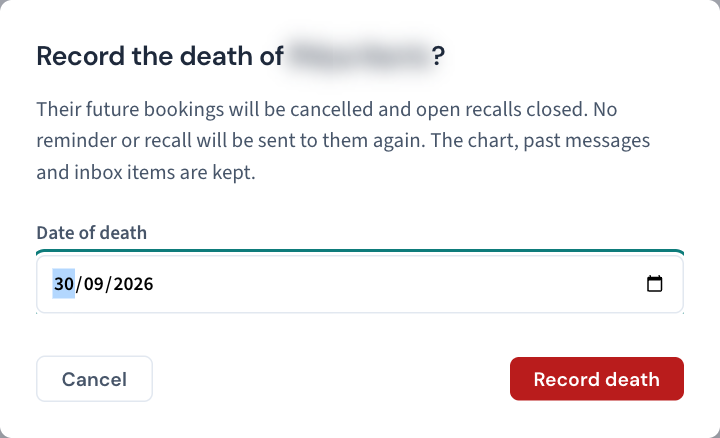
- Open the patient's record and record the death (with the date of death, if you have it) or the departure.
- Read what happens next, because most of it is automatic:
- Recalls, reminders and letters to that patient stop. This cannot be overridden by anyone — it is checked before consent and before any other override. If a colleague later sees "This patient is recorded as deceased" when trying to email a document, that is correct and deliberate; there is nothing to fix.
- Future appointments are cancelled, each with the reason, and each appointment's own history says so.
- The Audit log records who did it, the date of death if one was given, and how many bookings and recalls were closed.
- Check the calendar for appointments whose time has already passed. These are deliberately left as they were, even if nobody closed them: open each from the calendar and close it with what actually happened — whether the patient was seen or did not come.
Good to know
- The record is kept, not deleted. Curaeon never deletes clinical records; what changes is who the practice contacts.
- If a family member later asks who has looked at the record, the Audit log's Patient search still finds former and deceased patients (marked as such), and Print access report still works — see KB-063 — Answer "who has seen my record?": print a patient access report.
- The manual does not say whether a patient recorded as deceased appears under Left the practice or only in the Audit log's patient search; if you need to open a deceased patient's record from the Patients screen and cannot find it, check with support.
- Open recalls for the patient are closed, not left on the worklist (KB-051 — Run recalls: book from a recall, and why a recall stays open or comes back).
If that didn't work
If a death was recorded on the wrong patient, or in error, stop and raise a ticket rather than working around it: the manual does not describe a self-service reversal, and data on the wrong record is one of the situations where it says to call support. Give the approximate time it was recorded — not the patient's name (KB-007 — Why we never need patient details in a support ticket).
Still stuck? Raise a ticket at support.curaeon.com.au or call 1300 XXX XXX. If your clinic can't see patients right now, call and choose option 1. Support is staffed Monday to Friday, 8:00–18:00 Sydney time; outside those hours a call or text to the same number is answered on a best-effort basis.
Related articles
- KB-051 — Run recalls: book from a recall, and why a recall stays open or comes back — Run recalls: book from a recall, and why a recall stays open or comes back
- KB-063 — Answer "who has seen my record?": print a patient access report — Answer "who has seen my record?": print a patient access report
- KB-007 — Why we never need patient details in a support ticket — Why we never need patient details in a support ticket