When part of a screen says it could not be loaded: Try again, and what Loading… means
Read the notice correctly and get the missing part back without reloading the page.
What you are looking at
A Curaeon screen is filled by several separate requests to your practice server. The Calendar asks for the appointments, the practitioners and the roster, each on its own.
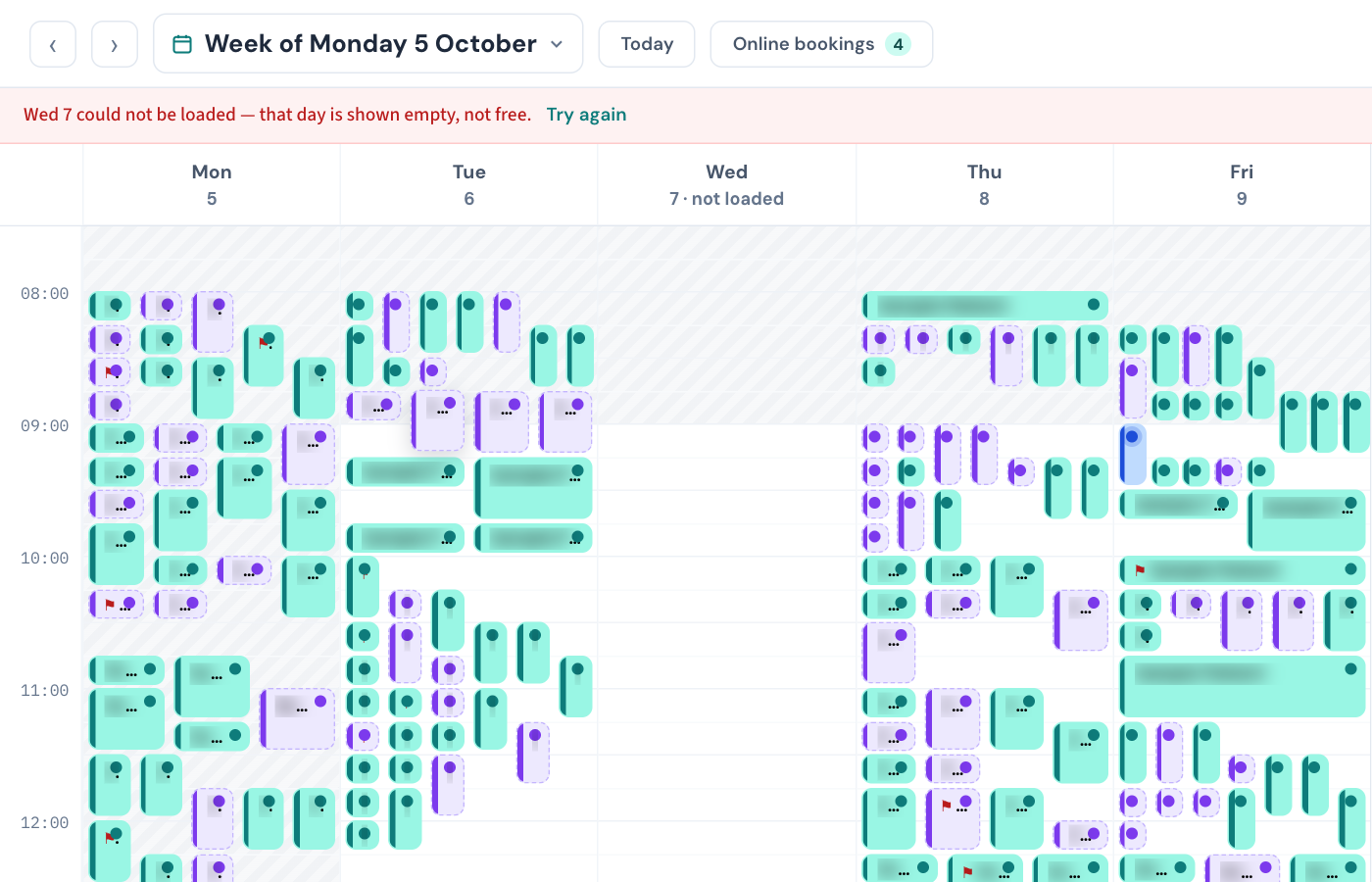
When one request fails, only that part of the screen is affected. Curaeon puts a notice where that part would have been, with a Try again button beside it. Everything else on the screen loaded normally and is good to use.
Three states, and what each one means
Every list, count and panel is in one of three states.
| The part says | What it means | What you can conclude |
|---|---|---|
| Loading…, Searching…, or a longer wait line such as "Checking this day's roster…" | The answer is on its way | Nothing yet. Wait a moment |
| A notice that it could not be loaded (or could not be read, checked or run), with Try again | The request failed. Curaeon does not know what is there | Nothing. It is not an empty list |
| The screen's ordinary "none" sentence, such as "No appointments on this day." or "No patients match" | The answer came back, and there is nothing | There really is none |
Important: A part that could not be loaded is not a part with nothing in it. An allergy panel that could not be loaded does not mean the patient has no allergies. A patient search that "could not be run" does not mean the person is not on file, so do not register them again.
What the notice says
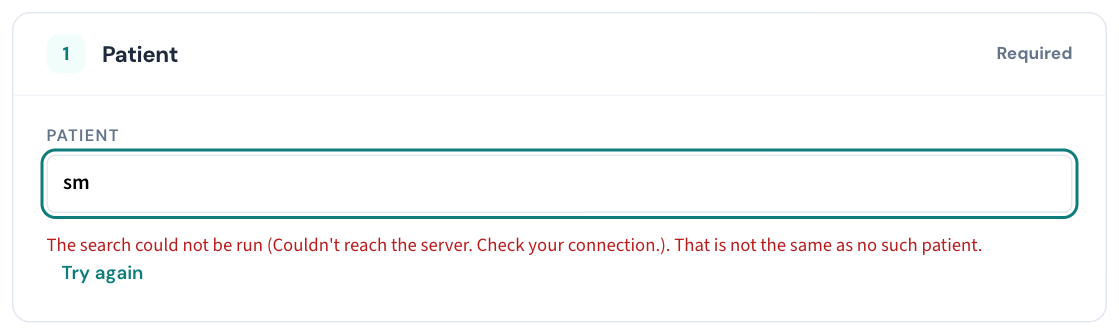
The wording depends on the screen, but it follows one pattern: what could not be loaded, often with the server's reason in brackets, and what that costs you on this screen. Some real examples:
- On a worklist, in red where the rows would be: the server's own sentence, such as "Couldn't reach the server. Check your connection."
- On the dashboard: "Could not load today's appointments" with "Not the same as none."
- In a patient search: "The search could not be run (…). That is not the same as no such patient."
- On a patient's record or in a consult: "This patient's allergies and alerts could not be loaded." with "Not the same as none recorded".
- In a diagnosis or condition search: "The terminology could not be searched (…) — that is not the same as no match." Where the form saves free text, it adds that it still can (KB-145 — Record allergies, history and observations).
- On Tasks: "Who you are could not be read, so your tasks cannot be picked out. The other two lists are whole." (KB-147 — Work the Tasks screen: follow-ups about a patient, due by a date).
Where a count depends on the missing part, the count is left off. Nothing shows "0" for a list nobody read.
What Try again does
- Choose Try again beside the notice.
- The button reads Trying… and cannot be pressed twice while it works.
- If the request succeeds, the notice and the button go and the part fills in. If it fails again, the notice stays, with Try again still beside it.
Try again asks only for the part that failed. It does not reload the page, so anything you have typed elsewhere on the screen is kept. It never repeats a save: it is offered only beside something Curaeon was reading.
A few notices still end "Reload the page" instead of offering the button. They are on the full-page request form, and on the letter page opened from a patient's record when the recipient's address-book entry or your own letterhead could not be loaded. Reload the page to ask again. On that letter page the notices about a referral that could not be loaded offer Try again instead, and where one does not, it says why (KB-106 — Write a letter in the editor: Insert from the record, { } Field, and the formatting that survives print and email).
In the menu bar, and above every screen
A few things are read on every screen, for the menu bar and for the screen as a whole. When one of those reads fails, Curaeon says so in the same way.
| You see | What it means | What to do |
|---|---|---|
| ? in place of the number beside Messages or Security alerts | The count could not be read. It is not zero | Nothing. Curaeon asks again every 30 seconds for Messages and every minute for Security alerts, and whenever you open another screen. The ? goes at the next answer (KB-178 — Find your way around Curaeon: the menu bar, More and your account menu) |
| "Who is signed in could not be read" in place of your name at the right of the menu bar, and a line above the screen saying the same | Curaeon could not read who you are. Until it can, every screen shows what a clinician is shown: some of what you may do is missing, and some of what is shown may be refused | Try again, beside either |
| "The practice's time zone could not be read." above the screen | Dates and times are shown for Australia/Sydney until it is, which may not be where your practice is | Try again |
Since 22 October 2026 the time-zone line no longer appears straight after every sign-in. If you see it now, the read really did fail.
What Curaeon holds back while a part is missing
Most work stays open. A booking can still be made when the roster could not be checked, because the server checks every booking again when you choose Book. A few actions are held, because doing them blind could harm a patient or a record:
| Held | What the screen says | More |
|---|---|---|
| Writing a script when the patient's allergies and alerts, or their current medications, could not be loaded | "… could not be loaded. Try again, or tick the acknowledgement to prescribe without them." The prescriber ticks that they have checked another way, and the acknowledgement is recorded with the script under their name. A report lists the scripts written this way (KB-163 — Read the Reports screen: My dashboard, Performance and the Billing & claims summary) | KB-144 — Write a prescription: repeats, authority, Schedule 8, brands, reprint and cancel |
| Raising a pathology or imaging request when the patient's details could not be loaded | "This patient's details could not be loaded, so the form cannot show who a request would be for." | KB-107 — Order a test, add copy-to recipients, and chase a result that never came back on the Requests screen |
| Saving to a consult note that could not be loaded | "Nothing was saved: this consult's note could not be loaded, and writing to it now could replace what is already in it. Try again first." | KB-143 — Write and sign off a consult note |
| Printing a patient health summary when any section could not be loaded | "This summary cannot be printed:" and the part. Nothing prints with a section missing | KB-155 — Print a patient health summary |
| Printing a claim statement when the claim or the practice's details could not be read | "This claim statement cannot be printed: …" | KB-169 — Print the form for a patient, or a summary, for a Medicare or DVA claim |
| Saving a doctor's or nurse's account in Settings → Users when their provider details could not be loaded | "Their provider details could not be loaded, and saving now would clear them. Try again first." Save stays off until they are read | KB-120 — Manage staff accounts in Settings → Users: add, change a role, seats, provider numbers, deactivate |
| Saving a task, or a letter's follow-up, for Me when who you are could not be read | "Who you are could not be read, so this cannot be saved as yours. Try again, or choose a name or Anyone." | KB-147 — Work the Tasks screen: follow-ups about a patient, due by a date |
| Restricting a record when the staff list could not be loaded | "Who the record is open to cannot be saved until the staff list has loaded." | KB-061 — Restrict a patient's record, and open one in an emergency |
| Filing, sending, printing as PDF or downloading a letter for a referral whose number could not be read | "The referral's number still could not be read, so the letter was held back: it would go without its referral number." Carry on without the number lets it go when it cannot wait | KB-106 — Write a letter in the editor: Insert from the record, { } Field, and the formatting that survives print and email |
| Signing a consult note when a section could not be saved, or could not be read back after its AI draft was accepted, edited or rejected | "Nothing was signed: … could not be saved or read back first. Try again." The message names the section | KB-143 — Write and sign off a consult note |
If Try again keeps failing
Work down this list and stop at the first that fits.
- Is it one part, or everything? If every screen shows notices, or Curaeon will not open at all, the server cannot be reached. Follow KB-164 — What to do when Curaeon cannot be reached.
- Did it start straight after an update? Parts of screens can fail until the server program has been restarted. A notice that ends "the server needs restarting" says so itself. See KB-037 — Screens blank or behaving oddly after an update: restart the server program.
- Does it fail for one patient only, or one section only? Note which. Try the same section on another computer.
- Still failing? Raise a ticket. Say which screen, which part of it, the exact wording of the notice including anything in brackets, and when it started. Do not include the patient's name or details (KB-007 — Why we never need patient details in a support ticket).
While you wait, find what you need another way, such as asking the patient about allergies. Do not treat the missing part as empty.
Still stuck? Raise a ticket at support.curaeon.com.au or call 1300 XXX XXX. If your clinic can't see patients right now, call and choose option 1. Support is staffed Monday to Friday, 8:00–18:00 Sydney time; outside those hours a call or text to the same number is answered on a best-effort basis.
Related articles
- KB-164 — What to do when Curaeon cannot be reached — What to do when Curaeon cannot be reached
- KB-037 — Screens blank or behaving oddly after an update: restart the server program — Screens blank or behaving oddly after an update: restart the server program
- KB-144 — Write a prescription: repeats, authority, Schedule 8, brands, reprint and cancel — Write a prescription: repeats, authority, Schedule 8, brands, reprint and cancel
- KB-107 — Order a test, add copy-to recipients, and chase a result that never came back on the Requests screen — Order a test, add copy-to recipients, and chase a result that never came back on the Requests screen
- KB-007 — Why we never need patient details in a support ticket — Why we never need patient details in a support ticket
- KB-178 — Find your way around Curaeon: the menu bar, More and your account menu — Find your way around Curaeon: the menu bar, More and your account menu