Your Curaeon licence: seats, renewal, and requesting more from Settings → Practice
Curaeon is licensed per clinician, per month, and charged for the year in one invoice. This article explains what a seat is, why Curaeon will not open without a confirmed licence, how the licence gets onto your server, how to ask for more seats from inside Curaeon, and exactly what happens if a licence is allowed to run out.
The short version
- Curaeon runs only under a licence that Curaeon Billing has confirmed. Until then every screen says "This Curaeon installation is not licensed".
- Seats are for your doctors. A seat is what lets a doctor sign in: every clinician, and an administrator who is also a doctor. Nurses, reception staff and your practice manager sign in without one and are not counted.
- You assign seats to doctors under Settings → Users, and can move one from one doctor to another without deactivating anyone. A licence can also include part-time seats at a lower price.
- After a licence's last day, everything keeps working for 14 days. Then Curaeon becomes read-only: records can still be opened, read and printed, and nothing can be added or changed until the renewal is in.
- Everything is on one card: Settings → Practice → Curaeon licence. Only an administrator sees it.
What you are buying
A licence names a number of seats at a price per clinician per month (AUD, ex GST). The year's charge is seats × price × 12: twelve seats at $45.00 is $6,480.00 for the year. The same figure shows on your invoice and on the licence card in Curaeon, because the server works it out from the same numbers.
A seat is for a doctor. Count your doctors: each account with the Clinician role holds a seat, one person at a time, and it is what lets them sign in. A doctor who is set up as an Administrator instead, usually the principal who also runs the practice, holds a seat too: Curaeon treats an administrator as a doctor once a provider number or a prescriber number is recorded for them. Nurses, reception staff and administrators without those numbers, your practice manager among them, need no seat. You can add as many of them as you like, they sign in as usual, and they never count against your licence. Accounts behind API keys do not need one either.
Part-time seats. A licence can carry part-time seats beside its full-time ones, for doctors who work part of the week. A part-time seat is priced at 60% of a full-time one unless your agreement says otherwise: $27.00 against $45.00. Twelve full-time and three part-time seats come to (12 × $45.00 + 3 × $27.00) × 12 = $7,452.00 for the year. Which of your doctors hold the part-time seats is your decision; Curaeon does not measure hours or days. A licence can also be part-time seats only, with no full-time seats, for a practice whose doctors all work part of the week.
Settings → Users shows the seats in use beside the account count, which is the quickest way to see how many you have left.
Who holds a seat
You decide which of your doctors hold one, under Settings → Users. A new clinician's account takes a seat unless you say otherwise, so a practice where every doctor signs in never has to think about it. Rows for nurses, reception and practice managers show nothing about seats, because they need none.
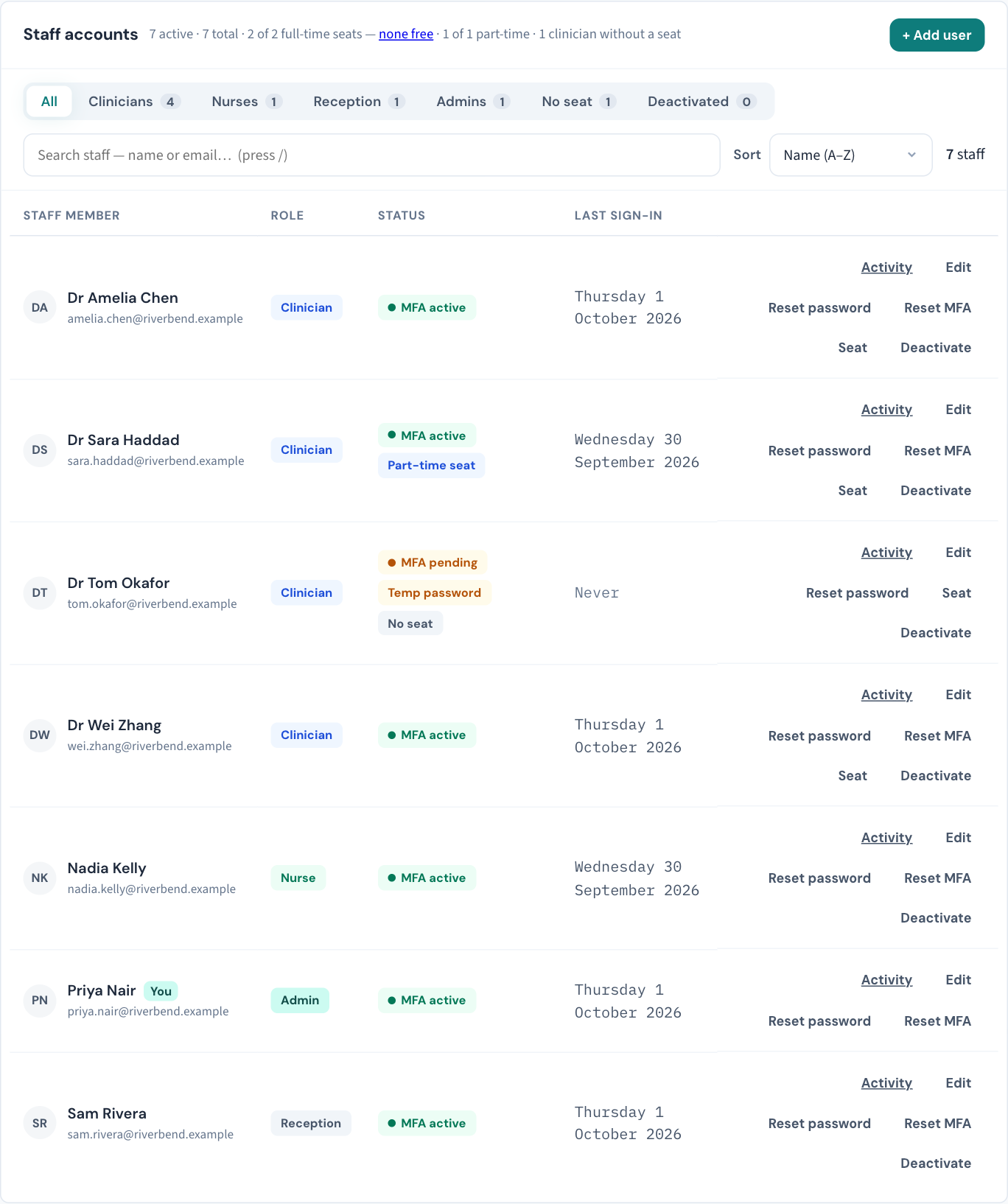
Three things make it flexible:
- A doctor without a seat. A clinician can have an account and no seat. They are on the staff list, the roster and the appointment book, patients can be booked with them, and their provider numbers are on file. They cannot sign in. The row is marked No seat. This is how you set up a registrar who starts next month, or keep a locum on the books between visits, without paying for a seat nobody is using.
- Moving a seat. Release it from the doctor who does not need it, then assign it to the one who does. Nobody is deactivated and nothing about either account is reset. The doctor whose seat is released is signed out straight away, and if they try to sign in they are told "This account has no Curaeon licence seat" and to ask an administrator.
- Creating a clinician when every seat is held. In the New user window, choose no seat. The window does this for you, and says so, when none is free.
How you do it depends on your licence:
- Full-time seats only: each clinician's row has Assign seat or Release seat, and the New user window has a tick box, Holds a seat, so can sign in.
- With part-time seats: each clinician's row has one Seat button, which opens a choice of Full-time seat, Part-time seat or No seat and shows how many of each are free. The New user window offers the same three. Moving a doctor from part-time to full-time, or back, is one step and does not sign them out. A doctor on a part-time seat is marked Part-time seat.
Changing someone's role to Clinician takes a full-time seat, or a part-time one when no full-time seat is free, and is refused if neither is; changing a clinician to Nurse or Reception frees their seat. Deactivating a leaver frees their seat at once; reactivating a doctor gives them one back, or asks which seat they come back on.
An administrator who is also a doctor. What makes an administrator a doctor, as far as the licence goes, is a provider number or a prescriber number on their account. Recording the first of them (Settings → Users → Edit) takes a seat, full-time or part-time whichever is free, and the user window tells you so before you save. If every seat is held, the number is not saved and the message says why: release a seat or request another, then save again. Clearing both numbers frees the seat. A clinician you make an Administrator keeps their seat, because their provider number stays with them; a practice manager, who has neither number, never needs one.
Where it lives
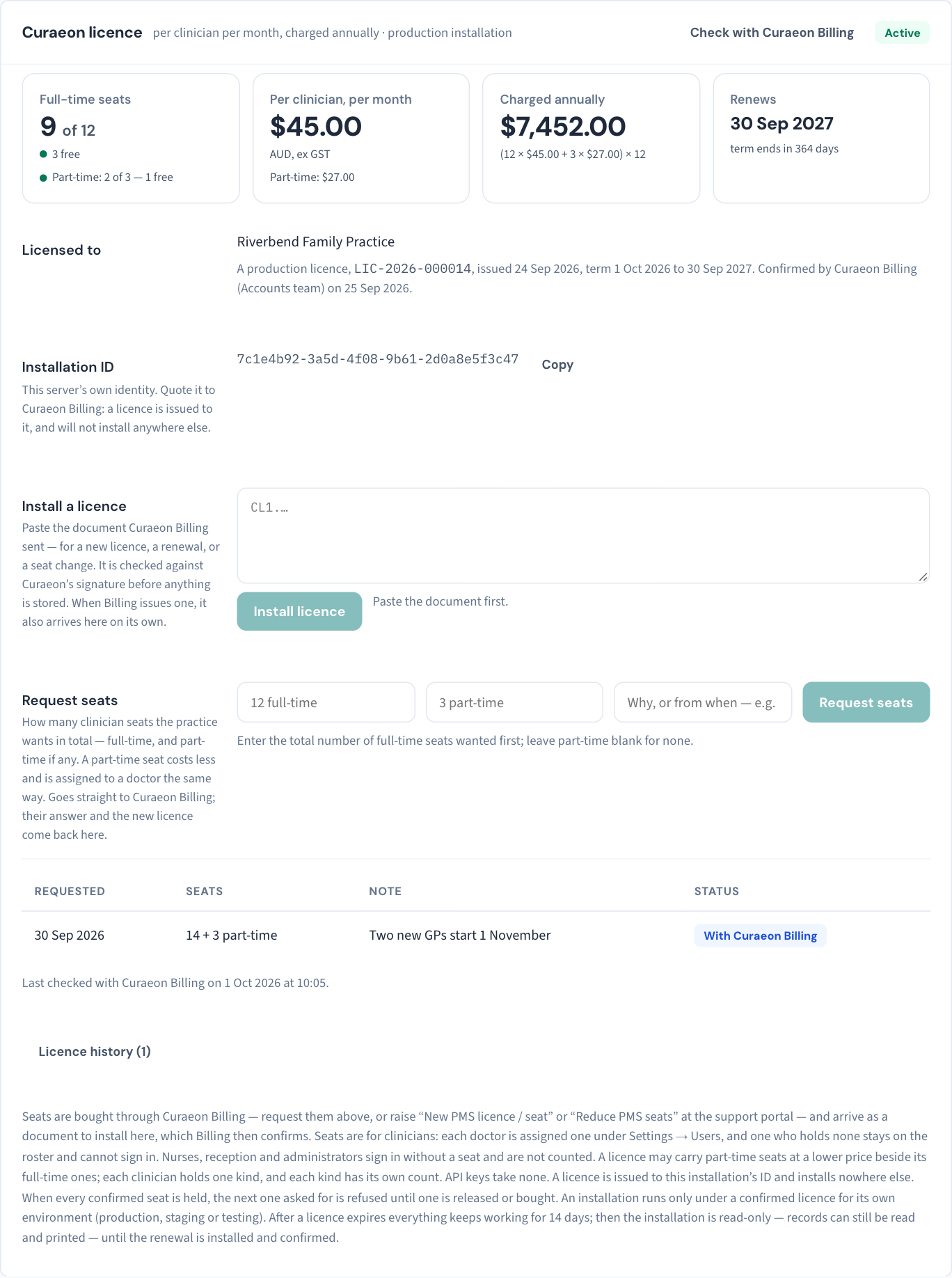
The card shows, top to bottom:
- The status (top right), and beside it Check with Curaeon Billing when your server is connected to Billing.
- Four figures: seats in use of seats bought, the price per clinician per month, the year's charge, and the day the term ends. On a licence with part-time seats, the part-time count and price are shown under the full-time ones.
- Licensed to: your practice's name as it reads on the licence, the licence id (quote this in any billing query), the term, and when Billing confirmed it.
- Installation ID: your server's own identity. See the next section.
- Install a licence and, while a licence is waiting, a box for Billing's confirmation code.
- Request seats, with every request you have made and where it is up to.
- Licence history: every document this server has ever held.
Your Installation ID
Every Curaeon server has an Installation ID: a long code it is given once, when it is first started, and keeps for good. A licence is issued to that ID and will not install on any other server, which is what stops your licence being used somewhere it was not sold.
You will be asked for it when Curaeon Billing issues a licence to a server that is already running. Press Copy beside it and paste it into your reply or ticket. It is an identifier, not a password, so it is safe to send.
Two things follow from it:
- Replacing or rebuilding your server. Restoring your own backup onto the new machine keeps the same Installation ID, and with it the licence: nothing to reissue. A server started fresh, without your backup, is a new installation with a new ID and needs a licence issued to it. Tell Curaeon Support before a planned replacement so the two are lined up.
- A training or test server is its own installation with its own licence, marked as a testing or staging licence. It will not accept your live practice's licence, and your live server will not accept its.
How a licence gets onto your server
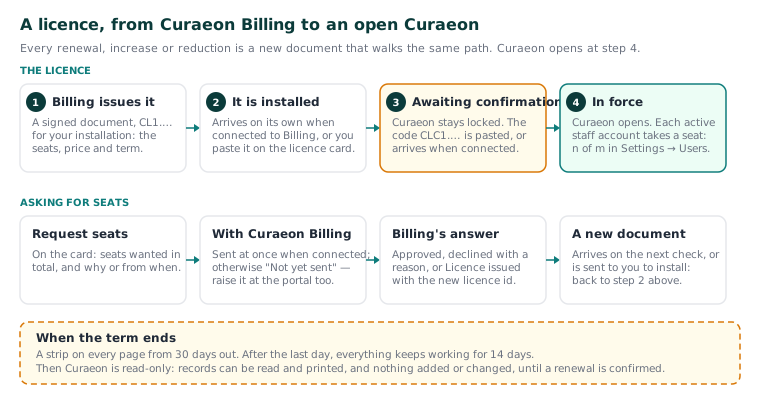
There are two halves, and Curaeon stays shut until both are done: the licence document, and Billing's confirmation of it.
If your server is connected to Curaeon Billing (most are; the card shows the Check with Curaeon Billing button when it is), you do nothing. The licence and its confirmation both arrive on their own: about half a minute after the server starts, then every hour, and at once when you press Check with Curaeon Billing.
If it is not connected, Billing sends you both by email or ticket, and you paste them in:
- Sign in as an administrator. On an unlicensed server every page shows the notice below; choose Open the licence under Settings → Practice.
- Paste the licence, a long code beginning
CL1., into Licence document and choose Install licence. Paste the whole thing; nothing is typed by hand. - The card now reads Awaiting confirmation. Paste Billing's confirmation code, beginning
CLC1., into the confirmation box and choose Confirm licence. - The page reloads into the working application, and the card shows the seats in force.
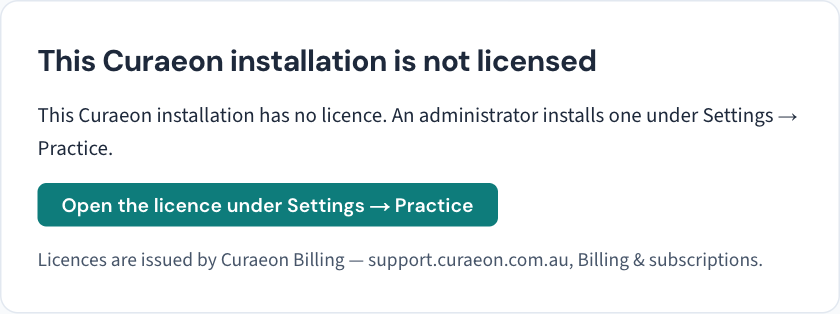
Staff who are not administrators see the same notice without the button; nothing else is available to them until an administrator has finished.
Every renewal, seat increase and seat reduction is a new licence document with its own id, and it arrives or is installed the same way. The old one stays in the history. A renewal installed early is named on the card's Renewal line once confirmed, and takes over on its first day; the current licence stays in force until its last.
Asking for more seats
You can request seats without leaving Curaeon. On the card, under Request seats, enter the number of full-time seats you want in total (not the extra), the number of part-time seats in total if you want any, say why or from when ("a new GP starts 1 November"), and choose Request seats. What happens next depends on whether the server is connected to Billing:
- Connected: the request goes straight to Curaeon Billing. Its status on the card moves from With Curaeon Billing to Approved, Declined with a reason, or Licence issued with the new licence id, and the new licence arrives on the next check.
- Not connected: the request is recorded on the card as Not yet sent, and the card tells you to raise it at the support portal as well. Do that: see KB-071 — Add or reduce seats, change SLA tier, get an invoice copy or fix a failed direct debit for the request types and what Billing needs.
Reducing seats is also a request, and a new document. If it leaves fewer seats than are held, nobody is signed out; the card shows the shortfall, and the next seat you try to assign is refused until one is released or seats are added.
When a seat is refused
Assigning a seat, or creating or reactivating a clinician with one, when every seat is held is refused with a message naming the count and the licence: "all 12 licensed seats are in use" (or "full-time seats" and "part-time seats" on a licence that has both). Nothing is broken, and nobody already working is affected. This never happens when you add a nurse, a receptionist or a practice manager. You have three ways forward:
- release a seat from someone who does not need it, then assign it;
- create or reactivate the clinician without a seat for now, or on the other kind of seat if one of those is free;
- request more seats as above.
For a leaver, deactivate the account instead (see KB-084 — New staff onboarding and offboarding checklist for offboarding); that frees the seat too.
Renewal, and what happens if a licence runs out
| When | What you see | What still works |
|---|---|---|
| 60 days before the term ends | The card's status reads Renewal due, unless the renewal is already installed and confirmed. | Everything. |
| 30 days before | A strip at the top of every page for every user: "Curaeon licence renewal due", with the end date. It can be dismissed, and returns the next time the browser is opened. It does not appear once the renewal is installed and confirmed. | Everything. |
| The 14 days after the last day | A red strip on every page that cannot be dismissed: "The Curaeon licence has expired", naming the first read-only day. | Everything, including online booking. |
| From the 15th day | Read-only. The strip reads "Read-only: the Curaeon licence has expired." | Records can be opened, read and printed. Nothing can be added or changed, and online booking is closed. |

Important: read-only means no new appointments, notes, prescriptions, results actions, invoices or claims. Your patients' records are never withheld: every chart can still be opened and printed. But the practice cannot consult in Curaeon in that state, so treat the 30-day strip as the deadline, not the expiry date.
Renewing is the same as any other licence: Billing issues next year's document and confirms it. On a connected server it arrives by itself; otherwise install and confirm it on the card. Installed before the old term ends, it takes over on its first day with no gap, and the current licence stays in force until its last. Once Billing has confirmed it the reminders stop: the strip no longer appears, the card's status reads Active, and a Renewal line on the card names the licence that takes over, the day it does, and its seats. Until it is confirmed it waits under Awaiting confirmation and the reminders carry on. If the renewal's term starts later than the day after the current one ends, the card and the strip warn that cover will lapse and name the first day without a licence; ask Curaeon Billing for a licence that starts when the current one ends. If that does not happen, the days between are treated like any other lapse and Curaeon is never shut: everything keeps working for 14 days after the old term ends, then Curaeon is read-only until the renewal's first day, when full use returns by itself. The red strip names the day the renewal starts rather than asking you to install one, and a gap of 14 days or fewer never reaches read-only. Installed after Curaeon has gone read-only, it restores full use the moment it is confirmed: no restart, and nothing is lost.
Reading the status
| The card says | It means |
|---|---|
| Active | A confirmed licence is in force. |
| Renewal due | In force, the term ends within 60 days, and no confirmed renewal follows it without a gap. |
| Expired | The term has ended. For 14 days everything works; after that Curaeon is read-only. |
| Awaiting confirmation | A document is installed and waiting for Curaeon Billing. If no other licence is in force, Curaeon stays shut until Billing confirms it. |
| Starts later | The only confirmed licence is for a term that has not begun, so Curaeon stays shut until that day. A renewal installed early does not show this: while the current licence is in force the card names it on the Renewal line. |
| No licence in force | Nothing installed. Curaeon cannot be used. |
| With Curaeon Billing / Not yet sent | The state of a seat request, not of the licence. |
The Licence history at the foot of the card lists every document ever installed, with its seats, price per user per month, the year's charge, term, and when Billing confirmed it. That history is what an invoice query is settled against; it cannot be edited or deleted.
If a document will not install
Tip: if your server is connected to Billing, the fastest fix for almost anything on this card is Check with Curaeon Billing. It fetches whatever Billing has issued or confirmed since the last hourly check.
Otherwise the card says why in a sentence. The common ones:
| The message says | What to do |
|---|---|
| "this licence was issued for another installation" | The document was made for a different server. Send Billing the Installation ID from your card and ask for one issued to it. |
| "a production licence must name the installation it is for" | Same fix: Billing reissues it to your Installation ID. |
| "it is a staging licence and this is a production installation" (or the other way round) | A test server's licence was pasted into the live server, or the reverse. Use the document meant for this server. |
| "the signature does not match" | Part of the code was lost in copying. Copy the whole document again, from CL1. to its last character. |
| "this licence's term has already ended" | An old document. Ask Billing for the current one. |
| "this licence is already installed" | Nothing to do; if it reads Awaiting confirmation, it needs Billing's confirmation, not installing again. |
| "no licence with that id is installed here" (when confirming) | Install the licence document first, then the confirmation code. |
| At sign-in: "This account has no Curaeon licence seat" | Not a licence fault. The doctor's account holds no seat; an administrator assigns one on its row under Settings → Users. |
| "only doctors hold a licence seat" | A seat was offered to a nurse, a receptionist or an administrator with no provider or prescriber number. Nothing to do: that account signs in without one. |
| Saving an administrator's details: "An administrator with a provider or prescriber number is a doctor, and needs a licence seat" | Every seat is held, so the number was not saved. Release a seat under Settings → Users or request more, then save again. |
| "this licence has no part-time seats" | A part-time seat was chosen and your licence has none. Choose a full-time seat, or request part-time seats. |
| "this licence has no full-time seats" | A full-time seat was chosen and your licence is part-time seats only. Choose a part-time seat, or request full-time seats. |
| "Last check with Curaeon Billing … failed" | The server could not reach Billing. Check its internet connection and try Check with Curaeon Billing again; if it persists, raise a ticket. |
Still stuck? For a wrong seat count, an invoice query or a document that will not install, raise a ticket at support.curaeon.com.au under Billing & subscriptions, with the licence id and Installation ID shown on the card. Never include a patient's details. Support is staffed Monday to Friday, 8:00–18:00 Sydney time; outside those hours a call or text to the same number is answered on a best-effort basis.
Related articles
- KB-071 — Add or reduce seats, change SLA tier, get an invoice copy or fix a failed direct debit — Add or reduce seats, change SLA tier, get an invoice copy or fix a failed direct debit
- KB-084 — New staff onboarding and offboarding checklist — New staff onboarding and offboarding checklist
- KB-034 — Choose the right role and permissions for a new staff member — Choose the right role and permissions for a new staff member