New staff onboarding and offboarding checklist
Bring a new starter into Curaeon with the right access on day one, and close a leaver's access on their last day without losing a single thing they did.
Both halves are done inside the practice by your own administrator — Curaeon Support cannot add, reset or remove a Curaeon user remotely, because the server and its accounts live on your network. Nothing in Curaeon is deleted when someone leaves: their sign-ins, what they opened and why, and what they changed stay in the Audit log for at least seven years, and Activity on their entry in Users shows it all.
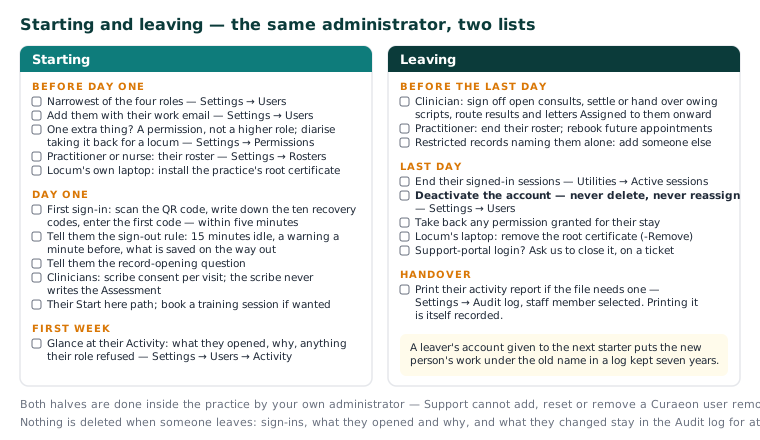
Starting
| When | Task | Where | What is recorded |
|---|---|---|---|
| Before day one | Choose the narrowest of the four roles — Reception, Nurse, Clinician, Admin — that covers their everyday work (KB-034 — Choose the right role and permissions for a new staff member) | Settings → Users | Staff and permission changes go to the Audit log and the weekly Security review |
| Before day one | Add them with their work email address | Settings → Users | As above |
| Before day one | If they need one extra thing, grant it as a permission rather than a higher role — and diarise taking it back for a locum | Settings → Permissions | Each change, listed under "changes to who may do what" in the Security review |
| Before day one | For a practitioner or nurse: enter their roster so the Calendar can book them | Settings → Rosters | Roster lines with old and new values |
| Before day one | For a locum's own laptop: install the practice's root certificate | Whoever looks after the computers (KB-035 — Make a new PC, Mac or locum laptop trust Curaeon ("Your connection is not private")) | — |
| Day one | First sign-in: they scan the QR code, write down their ten recovery codes and enter the first code, within five minutes (KB-031 — Set up two-factor sign-in for Curaeon, and fix a code that is rejected, already used or timed out) | The sign-in screen | Every sign-in, with the browser and device it came from |
| Day one | Tell them the sign-out rule: 15 minutes idle (or your practice's limit), a warning a minute before, and what is saved on the way out (KB-033 — Change how long Curaeon waits before signing you out, and end a session left open) | — | Each idle sign-out as Signed out after inactivity |
| Day one | Tell them the record-opening question: they will be asked why they are opening a record unless the patient is booked in today or in a consult with them (KB-062 — Why Curaeon asks your reason for opening a record) | — | The purpose, on the opening itself, in the log and on access reports |
| Day one | For clinicians: scribe consent is asked and recorded per visit, and the scribe never writes the Assessment (KB-015 — AI scribe consent workflow explained, KB-056 — Why the scribe never writes the Assessment or suggests item numbers) | The consult screen | The patient's answer, each time, with the wording used |
| Day one | Point them at their Start here path — reception KB-093 — Start here: I work at reception, GP and nurse KB-094 — Start here: I'm a GP or nurse, practice manager KB-095 — Start here: I'm the practice manager, IT KB-096 — Start here: I look after the computers — and book a training session if you want one (KB-025 — Booking training for new clinic staff) | — | — |
| First week | Glance at their Activity: what they opened, why, and anything their role refused | Settings → Users → Activity, or Settings → Audit log with them selected | A refused page is recorded as well as the ones they reached |
Tip: A new person who says "it won't let me in" is usually looking at a page their role does not include, and the Audit log's Sign-ins tab says exactly what was refused. Check that before changing their role.
Leaving
| When | Task | Where | What is recorded |
|---|---|---|---|
| Before the last day | For a clinician: sign off open consults (KB-043 — Correct or amend a note after it's signed), settle or hand over their owing scripts (KB-044 — Record and settle an owing script), and route results and letters Assigned to them back to the pool or a colleague (KB-046 — Work the results Inbox: Practitioner vs Assigned to, routing, COPY and corrected results, Follow-up) | Their open-consults list; Owing scripts (just yours); the Inbox detail pane | Each routing change, with previous and new addressee |
| Before the last day | For a practitioner: end their roster and rebook any future appointments under their name | Settings → Rosters; the Calendar | Each cancelled booking's own history says who did it |
| Before the last day | Check restricted records that name them alone, and add someone else | The banner on each chart, by those named or an administrator (KB-061 — Restrict a patient's record, and open one in an emergency) | Every change to a restriction is kept |
| Last day | Deactivate the account — never delete it. Deactivate ends every session the person has open, at once | Settings → Users | A later sign-in attempt is refused and recorded as a deactivated account |
| Last day | Check nothing of theirs is still signed in | Utilities → Active sessions | — |
| Last day | Take back any permission granted for their stay | Settings → Permissions | As for granting |
| Last day | For a locum's laptop: remove the root certificate with the install script's -Remove option (KB-035 — Make a new PC, Mac or locum laptop trust Curaeon ("Your connection is not private")) |
The laptop | — |
| Last day | If they had a support-portal login, ask us to close it (KB-003 — Add or deactivate a portal user for your clinic) | A ticket | — |
| Handover | Print their activity report for the file if you need one — records opened, why, documents sent, every change with before and after, and their sign-ins | Settings → Audit log, staff member selected, Print activity report | Printing the report is itself recorded |
Important: Deactivate, do not reassign. Giving a leaver's account to the next starter would put the new person's work under the old name in a log that is kept for seven years and shown to accreditors.
What the manual does not say
The control is Deactivate on the person's row in Settings → Users (KB-120 — Manage staff accounts in Settings → Users: add, change a role, seats, provider numbers, deactivate). There is no bulk tool for a departing practitioner's future bookings beyond clearing one day at a time (KB-039 — Clear a practitioner's day when they call in sick). A departing clinician's style memory is a note saved to their own account (KB-131 — Set up Preferences: your start screen, calendar view, colours, notifications and privacy); nobody else's drafts use it. If either of these matters for a departure you are planning, raise a ticket under Accounts & access with the date.
Still stuck? Raise a ticket at support.curaeon.com.au or call 1300 XXX XXX. If your clinic can't see patients right now, call and choose option 1. Support is staffed Monday to Friday, 8:00–18:00 Sydney time; outside those hours a call or text to the same number is answered on a best-effort basis.
Related articles
- KB-034 — Choose the right role and permissions for a new staff member — Choose the right role and permissions for a new staff member
- KB-032 — Reset a colleague's password or 2FA, or recover when the only administrator is locked out — Reset a colleague's password or 2FA, or recover when the only administrator is locked out
- KB-083 — Practice-manager setup checklist: everything to configure before your first consulting day — Practice-manager setup checklist: everything to configure before your first consulting day
- KB-120 — Manage staff accounts in Settings → Users: add, change a role, seats, provider numbers, deactivate — Manage staff accounts in Settings → Users: add, change a role, seats, provider numbers, deactivate