Open MIMS's product information and the CMI leaflet from the prescriber and the patient's record
Read a medicine's product information, or the Consumer Medicine Information leaflet for the patient, without leaving the script, with the brand on the script first.
Note: This applies once your practice has MIMS set up and switched on in Settings (KB-173 — Set up MIMS drug-safety screening in Settings: the three credentials, the switch, the test and each doctor's MIMS user). It uses your own MIMS user, so you must have accepted MIMS's licence first (KB-172 — Drug-safety alerts from MIMS: what is screened, what an alert shows, and acknowledging one).
Before you start
- You need the
prescribepermission. Clinicians and administrators hold it by default (KB-121 — Change what each role may do in Settings → Permissions). The MIMS links on the record's Medications and Prescriptions lists appear only to those who may prescribe, and only at a practice with MIMS set up. - The documents are MIMS's, read from MIMS when you open them. Curaeon stores none of them and sends none of them to the patient.
- MIMS find a medicine by its code, so a medicine needs to have been picked from the PBS list, or to carry a code on the record. A medicine typed by hand has no documents to open.
The three documents
| Link | Window title | Written for |
|---|---|---|
| Abbreviated PI | Product information (abbreviated) | The prescriber |
| Full PI | Product information (full) | The prescriber |
| CMI | Consumer Medicine Information | The patient |
The line shows only the ones MIMS hold for that medicine.
In the prescriber
- Pick the listing in step 1, as usual (KB-144 — Write a prescription: repeats, authority, Schedule 8, brands, reprint and cancel).
- A line appears under the drug-safety panel: the MIMS Integrated logo, then Abbreviated PI · Full PI · CMI.
- Choose a link. The document opens in a window over the prescriber.
In the Repeat script window there is one such line for each item that has a PBS listing.
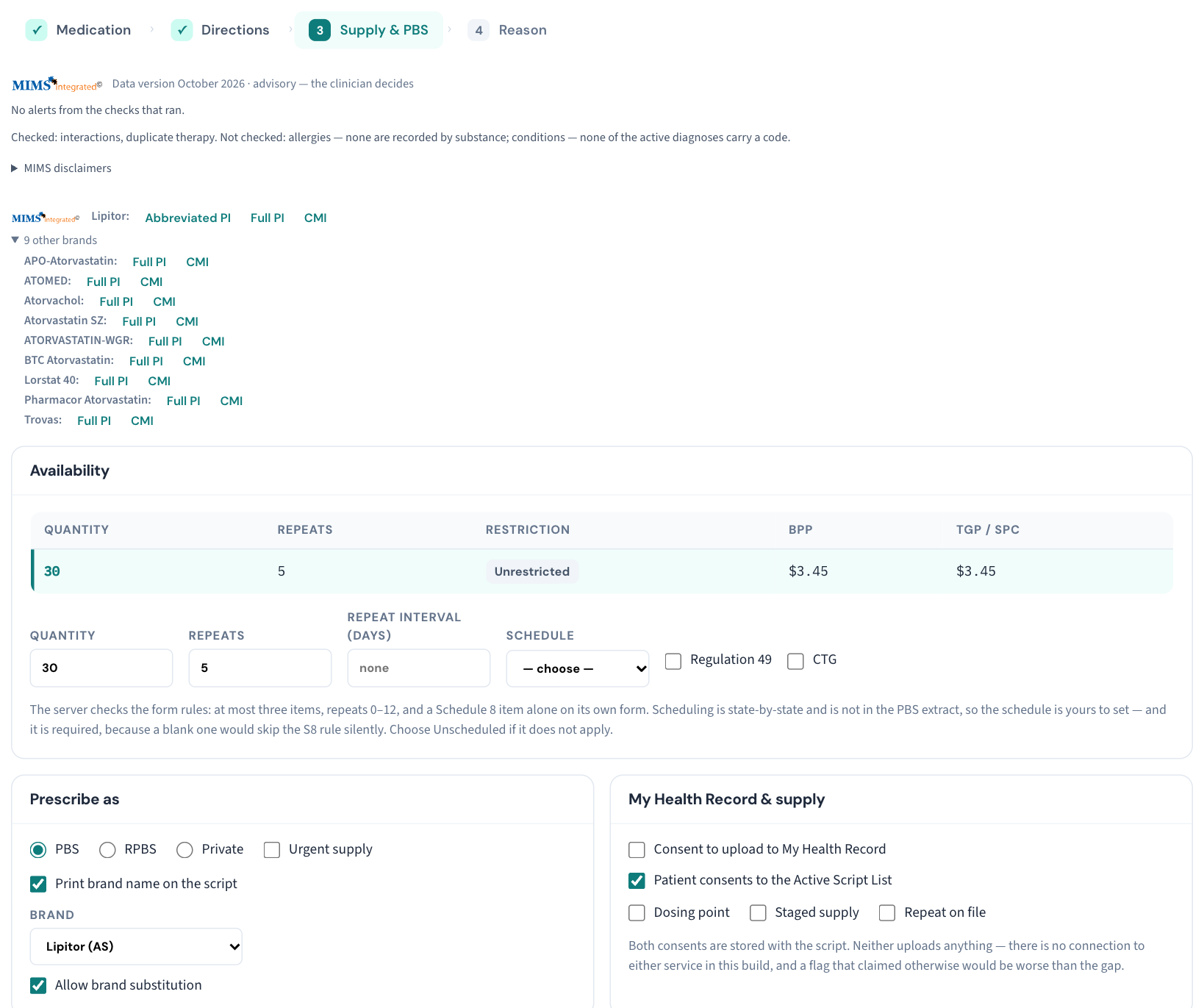
The brand on the script comes first
A generic medicine has one product information and one CMI for each brand. Curaeon puts the brand on the script first:
- With a brand chosen in step 3 (Print brand name on the script, then Brand), the line shows that brand's documents. Where MIMS list more than one brand, the line names it before them, for example "Lipitor: Abbreviated PI · Full PI · CMI".
- The other brands are folded under the line as "1 other brand" or "N other brands". Open it for each brand's own links.
- With no brand on the script, the line shows the first brand MIMS list, with the others under it.
- If MIMS list nothing under the brand on the script, the line says "MIMS list nothing under" that brand, "the brand on the script", beside the documents it does show. Those belong to another brand, so do not hand one over as this brand's leaflet.
From the patient's record
| Where | What to press |
|---|---|
| Medications tab, Prescriptions table | MIMS at the end of an item's line. It is there for every item written from the PBS list, and the brand on that script comes first |
| Medications list, on the Clinical History or Medications tab | MIMS on the medication's row. It is there only for a medication that carries a code. Most medications typed in or brought across from another system do not, so use the Prescriptions table for those |
On the record nothing is asked of MIMS until you press MIMS. It reads Asking MIMS…, then shows the same line of links. A medication on the list holds no brand, so its line starts with the first brand MIMS list.
Read and print a document
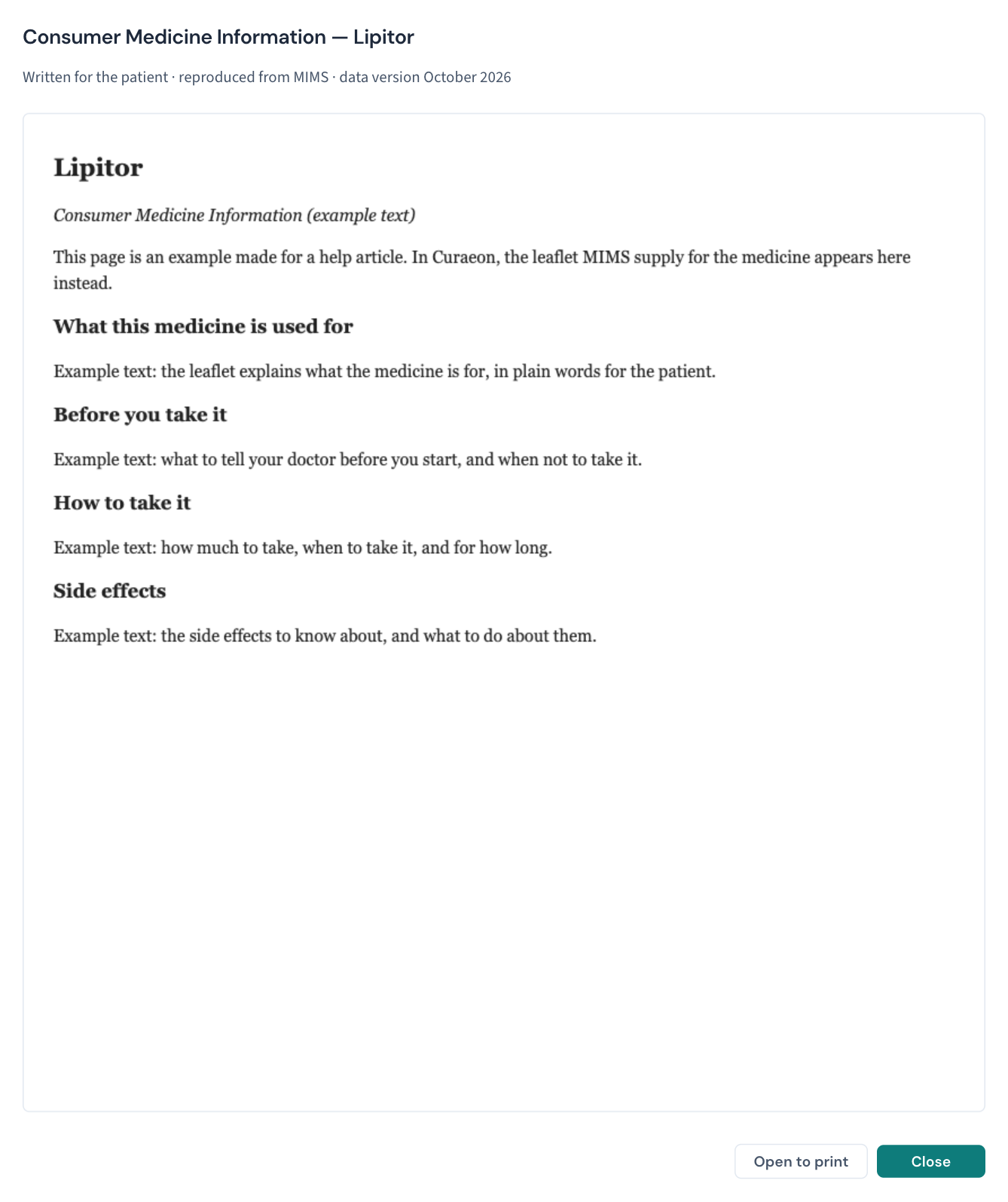
The window's title is the document and the product, for example Consumer Medicine Information — and the brand. Under it: Written for the prescriber or Written for the patient, reproduced from MIMS, and the MIMS data version.
- Open to print opens the document on a page of its own, in a new tab. Use the browser's Print there.
- Close returns to where you were. Nothing you typed is lost.
A CMI is written for the patient. Curaeon does not send it by SMS or email.
What each message means
| Message | What it means | What to do |
|---|---|---|
| MIMS hold no product information for this medicine. | MIMS found the medicine and have no documents for it | Use your usual reference |
| This PBS listing has no AMT code in the schedule on this server, so MIMS cannot look it up. | The listing is on the script, but the PBS data on this server gives it no code MIMS can use | Use your usual reference. If it happens for a current listing, tell your practice manager: the PBS list is loaded on the server (KB-138 — Read Utilities → Storage and Clinical datasets: how big the database is, and which reference data is loaded) |
| Typed by hand, not picked from the schedule — no code to look it up by. | The medicine has no code | Pick it from the PBS list |
| Named by ingredient only — MIMS need the strength and form to find its documents. | The code names an ingredient, not a product | Use your usual reference |
| Not in the MIMS database. | MIMS do not know the code | Use your usual reference |
| MIMS could not be reached for this medicine’s documents. | MIMS did not answer | Try again shortly |
| MIMS is not set up at this practice. | MIMS was switched off at your practice after the screen opened (KB-173 — Set up MIMS drug-safety screening in Settings: the three credentials, the switch, the test and each doctor's MIMS user) | Ask your practice administrator |
| MIMS have no subscription for your account — ask your practice administrator. | MIMS do not license your account (KB-172 — Drug-safety alerts from MIMS: what is screened, what an alert shows, and acknowledging one) | Ask your practice administrator |
| Held until you accept MIMS’s licence. or Held until you accept MIMS’s subscription terms. | You have not accepted them yet | Accept them from the drug-safety panel (KB-172 — Drug-safety alerts from MIMS: what is screened, what an alert shows, and acknowledging one) |
| MIMS could not be reached for this document. Try again shortly. | The window could not fetch the document | Close it and open it again shortly |
| Fetching from MIMS… | The document is on its way | Wait a moment |
In the prescriber, when MIMS content is held for you, for example until you accept the licence, no line of links is drawn at all. The drug-safety panel says what to do (KB-172 — Drug-safety alerts from MIMS: what is screened, what an alert shows, and acknowledging one).
If that didn't work
- There is no line under the medicine. The medicine was typed by hand, MIMS is not set up, or MIMS content is held for you. Read the drug-safety panel above it.
- The documents are for a different brand. Tick Print brand name on the script and choose the Brand: the line follows the brand on the script.
- A record's medication has no MIMS link. It carries no code. Find the script that put it there in the Prescriptions table and use MIMS on that item.
Still stuck? Raise a ticket at support.curaeon.com.au or call 1300 XXX XXX. If your clinic can't see patients right now, call and choose option 1. Support is staffed Monday to Friday, 8:00–18:00 Sydney time; outside those hours a call or text to the same number is answered on a best-effort basis.
Related articles
- KB-172 — Drug-safety alerts from MIMS: what is screened, what an alert shows, and acknowledging one — Drug-safety alerts from MIMS: what is screened, what an alert shows, and acknowledging one
- KB-173 — Set up MIMS drug-safety screening in Settings: the three credentials, the switch, the test and each doctor's MIMS user — Set up MIMS drug-safety screening in Settings: the three credentials, the switch, the test and each doctor's MIMS user
- KB-144 — Write a prescription: repeats, authority, Schedule 8, brands, reprint and cancel — Write a prescription: repeats, authority, Schedule 8, brands, reprint and cancel
- KB-138 — Read Utilities → Storage and Clinical datasets: how big the database is, and which reference data is loaded — Read Utilities → Storage and Clinical datasets: how big the database is, and which reference data is loaded