Change what each role may do in Settings → Permissions
Give a role one extra thing it needs, or take one away, without moving anyone to a bigger role. This article lists every permission the screen shows, what each allows, and which roles hold it to begin with.
Before you start
- Open Settings in the sidebar, then Permissions under People & communications. The page is headed Role permissions.
- You need the
practice.adminpermission, which the Admin role always holds. Nobody else sees the card. - A permission belongs to a role, not to a person. Ticking a box for Nurse gives it to every nurse in the practice. There is no way to grant a permission to one individual, and each person has exactly one role, set under Settings → Users (KB-120 — Manage staff accounts in Settings → Users: add, change a role, seats, provider numbers, deactivate).
- There are four roles and they are fixed: Admin, Clinician, Nurse and Reception. You cannot add a role or invent a permission.
A tour of the screen
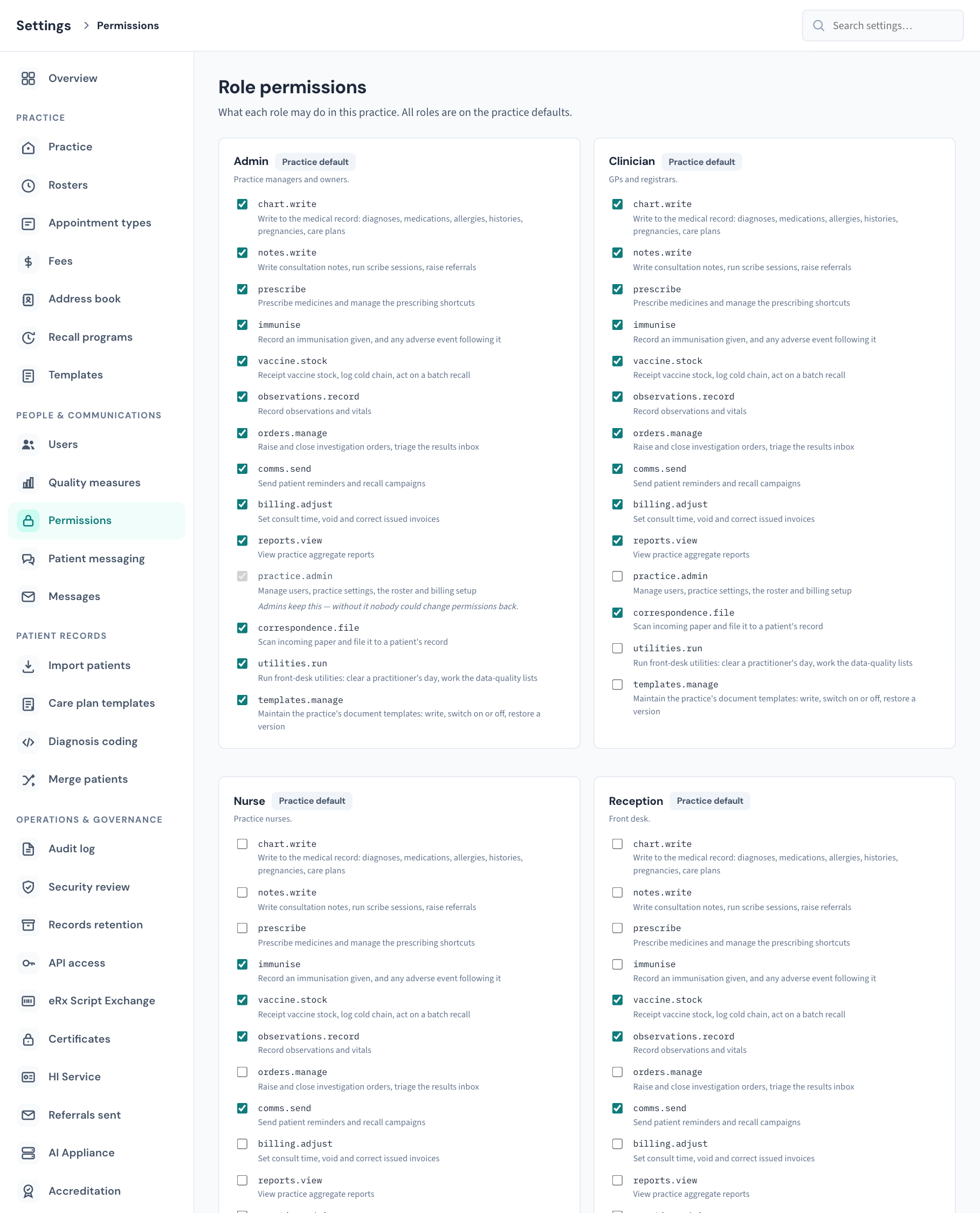
The line under the heading tells you where you stand: "All roles are on the practice defaults." or "N of 4 roles customised."
Below it is one card per role, in this order:
| Card | Who it is for |
|---|---|
| Admin | Practice managers and owners. |
| Clinician | GPs and registrars. |
| Nurse | Practice nurses. |
| Reception | Front desk. |
Every card lists the same fourteen permissions. Each line has a tick box, the permission's code (for example prescribe) and a sentence describing it. A tick means the role holds that permission.
The badge beside the role name matters:
- Practice default: nobody has changed this role. It holds the set Curaeon ships with.
- Customised: someone in your practice has changed this role at least once.
The badge exists because a role with every box unticked could be a decision or an untouched screen, and you need to tell the two apart.
Every permission, and who holds it by default
The descriptions in the second column are the words on the screen.
| Permission | What it allows | Admin | Clinician | Nurse | Reception |
|---|---|---|---|---|---|
chart.write |
Write to the medical record: diagnoses, medications, allergies, histories, pregnancies, care plans | Yes | Yes | No | No |
notes.write |
Write consultation notes, run scribe sessions, raise referrals | Yes | Yes | No | No |
prescribe |
Prescribe medicines and manage the prescribing shortcuts | Yes | Yes | No | No |
immunise |
Record an immunisation given, and any adverse event following it | Yes | Yes | Yes | No |
vaccine.stock |
Receipt vaccine stock, log cold chain, act on a batch recall | Yes | Yes | Yes | Yes |
observations.record |
Record observations and vitals | Yes | Yes | Yes | Yes |
orders.manage |
Raise and close investigation orders, triage the results inbox | Yes | Yes | No | No |
comms.send |
Send patient reminders and recall campaigns | Yes | Yes | Yes | Yes |
billing.adjust |
Set consult time, void and correct issued invoices | Yes | Yes | No | No |
reports.view |
View practice aggregate reports | Yes | Yes | No | No |
practice.admin |
Manage users, practice settings, the roster and billing setup | Yes | No | No | No |
correspondence.file |
Scan incoming paper and file it to a patient's record | Yes | Yes | Yes | Yes |
utilities.run |
Run front-desk utilities: clear a practitioner's day, work the data-quality lists | Yes | No | No | Yes |
templates.manage |
Maintain the practice's document templates: write, switch on or off, restore a version | Yes | No | No | No |
A few of these decide which screens a person can open at all:
practice.adminopens the administrator's Settings screens: Users, Permissions, Rosters, Patient messaging, Messages, Import patients, Merge patients, Audit log, Security review, Records retention, API access, eRx Script Exchange, Certificates, HI Service, Referrals sent, AI Appliance and Accreditation. It also allows editing the address book (KB-124 — Keep the practice address book in Settings → Address book: add, edit and retire a contact). The full list of who can open what is in KB-115 — Find your way around Settings: every section, who can open it, and where to read more.utilities.runopens Utilities (KB-133 — Find your way around Utilities: every section, what it is for and who can open it).reports.viewopens Settings → Quality measures (KB-105 — Read Quality measures, registers and preventive care due — and why they are not the PIP QI extract).chart.writeopens Settings → Diagnosis coding and Settings → Care plan templates, and lets a person copy a provider from the directory into the address book.templates.manageallows editing the practice's shared templates, its letterheads and its locations. A person withchart.writeand nottemplates.managestill reaches Settings → Templates for their own templates.comms.sendallows writing recall message wording and queuing reminder runs (KB-122 — Set up Settings → Patient messaging: email, SMS and WhatsApp channels, DKIM, the bounce mailbox and message wording).
Grant or remove a permission
- Open Settings → Permissions.
- Find the card for the role.
- Tick the box to grant the permission, or untick it to remove it.
That is the whole procedure. There is no Save button: the change is saved the moment you tick, "Saving…" shows on the card, and a message confirms "Role permissions saved". The role's badge changes to Customised.
The server applies the change straight away, for everyone in that role. A colleague who is already signed in may still see the old buttons until they reload the page or sign in again; the server refuses or allows the action correctly either way.
Examples
- A nurse runs the front desk on Saturdays and needs to clear a practitioner's day: tick
utilities.runon the Nurse card. - Your senior nurse looks after the letter templates: tick
templates.manageon the Nurse card. That is better than making them an Admin, which would also hand over users, billing setup and the roster. - Reception should not queue recall campaigns in your practice: untick
comms.sendon the Reception card.
Important: Think before granting
prescribe,chart.writeornotes.writeto a role that does not hold them by default. Curaeon will allow it, because some practices need it. Whether a person is authorised to prescribe or to write in the medical record is a matter for their registration and your practice's policy, not for a tick box.
Go back to the defaults
There is no "reset to default" button. To put a role back, tick and untick its boxes until they match the table above. The badge stays Customised afterwards, because the practice now has its own recorded set for that role, even though that set is the same as the default.
What cannot be changed
- The Admin role keeps
practice.admin. The box is greyed out and the card says "Admins keep this — without it nobody could change permissions back." This is the one change that could leave a practice with nobody able to reach this screen, so it is refused. - You cannot give a permission to one person. Change the role's permissions, or change the person's role.
- The four roles and the fourteen permissions are fixed.
- Licence seats are separate. A seat decides whether a clinician can sign in at all (KB-114 — Your Curaeon licence: seats, renewal, and requesting more from Settings → Practice); it is not a permission.
- Restricted records are separate. A patient's record restricted to named clinicians stays restricted whatever permissions a role holds (KB-061 — Restrict a patient's record, and open one in an emergency).
Every other box can be changed, including the other boxes on the Admin card.
What is recorded
Each change is written to the Audit log as Role permissions changed, under your name, with the role and exactly which permissions were granted and which were removed. Find them under Staff, roles and API keys (KB-101 — Find who did what in the Audit log: kinds, Sign-ins, Exactly, Who and a bookmarkable view).
The weekly Security review lists every permission change in its Changes to who may do what section, beside accounts created, deactivated and reset (KB-064 — Sign off the weekly Security review, and act on alerts and audit-log check warnings). A permission granted for a locum's fortnight should be taken back when it ends; the review is where a forgotten one shows up.
When a person tries something their role does not allow, the action is refused and the refusal is recorded too. If a colleague says "it won't let me", the Audit log's Sign-ins tab says exactly what was refused, which tells you which permission they are missing.
If that didn't work
| What you see | What it means |
|---|---|
| "Couldn't load permissions — …" with a Retry button | The server could not read the practice's permissions. Nothing has changed. Choose Retry; if it keeps failing, raise a ticket with the wording. |
| "the admin role must keep practice.admin — without it nobody could change permissions back" | You tried to remove the one permission that is locked. Nothing was changed. |
| A red message after ticking a box, and the box returns to how it was | The save was refused. The card has re-read the real state from the server. Read the message and try again. |
| "permissions are not configurable here" | This server is not set up to store permission changes. Raise a ticket. |
| A colleague still cannot do the thing you granted | Ask them to reload the page. If it is still refused, check they are in the role you changed (Settings → Users), and that what they need is not a restricted record or a licence seat. |
If a job in your practice does not fit any combination of role and permissions, raise a ticket and describe the work the person does, not the role you think they need.
Still stuck? Raise a ticket at support.curaeon.com.au or call 1300 XXX XXX. If your clinic can't see patients right now, call and choose option 1. Support is staffed Monday to Friday, 8:00–18:00 Sydney time; outside those hours a call or text to the same number is answered on a best-effort basis.
Related articles
- KB-115 — Find your way around Settings: every section, who can open it, and where to read more — Find your way around Settings: every section, who can open it, and where to read more
- KB-034 — Choose the right role and permissions for a new staff member — Choose the right role and permissions for a new staff member
- KB-120 — Manage staff accounts in Settings → Users: add, change a role, seats, provider numbers, deactivate — Manage staff accounts in Settings → Users: add, change a role, seats, provider numbers, deactivate
- KB-064 — Sign off the weekly Security review, and act on alerts and audit-log check warnings — Sign off the weekly Security review, and act on alerts and audit-log check warnings
- KB-101 — Find who did what in the Audit log: kinds, Sign-ins, Exactly, Who and a bookmarkable view — Find who did what in the Audit log: kinds, Sign-ins, Exactly, Who and a bookmarkable view
- KB-084 — New staff onboarding and offboarding checklist — New staff onboarding and offboarding checklist