Set up MIMS drug-safety screening in Settings: the three credentials, the switch, the test and each doctor's MIMS user
Enter MIMS's credentials once, prove them, switch screening on for every doctor, and read who has a MIMS user.
Note: MIMS drug-safety screening is off at a practice until an administrator does what this article describes. It needs the three credentials MIMS issue. With it off, prescribers see that screening is not configured and nothing is checked (KB-045 — "Not checked": what the drug-safety line says when screening is not set up, is held, or did not complete).
Before you start
- You need to be an administrator. The page and every change on it need
practice.admin(KB-121 — Change what each role may do in Settings → Permissions). Anyone else who opens it sees "Settings are kept by the practice’s administrators. Ask one of them to change MIMS drug information for you." - You need MIMS's three credentials, from MIMS's enablement email: the api-key, the client_id and the client_secret.
- The server needs its encryption key. The credentials are sealed with it before they are stored. Without one the page says so and stores nothing (see the table below).
- MIMS is a live service. Every screening asks MIMS over the internet. If the practice's internet is down, prescribers are told the screening did not complete, and they keep prescribing (KB-172 — Drug-safety alerts from MIMS: what is screened, what an alert shows, and acknowledging one).
- Nothing needs a restart. Storing the credentials and switching screening on take effect at once.
Open the page
- Open More in the menu bar, then Settings.
- Choose MIMS drug information, in the Operations & governance group (KB-115 — Find your way around Settings: every section, who can open it, and where to read more).
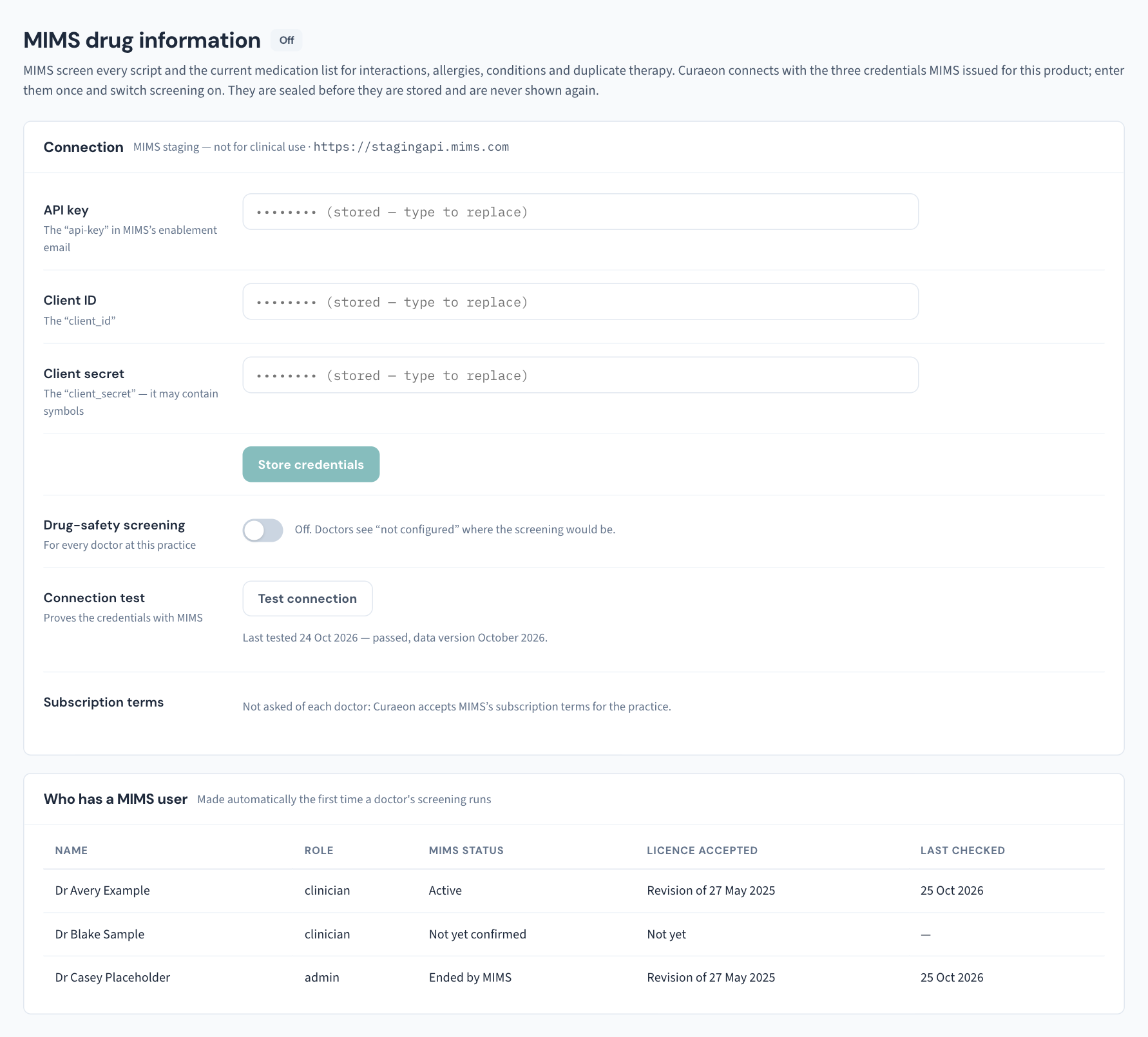
The heading carries a badge: Screening on or Off. The Connection card says which MIMS service this server uses: MIMS production on a production installation, otherwise MIMS staging — not for clinical use, with its address. The page does not let you choose: it follows the installation.
Enter the credentials
- Type each credential into its box: API key, Client ID and Client secret. The hint under each says which line of MIMS's email it is. The client secret may contain symbols, so paste it whole.
- Choose Store credentials. The message reads "Credentials stored. Test the connection to check them."
The boxes empty again. A stored credential now reads "•••••••• (stored — type to replace)"; one never entered reads Not set.
- They are never shown again, to anyone. Not on this page, not in an answer from the server, not in the Audit log, which records only that a credential was set or replaced, as MIMS settings changed (KB-101 — Find who did what in the Audit log: kinds, Sign-ins, Exactly, Who and a bookmarkable view).
- To change one, type the new value in its box and choose Store credentials. The others are kept. Replacing a credential clears the last test result, so test again.
Test the connection
- Choose Test connection. It reads Testing… while Curaeon asks MIMS.
- Read the result under the button: "Connected. MIMS data version" and MIMS's current release, or the reason it failed.
The last result stays on the page: "Last tested" with the date, "passed" and the data version, or "Last test failed:" and the reason. Before any test it reads "Not tested since the credentials were last changed." Every test, passed or failed, is in the Audit log as MIMS connection tested.
Test connection is off until all three credentials are stored.
Switch screening on
- Under Drug-safety screening, "For every doctor at this practice", turn the switch on.
- The message reads "MIMS screening switched on." The hint beside the switch reads "On. Each doctor is asked to accept MIMS’s licence the first time."
The switch stays off until all three credentials are stored; its hint then reads "Enter all three credentials first."
Switching on turns on, for every doctor:
- drug-safety screening in both prescribers and on the patient's record (KB-172 — Drug-safety alerts from MIMS: what is screened, what an alert shows, and acknowledging one);
- MIMS's product information and CMI leaflets (KB-174 — Open MIMS's product information and the CMI leaflet from the prescriber and the patient's record);
- the rule that a doctor whose subscription MIMS have ended may not prescribe while screening is on (KB-172 — Drug-safety alerts from MIMS: what is screened, what an alert shows, and acknowledging one).
To switch it off, turn the switch off. The message reads "MIMS screening switched off." The credentials are kept, so switching on again needs nothing re-entered. With it off, doctors see "not configured" where the screening would be.
Each doctor's MIMS user
MIMS screen each doctor under their own MIMS user. You do not create them.
- A doctor gets a MIMS user the first time their screening runs. Curaeon creates it from their account: their name from their practitioner details, their sign-in email, and the practice's name and address.
- Who is a doctor here: every clinician, and an administrator with a provider or prescriber number recorded, the same people who need a seat (KB-114 — Your Curaeon licence: seats, renewal, and requesting more from Settings → Practice). Nurses and reception never get a MIMS user.
- An account with no email address cannot be given one. That doctor is told their account has no MIMS subscription.
- Each doctor accepts MIMS's licence themselves, the first time and after each revision. An administrator cannot accept it for them.
- Deactivating a staff member in Settings → Users tells MIMS, and so does reactivating them (KB-120 — Manage staff accounts in Settings → Users: add, change a role, seats, provider numbers, deactivate).
Who has a MIMS user, under the connection, lists them. Until the first screening it reads "No one yet. A doctor gets a MIMS user the first time their prescriber screens a drug; nurses and reception never need one."
| Column | What it shows |
|---|---|
| Name and Role | The doctor |
| MIMS status | Active; Ended by MIMS, when MIMS have ended the subscription, and that doctor may not prescribe while screening is on; or Not yet confirmed, before MIMS's status has been read. A problem reaching MIMS for that person follows the status |
| Licence accepted | "Revision of" and the date of the licence revision they accepted, or Not yet |
| Last checked | When MIMS last confirmed the status |
MIMS apply their changes overnight. Curaeon reads MIMS's list of users each night after 00:30 Sydney time, and again when the server starts, so a doctor MIMS ended or restored yesterday shows correctly today.
Subscription terms
The Subscription terms row says whether each doctor is also asked to accept MIMS's Customer Subscription Terms and Conditions:
- "Not asked of each doctor: Curaeon accepts MIMS’s subscription terms for the practice."
- "Each doctor also accepts MIMS’s subscription terms (set in the server’s environment)."
It is not a choice on this page. Where the terms are asked, a doctor accepts them before the licence, and again after their account is reactivated (KB-172 — Drug-safety alerts from MIMS: what is screened, what an alert shows, and acknowledging one).
What each message means
| Message | What it means | What to do |
|---|---|---|
| MIMS is configured in this server's environment (curaeon.env), which takes precedence over this page. Change the credentials there and restart the server. | Whoever administers the server set MIMS up in its configuration file. The page shows the connection and cannot change it | Change it in the server's configuration, with whoever looks after the server. Test connection still works |
| This server has no encryption key, so MIMS's credentials cannot be stored safely. Set CURAEON_ENCRYPTION_KEY and restart the server. | The server cannot seal the credentials | Whoever looks after the server sets the key and restarts it |
| The MIMS settings could not be read: and a reason | The page did not load | Try again beside it (KB-170 — When part of a screen says it could not be loaded: Try again, and what Loading… means) |
| enter all three MIMS credentials before testing them | A credential is missing | Store all three |
| "Last test failed:" and a reason | MIMS refused the credentials, or could not be reached | Check each credential against MIMS's email and store the one that is wrong. Check the server can reach the internet |
If that didn't work
- There is no MIMS drug information in Settings. You are not an administrator.
- A doctor says screening is held. They have not yet accepted MIMS's licence. They do it themselves from the prescriber (KB-172 — Drug-safety alerts from MIMS: what is screened, what an alert shows, and acknowledging one).
- A doctor reads Ended by MIMS and should not. Their prescribing is stopped while screening is on. Raise a ticket naming the doctor (not a patient), so it can be taken up with MIMS.
Still stuck? Raise a ticket at support.curaeon.com.au or call 1300 XXX XXX. If your clinic can't see patients right now, call and choose option 1. Support is staffed Monday to Friday, 8:00–18:00 Sydney time; outside those hours a call or text to the same number is answered on a best-effort basis.
Related articles
- KB-172 — Drug-safety alerts from MIMS: what is screened, what an alert shows, and acknowledging one — Drug-safety alerts from MIMS: what is screened, what an alert shows, and acknowledging one
- KB-174 — Open MIMS's product information and the CMI leaflet from the prescriber and the patient's record — Open MIMS's product information and the CMI leaflet from the prescriber and the patient's record
- KB-045 — "Not checked": what the drug-safety line says when screening is not set up, is held, or did not complete — "Not checked": what the drug-safety line says when screening is not set up, is held, or did not complete
- KB-115 — Find your way around Settings: every section, who can open it, and where to read more — Find your way around Settings: every section, who can open it, and where to read more
- KB-120 — Manage staff accounts in Settings → Users: add, change a role, seats, provider numbers, deactivate — Manage staff accounts in Settings → Users: add, change a role, seats, provider numbers, deactivate
- KB-114 — Your Curaeon licence: seats, renewal, and requesting more from Settings → Practice — Your Curaeon licence: seats, renewal, and requesting more from Settings → Practice