NASH certificate renewal — step-by-step
Renew your clinic's NASH PKI certificate before it expires, so the services that sign in with it are not interrupted.
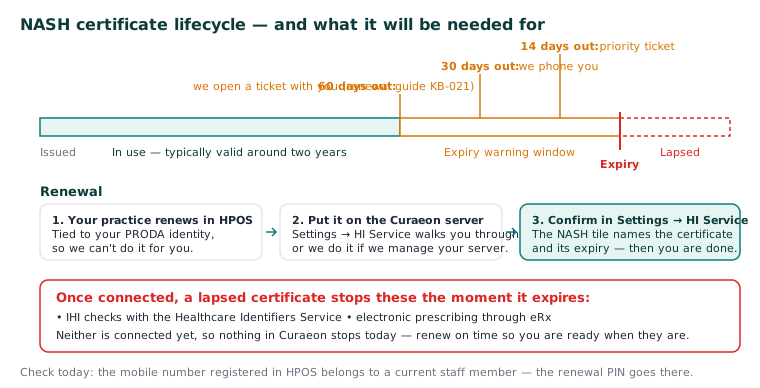
When to do this: start about 60 days before the expiry date. Settings → HI Service shows the days left on its NASH certificate tile, and the tile turns red 30 days before expiry (KB-129 — Read Settings → HI Service: the connection, the NASH certificate, and what the HI Service returned and disclosed). We do not yet send a reminder or open a ticket for you as the date approaches, so put it in the practice's own calendar. If you would like help, raise a ticket and say it is for a NASH certificate renewal.
Before you start
- You'll need access to HPOS (Health Professional Online Services) via your PRODA account — typically the practice manager or practice principal holds this.
- Allow 20–30 minutes. Renewal is free.
- Why it matters: the Healthcare Identifiers Service and eRx Script Exchange sign in with this certificate, and a lapsed one stops them the moment it expires, with no grace period. Neither is connected at Curaeon practices yet, so today nothing in Curaeon stops if the certificate lapses; consulting and printed prescriptions do not depend on it. Renew on time anyway, so it is valid on the day those connections are switched on. (Background: KB-020 — NASH certificates — why they matter and how renewal works; the screen that shows the certificate: KB-129 — Read Settings → HI Service: the connection, the NASH certificate, and what the HI Service returned and disclosed.)
Steps
- Sign in to PRODA and open HPOS.
- Go to My programs → Healthcare Identifiers and PKI, then your organisation's record. (HPOS menus change from time to time; if yours reads differently, look for the Healthcare Identifiers tile.)
- Select Certificates, then Request a NASH PKI site certificate (this both renews and issues).
- Confirm your organisation details and the mobile number for the download PIN — the PIN goes to this number, so make sure it's someone on site today.
- Submit. The new certificate is usually ready within minutes; you'll get an SMS when it's available to download.
- Download the certificate file from HPOS on the computer you'll do the next step from, and note the PIN from the SMS.
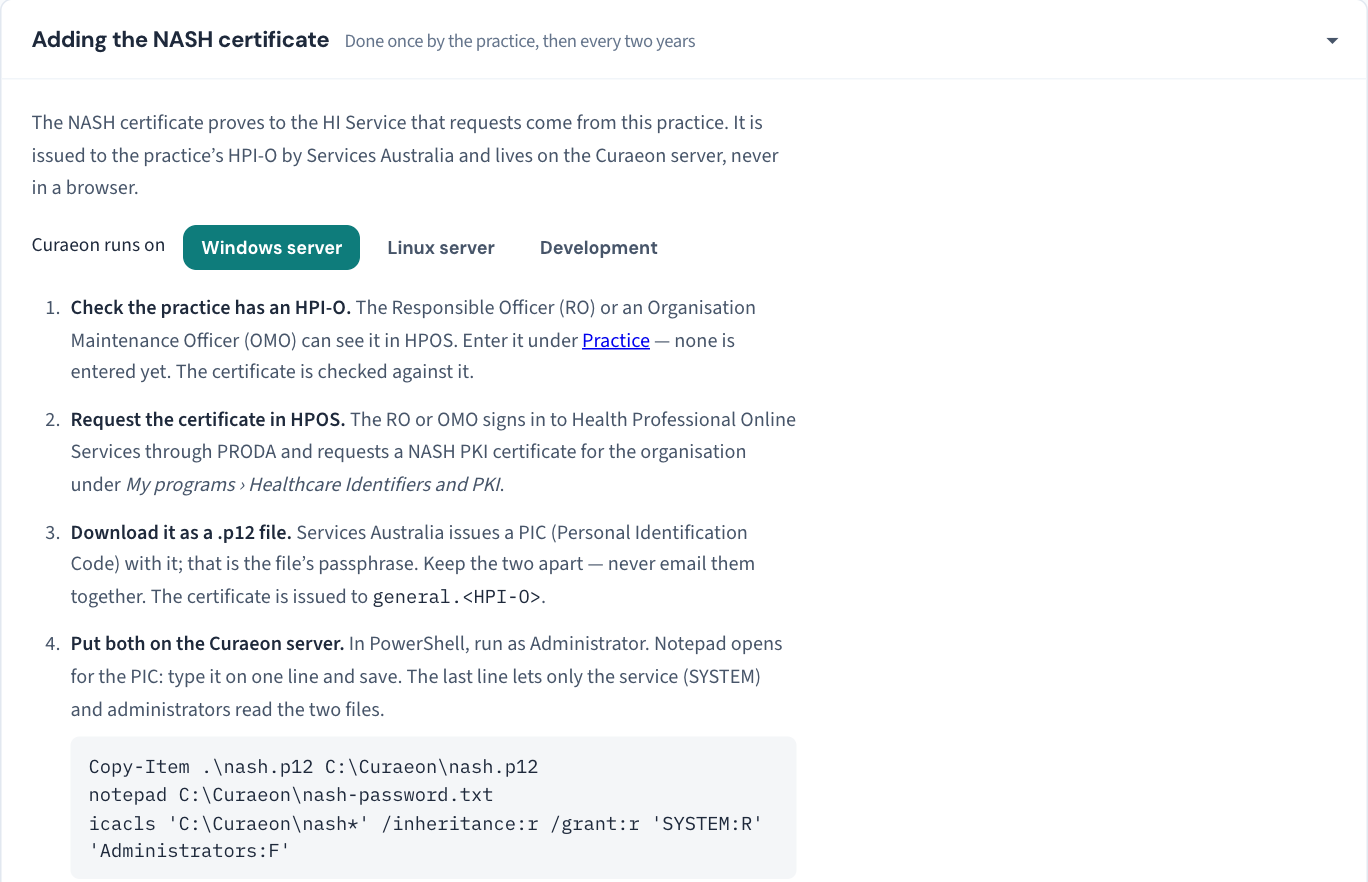
- Install onto the Curaeon server: the certificate lives on the practice server, never in a browser. Settings → HI Service → Adding the NASH certificate walks whoever looks after your server through it — copy the
.p12file and the PIC into place and restrict who can read them. If Curaeon manages your server, raise a ticket saying it is for a NASH certificate renewal, and we do this step; never email the certificate and its PIC together. - Back in Settings → HI Service, the NASH tile should now name the certificate and its expiry. Confirm that before you consider this done.
If that didn't work
The two common snags: the PRODA account lacks the HPOS delegation for certificates (fix: your practice principal grants it in PRODA), and the SMS PIN going to a former staff member's number (fix: update the mobile in HPOS before requesting).
Still stuck? Raise a ticket at support.curaeon.com.au or call 1300 XXX XXX, option 2. An expired certificate does not stop consulting or printed prescriptions, so it is not a clinic-down emergency; renew it and tell us on the ticket.
Related articles
- KB-020 — NASH certificates — why they matter and how renewal works — NASH certificates — why they matter and how renewal works
- KB-018 — eRx not reaching the pharmacy — checklist — eRx not reaching the pharmacy — checklist
- KB-129 — Read Settings → HI Service: the connection, the NASH certificate, and what the HI Service returned and disclosed — Read Settings → HI Service: the connection, the NASH certificate, and what the HI Service returned and disclosed