Read Settings → HI Service: the connection, the NASH certificate, and what the HI Service returned and disclosed
Know what every part of the HI Service screen is telling you, get the practice's NASH certificate onto the server so its expiry is watched, and know which parts wait for the connection to be switched on.
First, where things stand today
Curaeon does not yet connect to the Healthcare Identifiers (HI) Service. The screen says so itself, with a grey Not connected badge and this sentence:
Curaeon does not yet connect to the Healthcare Identifiers Service: the connection is built once Services Australia releases its interface specifications to us. IHIs entered by hand are stored as not checked until then.
This is true at every practice, whatever certificate is installed. Until it changes:
- a patient's IHI is typed by hand under their demographics and stored as not checked (KB-058 — What Curaeon connects to Services Australia today (AIR, IHI, PBS authorities, Medicare, MyMedicare), and the manual workaround for each);
- the Refresh IHIs button is not offered;
- the two tables at the foot of the screen read None recorded.
There is no date to give you. What you can do today is put the practice's NASH certificate on the server, so the screen shows who it names and counts down to its expiry. That is the one useful job here for now, and the rest of this article marks clearly what applies today and what applies once connected.
Before you start
- Who can open it. Practice administrators only (the practice.admin permission, KB-034 — Choose the right role and permissions for a new staff member).
- Where it is. Settings → HI Service, in the Operations & governance group.
- Background. What a NASH certificate is and why it matters: KB-020 — NASH certificates — why they matter and how renewal works. Renewing one in HPOS: KB-021 — NASH certificate renewal — step-by-step.
What the screen shows
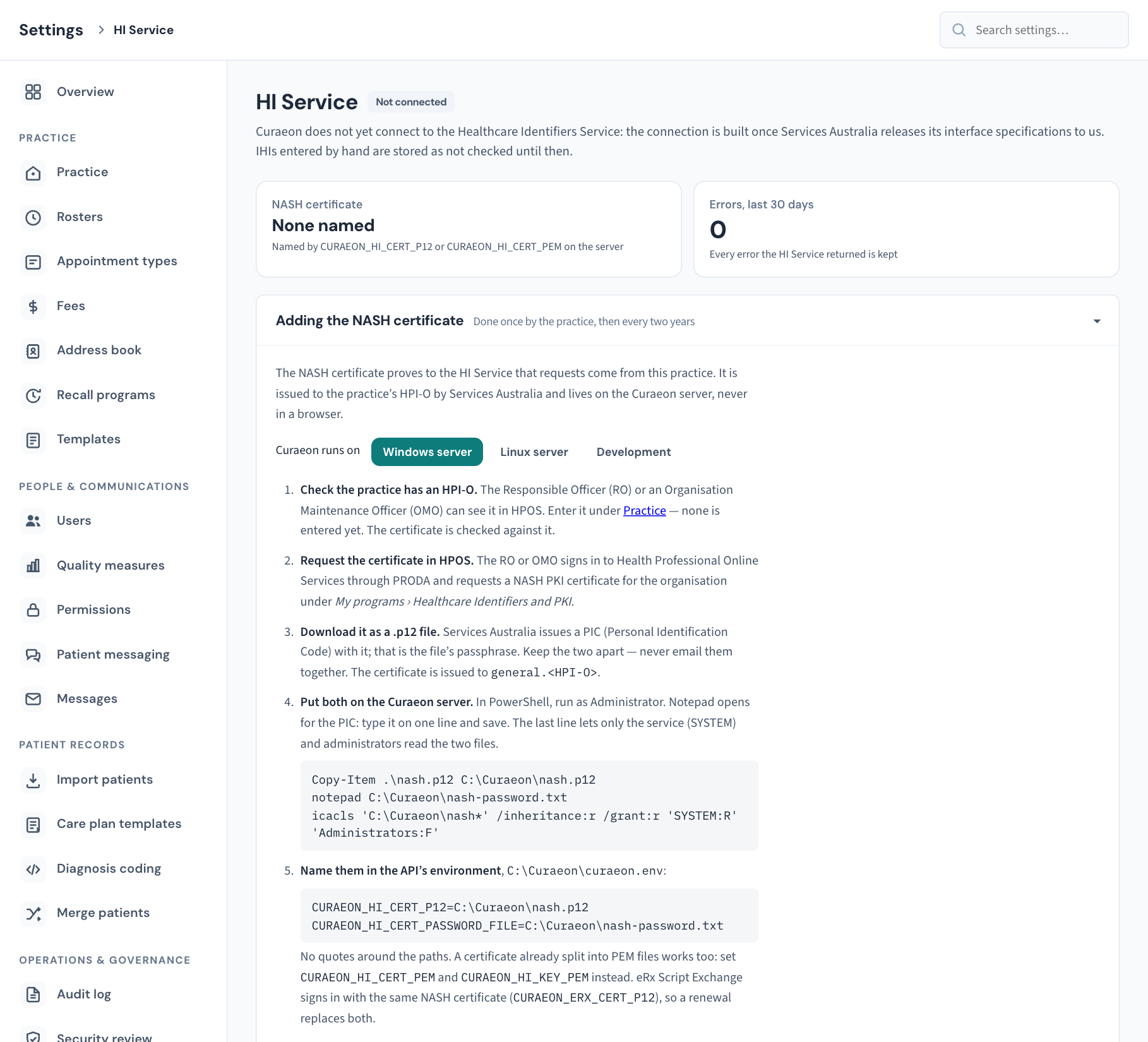
The badge beside the heading
| Badge | Meaning |
|---|---|
| Not connected (grey) | Curaeon cannot reach the HI Service. This is the state at every practice today. |
| Connected (green) | IHIs are validated with the HI Service under the practice's NASH certificate, and nothing needs attention. |
| Needs attention (amber) | Connected, but the certificate tile is red, or the HI Service has returned at least one error in the last 30 days. |
The NASH certificate tile
This tile works today, connected or not.
| The tile says | Meaning | What to do |
|---|---|---|
| None named | The server has not been told where a certificate is. | Follow Put the NASH certificate on the server, below. |
| Did not load (red) | A certificate is named but could not be read. The reason is printed under it: usually a wrong PIC, or a file the server is not allowed to read. | Fix what the reason names, then restart the API as in step 6 of the on-screen steps. |
| A number of days | The certificate loaded. This is how long until it expires; who it names is underneath. Red under 30 days. | Under 30 days, renew it (KB-021 — NASH certificate renewal — step-by-step). |
| Expired (red) | The expiry date has passed. | Renew it now (KB-021 — NASH certificate renewal — step-by-step). |
| Loaded | The certificate loaded but carries no expiry date Curaeon could read. | Raise a ticket; this is unusual. |
The tile also turns red, with Issued to … not the practice's HPI-O … underneath, when the certificate that loaded belongs to a different organisation from the HPI-O entered in Settings → Practice. A NASH certificate is issued to general.<HPI-O>, and another organisation's certificate loads without complaint, so Curaeon checks. Either the wrong file was installed, or the HPI-O in Settings → Practice is wrong (KB-116 — Set up your practice's details, opening hours and closures in Settings → Practice).
A bad or missing certificate never stops Curaeon from running.
The Errors, last 30 days tile
A count of errors the HI Service returned in the last 30 days, amber when above zero. Under it: Every error the HI Service returned is kept. Today it reads 0, because nothing is being asked.
Adding the NASH certificate
A fold-out card with six numbered steps. It is open while no working certificate is loaded, headed Adding the NASH certificate. Once one loads it folds away and is headed Renewing or replacing the NASH certificate, because you will want it again: NASH certificates last two years.
Refresh IHIs
The heading shows how many IHIs were due when this page opened, and how many of those are new records waiting for a first search. An IHI is due when the patient has one on file that has not been checked in the last day, or when the patient was registered or imported without one being searched for. Former (inactive) and merged-away records are not counted; deceased patients are, because their status is exactly what may have changed.
Today the card ends with Available once the HI Service is connected.
Errors from the HI Service
Every error the HI Service returns, most recent first, including those Curaeon dealt with by itself (marked (handled) after the code). The log is kept so that someone at the practice can review each error and act on it.
| Column | What it shows |
|---|---|
| When | Date of the error. |
| Error | The HI Service's error code. |
| Message | Its wording. |
| Patient | Open chart, when the error concerned a patient. |
| Asked by | The staff member whose action asked the HI Service. |
| Message id | The HI Service's reference for the exchange. Quote it on a ticket. |
Identifiers disclosed by the HI Service
Every identifier the HI Service has given the practice, most recent first. Every disclosure is kept.
| Column | What it shows |
|---|---|
| When | Date of the disclosure. |
| Identifier | The number, and beside it the kind of identifier: a patient's IHI, a practitioner's HPI-I or an organisation's HPI-O. |
| Patient | Open chart, when it was a patient's identifier. |
| Asked by | The staff member, and their HPI-I where they have one. |
| For HPI-O | The organisation the request was made for. |
| Service | Which HI web service answered, and its version. |
| Message id | The HI Service's reference. |
Each table shows the most recent 100 rows. Older rows are kept; the screen has no way to page back to them or export them, so raise a ticket if you need earlier ones.
Note: Neither table shows a patient's name. Each row links to the chart instead, and opening it is treated like any other chart opening: it asks for your purpose, respects a restricted record (KB-061 — Restrict a patient's record, and open one in an emergency), and is written to the patient's access history (KB-063 — Answer "who has seen my record?": print a patient access report). A list of names here would be a second way to learn who a restricted patient is.
Put the NASH certificate on the server
This is done by whoever looks after the practice server, with the practice's Responsible Officer (RO) or Organisation Maintenance Officer (OMO) for the HPOS part. If Curaeon manages your server, raise a ticket saying it is for a NASH certificate renewal, and we do the server part.
The steps on the screen are complete, with the exact commands. In outline:
- Check the practice has an HPI-O, and that it is entered in Settings → Practice. Step 1 on the screen shows the HPI-O Curaeon currently holds, or says none is entered. The certificate is checked against it.
- Request the certificate in HPOS. The RO or OMO does this through PRODA (KB-021 — NASH certificate renewal — step-by-step).
- Download it as a
.p12file. It comes with a PIC (Personal Identification Code), which is the file's passphrase. Keep the two apart and never email them together. - On the screen, under Curaeon runs on, choose Windows server or Linux server to match your server. (Development is for our engineers.) Steps 4 to 6 change to match.
- Put both on the Curaeon server using the commands in step 4 of the screen. They copy the file into place and restrict who can read it.
- Name them in the API's environment file, as step 5 of the screen shows.
- Restart the API, as step 6 of the screen shows. The certificate is read once, when the API starts. A restart takes a few seconds, and anyone saving at that moment sees one failed save they can retry, so do it between patients. There is deliberately no restart button in the browser.
- Reload Settings → HI Service. The NASH certificate tile should now show who the certificate names and the days until it expires.
Important: The certificate and its PIC are a credential. They live on the practice server, never in a browser, and never need to leave the building. Do not attach either to a ticket or an email.
The screen notes that eRx Script Exchange signs in with the same NASH certificate, so a renewal replaces both (KB-128 — Is eRx working? Read Settings → eRx Script Exchange: the outbox, the certificate and who is not yet on it).
Renew or replace the certificate
The tile turns red 30 days before expiry. Request the renewal in HPOS (KB-021 — NASH certificate renewal — step-by-step), then open Renewing or replacing the NASH certificate on this screen and repeat steps 3 to 8 above with the new file.
Once connected: refresh IHIs in batches
This does not apply today. When the badge reads Connected:
- Click Refresh a batch. Curaeon asks the HI Service for the current status of up to 50 IHIs, skipping any checked in the last day, and searches for an IHI for new and imported patients who do not have one.
- Read the result line: how many were checked, and of those how many were confirmed, not matched, unchanged, or could not be checked, plus any alerts raised.
- If it says more are due, click Refresh the next batch and repeat until it says That was the end of the register.
Changes and alerts land on each patient's chart for a clinician or the front desk to work through; the screen reports counts and names nobody. Only a signed-in person can run a batch, because the HI Service is asked in that person's name.
What is recorded
Once connected, the Audit log (KB-101 — Find who did what in the Audit log: kinds, Sign-ins, Exactly, Who and a bookmarkable view) carries a row for each identifier received (Healthcare identifier received from the HI Service), for an IHI search made with details changed for the search, and for each identifier alert raised or resolved. The two tables on this screen are the HI Service's own required trail and are kept in addition to the Audit log.
Nothing on this screen can be edited or deleted.
If that didn't work
- The tile still says None named after the restart. The environment file was not saved, was edited on a different server, or the API did not restart. Step 6 on the screen includes a command that shows the certificate line the API logged when it started; run it.
- Did not load. Read the reason under the tile. A wrong PIC and a file the server cannot read are the usual two. On Windows, check there are no quotes around the paths.
- Issued to another HPI-O. Check the HPI-O in Settings → Practice against HPOS before assuming the file is wrong.
- A red message at the top of the screen. The screen could not read the HI Service logs. Reload; if it persists, raise a ticket.
- You expected Connected. No practice is connected yet. See the top of this article and KB-058 — What Curaeon connects to Services Australia today (AIR, IHI, PBS authorities, Medicare, MyMedicare), and the manual workaround for each.
Still stuck? Raise a ticket at support.curaeon.com.au or call 1300 XXX XXX. If your clinic can't see patients right now, call and choose option 1. Support is staffed Monday to Friday, 8:00–18:00 Sydney time; outside those hours a call or text to the same number is answered on a best-effort basis.
Related articles
- KB-115 — Find your way around Settings: every section, who can open it, and where to read more — Find your way around Settings: every section, who can open it, and where to read more
- KB-020 — NASH certificates — why they matter and how renewal works — NASH certificates — why they matter and how renewal works
- KB-021 — NASH certificate renewal — step-by-step — NASH certificate renewal — step-by-step
- KB-036 — A certificate is red in Settings → Certificates: what it means and who to tell — A certificate is red in Settings → Certificates: what it means and who to tell
- KB-058 — What Curaeon connects to Services Australia today (AIR, IHI, PBS authorities, Medicare, MyMedicare), and the manual workaround for each — What Curaeon connects to Services Australia today (AIR, IHI, PBS authorities, Medicare, MyMedicare), and the manual workaround for each
- KB-116 — Set up your practice's details, opening hours and closures in Settings → Practice — Set up your practice's details, opening hours and closures in Settings → Practice
- KB-128 — Is eRx working? Read Settings → eRx Script Exchange: the outbox, the certificate and who is not yet on it — Is eRx working? Read Settings → eRx Script Exchange: the outbox, the certificate and who is not yet on it