Change how long Curaeon waits before signing you out, and end a session left open
Set the practice's idle sign-out to suit the way you work, know what Curaeon saves when it signs someone out, and close a session on a computer that was left unlocked.
What happens when you are signed out
After 15 minutes without a key pressed, a click, a scroll or the pointer moving, Curaeon signs you out. You are warned a minute before — choose Stay signed in to carry on.
Fifteen seconds before the end, Curaeon saves what it can:
- a letter you were writing becomes a draft in the patient's documents;
- an unsigned note is saved;
- a scribe recording is stopped and written up from what it heard.
When you sign in again you return to the page you were on, and the sign-in screen lists what was saved on the way out. Someone else signing in at the same computer starts on their own home page instead.
For scribe users: a recording does not keep you signed in. The scribe cannot tell you are still in the room, and a recording left running would otherwise keep the patient's record open on the screen. Answer the warning when it appears.
Change the sign-out time
The practice can choose anything between 5 minutes and 2 hours. This is a practice-administrator setting.
- Open Utilities → Active sessions.
- At the top, change Sign-out after inactivity — in minutes, between 5 and 120.
- Save. The change applies at once to everyone signed in.
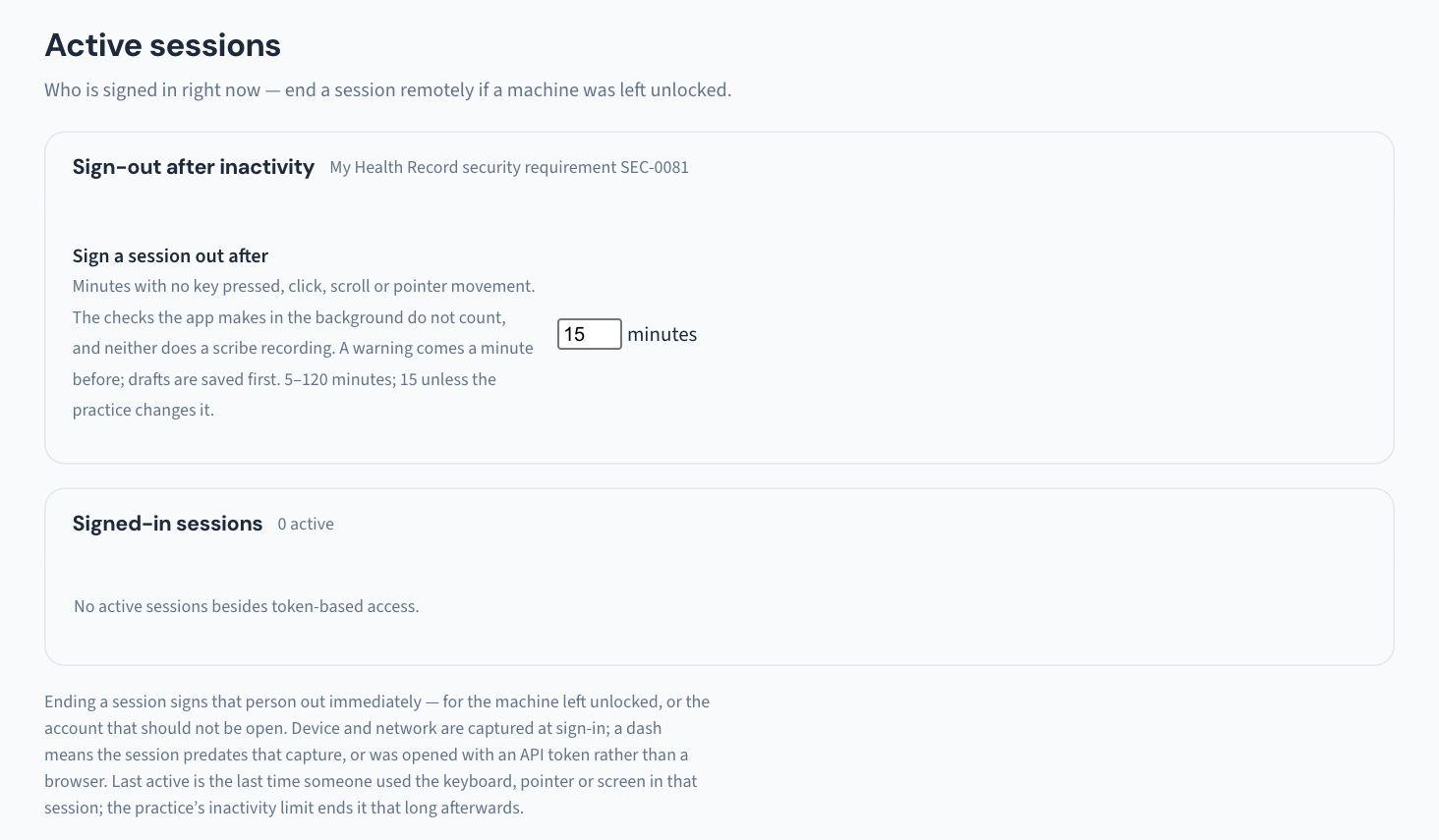
The change is recorded in the Audit log with the old and new values, and the weekly Security review lists it as a change worth a second look — so tell your colleagues, and note why. Each session the limit ends is recorded as Signed out after inactivity. A longer limit is a decision about who can walk past an unlocked screen, not just a convenience.
End a session on a computer left unlocked
- Open Utilities → Active sessions. It lists who is signed in, on which device and from which address (captured at sign-in), and when each session was last in use.
- Find the session — by the person's name or the computer — and end it.
- Ending a session is recorded in the Audit log, with whose session it was.
This is the right move when a colleague has gone home with Curaeon open, or when a password may have been used by someone else (KB-032 — Reset a colleague's password or 2FA, or recover when the only administrator is locked out). Whoever was signed in simply signs in again.
If the main app will not load
The same Active sessions page exists outside the main app, served by the practice server itself at http://<practice-server>:8080/admin, with the same sign-in and the same practice-administrator permission. Bookmark it before you need it (KB-068 — Use the standalone admin console when the main app won't load).
If that didn't work
"Signed out unexpectedly" well inside the limit means the session expired for another reason. Sign in again; if it happens repeatedly within a day, report it with the times and the computer.
Still stuck? Raise a ticket at support.curaeon.com.au or call 1300 XXX XXX. If your clinic can't see patients right now, call and choose option 1. Support is staffed Monday to Friday, 8:00–18:00 Sydney time; outside those hours a call or text to the same number is answered on a best-effort basis.
Related articles
- KB-031 — Set up two-factor sign-in for Curaeon, and fix a code that is rejected, already used or timed out — Set up two-factor sign-in for Curaeon, and fix a code that is rejected, already used or timed out
- KB-032 — Reset a colleague's password or 2FA, or recover when the only administrator is locked out — Reset a colleague's password or 2FA, or recover when the only administrator is locked out
- KB-068 — Use the standalone admin console when the main app won't load — Use the standalone admin console when the main app won't load