Use the standalone admin console when the main app won't load
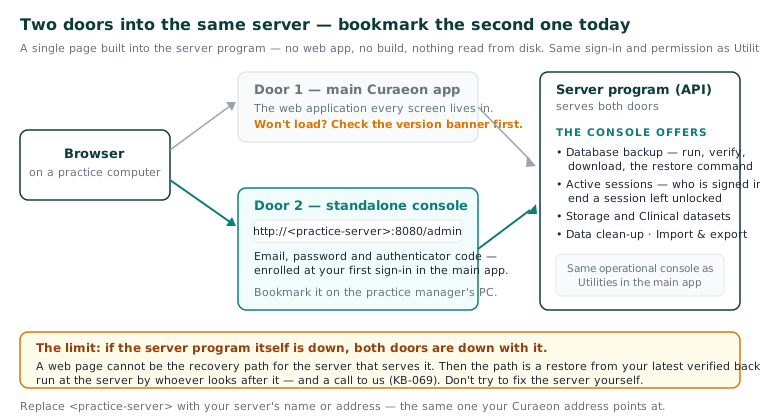
When the main Curaeon screens won't open, you can still reach backups, sessions and storage through a second door built into the server itself — as long as you know the address before you need it.
Before you start
- You need to be a practice administrator. The standalone console uses the same permission as the operational console under Utilities.
- Finish your first sign-in in the main app first. Two-factor enrolment happens there; the standalone console only accepts a password and authenticator code that already exist.
- Do this today, not on the bad day: bookmark the address on the practice manager's computer.
Steps
- In a browser on a practice computer, open:
http://<practice-server>:8080/admin
Replace <practice-server> with your server's name or address — the same one your Curaeon address points at. Your installer or whoever runs the server can tell you.
2. Sign in with your usual email address, password and the six-digit code from your authenticator app.
3. You'll see the same operational console as Utilities in the main app:
- Database backup — run a backup now, verify one, download an off-box copy, and read the printed restore command (KB-067 — Set up nightly backups, a second copy and a monthly restore drill).
- Active sessions — who is signed in, from which device and address, and end a session for a machine left unlocked. Ending a session is recorded in the Audit log.
- Storage and Clinical datasets — database and backup sizes, and which reference data is loaded.
- Data clean-up and Import & export.
Why this works when the app doesn't
The console is a single page built into the server program — no web app, no build, nothing read from disk. So it keeps working when the main app is broken, which is exactly when backups and sessions matter most.
That also tells you its limit. If the server program itself is down, the standalone console is down with it — a web page cannot be the recovery path for the server that serves it. In that case the recovery path is the printed make restore command from your latest verified backup, run at the server by whoever looks after it, and that's a call to us: see KB-069 — Request a restore from backup.
Two things to try before assuming the app is broken
- The version banner. If the web application and the server are running different builds, a banner says so at the top of every screen. That mismatch explains most "the screen has gone blank" reports, and the fix is a server restart rather than a support call.
- A different computer. If one workstation can't reach Curaeon but the next one can, the problem is the workstation or its trust of the practice certificate (KB-035 — Make a new PC, Mac or locum laptop trust Curaeon ("Your connection is not private")), not the server.
If that didn't work
If the standalone console won't open either, the server program is probably not running. Don't try to fix the server yourself.
Still stuck? Raise a ticket at support.curaeon.com.au or call 1300 XXX XXX. If your clinic can't see patients right now, call and choose option 1. Support is staffed Monday to Friday, 8:00–18:00 Sydney time; outside those hours a call or text to the same number is answered on a best-effort basis.
Related articles
- KB-067 — Set up nightly backups, a second copy and a monthly restore drill — Set up nightly backups, a second copy and a monthly restore drill
- KB-069 — Request a restore from backup — Request a restore from backup
- KB-006 — How to report a clinic-down emergency (and what happens next) — How to report a clinic-down emergency (and what happens next)
- KB-133 — Find your way around Utilities: every section, what it is for and who can open it — Find your way around Utilities: every section, what it is for and who can open it