Reset a colleague's password or 2FA, or recover when the only administrator is locked out
Get a locked-out colleague back into Curaeon from Users in a minute — and if the person locked out is your only administrator, know the one server command that recovers them.
Resets in Curaeon are done inside the practice, by your own administrator. Curaeon Support cannot reset a Curaeon user remotely: the server and its accounts live on your network, not in a cloud service.
Before you start
You need the Admin role (KB-034 — Choose the right role and permissions for a new staff member). Be sure you are talking to the colleague and not to someone asking on their behalf — a reset is exactly what an attacker would ask for. Use your practice's usual identity check.
Reset a colleague's password or two-factor sign-in
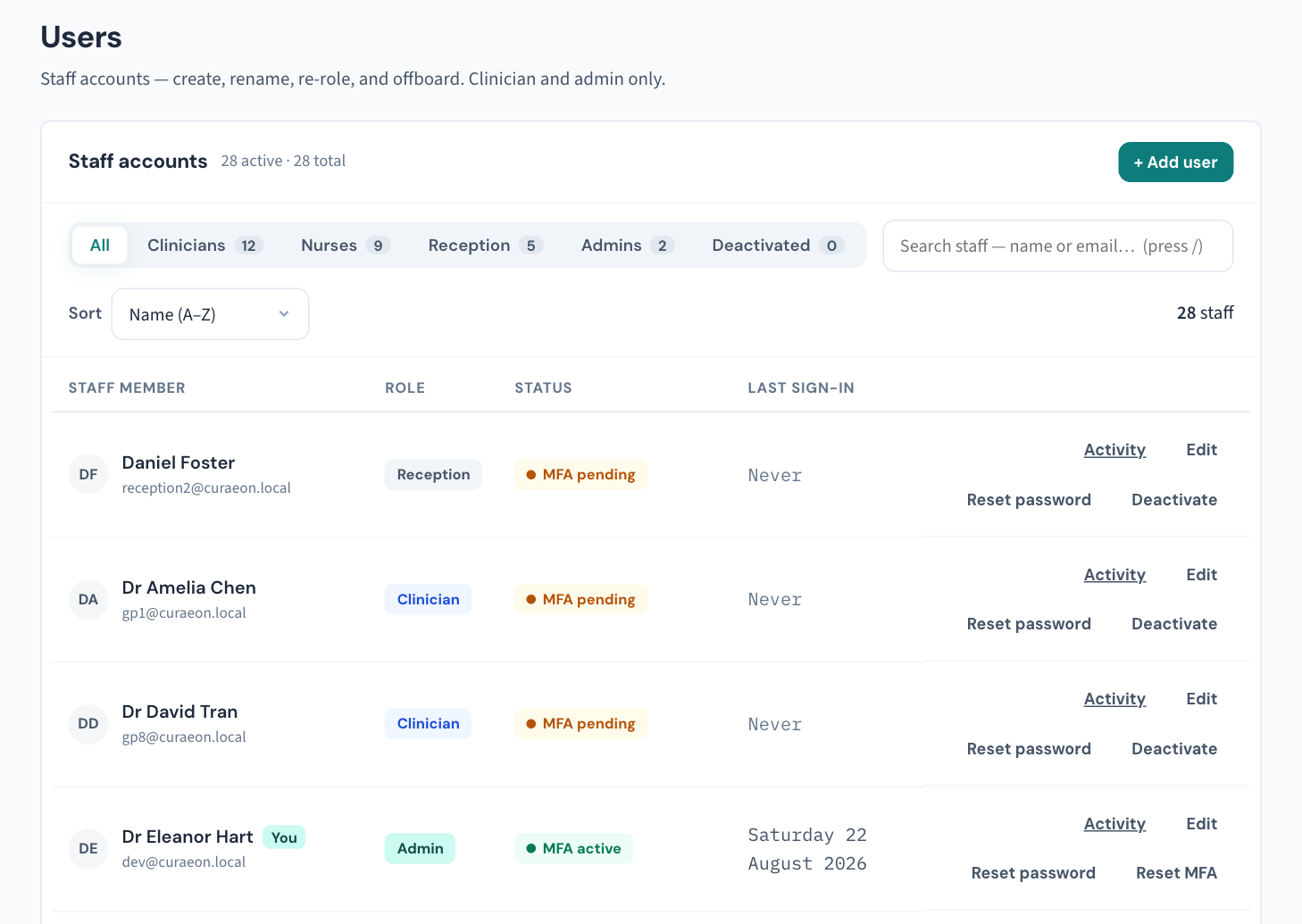
- Open Settings → Users and find the staff member.
- Reset their password, or their two-step sign-in, depending on what they have lost.
- Tell them to sign in again. After a two-step reset, their next sign-in walks them through enrolment again — QR code, ten new recovery codes, first code — as on their first day (KB-031 — Set up two-factor sign-in for Curaeon, and fix a code that is rejected, already used or timed out).
- If someone else may have had their password, also open Utilities → Active sessions and end any session that is not theirs (KB-033 — Change how long Curaeon waits before signing you out, and end a session left open).
Worth a glance first: the Audit log's Sign-ins tab records every refused password and code with its reason, and a Password accepted, second step pending row with no Signed in after it means a password was used without the phone. Know that before you hand over a fresh one.
When the only administrator is locked out
If your practice has one administrator and they cannot get in, nobody in the software can reset them. Whoever looks after your server resets them at the server's own command line:
curaeon-api recover-admin admin@practice.example
Replace the address with the administrator's sign-in email. The command prints a temporary password, to be changed at the next sign-in, and two-factor is set up fresh at that sign-in too.
The reset is not invisible: the Audit log records it, with the server it was run on and the operating-system user who ran it. A recovery path that left no trace would be a back door.
Good to know
- A recovery code signs you in once; it does not re-enrol two-factor. When the ten are used up or lost, the answer is a two-step reset as above.
- Failed sign-ins and lockouts by account appear in the weekly Security review, and a burst of lockouts raises an alert at once. One colleague locking themselves out on a Monday is not an incident; a burst you cannot explain is worth a ticket.
- Consider a second administrator, so the server command stays the last resort.
If that didn't work
If the reset from Users does not let the colleague in, note the exact wording on their sign-in screen and the time, and check the Sign-ins tab for the reason it gives. If the server command is refused or prints an error, whoever ran it should keep the output.
Still stuck? Raise a ticket at support.curaeon.com.au or call 1300 XXX XXX. If your clinic can't see patients right now, call and choose option 1. Support is staffed Monday to Friday, 8:00–18:00 Sydney time; outside those hours a call or text to the same number is answered on a best-effort basis.
Related articles
- KB-031 — Set up two-factor sign-in for Curaeon, and fix a code that is rejected, already used or timed out — Set up two-factor sign-in for Curaeon, and fix a code that is rejected, already used or timed out
- KB-033 — Change how long Curaeon waits before signing you out, and end a session left open — Change how long Curaeon waits before signing you out, and end a session left open
- KB-034 — Choose the right role and permissions for a new staff member — Choose the right role and permissions for a new staff member
- KB-086 — Signing-in FAQ — Signing-in FAQ
- KB-120 — Manage staff accounts in Settings → Users: add, change a role, seats, provider numbers, deactivate — Manage staff accounts in Settings → Users: add, change a role, seats, provider numbers, deactivate