Set up two-factor sign-in for Curaeon, and fix a code that is rejected, already used or timed out
Enrol your authenticator app the first time you sign in to Curaeon, keep your recovery codes safe, and know what each sign-in message means when a code does not go through.
This article is about signing in to Curaeon itself, on your practice's own server. For the support portal, see KB-002 — Reset your password or MFA for the support portal.
Before you start
You need the practice's Curaeon address (your installer provides it), your email address and password, and an authenticator app on your phone — Google Authenticator, Microsoft Authenticator, 1Password and the like all work. Allow five minutes: the setup screen times out after that.
Enrol at your first sign-in
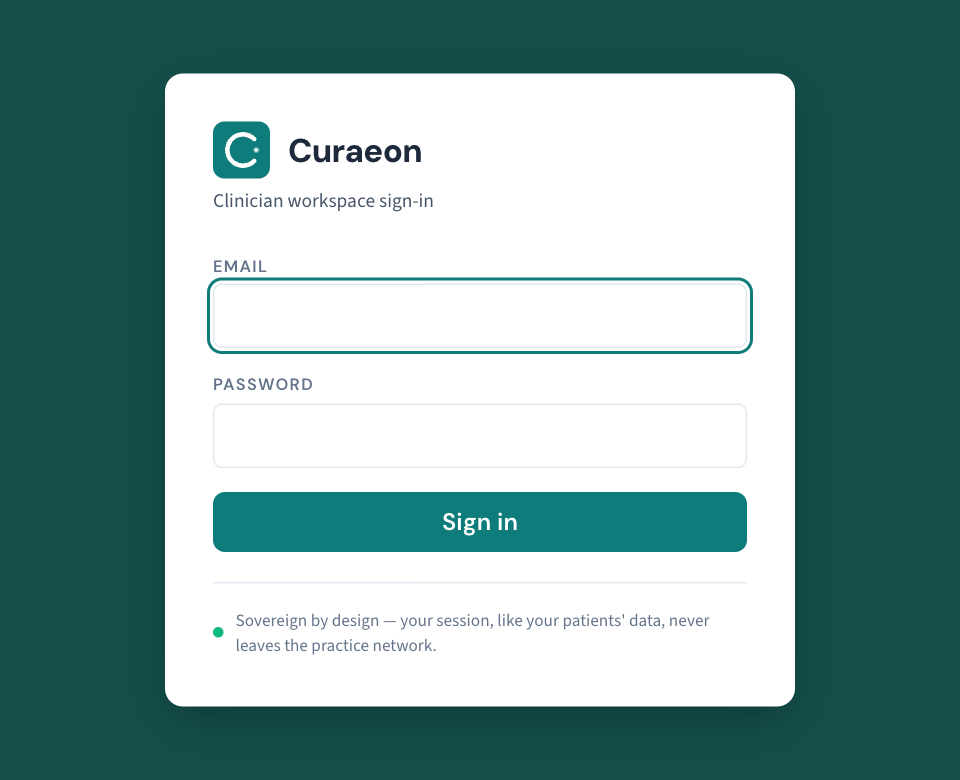
- Open the practice's Curaeon address in a browser and sign in with your email address and password.
- A QR code appears. Scan it with your authenticator app.
- If the camera will not read it, choose the app's option to enter a setup key and type the key shown under the QR code.
- Write down or print the ten recovery codes. Each signs you in once if your phone is not to hand. Keep them where you keep other work passwords — not on the monitor.
- Enter the six-digit code the app shows. You are in.
From now on you need a code at every sign-in, and each code works once. If your phone is unavailable, choose Use a recovery code instead and type one of your ten. Every sign-in is recorded with the browser and device it came from.
When a code does not work
| What you see | What it means | What to do |
|---|---|---|
| Code rejected at sign-in | Your phone's clock has drifted, or you scanned the QR code into the wrong account in the app | Check the phone's date and time are set automatically, then try the next code. If it still fails, ask an administrator to reset your enrolment (KB-032 — Reset a colleague's password or 2FA, or recover when the only administrator is locked out). |
| "That code has already been used" | You signed in with this code moments ago — perhaps on another computer. Each code works once | Wait for the app to show the next code (at most 30 seconds) and enter that. |
| "Setup timed out before it was confirmed" | More than five minutes passed on the QR-code screen | Sign in again for a fresh QR code. First delete the Curaeon entry you already added in the app — it will never show a working code, and two entries side by side is how people read the wrong one. |
Good to know
- Being signed out after a quiet spell (15 minutes unless your practice changed it) is not a two-factor problem — see KB-033 — Change how long Curaeon waits before signing you out, and end a session left open.
- The manual does not say how many wrong codes lock an account, only that a locked account is refused and recorded. An administrator resets it from Users.
If that didn't work
Clock right, code fresh, still rejected? An administrator resets your enrolment and you enrol again as above.
Still stuck? Raise a ticket at support.curaeon.com.au or call 1300 XXX XXX. If your clinic can't see patients right now, call and choose option 1. Support is staffed Monday to Friday, 8:00–18:00 Sydney time; outside those hours a call or text to the same number is answered on a best-effort basis.
Related articles
- KB-032 — Reset a colleague's password or 2FA, or recover when the only administrator is locked out — Reset a colleague's password or 2FA, or recover when the only administrator is locked out
- KB-033 — Change how long Curaeon waits before signing you out, and end a session left open — Change how long Curaeon waits before signing you out, and end a session left open
- KB-002 — Reset your password or MFA for the support portal — Reset your password or MFA for the support portal
- KB-086 — Signing-in FAQ — Signing-in FAQ