Make a new PC, Mac or locum laptop trust Curaeon ("Your connection is not private")
Install the practice's own root certificate on a new computer once, so the browser stops warning and the AI scribe can use the microphone.
Why the warning appears
Curaeon is opened at an https:// address inside the practice, with a certificate from the practice's own certificate authority rather than a public one — so nothing about the practice is published on the internet. Each computer has to trust that authority once. Until it does, the browser warns that the connection is not private, and the AI scribe cannot use the microphone: browsers only allow it on a page they trust.
Never click past the warning instead. It is the only sign that a computer is talking to something other than the practice's server. Fixing the trust takes minutes; teaching staff to ignore that warning is a habit you cannot take back.
Before you start
This is done by whoever looks after the practice's computers, for every new PC and for a locum's laptop. You need administrator rights on the computer, two files — the certificate curaeon-practice-root.crt and the install script for the computer's platform: install-practice-root.ps1 for Windows, install-practice-root-macos.sh for a Mac — and the fingerprint the server printed when the certificate was made. On a Windows server the certificate and the Windows script are in its C:\Curaeon folder; the manual does not say where the Mac script is kept, so ask whoever runs the server for it with the fingerprint. The scripts refuse a file that does not match the fingerprint; that is the protection against a lookalike.
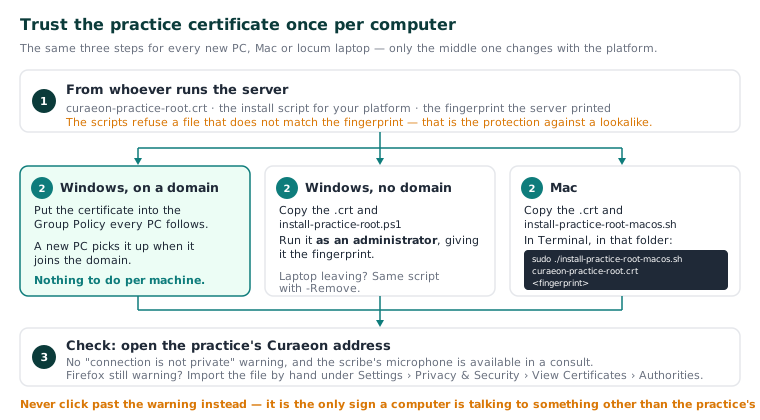
Windows, on a domain
- Put the root certificate into the Group Policy every PC already follows.
- A new PC picks it up when it joins the domain — nothing to do per machine.
Windows, no domain
- Copy
curaeon-practice-root.crtandinstall-practice-root.ps1from the server'sC:\Curaeonfolder to the PC. - Run the script as an administrator, giving it the fingerprint the server printed.
- When a laptop leaves the practice, run the same script with
-Removeto take the certificate off again.
Mac
- Copy
curaeon-practice-root.crtandinstall-practice-root-macos.shto the Mac — a USB stick is fine; the fingerprint check is what makes it safe. - Open Terminal, change into the folder you copied them to, and run the script with
sudo(it asks for the Mac's administrator password), giving it the certificate file and the fingerprint:
sudo ./install-practice-root-macos.sh curaeon-practice-root.crt <fingerprint>
Replace <fingerprint> with the one the server printed. There is no C:\ path on a Mac; the two files simply sit in whatever folder you copied them to. The manual does not describe removing the certificate from a Mac when a laptop leaves — ask on a ticket if you need that.
Firefox
Firefox keeps its own certificate list. Both scripts tell Firefox to trust the computer's own store; if it still warns, import the file by hand under Settings › Privacy & Security › View Certificates › Authorities.
Check it worked
Open the practice's Curaeon address: no warning, and the scribe's microphone is available in a consult. The full procedure is in INSTALL-WINDOWS.md under "HTTPS in the practice", and Curaeon's Settings → Certificates page repeats it.
If every computer warns at once
That is the server's certificate, not a new-computer problem. An administrator opens Settings › Certificates and tells whoever runs the server — see KB-036 — A certificate is red in Settings → Certificates: what it means and who to tell.
If that didn't work
Note the browser's exact wording, the browser and version, and whether the computer is on the domain. If the script refused the file, the fingerprint you were given does not match the certificate on the server — get it again from whoever looks after the server rather than forcing it.
Still stuck? Raise a ticket at support.curaeon.com.au or call 1300 XXX XXX. If your clinic can't see patients right now, call and choose option 1. Support is staffed Monday to Friday, 8:00–18:00 Sydney time; outside those hours a call or text to the same number is answered on a best-effort basis.
Related articles
- KB-036 — A certificate is red in Settings → Certificates: what it means and who to tell — A certificate is red in Settings → Certificates: what it means and who to tell
- KB-054 — Scribe option missing, "appliance is busy", or the draft never arrives — Scribe option missing, "appliance is busy", or the draft never arrives
- KB-014 — AI scribe — getting the best transcription quality — AI scribe — getting the best transcription quality