A certificate is red in Settings → Certificates: what it means and who to tell
A red tile means automatic renewal has stopped working and there are fewer than 30 days to act — here is what each certificate does, what stops when it expires, and who needs to know today.
What the page shows
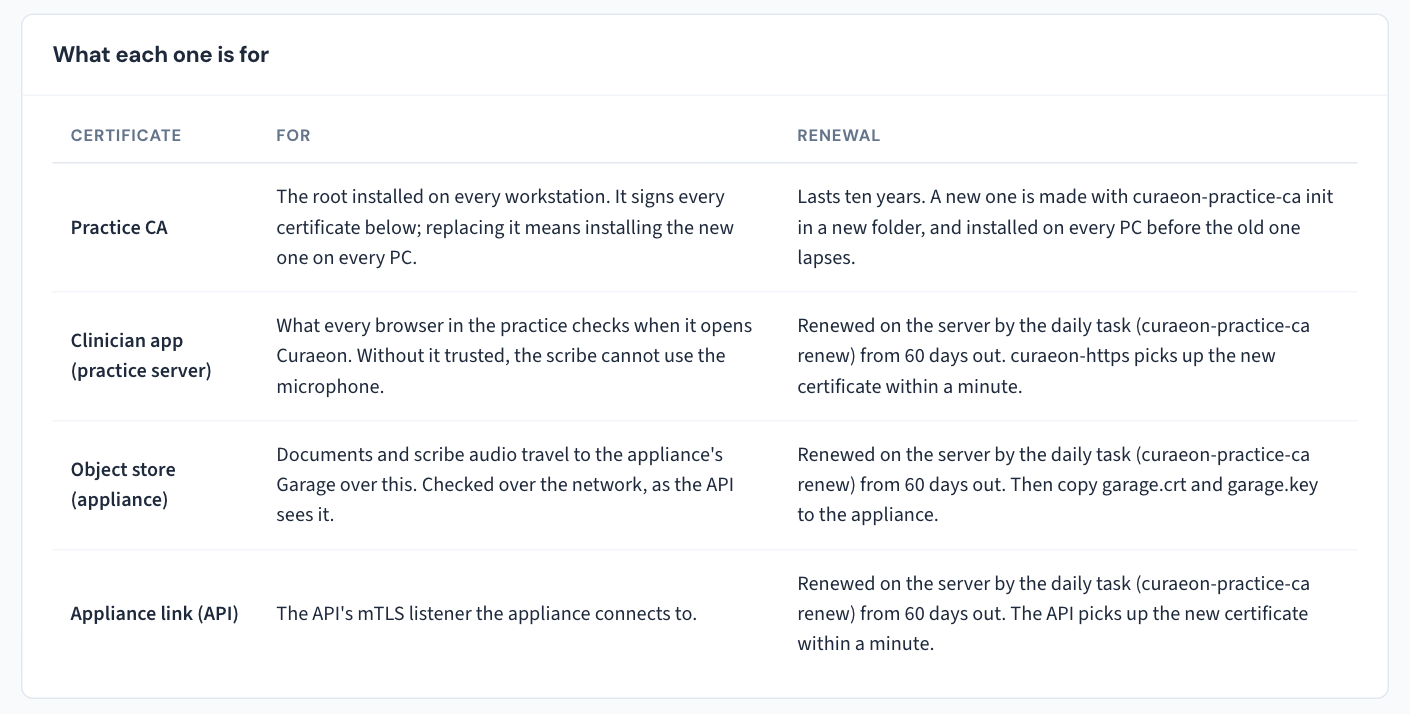
Settings → Certificates lists the certificates that make HTTPS work inside the practice, each with the days it has left:
- the practice's own certificate authority (the one every computer was made to trust — KB-035 — Make a new PC, Mac or locum laptop trust Curaeon ("Your connection is not private"));
- the certificate the server presents to every browser;
- the object store's certificate;
- the appliance link's certificate, between the scribe appliance and the server.
Renewal is automatic: a daily task on the server renews each certificate from 60 days out. A tile turning red 30 days before expiry therefore means something specific — the renewal task has not done its job for a month.
What to do
- Tell whoever runs your server, today. They look at why the daily renewal is not renewing. Nothing on the Certificates page itself renews anything.
- Note which tile is red and how many days it shows — the first thing they, or we, will ask.
- If they cannot see why, raise a ticket under Networking / on-site with those details. Say if more than one tile is red, or the certificate authority itself is.
What stops if a certificate expires
| Certificate | If it expires |
|---|---|
| Server (browsers) | Every computer warns "your connection is not private" at once, and the scribe's microphone is blocked on all of them. Do not click past it (KB-035 — Make a new PC, Mac or locum laptop trust Curaeon ("Your connection is not private")). |
| Appliance link | The scribe stops. The consult does not — notes are typed as in any other system and signed off the same way. |
| Object store | Not spelled out in the manual. Treat it as the same priority as the appliance link and say so on the ticket. |
The appliance's own view: Link security
Settings → AI Appliance → Link security shows the appliance-link certificate from the other side: whether the secured connection is on, each certificate's days left (red under 30 days; an expired one stops the scribe), and each appliance's own certificate.
The Revoke… button there is not a renewal tool. It stops an appliance's certificate for good — for when a box is replaced, or a box, disk or key has gone missing — with a reason recorded in the Audit log. Afterwards the appliance works again only with a new certificate from the practice's certificate authority. If you are looking at a red tile, leave Revoke alone; KB-057 — Check appliance health and link security in Settings → AI Appliance, and revoke a certificate covers when it is the right button.
If that didn't work
If the days keep falling after whoever runs your server has looked, or a certificate has already expired, raise a ticket with the tile name, days left and what was tried. If the scribe has stopped, staff keep consulting by hand — a fault to report, not an emergency unless you decide it is one.
Still stuck? Raise a ticket at support.curaeon.com.au or call 1300 XXX XXX. If your clinic can't see patients right now, call and choose option 1. Support is staffed Monday to Friday, 8:00–18:00 Sydney time; outside those hours a call or text to the same number is answered on a best-effort basis.
Related articles
- KB-035 — Make a new PC, Mac or locum laptop trust Curaeon ("Your connection is not private") — Make a new PC, Mac or locum laptop trust Curaeon ("Your connection is not private")
- KB-057 — Check appliance health and link security in Settings → AI Appliance, and revoke a certificate — Check appliance health and link security in Settings → AI Appliance, and revoke a certificate
- KB-054 — Scribe option missing, "appliance is busy", or the draft never arrives — Scribe option missing, "appliance is busy", or the draft never arrives