Check appliance health and link security in Settings → AI Appliance, and revoke a certificate
Read the appliance's own health page, see how the scanning tray is keeping up, check the certificates that secure the link — and know when, and how, to revoke one.
Before you start
Settings → AI Appliance is an administrator's page. Your server and appliance run in your own practice, so for them this page and the version banner at the top of every screen are the status page. Curaeon's public status page at status.curaeon.com.au covers the services we run and national services such as Medicare and eRx, not your practice's own equipment (KB-009 — Subscribe to status updates for your clinic).
Check health
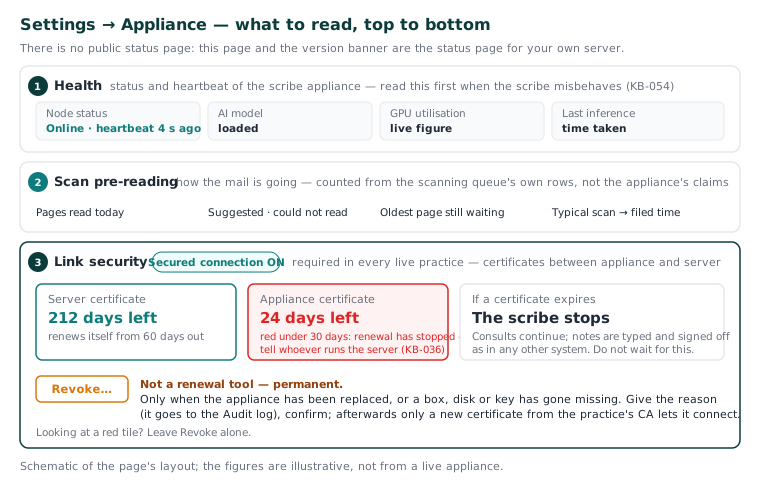
- Open Settings → AI Appliance. The top of the page shows the scribe appliance's status and health.
- If the scribe is misbehaving, read this before anything else — the symptoms and their meanings are in KB-054 — Scribe option missing, "appliance is busy", or the draft never arrives.
Check the scanning tray
Because the appliance also pre-reads the scanning tray (KB-047 — Scan and file paper letters, including the appliance's pre-filled suggestions), the same page shows how the mail is going:
- pages read today;
- what it suggested, and what it could not read;
- the oldest page still waiting;
- the typical time from scan to filed.
The counts come from the queue's own rows, not from the appliance's claims.
Check link security
Link security shows the certificates between the appliance and the server. A secured connection is required in every live practice.
- Confirm the secured connection is on.
- Read each certificate's days left. A tile turns red under 30 days. An expired certificate stops the scribe.
- Note each appliance's own certificate — the one that lets the server tell the appliance apart from a person. That matters for restricted records: the appliance reads a restricted record's consult only when it connects with its certificate (KB-061 — Restrict a patient's record, and open one in an emergency).
Certificate renewal on the server is automatic — a daily task, from 60 days out — so red means renewal has stopped working and the person who runs your server needs to know (KB-036 — A certificate is red in Settings → Certificates: what it means and who to tell). Do not wait for it to expire.
Revoke a certificate
Revoke… stops an appliance's certificate for good. Use it when:
- the appliance has been replaced;
-
a box, disk or key has gone missing.
-
On Link security, choose Revoke… beside the appliance's certificate.
- Give the reason. It is recorded in the Audit log.
- Confirm.
After revocation the appliance works again only with a new certificate from the practice's CA. Revocation is not a restart or a reset: it is a permanent statement that this certificate is no longer trusted. Issuing a new one is part of the appliance's install procedure — raise a ticket if you need it. If a device has gone missing, revoke first and ask questions afterwards — the certificate is what would let it connect.
If that didn't work
A tile that stays red after the server's renewal has been looked at, or an appliance that will not reconnect after a new certificate is issued, is a ticket for our technical team — say what the page shows, and tick diagnostics consent so we can read the appliance's logs (they contain no patient information).
Still stuck? Raise a ticket at support.curaeon.com.au — choose Appliance issue — or call 1300 XXX XXX. If your clinic can't see patients right now, call and choose option 1. Support is staffed Monday to Friday, 8:00–18:00 Sydney time; outside those hours a call or text to the same number is answered on a best-effort basis.
Related articles
- KB-036 — A certificate is red in Settings → Certificates: what it means and who to tell — A certificate is red in Settings → Certificates: what it means and who to tell
- KB-054 — Scribe option missing, "appliance is busy", or the draft never arrives — Scribe option missing, "appliance is busy", or the draft never arrives
- KB-011 — Appliance appears offline — five checks before you call — Appliance appears offline — five checks before you call