Signing-in FAQ
The questions staff ask about getting into Curaeon and staying in, answered in place — most of them without a call to anyone.
This is about signing in to Curaeon itself, on your practice's server. The support portal has its own login (KB-001 — Getting started with the Curaeon support portal, KB-002 — Reset your password or MFA for the support portal).
What do I need the first time I sign in?
The practice's Curaeon address (your installer provides it), your email address and password, and an authenticator app on your phone. Your first sign-in enrols two-factor: scan the QR code, write down or print the ten recovery codes, and enter the six-digit code the app shows. Finish within five minutes. Full steps in KB-031 — Set up two-factor sign-in for Curaeon, and fix a code that is rejected, already used or timed out.
Why was my code rejected?
Either your phone's clock has drifted or you scanned the QR code into the wrong account in the app. Check the phone's date and time are set automatically and try the next code. If it still fails, an administrator can reset your enrolment from Users (KB-032 — Reset a colleague's password or 2FA, or recover when the only administrator is locked out).
It says "That code has already been used"
You signed in with that code moments ago, perhaps on another computer. Each code works once. Wait for the app to show the next one — at most 30 seconds — and enter that.
It says "Setup timed out before it was confirmed"
More than five minutes passed on the QR-code screen. Sign in again for a new QR code. First delete the Curaeon entry you already added in the authenticator app; it will never show a working code.
I don't have my phone with me
Choose Use a recovery code instead and type one of your ten. Each recovery code signs you in once. If the codes are used up or lost, an administrator resets your two-step sign-in from Users and you enrol again at your next sign-in (KB-032 — Reset a colleague's password or 2FA, or recover when the only administrator is locked out).
I've forgotten my password or I'm locked out
An administrator at your practice resets your password or two-step sign-in from Users. Curaeon Support cannot do this remotely: your accounts live on your own server. If the person locked out is the practice's only administrator, whoever runs the server recovers them with a command at the server; the Audit log records the reset (KB-032 — Reset a colleague's password or 2FA, or recover when the only administrator is locked out).
Why was I signed out after 15 minutes?
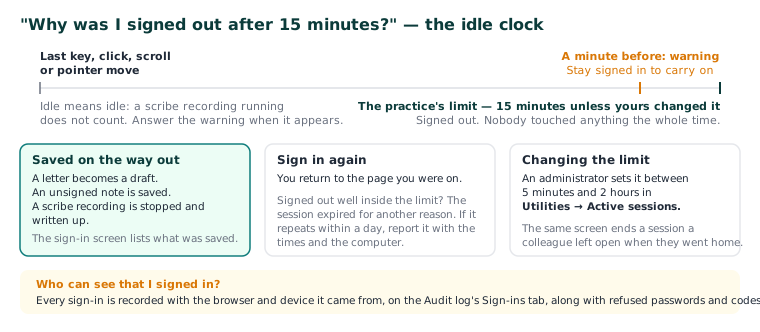
Nobody pressed a key, clicked, scrolled or moved the pointer for the practice's limit — 15 minutes unless yours changed it. A warning comes a minute before; choose Stay signed in to carry on. On the way out Curaeon saves what it can — a letter becomes a draft, an unsigned note is saved, a scribe recording is stopped and written up — and the sign-in screen lists it. Sign in again and you return to the page you were on. An administrator can set the limit between 5 minutes and 2 hours in Utilities → Active sessions (KB-033 — Change how long Curaeon waits before signing you out, and end a session left open).
I was signed out well inside the limit
The session expired for another reason. Sign in again. If it happens repeatedly within a day, report it with the times and the computer.
Does a scribe recording keep me signed in?
No. The scribe cannot tell you are still in the room, and a recording left running would otherwise keep the patient's record open on the screen. Answer the warning when it appears.
The browser says the connection is not private
Do not click past it — it is the only sign that a computer is talking to something other than the practice's server. On a new PC, Mac or locum laptop, the computer has not yet been made to trust the practice's certificate (KB-035 — Make a new PC, Mac or locum laptop trust Curaeon ("Your connection is not private")). If every computer warns at once, an administrator checks Settings → Certificates and tells whoever runs the server (KB-036 — A certificate is red in Settings → Certificates: what it means and who to tell).
Who can see that I signed in?
Every sign-in is recorded with the browser and device it came from, on the Audit log's Sign-ins tab, along with refused passwords and codes. The weekly Security review lists failed sign-ins and lockouts, and sign-ins from a new address or outside opening hours — as things worth a look, not accusations (KB-064 — Sign off the weekly Security review, and act on alerts and audit-log check warnings). If a colleague has gone home with Curaeon open, an administrator ends their session from Utilities → Active sessions.
Tip: The manual does not say how many wrong codes lock an account. A locked account is refused, recorded, and reset by an administrator from Users.
Still stuck? Raise a ticket at support.curaeon.com.au or call 1300 XXX XXX. If your clinic can't see patients right now, call and choose option 1. Support is staffed Monday to Friday, 8:00–18:00 Sydney time; outside those hours a call or text to the same number is answered on a best-effort basis.
Related articles
- KB-031 — Set up two-factor sign-in for Curaeon, and fix a code that is rejected, already used or timed out — Set up two-factor sign-in for Curaeon, and fix a code that is rejected, already used or timed out
- KB-032 — Reset a colleague's password or 2FA, or recover when the only administrator is locked out — Reset a colleague's password or 2FA, or recover when the only administrator is locked out
- KB-033 — Change how long Curaeon waits before signing you out, and end a session left open — Change how long Curaeon waits before signing you out, and end a session left open