Manage staff accounts in Settings → Users: add, change a role, seats, provider numbers, deactivate
Add a new member of staff, give them the right role, record a doctor's or nurse's registration numbers, decide who holds a licence seat, and close an account on someone's last day without losing anything they did.
Before you start
- Open Settings in the sidebar, then Users under People & communications.
- You need the
practice.adminpermission, which the Admin role holds unless your practice has changed it (KB-121 — Change what each role may do in Settings → Permissions). Nobody else sees the Users card, and the server refuses them if they try the address directly. - Everything here is done inside your practice. Curaeon Support cannot add, reset or remove a Curaeon user for you: the server and its accounts are on your network.
Note: The line under the page heading reads "Clinician and admin only". In this build the screen is for administrators only. Creating accounts and resetting a colleague's password are not things every clinician should be able to do.
A tour of the screen
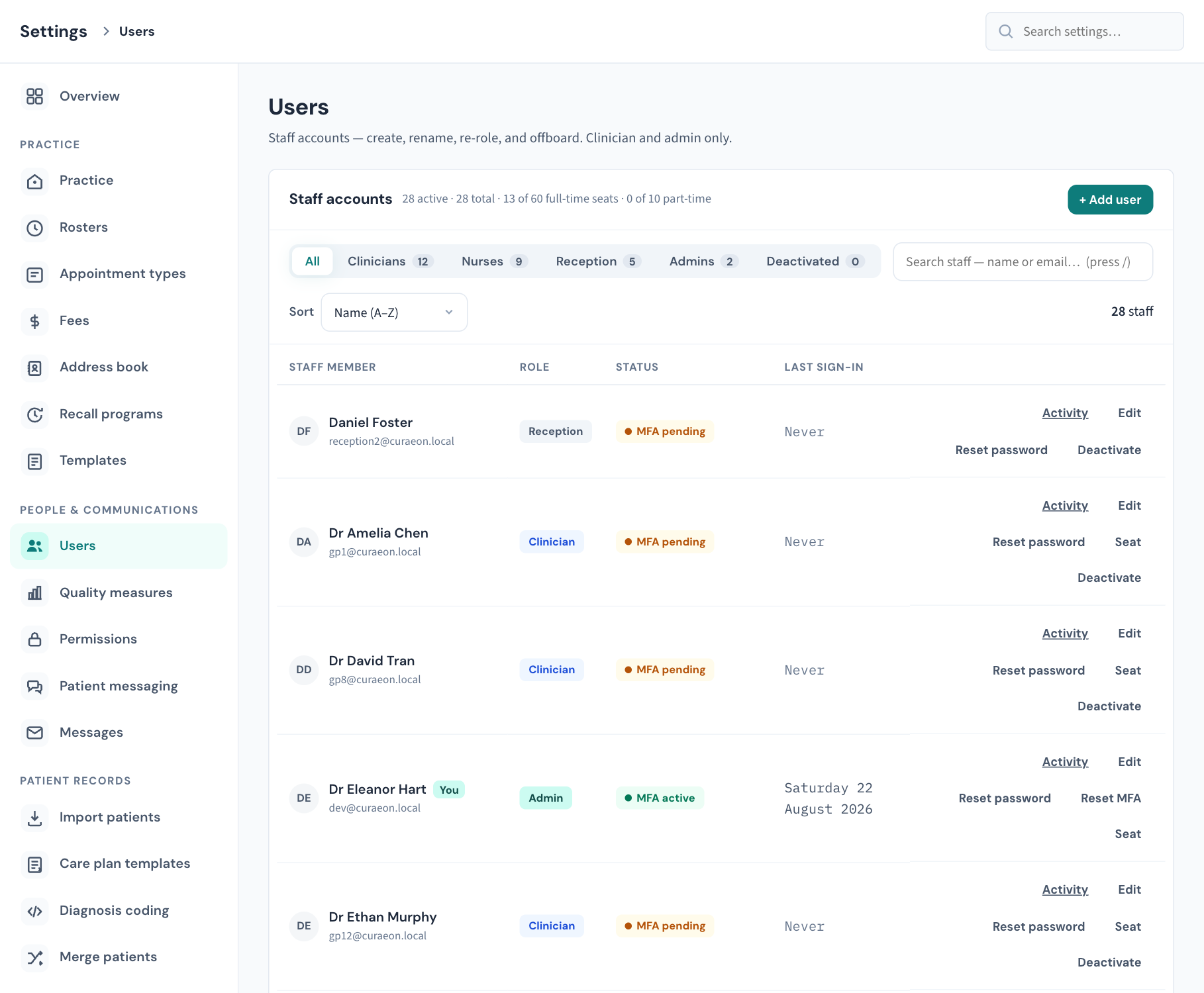
The header line. Beside Staff accounts you see "N active · N total", then the licence seats: "N of N licensed seats", or separate full-time and part-time counts on a licence that has both. When no seat is free it says none free, which links to the licence card under Settings → Practice. If any clinician has no seat it adds "N clinicians without a seat". The licence itself is explained in KB-114 — Your Curaeon licence: seats, renewal, and requesting more from Settings → Practice.
+ Add user opens the New user window.
The filter buttons. All, Clinicians, Nurses, Reception, Admins and Deactivated, each with a count. No seat appears only when at least one clinician has no seat. The role filters show active accounts only; All includes deactivated ones.
Search. Type part of a name or an email address. Press / to jump to the search box and Esc to clear it.
Sort. Name (A–Z), Recently signed in, or Role (admins first, then clinicians, nurses and reception).
The table. One row per person: Staff member (name and sign-in email; your own row is marked You), Role, Status, Last sign-in, and the action buttons. Selecting a person's name opens the same window as Edit.
What the Status column says
| Badge | Meaning |
|---|---|
| MFA active | Two-factor sign-in is set up and in use. |
| MFA pending | The person has not yet enrolled an authenticator app. They do it at their next sign-in (KB-031 — Set up two-factor sign-in for Curaeon, and fix a code that is rejected, already used or timed out). |
| Temp password | The account is on a temporary password that must be changed at the next sign-in. New accounts and accounts after a password reset show this. |
| No seat | A clinician with no licence seat. They are on the staff list and the roster, and cannot sign in. |
| Part-time seat | A clinician holding one of the practice's part-time seats. |
| Disabled | The account is deactivated. |
| Never (in Last sign-in) | The person has not signed in yet. |
The buttons on each row
| Button | Shown | What it does |
|---|---|---|
| Activity | Every row, including deactivated accounts | Opens Settings → Audit log filtered to that person. |
| Edit | Active accounts | Opens the account window. |
| Reset password | Active accounts | Sets a new temporary password. |
| Reset MFA | Active accounts with MFA active | Clears their authenticator so they enrol again. |
| Assign seat / Release seat, or Seat | Clinicians only | Gives or takes back a licence seat. |
| Deactivate | Active accounts other than your own | Closes the account. |
| Reactivate | Deactivated accounts | Opens the account again. |
Your own row has no Deactivate and no Release seat. You cannot lock yourself out from here.
Add a member of staff
- Choose + Add user.
- Under Identity, choose a Title (or the dash for none) and enter the First name and Surname.
- Choose the Role: Admin, Clinician, Nurse or Reception. The line underneath says what that role signs in as. Choose the narrowest role that covers their everyday work (KB-034 — Choose the right role and permissions for a new staff member).
- Under Contact & sign-in, enter their work Email. This is what they sign in with.
- Enter a Temporary password (min 12 characters).
- Optionally enter Mobile, Home phone and Pager. Every role has these, so the practice knows how to reach the person out of hours.
- For a clinician or a nurse, fill in Provider & registration on the right (see the next section).
- For a clinician, check Licence seat under Account (see "Licence seats" below).
- Choose Create user. The button stays off until there is a name, an email and a temporary password of 12 characters, and the note beside it says what is missing.
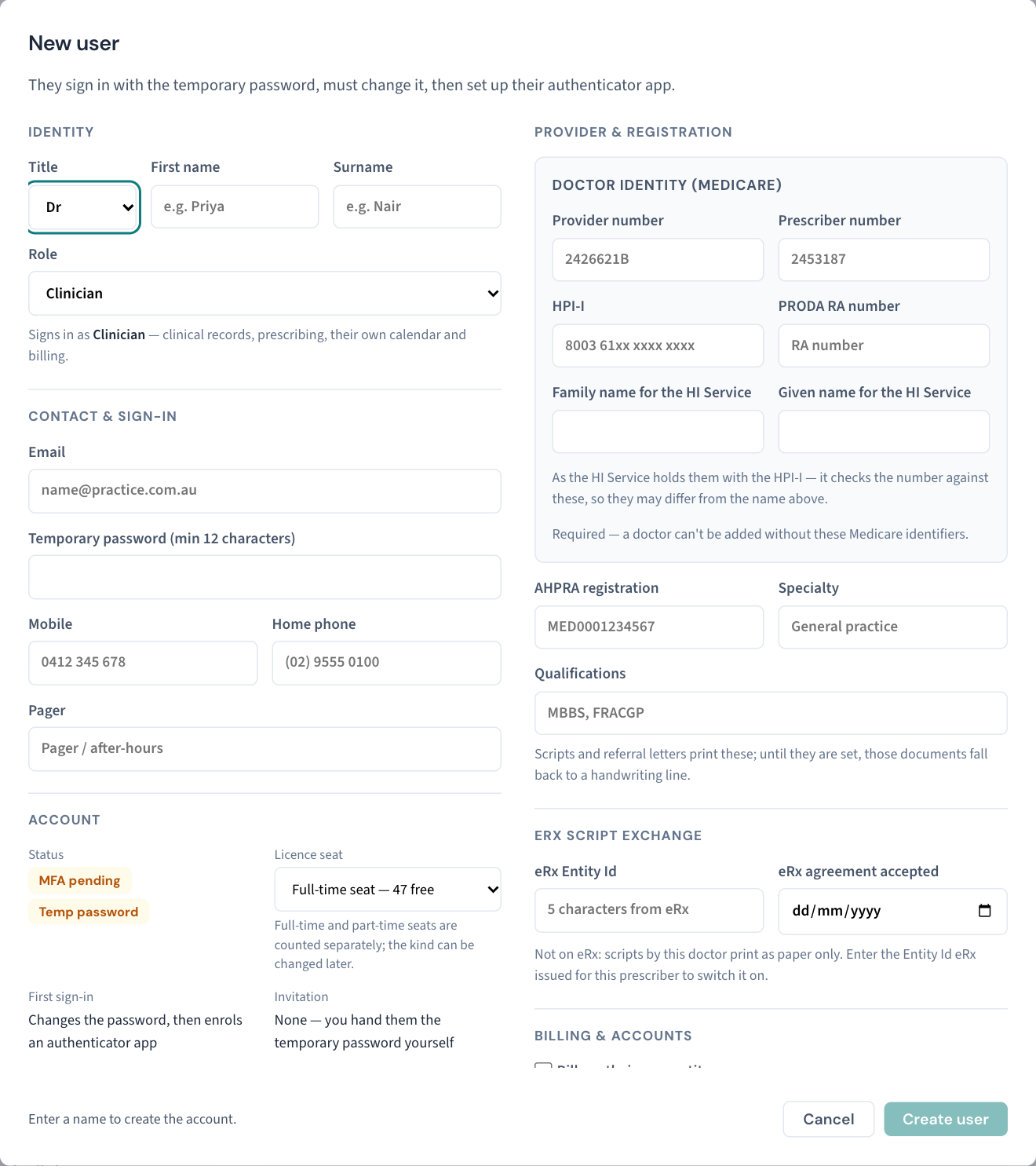
The Account panel tells you what will be true the moment you create the account: MFA pending, Temp password, and "Invitation: None — you hand them the temporary password yourself". Curaeon does not email the new person. Give them the temporary password in person or by another safe route. At their first sign-in they change it, then set up their authenticator app, and patient data is out of reach until both steps are done.
Tip: For a practitioner or nurse, add their roster next under Settings → Rosters, or the Calendar cannot book them. The full first-day list is in KB-084 — New staff onboarding and offboarding checklist.
Provider and registration details
What the right-hand column asks for depends on the role.
| Role | What is recorded |
|---|---|
| Clinician | Provider number, Prescriber number, HPI-I and PRODA RA number; the family and given name the HI Service holds; AHPRA registration, Specialty, Qualifications; the eRx details; and how they bill. |
| Nurse | HPI-I and PRODA RA number (both optional), the HI Service names, AHPRA registration, Specialty and Qualifications. No provider or prescriber number: those are a doctor's. |
| Admin | Nothing when the account is created. Once the account exists, opening it shows the same fields as a clinician, for a practice owner who is an administrator and also prescribes. |
| Reception | Nothing. The column says so. |
A new clinician needs all four Medicare identifiers. Without a provider number, prescriber number, HPI-I and PRODA RA number the account is refused: "A doctor needs a provider number, prescriber number, HPI-I and PRODA RA number." Editing an existing doctor is different. You can save other changes while a number is missing, and the window warns "Incomplete — Medicare claims under this doctor will be refused until all four are set."
A nurse's HPI-I and PRODA registration are what give them access to the Australian Immunisation Register. Without them, immunisations the nurse records cannot be reported (KB-079 — Record an immunisation and work the AIR backlog). They are optional so that a nurse who has not finished registering can still have an account.
One number, one person. A provider number, prescriber number, AHPRA number or HPI-I already recorded against another practitioner in your practice is refused, and the message names who holds it.
The names for the HI Service. Family name for the HI Service and Given name for the HI Service are the names the HI Service holds with the HPI-I. They may differ from the name at the top of the window. When your practice is connected to the HI Service, a new or changed HPI-I is checked against these names before it is saved, and refused if it does not validate. On an existing account the window also shows what the HI Service last said about the HPI-I, any alert raised about it, and a Check HPI-I with the HI Service button. See KB-129 — Read Settings → HI Service: the connection, the NASH certificate, and what the HI Service returned and disclosed.
AHPRA, specialty and qualifications print on scripts and referral letters. Until they are set, those documents fall back to a handwriting line.
eRx Script Exchange. eRx Entity Id is the five-character id eRx issues for the prescriber, and eRx agreement accepted is the date they accepted eRx's prescriber agreement. With the Entity Id set, new scripts by that doctor carry a barcode and are uploaded when printed. Left blank, their scripts print as paper only. See KB-128 — Is eRx working? Read Settings → eRx Script Exchange: the outbox, the certificate and who is not yet on it.
Billing & accounts (clinicians only). Leave Bills as their own entity unticked for a doctor who bills under the practice's name and ABN. Tick it for a contractor who invoices under their own, then enter the Business name and ABN. The ABN is checked when you save, because it prints on invoices.
Note: This screen holds one provider number per doctor. It has no field for a different provider number at a second location. If one of your doctors bills under a different number at another site, raise a ticket.
Change someone's details or role
- Find the person and choose Edit, or select their name.
- Change the title, name, role, phone numbers or registration details.
- Choose Save changes.
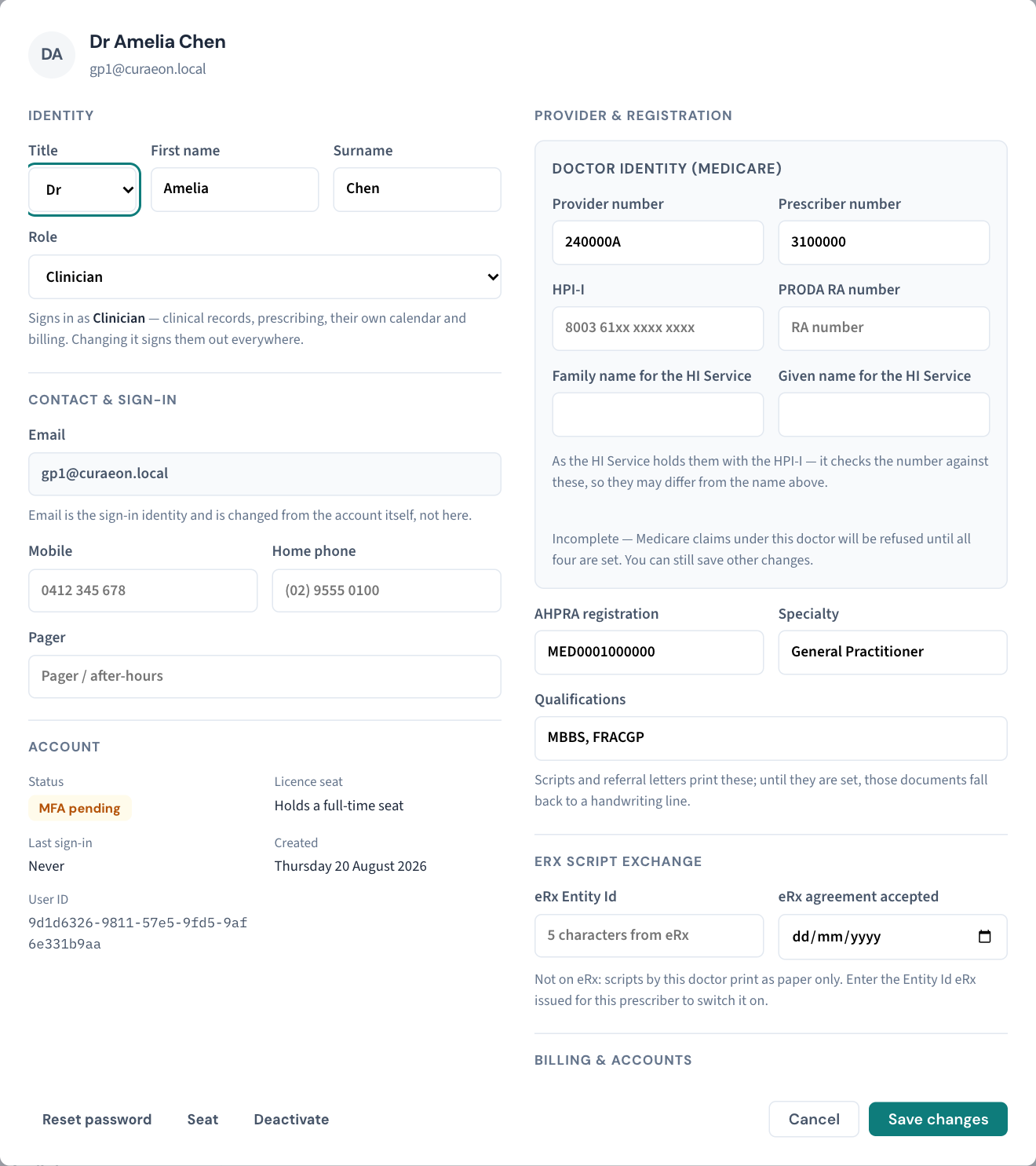
What to know before you change a Role:
- It signs the person out everywhere, at once. Their next sign-in is under the new role. Warn them first if they are mid-consult.
- Becoming a clinician takes a licence seat: a full-time one, or a part-time one when no full-time seat is free. If neither is free the change is refused.
- Leaving the clinician role frees their seat.
- A role change is listed in the weekly Security review.
- The screen lets you change your own role too. Keep a second administrator before you do, so that someone can always reach this screen (KB-032 — Reset a colleague's password or 2FA, or recover when the only administrator is locked out).
Email cannot be changed in this window. It is the sign-in identity, and the field is greyed out. If someone's sign-in address has to change, raise a ticket.
The Account panel on an existing account shows the status, the licence seat, the last sign-in, when the account was created and the User ID. The User ID is the account's identifier in the Audit log; quote it if Support asks which account you mean.
Licence seats
Seats are for clinicians. Nurses, reception staff and administrators sign in without one, and their rows show nothing about seats. What a seat costs and how to get more are in KB-114 — Your Curaeon licence: seats, renewal, and requesting more from Settings → Practice; this is how you assign them.
On a licence with full-time seats only
- A new clinician takes a seat unless you untick Holds a seat, so can sign in in the New user window. When every seat is held, the box is already unticked and the window says the account will be created without one.
- Assign seat on a clinician's row gives them a seat in one press.
- Release seat asks you to confirm. The person is signed out everywhere and cannot sign in until a seat is assigned again. They stay on the staff list, the roster and the appointment book, and nothing about their account is reset.
On a licence with part-time seats
- The New user window offers Full-time seat, Part-time seat or No seat — cannot sign in yet, with the number free beside each.
- Each clinician's row has one Seat button. It opens a window with Full-time seat, Part-time seat and No seat, shows how many of each are free, and saves with Save seat. Moving a doctor between full-time and part-time does not sign them out.
- You can change the kind of seat you hold yourself, but you cannot choose No seat for your own account.
Full-time and part-time seats are counted separately. Curaeon does not measure hours; the difference is the price your practice pays.
Deactivate a leaver, and reactivate someone who returns
Deactivate
- Choose Deactivate on the person's row.
- Confirm. They are signed out everywhere immediately and can no longer sign in.
Their history and audit trail stay, and so does the account: it moves to the Deactivated filter with the status Disabled. A clinician's seat is freed at once. Nothing is ever deleted here, because the Audit log needs to keep naming the person who did each thing. Never hand a leaver's account to the next starter; create a new one. The full last-day list is in KB-084 — New staff onboarding and offboarding checklist.
Reactivate
- Choose the Deactivated filter and find the person.
- Choose Reactivate.
A nurse, receptionist or administrator simply comes back. A clinician comes back onto a seat. If every seat is held, Curaeon asks whether to Reactivate without a seat instead; on a licence with part-time seats it asks which seat they come back on.
Reset a password or two-factor sign-in
Both are on the person's row and in their account window. KB-032 — Reset a colleague's password or 2FA, or recover when the only administrator is locked out has the full procedure, including what to check first and what to do when the only administrator is locked out. In short:
- Reset password: you type a new temporary password of at least 12 characters. Any lockout clears immediately, every session ends, and the person must choose their own password at sign-in. Their authenticator app keeps working.
- Reset MFA: for a lost phone or authenticator. The person is signed out everywhere and sets up a fresh authenticator, with new recovery codes, at the next sign-in. Their password is unchanged. The button appears only when the status is MFA active.
See what someone did
Activity on a row opens the Audit log filtered to that person: what they opened, sent and changed, and their sign-ins. It is on deactivated accounts too, because questions about who opened what are often about someone who has left. To search the log further see KB-101 — Find who did what in the Audit log: kinds, Sign-ins, Exactly, Who and a bookmarkable view; to print a staff member's activity report see KB-099 — Print a staff member's activity report for an investigation or a handover.
What is recorded
Every action on this screen goes to the Audit log under your name: Staff account created, updated, deactivated and reactivated; Licence seat assigned and released; Staff password reset; and Staff two-step sign-in reset. An update records what changed, including the role before and after.
The weekly Security review lists accounts created, deactivated, reactivated and reset, and any change of role, under Changes to who may do what (KB-064 — Sign off the weekly Security review, and act on alerts and audit-log check warnings).
If that didn't work
| The message says | What to do |
|---|---|
| "a user with that email already exists" | The address is already an account, possibly a deactivated one. Look under Deactivated and reactivate it rather than creating a second. |
| "that email address doesn't look right" | Check the address for a typing slip. |
| "temporary password must be at least 12 characters" | Use a longer temporary password. |
| "A doctor needs a provider number, prescriber number, HPI-I and PRODA RA number." | Enter all four before creating a clinician. If the doctor does not have them yet, wait until they do. |
| A number is refused as already recorded against another practitioner | The message names who holds it. Correct whichever account is wrong. |
| "Account saved, but the practitioner details were rejected: …" | The name, role and phone numbers were saved; the registration details were not. Read the reason, fix that field, and save again. |
| "all 12 licensed seats are in use" (your number will differ) | Release a seat from someone who does not need it, create the clinician without a seat, or request more (KB-114 — Your Curaeon licence: seats, renewal, and requesting more from Settings → Practice). |
| "you cannot deactivate your own account" or "you cannot release your own seat" | Ask another administrator to do it. |
| "a name must be 100 characters or fewer" | Shorten the name. |
| The person still cannot sign in | Check their row: No seat, Disabled and Temp password each explain a refused sign-in. The Audit log's Sign-ins tab gives the exact reason (KB-101 — Find who did what in the Audit log: kinds, Sign-ins, Exactly, Who and a bookmarkable view). |
Still stuck? Raise a ticket at support.curaeon.com.au or call 1300 XXX XXX. If your clinic can't see patients right now, call and choose option 1. Support is staffed Monday to Friday, 8:00–18:00 Sydney time; outside those hours a call or text to the same number is answered on a best-effort basis.
Related articles
- KB-115 — Find your way around Settings: every section, who can open it, and where to read more — Find your way around Settings: every section, who can open it, and where to read more
- KB-034 — Choose the right role and permissions for a new staff member — Choose the right role and permissions for a new staff member
- KB-121 — Change what each role may do in Settings → Permissions — Change what each role may do in Settings → Permissions
- KB-032 — Reset a colleague's password or 2FA, or recover when the only administrator is locked out — Reset a colleague's password or 2FA, or recover when the only administrator is locked out
- KB-084 — New staff onboarding and offboarding checklist — New staff onboarding and offboarding checklist
- KB-114 — Your Curaeon licence: seats, renewal, and requesting more from Settings → Practice — Your Curaeon licence: seats, renewal, and requesting more from Settings → Practice
- KB-031 — Set up two-factor sign-in for Curaeon, and fix a code that is rejected, already used or timed out — Set up two-factor sign-in for Curaeon, and fix a code that is rejected, already used or timed out
- KB-099 — Print a staff member's activity report for an investigation or a handover — Print a staff member's activity report for an investigation or a handover