Correct or amend a note after it's signed
Yes, a signed note can be changed — fix a mistake, or add what you learned later — and here is how Curaeon keeps that honest so you never have to wonder what the record said at the time.
Before you start
A note is a draft until it is signed. Signing stamps who signed it and when. Until then, edit freely — an unsigned note simply stays on your open consults list, which is why the manual says to sign off at the end of the consult rather than leaving notes open.
Once signed, you have two tools, and choosing the right one is the whole skill.
Choose: correct the note, or add to the visit?
| You want to… | Use | What the record shows |
|---|---|---|
| Fix what was written — a wrong side, a typo in a dose, a paragraph dictated into the wrong section | Edit the signed note, in place | The edit is saved under your name. The text it replaced is kept: Earlier versions under the note opens the trail. The Audit log records "Signed note edited", naming the sections changed. |
| Say something after the fact — a result that came in, a phone call the next day, a clarification | + Add a note to this visit | The signed note stays exactly as it was. Your addition is a note of its own on the same visit, under your name and date. |
A useful test: if a colleague reading the note next year should see the original wording and your addition, add a note to the visit. If the original wording was simply wrong, edit it — and Earlier versions still keeps what it said.
Correct a signed note
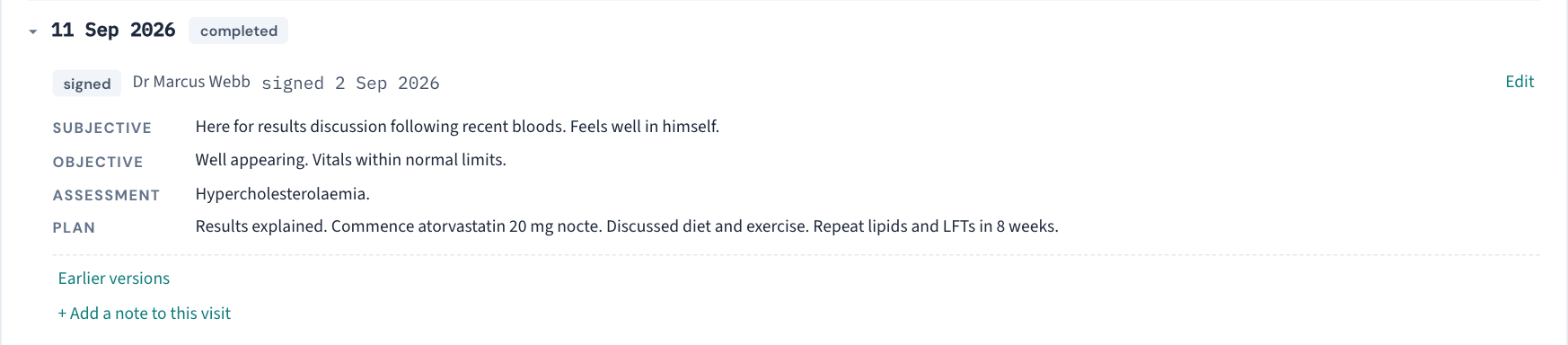
- Open the patient's record and find the visit under Past visits. The signed badge names who signed it and when.
- Choose Edit, change the section that needs correcting, and save. The edit is stamped with your name; nothing is silent.
- Earlier versions shows what it said before. For a note nobody has edited it says "This note has not been edited" — the honest answer to "has this been changed?"
Add to a visit after the fact
- Open the same visit and choose + Add a note to this visit, below the signed note.
- Write the addition in the section it belongs to, and save. Say why in the text if the reason matters — "Pathology result received 3 June" reads better next year than an unexplained line.
Good to know
- Scribe drafts are yours once accepted. What you accept from the AI scribe is what is in the note, so review the History, Examination and Plan before signing (KB-014 — AI scribe — getting the best transcription quality). The scribe never writes the Assessment.
- A signed-note edit is listed in the weekly Security review under "rare changes worth a second look", alongside merges and restores. That is the practice keeping a routine eye on it, not a finding against anyone.
- The safeguard. If a signed note ever changes and the Audit log shows no "Signed note edited" entry for it, the manual is unambiguous: call support rather than work around it. The trail is what protects the clinician who signed.
- The manual also describes a formal "amendment", logged as "Signed note amended" with its reason. On current builds the way to add something afterwards is + Add a note to this visit; if your procedure needs to know exactly how an added note is labelled in the Audit log, check with support.
If that didn't work
The manual does not say whether one clinician may edit another's signed note, or how far back a note can be added to a visit — if that is your situation, raise a ticket with the approximate consult date (not the patient's name).
Still stuck? Raise a ticket at support.curaeon.com.au or call 1300 XXX XXX. If your clinic can't see patients right now, call and choose option 1. Support is staffed Monday to Friday, 8:00–18:00 Sydney time; outside those hours a call or text to the same number is answered on a best-effort basis.
Related articles
- KB-014 — AI scribe — getting the best transcription quality — AI scribe — getting the best transcription quality
- KB-056 — Why the scribe never writes the Assessment or suggests item numbers — Why the scribe never writes the Assessment or suggests item numbers
- KB-064 — Sign off the weekly Security review, and act on alerts and audit-log check warnings — Sign off the weekly Security review, and act on alerts and audit-log check warnings