Scan and file paper letters, including the appliance's pre-filled suggestions
Get the day's paper into the right patient's record and in front of the right doctor — using the appliance's suggestions to go faster, without ever letting it decide for you.
Before you start
Scanning is a section of the Utilities drawer; anyone who can file correspondence can open it. Reception scans and files — the clinical judgement stays with whoever works the Inbox (KB-046 — Work the results Inbox: Practitioner vs Assigned to, routing, COPY and corrected results, Follow-up).
Scan and file a page
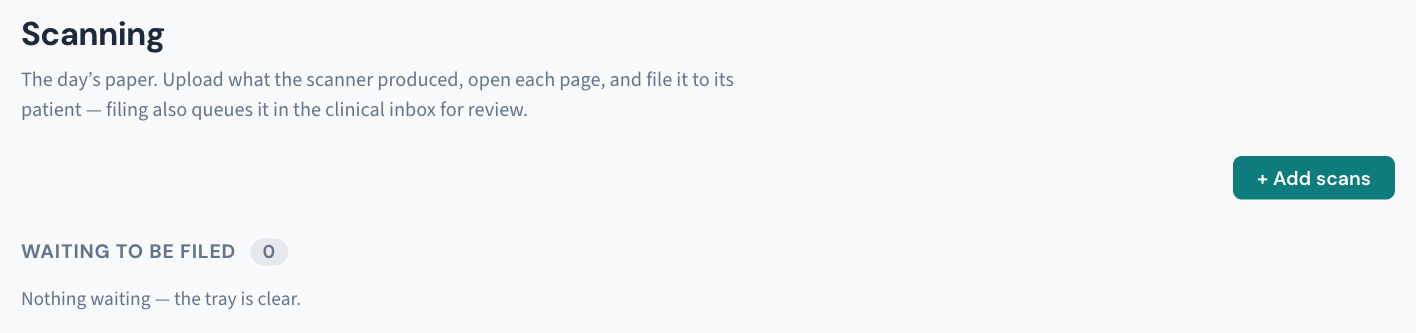
- Scan the paper and upload what the scanner produced to the tray.
- Open each page.
- Check the patient. If the appliance matched one, the row says why — it matches only when the page's Medicare number, or full name and date of birth, match exactly one record. Read the page and confirm.
- Check the kind of document and the title.
- Check the date. This is the date on the letter, not today: a referral dated last week files as last week. Correct the appliance's reading if it's wrong.
- Choose which doctor it's for. The picker is pre-filled with the patient's usual GP when that doctor is still at the practice; if the letter is addressed to someone else, change it — the software only suggests. "For any doctor" leaves it in the practice pool. Only clinicians who can action Inbox items can be chosen.
- File it. That does three things at once: the page lands in the patient's documents, it's dated by the letter's date, and it appears in the clinical Inbox for review.
What the appliance does — and doesn't
The practice's AI appliance pre-reads every waiting page, PDFs and images included, and the filing form arrives filled with its best reading: patient, document kind, title, date. Every field stays editable, and nothing is ever filed by a machine — a person reads the page and decides. A page the appliance could not read simply says so and waits as before; file it by hand. If suggestions stop altogether, check the appliance (KB-011 — Appliance appears offline — five checks before you call) — filing by hand still works meanwhile.
Fix a mistake
- Wrong doctor: reassign it from the Inbox — you don't refile.
- Uploaded in error: a page is never deleted. Don't file it; it stays in the queue's history with its name and who uploaded it.
- Restricted record: filing is refused unless you are named on the restriction. Hand the page to someone who is (KB-061 — Restrict a patient's record, and open one in an emergency).
Keep an eye on the tray
- Settings → AI Appliance shows how the mail is going: pages read today, what the appliance suggested, what it couldn't read, the oldest page still waiting, and the typical time from scan to filed. The counts come from the queue's own rows, not the appliance's claims.
- Utilities → Data clean-up lists scans unfiled for a fortnight.
If that didn't work
| What you see | What to do |
|---|---|
| A document won't upload | Check the type (PDF, PNG, JPEG, TIFF, plain text, RTF) and size |
| A filed document opens as a blank page | The stored file is missing or unreadable — report it with the document title, not the patient's name. The record entry is kept. |
Still stuck? Raise a ticket at support.curaeon.com.au or call 1300 XXX XXX. If your clinic can't see patients right now, call and choose option 1. Support is staffed Monday to Friday, 8:00–18:00 Sydney time; outside those hours a call or text to the same number is answered on a best-effort basis.
Related articles
- KB-046 — Work the results Inbox: Practitioner vs Assigned to, routing, COPY and corrected results, Follow-up — Work the results Inbox: Practitioner vs Assigned to, routing, COPY and corrected results, Follow-up
- KB-011 — Appliance appears offline — five checks before you call — Appliance appears offline — five checks before you call
- KB-057 — Check appliance health and link security in Settings → AI Appliance, and revoke a certificate — Check appliance health and link security in Settings → AI Appliance, and revoke a certificate