Restrict a patient's record, and open one in an emergency
Close a clinical record to everyone except named staff, know what the rest of the practice sees, and understand exactly what happens when someone opens it under Emergency access.
Before you start
Restricting is a clinician's action, done on the chart. It is for a record only some people should read: a member of staff or their family, a public figure, a patient at risk from someone who might work here, or a patient who asks. A restriction closes the chart — not the front desk's view, and not the Audit log.
Restrict a record
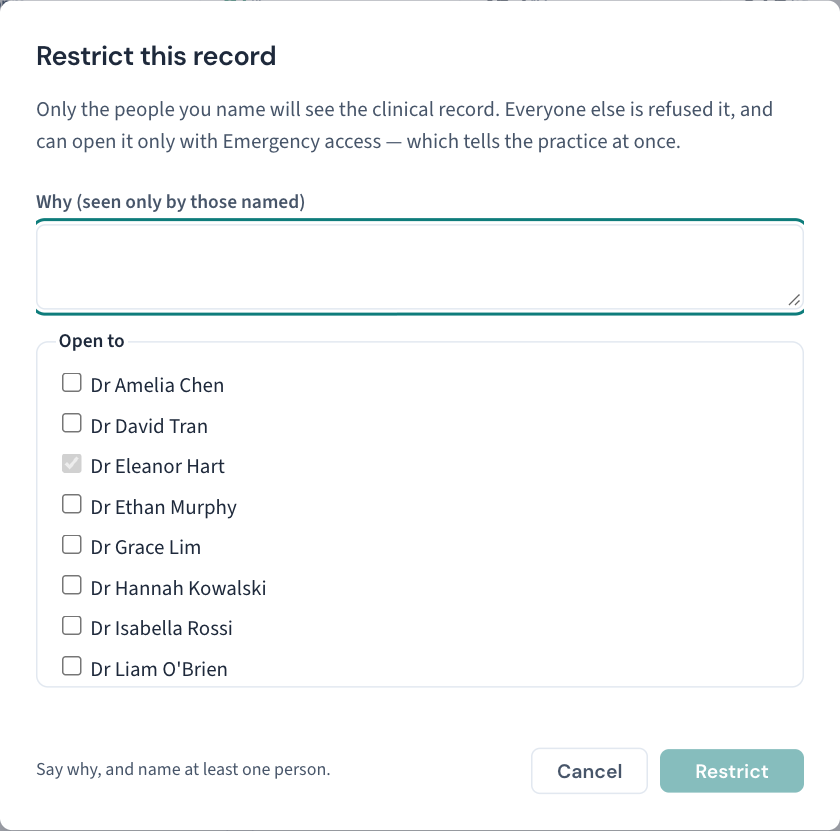
- Open the patient's chart and choose Restrict….
- Say why.
- Name who the record stays open to. You are always one of them.
What changes
What stays open. Details, contacts, the next appointment and the account. The patient still books, pays and is reminded; bookings, invoices and claims stay open.
What everyone else sees. Anyone not named sees who the record is open to — not why — instead of the chart. The same gate stands in front of every page of the record, however it is reached: a care plan, a result, a prescription, a referral, a scribe session, a task or a recall opened from a link.
Nothing is added by anyone else. Starting a consult, filing a scanned page, assigning a lab result, adding to the inbox, including the recall in a letter run and merging the record are all refused as restricted. An administrator who must merge one names themselves on it first, and that change is recorded.
On the patients screen. The row says Restricted record instead of an allergy alert or a recall due, and the patient is not counted under Allergy alert or Recall due — either would tell what the restriction keeps.
Lists and reports. Every worklist — inbox, lab feed, requests, scripts, recalls, tasks, the AIR backlog, the message queues, the coding backlog — and every patient-listing report leaves a restricted record's rows out for anyone it is not open to, and says how many it left out, so a list never looks finished when it is not. Being an administrator does not put anyone on a restriction.
The scribe. The appliance reads a restricted record's consult only when it connects with its certificate, or when its account is named on the restriction.
Change or lift a restriction
Those named, or an administrator, can change who the record is open to or lift it, from the banner on the chart. An administrator can do so without reading the record. Every change is kept.
Open a restricted record in an emergency
Anyone can, and the design assumes you will when you must.
- On the record, choose Emergency access.
- Give the reason in a sentence.
- Enter your own password again — so the name on the record is the person at the keyboard, not whoever left a session open.
The record then stays open to you alone for four hours.
What the practice sees afterwards
An alert is raised at once on Settings → Security review and the administrator's dashboard, and the access is listed in the weekly review. While any alert is unacknowledged, every administrator's sidebar carries a Security alerts link with the number on it. Curaeon sends nobody a message; the alert waits there to be read (KB-064 — Sign off the weekly Security review, and act on alerts and audit-log check warnings). Being turned away is recorded too, and an administrator reading the Audit log sees a restricted record's rows as any other — their own reading recorded as well.
Related articles
- KB-064 — Sign off the weekly Security review, and act on alerts and audit-log check warnings — Sign off the weekly Security review, and act on alerts and audit-log check warnings
- KB-062 — Why Curaeon asks your reason for opening a record — Why Curaeon asks your reason for opening a record
- KB-063 — Answer "who has seen my record?": print a patient access report — Answer "who has seen my record?": print a patient access report
- KB-104 — Add or lift a DNR, interaction or red-flag alert above a patient's chart — Add or lift a DNR, interaction or red-flag alert above a patient's chart