Add or lift a DNR, interaction or red-flag alert above a patient's chart
Put the one sentence staff must read before they act at the top of the chart, take it off when it no longer applies, and understand why an allergy alert is not managed here.
Before you start
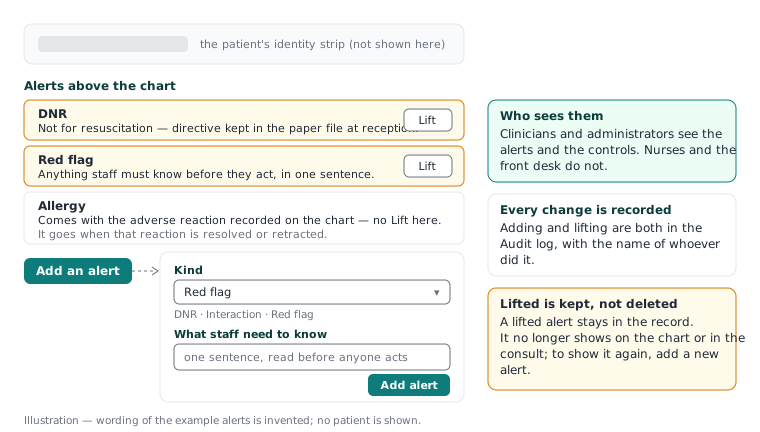
The alerts sit at the top of the chart, above everything else, and show in the consult too. Clinicians and administrators see them and the controls; nurses and the front desk do not. Adding and lifting an alert are both recorded in the Audit log with the name of whoever did it.
There are three kinds you add yourself:
- DNR — not for resuscitation. Say where the directive is kept.
- Interaction — a combination to avoid for this patient.
- Red flag — anything staff must know before they act.
An allergy alert is not added or lifted here. It comes with the adverse reaction recorded on the chart — which also puts the substance where prescribing checks it (KB-045 — "Interactions not checked": what the prescribing screen is telling you, and why there is nothing to load yet) — and it goes when that reaction is resolved or retracted.
Add an alert
- Open the patient's record. Under the alerts at the top of the chart, choose Add an alert.
- Choose the Kind — DNR, Interaction or Red flag.
- Under What staff need to know, write one sentence. It is read by someone in a hurry, so say the thing and where to look: "Directive in the paper file at reception", not "see notes".
- Choose Add alert. It shows at once on the chart and in the consult, and the Audit log records that you added it.
Lift an alert
- Choose Lift beside the alert.
- Confirm. The alert no longer shows on the chart or in the consult.
A lifted alert is kept, not deleted: it stays in the record with who lifted it and when. Showing it again means adding a new alert — there is no "un-lift", because the record of what was showing on which dates is the point.
Good to know
- A restricted record behaves differently on the patients list: its row says Restricted record instead of an allergy alert or a recall due, because being on either list would tell what the restriction keeps (KB-061 — Restrict a patient's record, and open one in an emergency). The alerts themselves are inside the chart and follow the restriction.
- Alerts are not clinical notes. A DNR alert points to the directive; it is not the directive. Record the discussion and the document in the consult and the patient's documents as you would anyway.
- An alert is read by a person; the prescribing check is separate. Automated interaction and allergy screening at prescribing time needs a licensed medicines service that is not yet connected at any practice; until it is, the prescribing screen says nothing was checked rather than implying it checked (KB-045 — "Interactions not checked": what the prescribing screen is telling you, and why there is nothing to load yet). An Interaction alert is your sentence to the next prescriber, whichever of those applies.
- Who sees which alert is fixed by role. If a nurse or receptionist needs to know something before a patient arrives, an alert will not reach them — use a staff task or a message instead.
Where the manual is silent
The manual does not say whether an alert can be edited in place rather than lifted and re-added, or whether alerts print on the patient summary. If you need either, raise a ticket under Clinical software — describe the need, never the patient.
Still stuck? Raise a ticket at support.curaeon.com.au or call 1300 XXX XXX. If your clinic can't see patients right now, call and choose option 1. Support is staffed Monday to Friday, 8:00–18:00 Sydney time; outside those hours a call or text to the same number is answered on a best-effort basis.
Related articles
- KB-061 — Restrict a patient's record, and open one in an emergency — Restrict a patient's record, and open one in an emergency
- KB-045 — "Interactions not checked": what the prescribing screen is telling you, and why there is nothing to load yet — "Interactions not checked": what the prescribing screen is telling you, and why there is nothing to load yet
- KB-034 — Choose the right role and permissions for a new staff member — Choose the right role and permissions for a new staff member