Set up nightly backups, a second copy and a monthly restore drill
By the end of this you'll have a backup every night, a verified second copy off the server, and monthly proof that the backup actually restores — the only fact that matters on the bad day.
Before you start
You need to be a practice administrator — the backup screen is part of the operational console under Utilities. For the second copy you'll need a NAS directory mounted on the practice server; whoever runs your server can arrange that.
Steps
- Open Utilities → Database backup.
- Run a backup now for a first one, then set the nightly schedule. Schedule changes are recorded in the Audit log with old and new values.
- Point the second copy at the mounted NAS directory. Each backup is copied there and verified; the backup's own result says whether the second location got it.
- Leave retention at the default (90 days) unless your procedure says otherwise. Old backups are removed as part of a backup run, so a server that stops backing up keeps what it has, and the three newest are always kept, however old.
- Turn on the dashboard alert for a failed or overdue backup.
- Take one download for the off-site copy you must also keep, onto encrypted media (see below).
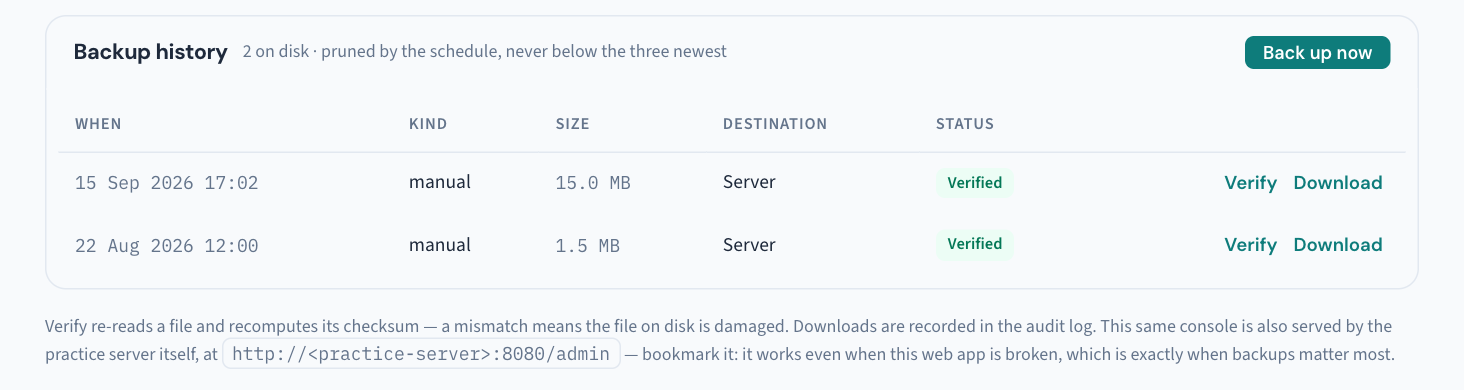
What the screen is telling you
- Every dump gets a checksum, and you can verify any backup on demand.
- Not yet in the vault on a new backup is normal. The server cannot delete its own backups: a separate backup custodian, installed with the server, keeps them where the server's account may read but not change them, and makes the second copy and prunes old backups itself — so ransomware running as the server cannot take the backups with it. A new backup reads Not yet in the vault for the few minutes before the custodian takes it.
- If the screen ever says the server can delete its backups, or a security alert says so, contact support.
- The audit log's nightly archive (
audit/<practice>/inside the backup folder) travels with each backup to the second location. Keep that location off the server.
Every copy must be encrypted
The dumps are not separately encrypted — the storage they sit on is what protects them. The server's disk, the NAS, a rotated drive and the off-site copy all need to be encrypted. This is a condition of connecting to the HI Service, not a preference: a downloaded backup saved to an unencrypted laptop or USB drive breaks it.
The monthly restore drill
Having backups and knowing they restore are different facts. Whoever runs your server runs this at the server, monthly:
make restore-drill
It backs up the practice database from one consistent snapshot, restores it into a scratch database, compares every table's row count exactly, reports PASSED or FAILED with the table named, and drops the scratch copy. It is safe with the practice open, because the source is only ever read. A FAILED result is a support ticket.
Restoring for real is deliberately not a button — the screen prints the exact command, because a one-click restore would pull the database out from under running consults. How to ask for one is in KB-069 — Request a restore from backup.
If that didn't work
Still stuck? Raise a ticket at support.curaeon.com.au or call 1300 XXX XXX. If your clinic can't see patients right now, call and choose option 1. Support is staffed Monday to Friday, 8:00–18:00 Sydney time; outside those hours a call or text to the same number is answered on a best-effort basis.
Related articles
- KB-068 — Use the standalone admin console when the main app won't load — Use the standalone admin console when the main app won't load
- KB-069 — Request a restore from backup — Request a restore from backup
- KB-064 — Sign off the weekly Security review, and act on alerts and audit-log check warnings — Sign off the weekly Security review, and act on alerts and audit-log check warnings
- KB-139 — A tour of Utilities → Database backup, Restore and Backup schedule: every control and status — A tour of Utilities → Database backup, Restore and Backup schedule: every control and status