A tour of Utilities → Database backup, Restore and Backup schedule: every control and status
Know what every tile, badge, button and warning on the three Data protection screens means, so that a glance tells you whether last night's backup is safe and what to do when it is not.
Before you start
- You need to be a practice administrator. Open the sidebar's Admin group and choose Utilities. The three sections are in the Data protection group: Database backup, Restore and Backup schedule.
- This article is the screen-by-screen reference. For the setup itself, follow KB-067 — Set up nightly backups, a second copy and a monthly restore drill. To have a backup restored, follow KB-069 — Request a restore from backup.
- Two terms used below. The backup custodian is a separate program installed with the server that takes each new backup into a vault: a folder the server can read but cannot change. It exists so that ransomware running as the server cannot delete the backups.
The chip at the top of Utilities
Whichever Utilities section you are in, an administrator sees a chip beside the page title.
| The chip reads | Meaning |
|---|---|
| Last backup: date and time · verified | The newest backup has been read back and matches its checksum |
| Last backup: date and time · not yet verified | The most recent run did not fail, but the newest backup has not been verified. Choose Verify on its row |
| Last backup: … · overdue | Nightly backups are on, but none has landed in over 36 hours |
| Last backup: … · last run FAILED | The most recent run failed |
| No backup on disk yet | There is no backup at all |
The last three are highlighted. Where a custodian keeps the backups, only a backup already in the vault counts as the last backup.
Database backup
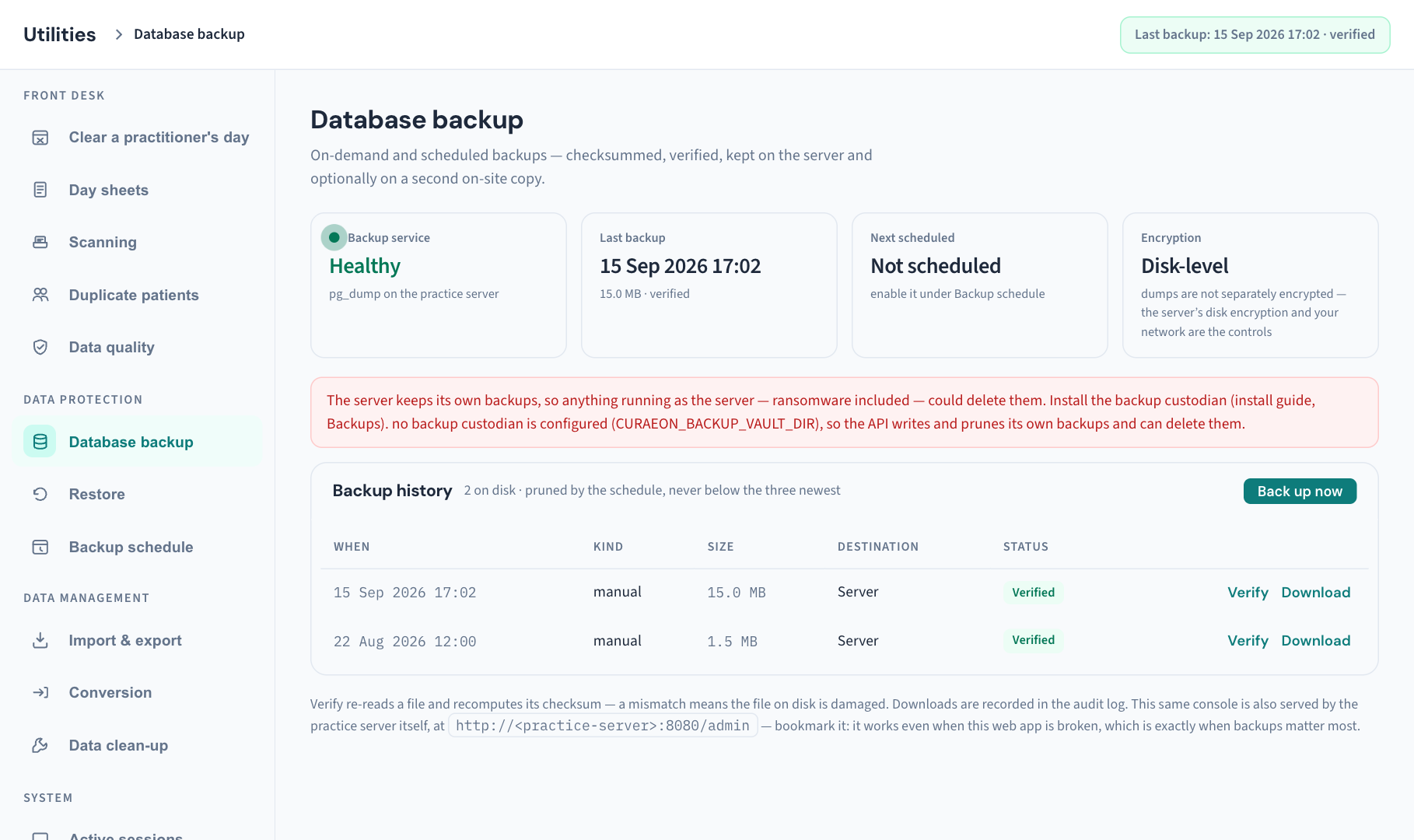
The four tiles
| Tile | Shows | Read it as |
|---|---|---|
| Backup service | Healthy or Last run failed | Whether the most recent run succeeded |
| Last backup | The date and time, or Never. Beneath: the newest file's size, and "verified" if it is | When the practice was last protected |
| Next scheduled | Daily and the time, with "kept 90 days" (or your setting). Or Not scheduled, with "enable it under Backup schedule" | Whether backups happen without anyone remembering |
| Encryption | Disk-level | A reminder: backup files are not separately encrypted. The storage they sit on is the protection (KB-067 — Set up nightly backups, a second copy and a monthly restore drill) |
Warnings above the history
Each of these appears only when it applies.
| Warning | Meaning | What to do |
|---|---|---|
| "The last backup FAILED — the history below has the error, and nothing new is protected until one succeeds." | The latest run stopped | Read the Last run failed: line beneath it, then choose Back up now. If it fails again, raise a ticket with the error text |
| "Backups are enabled but none has landed in over 36 hours — the schedule may not be running." | The nightly run was missed | Choose Back up now, then check the time in Backup schedule and that the server is on at that hour |
| "The server keeps its own backups, so anything running as the server — ransomware included — could delete them. Install the backup custodian…" | No custodian is installed | Contact Support |
| "The server was able to change the backup vault…" | The vault's permissions are wrong, so the backups are within the server's reach | Contact Support. A security alert is raised as well (KB-064 — Sign off the weekly Security review, and act on alerts and audit-log check warnings) |
| "Whether the server can delete its backups has not been confirmed yet." | The server's own check has not run or could not finish. It runs at start-up and every hour | Look again in an hour. If it stays, contact Support |
| "The backup custodian reports: …" | The custodian has a problem, for example it "has not run for over an hour" | Contact Support with the wording |
While a backup runs
A panel reads Backing up the practice database… with a progress bar and the current step: starting, running the dump, computing the checksum, then either copying to and verifying the second copy and pruning old backups, or "handed to the backup custodian". The practice can keep working while it runs.
Backup history
The card's heading line reads, for example, "12 on disk · pruned by the schedule, never below the three newest".
Back up now starts a backup. It reads Backing up… and is unavailable while one runs. Only one backup runs at a time.
| Column | Shows |
|---|---|
| When | The date and time the backup was made |
| Kind | manual (someone chose Back up now) or scheduled (the nightly run) |
| Size | The file's size |
| Destination | Where copies are. See below |
| Status | A badge. See below |
| Verify and Download |
Destination
| Reads | Meaning |
|---|---|
| Server | One copy, on the server |
| Server + second copy | Also copied to the second location, and that copy checked |
| Server, waiting for the custodian | Just made; the custodian has not yet taken it into the vault |
Status
| Badge | Meaning | What to do |
|---|---|---|
| Verified | The file has been read back and matches its checksum | Nothing |
| Checksummed | A checksum is stored beside the file, but no check is recorded yet | Choose Verify |
| Not yet in the vault | Normal for the first few minutes of a new backup. The custodian collects every five minutes | Wait, then reload. If it is still there after an hour, contact Support |
| No checksum | The file has nothing to be checked against | Do not rely on it. Take a new backup and contact Support |
If there are no backups the card reads "No backups on disk yet. The first one is one click away…".
Verify a backup
- Find the row in Backup history.
- Choose Verify. Curaeon re-reads the whole file and recomputes its checksum.
- Checksum verified. appears, and the badge becomes Verified.
If you see CHECKSUM MISMATCH — this backup is damaged and must not be restored from, the file on disk has changed since it was written. Take a new backup straight away and contact Support.
Download a backup
Use this for the off-site copy the practice must also keep.
- Have encrypted storage ready: an encrypted drive, not a plain USB stick or an unencrypted laptop.
- Choose Download on the row. The file is named with its kind, date and time and ends in
.dump. - Save it straight to the encrypted storage.
The download is recorded in the Audit log as Backup downloaded before anything is sent, and it is listed in that week's Security review (KB-064 — Sign off the weekly Security review, and act on alerts and audit-log check warnings). If it cannot be recorded, it is not sent.
The note at the bottom
It repeats what Verify does and that downloads are recorded, and gives the address of the standalone console the server itself serves. Bookmark that address (KB-068 — Use the standalone admin console when the main app won't load).
Restore
This screen has no button that restores anything, on purpose.
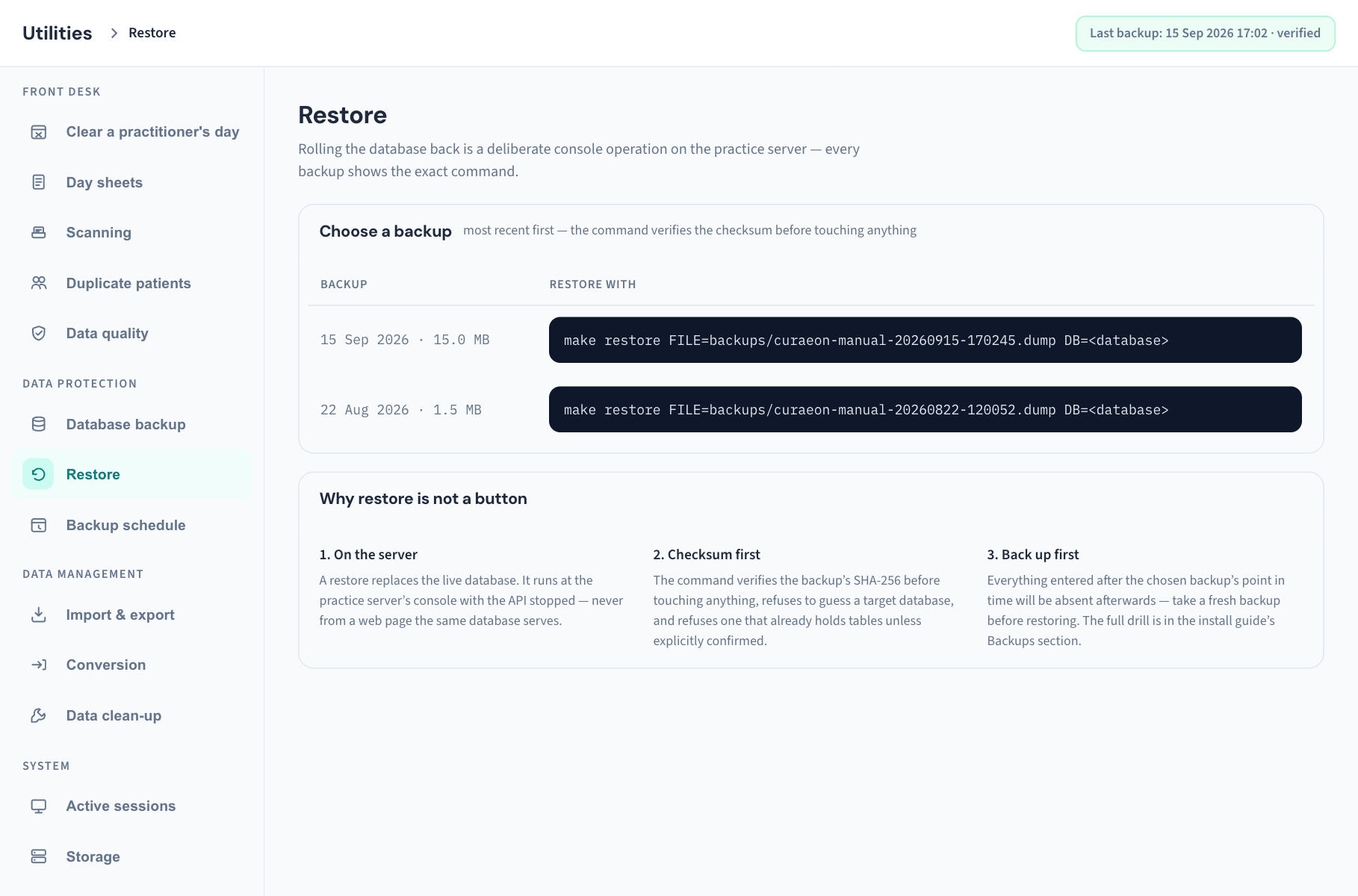
Choose a backup
A table of every backup, most recent first, with two columns: Backup (date and size) and Restore with (the exact command for that file). The command box scrolls sideways when the command is longer than the column. The card does not appear when there are no backups.
The command names the backup file, and leaves the target database as a placeholder to be filled in at the server. That is deliberate: the command refuses to guess which database to replace.
Why restore is not a button
The second card gives three reasons.
| Heading | What it says |
|---|---|
| 1. On the server | A restore replaces the live database. It runs at the practice server with Curaeon stopped, never from a web page the same database serves |
| 2. Checksum first | The command checks the backup before touching anything, refuses to guess a target database, and refuses one that already holds data unless that is explicitly confirmed |
| 3. Back up first | Everything entered after the chosen backup will be absent afterwards, so a fresh backup is taken before restoring |
Important: Do not run the printed command yourself. A restore is requested through Support with two approvals, and is run by a Curaeon engineer with whoever looks after your server (KB-069 — Request a restore from backup). This screen is where you find which backup you want and read its date to us.
A completed restore is recorded in the Audit log as Database restored from a backup, and the audit-log check reports it the next night (KB-069 — Request a restore from backup).
Backup schedule
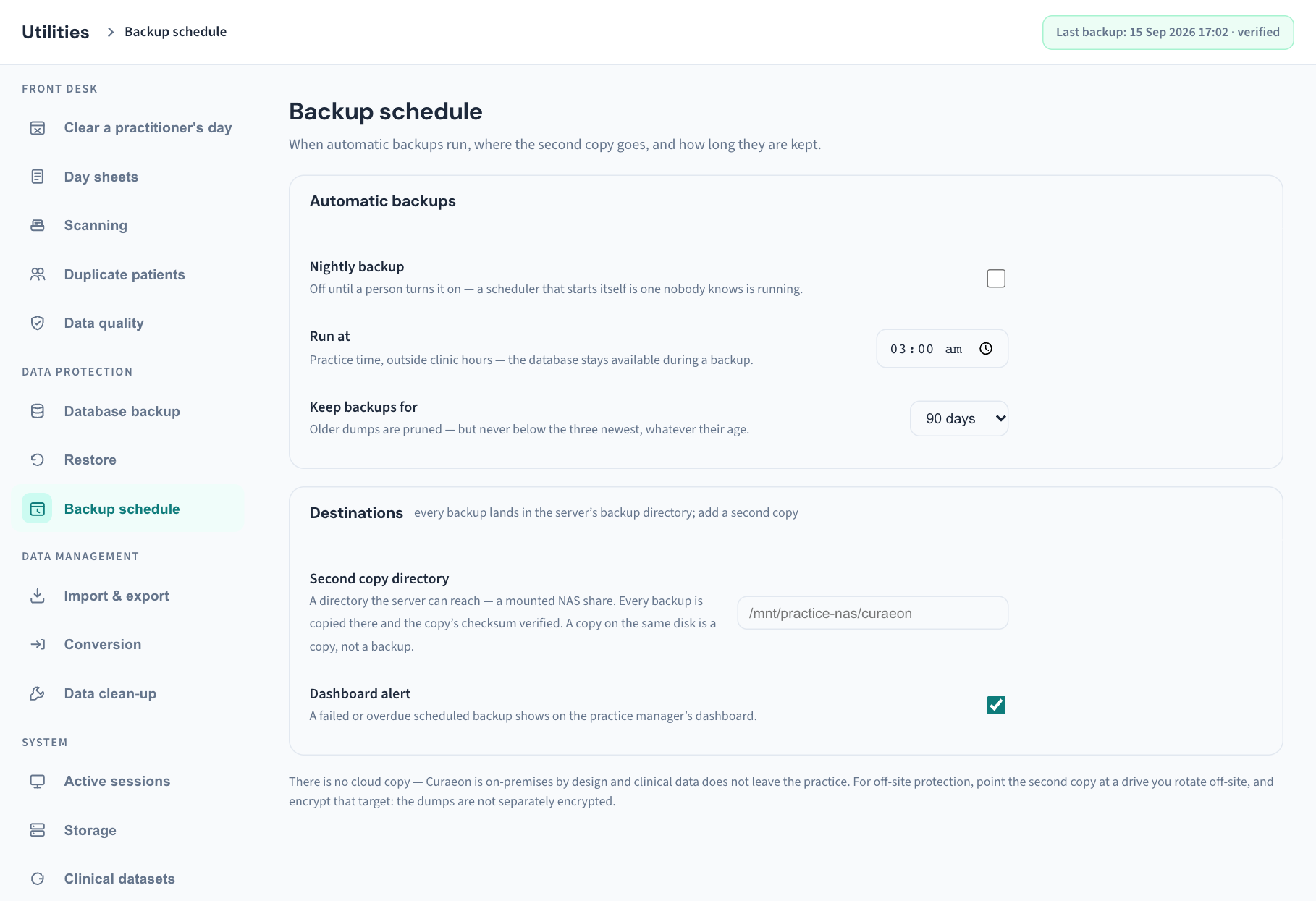
Every change here saves by itself and shows Schedule saved — applies from the next run. There is no Save button. Each change is recorded in the Audit log as Backup schedule changed, with the old and new values.
Automatic backups
| Control | What it does | Starts as |
|---|---|---|
| Nightly backup | Turns the nightly run on or off. Saves when ticked | Off. "Off until a person turns it on — a scheduler that starts itself is one nobody knows is running." |
| Run at | The time of the nightly run, in practice time. Saves when you leave the field | 03:00 |
| Keep backups for | How long backups are kept: 30, 90, 180 or 365 days. Saves when chosen | 90 days |
The run happens once a day at that minute. The server must be on at that time; a night it is off is a night with no backup, and the overdue warning follows after 36 hours.
Older backups are removed, "but never below the three newest, whatever their age". Where a custodian keeps the backups it does the removing, and it will not remove one younger than the minimum set when it was installed.
Destinations
Every backup lands on the server. This card is about the second copy and the alert.
Second copy directory shows one of two things:
- A text box, where the server keeps its own backups. Type the folder the server can reach, such as a mounted NAS share, and leave the field to save. Every backup is then copied there and the copy checked. As the screen says, "A copy on the same disk is a copy, not a backup."
- An explanation with no box, where a custodian keeps the backups. The second copy is "made by the backup custodian, from its own configuration", so it is set on the server by whoever runs it, not here.
Dashboard alert, when ticked, puts Backups need attention on the practice manager's dashboard whenever the last backup failed or none has landed in over 36 hours. It starts ticked. Leave it on.
The note at the bottom: there is no cloud copy, because clinical data does not leave the practice. For off-site protection, point the second copy at a drive you rotate off-site, and encrypt it.
Change the schedule
- Open Utilities → Backup schedule.
- Tick Nightly backup if it is off.
- Set Run at to a time outside clinic hours, then click elsewhere to save.
- Choose Keep backups for.
- Check Dashboard alert is ticked.
- Go to Database backup and confirm Next scheduled shows the new time.
What is recorded in the Audit log
| Entry | When |
|---|---|
| Backup completed / Backup failed | Every run. A manual run names who asked; a scheduled run is marked automatic |
| Old backups deleted | When the server removes backups past the retention period, naming the files |
| Backup downloaded | Each download |
| Backup schedule changed | Each change on the schedule screen |
| Database restored from a backup | A restore done with Curaeon's own command |
Choosing Verify is not recorded.
If that didn't work
| What you see | What to do |
|---|---|
| "a backup is already running" | Wait for the progress panel to finish |
| "second copy directory … is not a directory the server can reach" | The folder is not there as the server sees it. Ask whoever runs the server to check the share is mounted |
| A message that the second copy is made by the backup custodian | A custodian is installed, so the second copy is set on the server, not on this screen |
| "retention below 7 days…" or "time must be HH:MM" | The value was refused; nothing was saved. Choose a listed value |
| The download could not start. | Try again. If it repeats, the download could not be recorded, so it was not sent. Raise a ticket |
| "could not read the backup directory" or The backup list could not be read. | The server cannot read its backup folder. Contact Support; do not assume there are no backups |
| "the operations manager is not configured on this server" | Tell whoever runs the server |
| The main app will not load | Use the standalone console (KB-068 — Use the standalone admin console when the main app won't load) |
The screens do not show free space on the second location, the custodian's own log, or the date of the last restore drill. Ask whoever runs your server for those.
Still stuck? Raise a ticket at support.curaeon.com.au or call 1300 XXX XXX. If your clinic can't see patients right now, call and choose option 1. Support is staffed Monday to Friday, 8:00–18:00 Sydney time; outside those hours a call or text to the same number is answered on a best-effort basis.
Related articles
- KB-133 — Find your way around Utilities: every section, what it is for and who can open it — Find your way around Utilities: every section, what it is for and who can open it
- KB-067 — Set up nightly backups, a second copy and a monthly restore drill — Set up nightly backups, a second copy and a monthly restore drill
- KB-069 — Request a restore from backup — Request a restore from backup
- KB-068 — Use the standalone admin console when the main app won't load — Use the standalone admin console when the main app won't load
- KB-064 — Sign off the weekly Security review, and act on alerts and audit-log check warnings — Sign off the weekly Security review, and act on alerts and audit-log check warnings
- KB-135 — Export the patient list, billing history or the whole database from Utilities → Import & export — Export the patient list, billing history or the whole database from Utilities → Import & export
- KB-138 — Read Utilities → Storage and Clinical datasets: how big the database is, and which reference data is loaded — Read Utilities → Storage and Clinical datasets: how big the database is, and which reference data is loaded