Request a restore from backup
A restore puts your practice database back to the copy in a chosen backup. It is a standard request with two approvals and a four-hour target — and there is a right way and a wrong way to do it, which is why it goes through us.
Before you start
- Restoring is deliberately not a button in Curaeon. The backup screen prints the exact command rather than offering one, because a one-click restore would pull the database out from under running consults.
- The request needs two approvals: your practice's nominated administrator and Curaeon's Security Lead. Our L3 team fulfils it with a 4-hour target, aligned to the recovery-time objective.
- Know which backup you want. Utilities → Database backup lists them with checksum and verification state; the three newest are always kept. If you're not sure, say what happened and when, and we'll work out the right one with you.
Steps
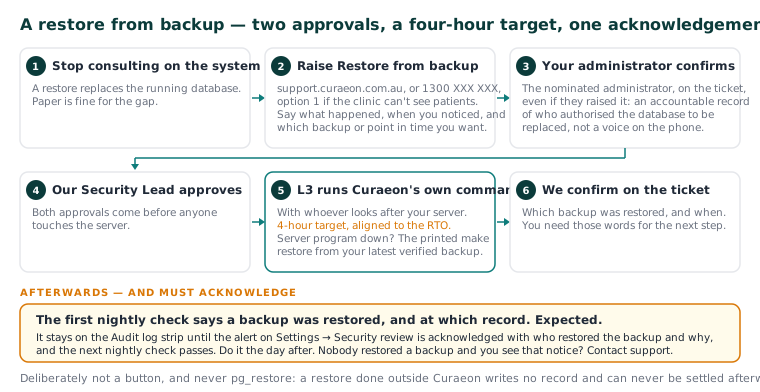
- Stop consulting on the system — a restore replaces the running database. Paper is fine for the gap.
- Raise a Restore from backup request at support.curaeon.com.au, or call 1300 XXX XXX if the clinic can't see patients (option 1). Say what happened, when you noticed, and which backup or point in time you want.
- Your nominated administrator confirms on the ticket — even if they raised it. Same safeguard as a data export: an accountable record of who authorised the database to be replaced, and protection against someone talking us into it over the phone.
- Curaeon's Security Lead approves. Both approvals come before anyone touches the server.
- Our L3 engineer runs the restore with Curaeon's own restore command, with whoever looks after your server. If the server program itself is down, the printed
make restorecommand from your latest verified backup is the recovery path. - We confirm on the ticket which backup was restored and when.
What you'll see afterwards — and must acknowledge
Curaeon's audit log is sealed into a chain that is checked every night. After a backup is restored, the first check says so, and at which record. That is expected. It stays on the Audit log strip until two things happen:
- its alert on Settings → Security review is acknowledged with who restored the backup and why, and
- the next nightly check passes.
Do that acknowledgement the day after the restore; it's how the practice's own record explains the gap to an accreditor. The restore also appears on that week's Security review under rare changes worth a second look.
If nobody restored a backup and you see that notice, contact support — the database changed underneath Curaeon.
Why we won't just run pg_restore
A restore done outside Curaeon writes no record, so the audit archives from the timeline it replaced go on reading as a shortened or rewritten log every night, and acknowledging the alert does not settle it. Curaeon's own command writes the record as part of the restore. The difference is permanent, which is why the request has approvals rather than a checkbox.
If that didn't work
Still stuck? Raise a ticket at support.curaeon.com.au or call 1300 XXX XXX. If your clinic can't see patients right now, call and choose option 1. Support is staffed Monday to Friday, 8:00–18:00 Sydney time; outside those hours a call or text to the same number is answered on a best-effort basis.
Related articles
- KB-067 — Set up nightly backups, a second copy and a monthly restore drill — Set up nightly backups, a second copy and a monthly restore drill
- KB-068 — Use the standalone admin console when the main app won't load — Use the standalone admin console when the main app won't load
- KB-023 — Requesting a data export or report — Requesting a data export or report
- KB-139 — A tour of Utilities → Database backup, Restore and Backup schedule: every control and status — A tour of Utilities → Database backup, Restore and Backup schedule: every control and status