Import patients, documents, appointments and balances from your previous system, and read the reconciliation report
Bring your previous system's data into Curaeon through Settings → Import patients, one kind at a time, with a preview before anything is written and a printable reconciliation report at the end — the record your old system is retired on.
Before you start
- KB-024 — Migrating from your legacy PMS — what to expect explains the shape of a migration; this article is about the tool. For a full Best Practice or Medical Director conversion, raise a Data migration request or talk to your Curaeon contact rather than starting with the import screen alone.
- You'll need your previous system's exports in the formats below, and a practice administrator to approve each import.
What Settings → Import patients brings across
| Import | Format | What to know |
|---|---|---|
| Patients and their clinical history | Your previous system's export | |
| Scanned document archive | A zip with a manifest.csv or manifest.xml |
|
| Appointment book | CSV or XML | Every practitioner named in the old system is confirmed against a person here before anything is booked. |
| Outstanding account balances | Your previous system's debtor balances | Land as balances, not re-created invoices, so the old practice's revenue never enters this practice's books. |
Steps
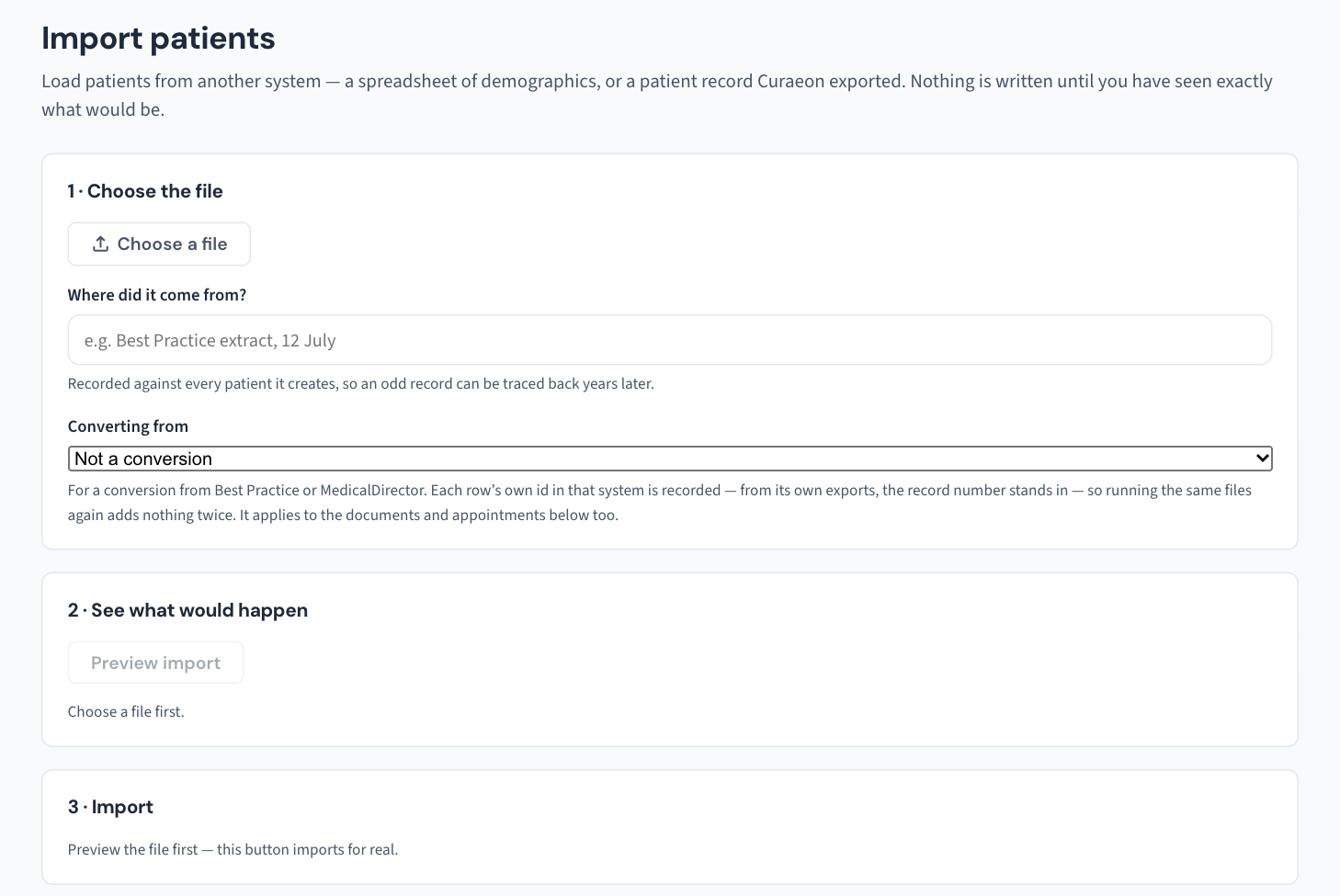
- Open Settings → Import patients and choose the kind of import.
- Upload the file. Curaeon previews first and writes nothing until you approve. Read the preview: what will be created, and every row that will be skipped, with its reason.
- For the appointment book, confirm each old-system practitioner against the right person here when asked.
- Approve. The import runs and produces a printable reconciliation report.
- Print it, check the counts against what your previous system said it held, and have the practice decision-maker sign the sign-off line. File it — it's the record the old system is retired on.
Reading the reconciliation report
Three things are on it: the counts, every skip with its reason, and the sign-off line. A skip is not a silent failure — it names the row and why it was left out, so you can decide whether it matters. Fix what's mechanical in the source and re-import, or accept the skip and note why on the printed report.
Brought-forward balances in Billing
Imported balances appear in Billing as Brought forward, reported beside the aged-debtor buckets and never inside them: the buckets age money from the date this practice issued the invoice, and a balance struck by another practice has no such date. The figure is there so a conversion doesn't quietly understate what the practice is owed.
Settling one records that the practice has stopped chasing it — not that the patient paid. When a patient pays, they pay this practice, and that is an ordinary invoice raised here with its own receipt and GST treatment. Settling asks who and why, and the record is kept.
After the import
- Utilities → Duplicate patients lists records that look like one person (same Medicare number, or same family name and date of birth). Nothing merges automatically; each pair opens Settings → Merge patients (KB-042 — Find and merge duplicate patient records).
- Utilities → Data quality lists active patients missing a Medicare number, date of birth, mobile or a usable address.
If that didn't work
Still stuck? Raise a ticket at support.curaeon.com.au or call 1300 XXX XXX. If your clinic can't see patients right now, call and choose option 1. Support is staffed Monday to Friday, 8:00–18:00 Sydney time; outside those hours a call or text to the same number is answered on a best-effort basis.
Related articles
- KB-024 — Migrating from your legacy PMS — what to expect — Migrating from your legacy PMS — what to expect
- KB-023 — Requesting a data export or report — Requesting a data export or report
- KB-053 — Month-end and end of day: aged debtors, statement runs and bank reconciliation — Month-end and end of day: aged debtors, statement runs and bank reconciliation
- KB-136 — Run a rehearsal and a cutover from Utilities → Conversion, and how it differs from Import — Run a rehearsal and a cutover from Utilities → Conversion, and how it differs from Import
- KB-135 — Export the patient list, billing history or the whole database from Utilities → Import & export — Export the patient list, billing history or the whole database from Utilities → Import & export