Run a rehearsal and a cutover from Utilities → Conversion, and how it differs from Import
Start a conversion from a Best Practice or MedicalDirector extract, watch it run, read what was skipped, and work the cutover-night checklist through to the signature, knowing what each button changes for the rest of the practice.
Before you start
- You need to be a practice administrator. Open the sidebar's Admin group, choose Utilities, then Conversion in the Data management group.
- The feature is off until whoever runs your server turns it on. Until then the section is listed but cannot start anything (see "If that didn't work").
- The extract has to be on the practice server already, in the folder the server has been told to read. Nothing is uploaded from this screen and there is no field to type a path into. Getting the extract made and placed is part of your migration with Curaeon (KB-024 — Migrating from your legacy PMS — what to expect). If you have not started that conversation, raise a Data migration ticket first.
- Reception does nothing on this screen. They see its effect as a notice on the calendar.
Conversion or Import: which one?
Both bring a previous system's data in, and both end in the same printable reconciliation report. They are used differently.
| Settings → Import patients (KB-070 — Import patients, documents, appointments and balances from your previous system, and read the reconciliation report) | Utilities → Conversion | |
|---|---|---|
| What you give it | A file you upload from your computer, one kind at a time: patients, the scanned archive, the appointment book | A whole extract archive in a folder on the server, chosen from a list |
| How it runs | Preview on screen, then you approve | In the background, in chunks. You can close the page |
| Trial run | The preview | A Rehearsal run |
| Going live | Each import is approved on its own | A Cutover run with a checklist, a booking notice for reception and a recorded signature |
| If it stops part-way | Fix the file and import again | Start the same folder again; it resumes from its last committed chunk |
| Use it for | A spreadsheet of patients, a folder of scans, a forward book, or a practice going live on those alone | A full move from Best Practice or MedicalDirector, planned with Curaeon |
The Conversion section shows only conversion runs. An ordinary import made under Settings does not appear here.
The screen with no run yet
The card is headed Conversion, with "Best Practice or MedicalDirector → Curaeon" beside it, and reads No conversion has been run for this practice. Below that are the controls to start one.
| Control | What it is |
|---|---|
| Extract folder | A list of the folders in the server's extract folder, each shown with its name and when it was last modified |
| Kind of run | Rehearsal or Cutover |
| Start from path | Starts the run. It is greyed out, with the reason beneath it, until a folder is listed |
| Refresh | Reads the folder list again without reloading the page |
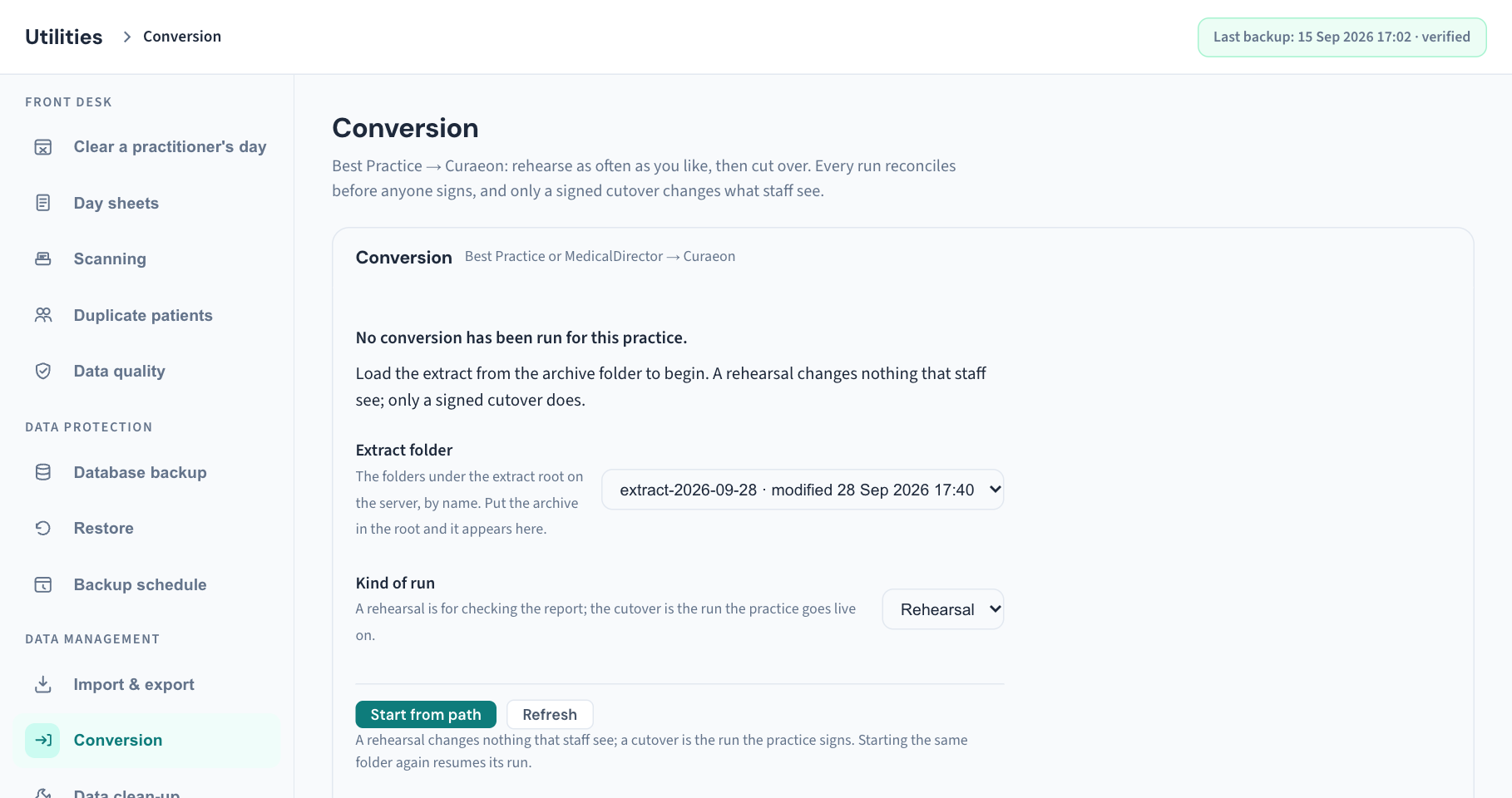
Run a rehearsal
A rehearsal is for checking the report. In the screen's words, "A rehearsal changes nothing that staff see; only a signed cutover does."
- Open Utilities → Conversion.
- In Extract folder, choose the extract. If it is not listed, ask whoever runs the server to copy it into the extract folder, then choose Refresh.
- Leave Kind of run on Rehearsal.
- Choose Start from path. The server checks the archive first. If the archive is damaged it refuses, and the screen says The run did not start: with the reason.
- Watch the run, or close the page. The screen says "You can close this page. The conversion keeps running."
- When the badge reads Complete, read Skipped rows, then choose Print the reconciliation report and check it with the practice's decision-maker (KB-070 — Import patients, documents, appointments and balances from your previous system, and read the reconciliation report explains how to read that report).
Rehearse as often as you need. Starting a folder that is still running is refused, because only one conversion runs at a time in a practice. Starting a folder that has already been converted completely as the same kind is also refused, and the message names the run.
Reading a run
Once a run exists, the card's title becomes the run's own name, with the source system and Rehearsal or Cutover beside it.
The status line. A badge, then small notes: Heartbeat and the time the worker last reported, Freeze from and a time once the booking freeze is on, and Signed and a time once the cutover is signed.
| Badge | Meaning | What to do |
|---|---|---|
| Running | The conversion is in progress | Nothing. The page checks every five seconds |
| Complete | Every section finished | Read the skipped rows and the report |
| Failed, with "The conversion stopped." and a reason | The worker hit an error and gave up after retrying | Give the reason to whoever runs the server. When the cause is fixed, use Resume the run |
| Failed, with "The worker has stopped reporting." | Nothing has been heard from the worker for more than three minutes. The server may have restarted | Ask whoever runs the server to check it. Then use Resume the run |
| Abandoned | A cutover was postponed | Clear the notice when the practice is ready; start a new cutover later |
| Needs a decision | The run is paused | The screen offers no control for this state. Raise a ticket |
Nothing is lost when a run fails. Every chunk that finished is kept, and the chunk in flight is undone whole, so the table on screen is exactly what is in the database.
The count line gives a count and a rate rather than a percentage, for example "30,110 of 41,208 rows · about 1 h at current rate". Before the total is known it reads "… rows converted so far".
Rows converted, by section. One row per section of the extract, with Chunks, Rows and Last commit. Until the first chunk finishes it reads "No chunk has committed yet."
Skipped rows · grouped by reason · first three of each. Each reason shows the section it came from and how many rows it refused, then up to three examples such as "Row 4412 · MRN 10221 · tier 4 (name + DOB)". An example identifies the row in the old system by its row number, its record number and how it was matched. It never shows a patient's name, because this list is printed and sits on a desk. "Nothing was skipped in this run." is said only when the server has confirmed it. The printed report lists every skipped row, not just three.
Print the reconciliation report opens the report in a new tab at any time. On a run still in progress it is the run so far.
If the page loses contact with the server, it keeps the last figures on screen, greyed, with "The last status check failed" and the time they were read. It keeps checking. It never goes blank, so an empty section always means there is no run.
Start what comes next
When a run has stopped, a heading appears at the bottom with the same start controls.
| After | Heading | What it offers |
|---|---|---|
| A failed run | Resume the run | "Start the same folder again to resume this run from its last committed chunk." |
| A complete rehearsal | Start the next run | A cutover: "When the rehearsal report is right, the cutover runs from the live extract." |
| A postponed cutover | Start the next run | "A new cutover is a new run." |
| A complete cutover | Nothing | That is where the practice went live |
Cutover night: the checklist
A cutover run shows a Cutover checklist. A rehearsal has none. Each step shows "not done" or "done" with the time, and has one button: Mark done, or Reopen… once it is done.
| Step | What ticking it does |
|---|---|
| Third-party write-back to Bp switched off | Records that it was done |
| Printed after-freeze list in hand | Records that it was done |
| Booking freeze on | Puts the booking notice at the top of the calendar for all staff, and sets the freeze time |
| Live extract run | Records that it was done |
| Reports signed | Not a tick. See "Record the signature" |
| After-freeze bookings re-keyed from the printed list | Takes the booking notice down for all staff. It asks first |
While the freeze is on, the calendar shows everyone: "Booking notice: check the printed list before trusting a gap in this book. An admin lifts this notice when the list is re-keyed." It reaches the front desk within a minute.
Mark a step done
- Choose Mark done beside the step.
- For the re-keyed step, a window asks Mark "re-keyed" as done? and warns: "This hides the booking notice for all staff. Only do this once every booking on the printed list is in Curaeon." Choose Mark as done, or Cancel.
Reopen a step ticked too early
- Choose Reopen… beside the step.
- Type a Reason. It is required.
- Choose Reopen.
The step then shows as not done for all staff, with "reopened once" and your reason beside it. Nothing is erased: every tick and every reopen is kept. Two things to know. Reopening the re-keyed step puts the booking notice back. Reopening Booking freeze on does not lift the freeze; only the re-keyed tick does.
Record the signature
The cutover is signed by a person, usually the principal. Record signature… appears on the Reports signed step once the run is Complete. Until then the step reads "Available when every section reconciles and the run is complete."
- Choose Record signature….
- Read the statement at the top of the window. It says the conversion read every table in the archive, that the data stays on this server, and that each converted record can be traced to its origin.
- Type the signer's Name and Role.
- Tick I confirm the conversion is complete and the freeze list has been printed.
- Choose Record signature.
The signature is recorded under whoever is signed in, at the server's time: "Recorded as you at the server's time. Signatures are kept, never edited." If the principal is not signed in themselves, an administrator types the principal's name and role in their presence, and the record shows both. A mistake is corrected with Record another signature…, which adds a second one; the first is kept and the signing time does not move.
Once signed, the cutover can no longer be postponed. Signing does not lift the booking notice. That follows the re-keyed step.
Postpone a cutover
Postpone cutover… is offered on a cutover that is not yet signed.
- Choose Postpone cutover….
- Type a Reason, for example why the principal would not sign tonight.
- Choose Postpone.
The run is marked Abandoned, the freeze is cleared, and the calendar shows "Cutover postponed. Keep booking in the old system as usual." That sentence stays until an administrator chooses Clear the notice on the run. Every other step on a postponed run is refused. The next attempt is a new cutover, started from Start the next run.
What is recorded
Starting, resuming, completing or failing a run, every checklist tick and reopen with its reason, the postponement with its reason, and each signature are written to the Audit log. Filter it by Moving from another system (KB-101 — Find who did what in the Audit log: kinds, Sign-ins, Exactly, Who and a bookmarkable view).
If that didn't work
| What you see | What it means | Who fixes it |
|---|---|---|
| "The extract folders could not be listed: conversion is not enabled on this server." | The feature is switched off, which is how every server starts | Whoever runs the server turns it on and restarts the server program |
| "Set CURAEON_CONVERSION_EXTRACT_ROOT on the server to the folder that holds the extracts…" | The server has not been told where extracts live | Whoever runs the server |
| "No extract folders yet. Copy the extract into the root folder on the server and it appears here." | The folder is set but empty | Whoever runs the server copies the extract in; then Refresh |
| "…the conversion extract root is not readable…" | The folder is set but missing, or the server may not read it | Whoever runs the server |
| "that extract folder is no longer there — refresh the list" | The folder was moved or renamed after the list was read | Choose Refresh and pick again |
| "a conversion is already running for this practice…" | One run at a time | Wait for it to finish or to read Failed |
| "this archive has already been converted…" | That folder is finished | A newer extract is a new folder and a new run |
| "the conversion is not complete" | A signature was tried on a run that is still running or failed | Wait for Complete |
| "the cutover is signed" | A signed cutover cannot be postponed, and the signature step cannot be reopened | Record another signature if a correction is needed |
| "the cutover was postponed; start a new cutover run" | A step other than clearing the notice was tried on a postponed run | Start a new cutover |
A window that fails to save stays open with what you typed, and a message says why. Nothing is lost; try again.
The screen does not show the report's figures themselves, who made the extract, or how long the old system stays readable afterwards. Those belong to your migration plan with Curaeon.
Still stuck? Raise a ticket at support.curaeon.com.au or call 1300 XXX XXX. If your clinic can't see patients right now, call and choose option 1. Support is staffed Monday to Friday, 8:00–18:00 Sydney time; outside those hours a call or text to the same number is answered on a best-effort basis.
Related articles
- KB-133 — Find your way around Utilities: every section, what it is for and who can open it — Find your way around Utilities: every section, what it is for and who can open it
- KB-024 — Migrating from your legacy PMS — what to expect — Migrating from your legacy PMS — what to expect
- KB-070 — Import patients, documents, appointments and balances from your previous system, and read the reconciliation report — Import patients, documents, appointments and balances from your previous system, and read the reconciliation report
- KB-135 — Export the patient list, billing history or the whole database from Utilities → Import & export — Export the patient list, billing history or the whole database from Utilities → Import & export
- KB-042 — Find and merge duplicate patient records — Find and merge duplicate patient records
- KB-081 — Fix data-quality gaps before they become rejected claims or lost letters — Fix data-quality gaps before they become rejected claims or lost letters
- KB-101 — Find who did what in the Audit log: kinds, Sign-ins, Exactly, Who and a bookmarkable view — Find who did what in the Audit log: kinds, Sign-ins, Exactly, Who and a bookmarkable view