Export the patient list, billing history or the whole database from Utilities → Import & export
Take your practice's own data out of Curaeon yourself: the patient list and the billing history as spreadsheets, and the complete database as a verified backup. No ticket is needed for any of the three.
Before you start
- You need to be a practice administrator. The section is hidden from everyone else, and the server refuses the exports for any other role.
- Open it from the sidebar: under Admin, choose Utilities, then Import & export in the Data management group.
- Decide where the file will be kept before you make it. Each file here is patient data from the moment it reaches your computer. See "Handle the files like patient data" below.
What is on the screen
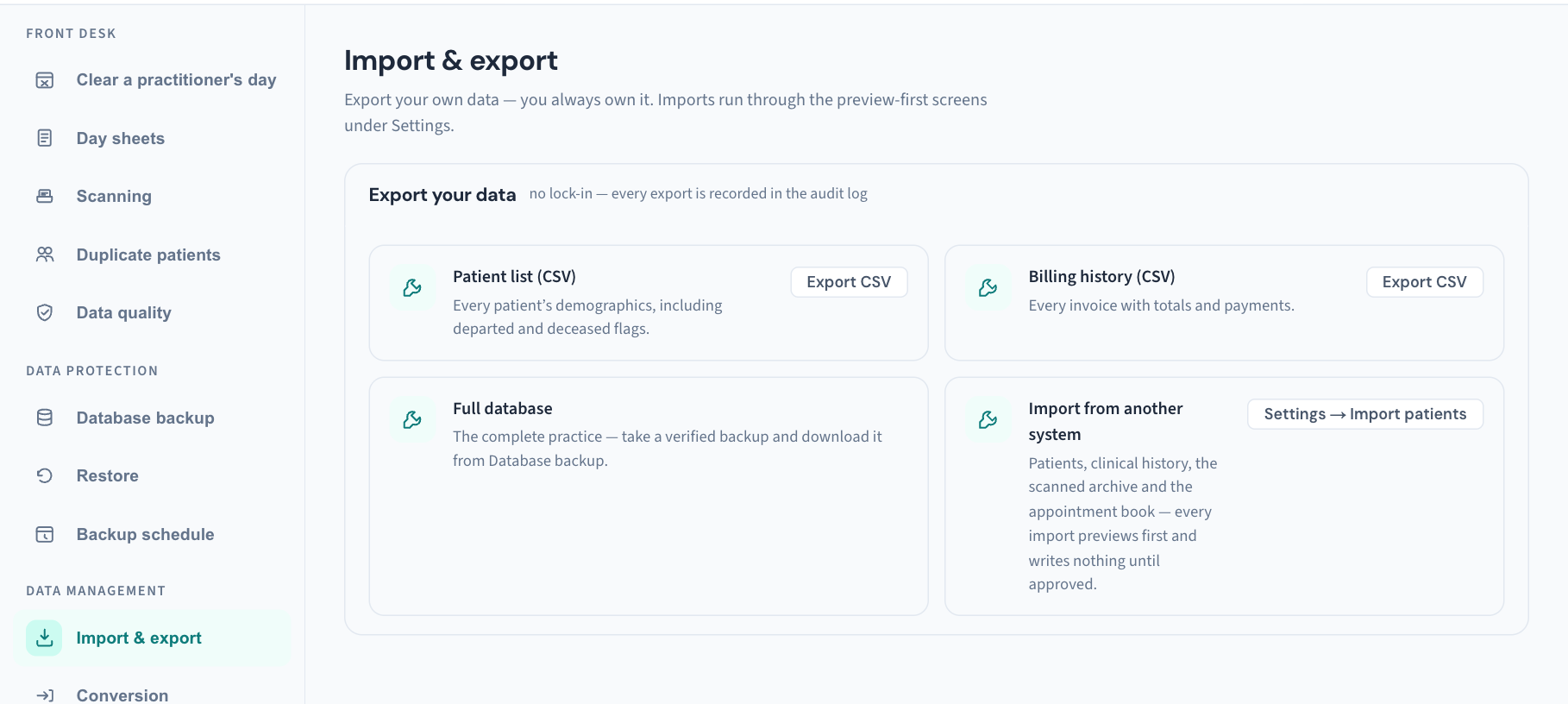
One card, Export your data, with the line "no lock-in — every export is recorded in the audit log". It has four rows.
| Row | What it does | Button |
|---|---|---|
| Patient list (CSV) | "Every patient's demographics, including departed and deceased flags." | Export CSV |
| Billing history (CSV) | "Every invoice with totals and payments." | Export CSV |
| Full database | Tells you to take a verified backup and download it from Database backup. | None. It is a pointer, not a button. |
| Import from another system | Describes importing. Nothing is imported from this screen. | Settings → Import patients |
Export the patient list
- Open Utilities → Import & export.
- On the Patient list (CSV) row, choose Export CSV. The button reads Exporting… while the file is prepared, and both export buttons are unavailable until it finishes.
- Your browser saves a file named
curaeon-patients.csv.
The file has one row for every patient the practice has recorded, in family-name order. There is no filter: patients who have left and patients who have died are included, and the last two columns say which.
| Column | Holds |
|---|---|
family_name, given_name |
The patient's name |
dob |
Date of birth, as year-month-day |
sex |
Sex as recorded |
medicare |
Medicare number |
mobile, email |
Contact details |
address, suburb, state, postcode |
Street address (first line) and locality |
status |
active, or left for a patient marked as having left the practice |
deceased |
yes for a deceased patient, otherwise empty |
A detail that is not recorded is an empty cell.
Export the billing history
- On the Billing history (CSV) row, choose Export CSV.
- Your browser saves a file named
curaeon-billing.csv.
The file has one row for every invoice, oldest first.
| Column | Holds |
|---|---|
invoice |
The invoice number (empty for an invoice that has none yet) |
date |
The day the invoice was created |
patient |
Family name, given name |
billing_type |
How the invoice is billed |
status |
The invoice's status |
total |
The sum of the invoice's lines |
paid |
The sum of payments recorded against it |
For billing figures grouped by month, practitioner or item, Reports is the better tool: its report builder exports what is on screen (KB-023 — Requesting a data export or report). This export is the raw list.
Export the full database
The complete practice is one backup file. There is no separate "export everything" button.
- Open Utilities → Database backup.
- Choose Back up now and wait for the new row to appear in Backup history.
- Check the row's status reads Verified. If it does not, choose Verify on that row.
- Choose Download on that row.
KB-139 — A tour of Utilities → Database backup, Restore and Backup schedule: every control and status walks through that screen, and KB-067 — Set up nightly backups, a second copy and a monthly restore drill covers nightly backups and the restore drill. A backup file is not a spreadsheet: it is a database dump that is read by restoring it.
What Curaeon records
- Each CSV export is written to the Audit log before the file is made, as Patient list exported or Billing data exported, with who did it and how many rows left.
- A backup download is recorded as Backup downloaded, with the file's name, before any of it is sent.
- If the export cannot be recorded, it is not made. This is deliberate: a whole patient list must not leave the practice without a row saying so.
- Exports and backup downloads are a section of the weekly Security review, where an administrator reads them and signs the week off (KB-064 — Sign off the weekly Security review, and act on alerts and audit-log check warnings). Expect your own exports to appear there, and add a note of why when you sign.
To look one up later, open Settings → Audit log (KB-101 — Find who did what in the Audit log: kinds, Sign-ins, Exactly, Who and a bookmarkable view).
Handle the files like patient data
- Save them to encrypted storage only. A backup file is not separately encrypted; the storage it sits on is what protects it, and that is a condition of connecting to the HI Service (KB-067 — Set up nightly backups, a second copy and a monthly restore drill).
- Send a file only by a route the recipient has agreed to.
- Never attach an export or a backup to a support ticket (KB-007 — Why we never need patient details in a support ticket).
- Delete working copies when the job is done. The Audit log shows that a file was made; it cannot show where it went afterwards.
The "import" half of this screen
Nothing is imported from Utilities → Import & export. The fourth row explains that imports cover "patients, clinical history, the scanned archive and the appointment book" and that "every import previews first and writes nothing until approved", and its button takes you to Settings.
- Choose Settings → Import patients. It opens that screen.
- Follow KB-070 — Import patients, documents, appointments and balances from your previous system, and read the reconciliation report from there.
A whole-practice move from Best Practice or MedicalDirector is a different tool again: Utilities → Conversion (KB-136 — Run a rehearsal and a cutover from Utilities → Conversion, and how it differs from Import).
Which export do I want?
| You need | Use |
|---|---|
| A mailing or contact list of everyone | Patient list (CSV) here |
| A list of patients matching clinical criteria | Reports → Find patients (KB-080 — Find patients by clinical criteria and export the list) |
| Every invoice, for an accountant or an audit | Billing history (CSV) here |
| Billing totals grouped and filtered | Reports, the report builder (KB-023 — Requesting a data export or report) |
| Everything, for your own archive or independent proof you are not locked in | A verified backup, downloaded |
| A clinical extract in another format, or a custom report | A Data export / report request ticket (KB-023 — Requesting a data export or report) |
If that didn't work
| What you see | What it means | What to do |
|---|---|---|
| The export could not be generated. | The server did not return the file. Either it could not be prepared, or it could not be recorded in the Audit log and so was not made. | Try once more. If it repeats, raise a ticket and say which export. |
| Import & export is not in the list | You are not signed in as a practice administrator. | Ask an administrator, or see KB-034 — Choose the right role and permissions for a new staff member. |
| The CSV opens with long numbers changed or leading zeros missing | Your spreadsheet program reformatted the columns on opening. The file itself is correct. | Import the file as text columns rather than double-clicking it. |
| The main app will not load at all | The same console is served by the practice server itself. | Use the standalone console (KB-068 — Use the standalone admin console when the main app won't load). |
The screen does not offer a choice of columns, a date range or a filter for either CSV. If you need a narrower file, use Reports, or raise a ticket describing the purpose.
Still stuck? Raise a ticket at support.curaeon.com.au or call 1300 XXX XXX. If your clinic can't see patients right now, call and choose option 1. Support is staffed Monday to Friday, 8:00–18:00 Sydney time; outside those hours a call or text to the same number is answered on a best-effort basis.
Related articles
- KB-133 — Find your way around Utilities: every section, what it is for and who can open it — Find your way around Utilities: every section, what it is for and who can open it
- KB-023 — Requesting a data export or report — Requesting a data export or report
- KB-080 — Find patients by clinical criteria and export the list — Find patients by clinical criteria and export the list
- KB-070 — Import patients, documents, appointments and balances from your previous system, and read the reconciliation report — Import patients, documents, appointments and balances from your previous system, and read the reconciliation report
- KB-136 — Run a rehearsal and a cutover from Utilities → Conversion, and how it differs from Import — Run a rehearsal and a cutover from Utilities → Conversion, and how it differs from Import
- KB-139 — A tour of Utilities → Database backup, Restore and Backup schedule: every control and status — A tour of Utilities → Database backup, Restore and Backup schedule: every control and status
- KB-064 — Sign off the weekly Security review, and act on alerts and audit-log check warnings — Sign off the weekly Security review, and act on alerts and audit-log check warnings