Print a medication summary chart, or a whole aged-care round
Print one patient's current medicines as a chart, or every resident of an aged-care facility in room order — and know exactly what that printed page is and is not.
Before you start
The chart is printed from the patient's Medications tab, so you need a role that opens the clinical record. The allergies box comes straight from the record: an adverse reaction with its severity, or an explicit nil known, which records who confirmed it and when. A patient with neither prints as "not recorded — check before administering" — fix that on the record, not on the paper.
Print one patient's chart
- Open the patient's record and the Medications tab.
- Choose to print the medication summary chart.
- Check the page. It lists every active medication — regular and when required (PRN) medicines separately — with dose, route, frequency, start date and a prescriber signature line.
- Confirm the header: practice letterhead, the patient's identity block, allergies and adverse reactions boxed at the top, and the reviewing clinician named.
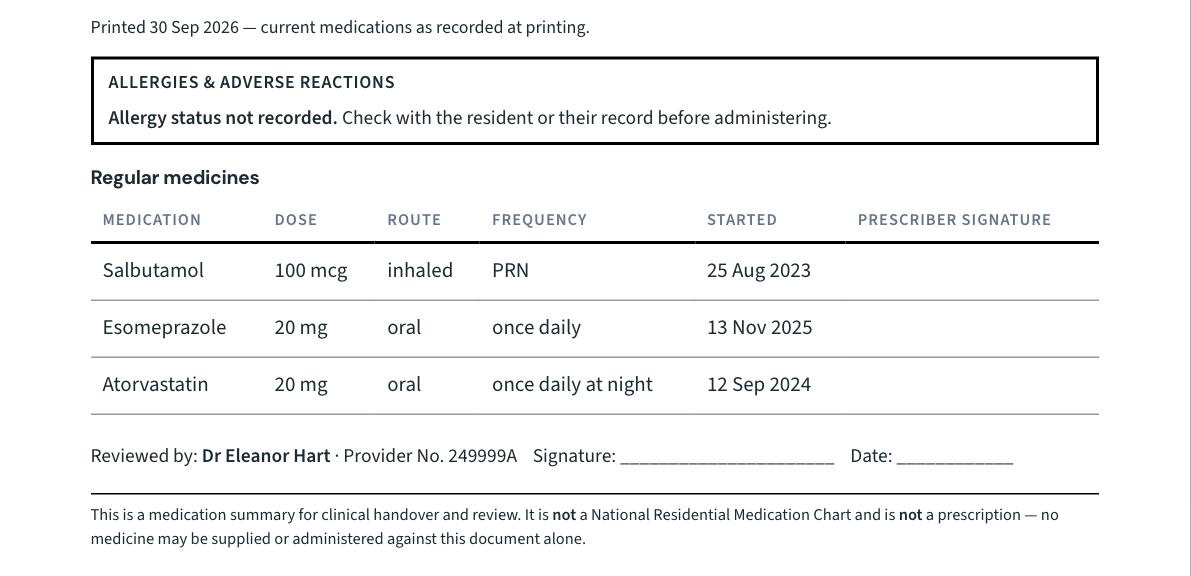
Important: The printed page states that it is not a National Residential Medication Chart and that nothing may be supplied against it. It is a summary of what the record says is current, not a chart a pharmacy supplies or a nurse administers from. Do not cross that line out or explain it away to a facility.
Print a whole aged-care round
A resident's record can name their facility, and the round is built from that.
- On each resident's record, open Edit details → Address and name their aged-care facility and room.
- Choose Print the facility round. It prints every current resident's chart, in room order, in one job.
- Check the round before you leave — a resident whose record does not name the facility is not in it.
Every chart in the round carries the same statement as a single chart.
What Curaeon records
Printing is the one look at a record that is recorded before the fact. A round of charts is recorded against each patient it listed, with the facility and how many patients were on it, and appears on a patient's access report as a page that listed them among others (KB-063 — Answer "who has seen my record?": print a patient access report).
Tip: If the Audit log cannot record a print, Curaeon answers with an error rather than printing quietly. A browser told to print anyway still prints — so if you see that error, stop and tell your administrator.
If the chart looks wrong
- A medicine is missing or should not be there. The chart prints what is active on the record. Fix the list, then print again.
- Interactions are not checked by the chart — and today not at prescribing time either: automated interaction screening is not yet connected at any practice, and the prescribing screen says so (KB-045 — "Interactions not checked": what the prescribing screen is telling you, and why there is nothing to load yet).
- A restricted record is refused to anyone not named on it, however it is reached (KB-061 — Restrict a patient's record, and open one in an emergency).
Where the manual is silent
The manual does not say where Print the facility round sits on screen, whether an unsigned medication prints, or whether the chart can be emailed as a PDF. If you need one of those, raise a ticket under Clinical software.
Still stuck? Raise a ticket at support.curaeon.com.au or call 1300 XXX XXX. If your clinic can't see patients right now, call and choose option 1. Support is staffed Monday to Friday, 8:00–18:00 Sydney time; outside those hours a call or text to the same number is answered on a best-effort basis.
Related articles
- KB-044 — Record and settle an owing script — Record and settle an owing script
- KB-045 — "Interactions not checked": what the prescribing screen is telling you, and why there is nothing to load yet — "Interactions not checked": what the prescribing screen is telling you, and why there is nothing to load yet
- KB-063 — Answer "who has seen my record?": print a patient access report — Answer "who has seen my record?": print a patient access report