Set what your practice charges for private and DVA billing in Settings → Fees
Record your practice's own fee against each MBS item it bills, so a private or DVA invoice line starts at your price and not at the MBS schedule fee, and know how to change a fee, remove one, or switch the whole list off for a while.
Before you start
- Open Settings → Fees.
- Everyone can read the list. Reception quotes fees at the desk, so the page opens for every staff member.
- Only an administrator can change it. Setting a fee, clearing one, and switching the list on or off need the practice administration permission. If you are not an administrator you will not see those controls at all; you see the list and whether it is in use.
- The items you can price come from the MBS schedule loaded on your server (KB-138 — Read Utilities → Storage and Clinical datasets: how big the database is, and which reference data is loaded).
Important: This page holds prices. It does not choose items. Curaeon never suggests which MBS item to bill: a Medicare claim is a statement by the billing practitioner, and the item is theirs to choose (KB-056 — Why the scribe never writes the Assessment or suggests item numbers).
What a practice fee is, and when it is used
When an MBS item is added to an invoice and nobody types a fee, Curaeon has to start from some figure. Which one depends on how the invoice is billed:
| The invoice is | The line starts at |
|---|---|
| Bulk billed | The Medicare benefit. With bulk billing the benefit is the payment, so nothing on this page applies. |
| Private or DVA, and the item has a fee here, and the list is In use | Your practice's fee from this page. |
| Private or DVA, and the item has no fee here, or the list is Not in use | The MBS schedule fee. |
The same rule applies to any invoice that is not bulk billed.
The MBS schedule fee is the government's reference figure. It is not a private price, and it is almost always lower than what a practice charges. Before this page existed, the only protection against under-charging was somebody remembering the real price and typing it over every line. This page is that memory, written down.
Three things to know:
- A typed fee still wins. If someone types a fee on an invoice line, that is what the line bills at. The practice fee is the starting figure, not a lock.
- Invoices already raised are not repriced. A new fee applies to lines added from then on.
- Old fees are kept. Changing a fee closes the old one and opens a new one from today. Nothing is overwritten, so an invoice raised last March can still be explained against the fee that applied in March.
A tour of the screen
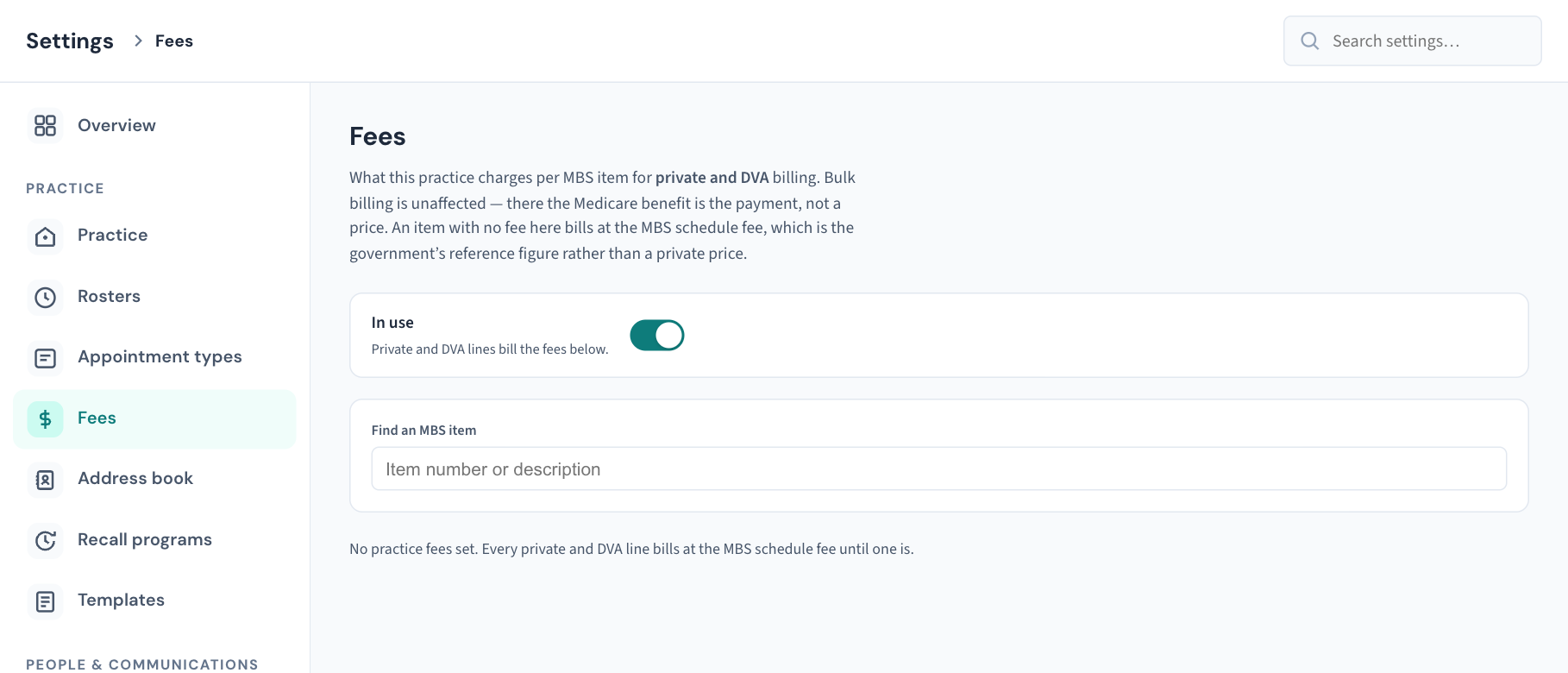
From top to bottom:
- The explanation. A reminder that the list is for private and DVA billing, that bulk billing is unaffected, and that an item with no fee here bills at the MBS schedule fee.
- In use / Not in use. Whether the list is being applied at all. Everyone sees the state. Administrators also see the Use practice fees switch.
- Find an MBS item (administrators only). Where you set a fee.
- The list. One row per priced item, in item-number order:
| Column | What it shows |
|---|---|
| Item | The MBS item number. |
| Description | The item's description. Hover to read it in full if it is cut short. |
| Schedule fee | The government's figure for the item. |
| This practice | What your practice charges, in bold. |
| Clear (administrators only) | Removes the practice's fee for that item. |
The schedule fee is shown beside your own on purpose. Reading one without the other is how a fee gets set below the schedule by accident.
If no fees have been set, the page says "No practice fees set. Every private and DVA line bills at the MBS schedule fee until one is."
Set a fee for an item
You need to be an administrator.
- In Find an MBS item, type at least two characters: the start of the item number, or a word from its description.
- Choose the item from the matches. Each shows its number, description and schedule fee. Up to eight matches are shown; type more to narrow them.
- In This practice charges, type the amount as a plain number, such as
95or95.00. Do not type a dollar sign or a comma. The box shows the schedule fee in grey as a guide. - Select Set fee.
You will see "Item … now bills at $…". The item appears in the list, and the box clears ready for the next one.
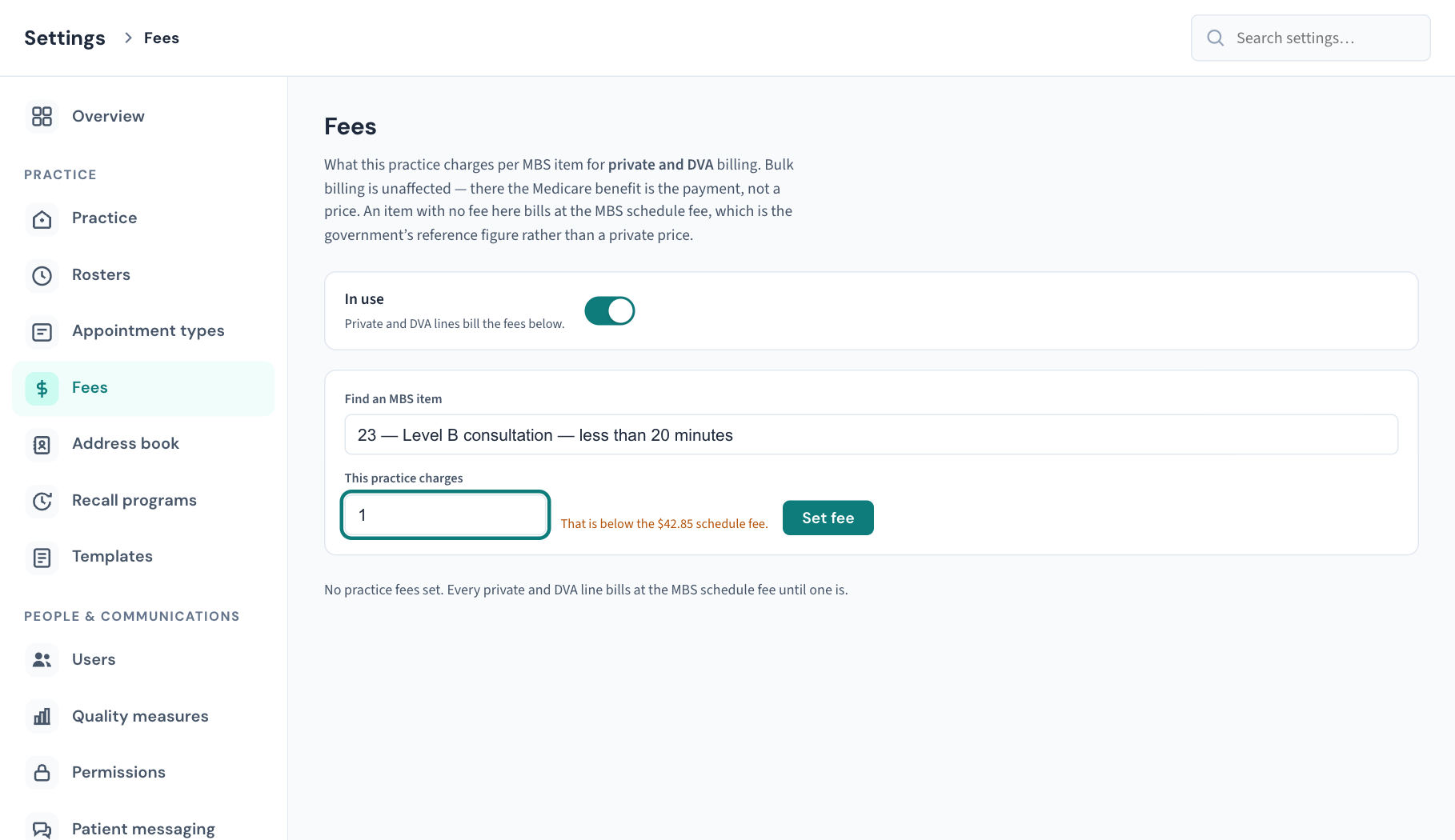
If the amount is lower than the schedule fee, the page says "That is below the $… schedule fee." This is a warning, not a block. Charging below the schedule fee is allowed and occasionally intended, but it is almost always a typing slip, and it is the direction nobody notices. Read the amount again before you select Set fee.
Set fee stays switched off, with "Enter what the practice charges for this item first.", until you have typed an amount.
The search finds only items in the schedule that are current today. That is deliberate: a fee is set against a real item number, not one typed from memory.
Change a fee
There is no edit button on a row. To change a fee, set it again.
- In Find an MBS item, find the same item.
- Type the new amount.
- Select Set fee.
The new fee replaces the old one from today, and the row in the list shows the new amount. The old fee is kept on the record with the date it ended.
Remove a fee
- Find the item in the list.
- Select Clear.
It happens at once, without a confirmation. You will see "Item … falls back to the MBS schedule fee." The row leaves the list, and from then on private and DVA lines for that item start at the schedule fee again.
Clearing does not erase history. The fee that priced past invoices stays on the record.
Switch the whole list off, and back on
Use this when the practice stops charging its own fees for a period, such as a spell of bulk billing everything, without losing the prices.
- At the top of the page, flip the Use practice fees switch.
| State | What happens |
|---|---|
| In use | "Private and DVA lines bill the fees below." |
| Not in use | "Private and DVA lines bill the MBS schedule fee. The fees below are kept and will apply again when this is switched back on." |
The list is In use unless somebody has switched it off. Switching it off changes no fee and removes nothing; it only stops the list being applied. That is why it exists: clearing every fee would do the same job, but someone would then have to remember them all to switch back.
Everyone who opens the page sees the state, so reception knows whether the list they are reading is the one being billed.
If you are reception: reading the list
You can open Settings → Fees at any time to answer "what will this cost?".
- Check the top of the page says In use. If it says Not in use, private and DVA lines are billing the MBS schedule fee and the list below is not being applied.
- Find the item in the list and read This practice.
- If the item is not in the list, the practice has not set a fee for it and it bills at the schedule fee.
If a price looks wrong, tell your practice manager. You cannot change it, and that is intended: a price list is the practice's decision.
What is recorded
Every change is in the Audit log with who made it:
| What was done | How it reads in the Audit log |
|---|---|
| A fee set or changed | Practice fee set, naming the MBS item, with the old and new amount |
| A fee cleared | Practice fee removed, naming the MBS item, with the amount it was |
| The list switched on | Practice fee list turned on |
| The list switched off | Practice fee list turned off |
Setting a fee to the amount it already is (typing 95 over 95.00) is not recorded as a change, because the price did not move.
What the screen does not do
- It does not pick an item for a consult. See the note at the top.
- It does not price bulk-billed invoices. Those use the Medicare benefit.
- It holds one fee per item. The screen has no way to set a different rate for a particular funder, such as a separate DVA or WorkCover rate. If your practice needs that, raise a ticket.
- It does not set a fee to start on a future date. A fee applies from the day you set it.
- It does not show past fees. Only the fees in force now are listed. For what an item was priced at on an earlier date, look for Practice fee set in the Audit log (KB-101 — Find who did what in the Audit log: kinds, Sign-ins, Exactly, Who and a bookmarkable view).
- It does not price things that are not MBS items. A fee here is always against an MBS item number.
If that didn't work
- I can't see Find an MBS item, Clear or the switch. You are not signed in as an administrator. The list itself is still yours to read.
- Typing in Find an MBS item shows no matches. Type at least two characters. Search by the start of the item number, or by a word in the description. If nothing is ever found, the MBS schedule may not be loaded on your server: see KB-138 — Read Utilities → Storage and Clinical datasets: how big the database is, and which reference data is loaded.
- "fee must be an amount like 95.00". Type digits only, with at most two decimal places and no dollar sign, comma or space.
- "No current MBS item with that number." The item is not in the schedule in force today.
- "your role does not permit this action". Only an administrator can change fees.
- A red message where the list should be. Curaeon could not read the fees. Do not treat this as "no fees set". Reload the page, and raise a ticket if it continues.
- A private invoice line came out at the schedule fee. Check, in order: the list says In use; the item is in the list; the invoice is private or DVA and not bulk billed. If a different figure was typed on the line, the typed figure wins. To fix an invoice that has already gone out, see KB-052 — Raise, correct and claim an invoice, including when "Send to Medicare…" is blocked.
- A line came out at the old price after I changed the fee. The line was added before the change. Existing lines are not repriced.
Still stuck? Raise a ticket at support.curaeon.com.au or call 1300 XXX XXX. If your clinic can't see patients right now, call and choose option 1. Support is staffed Monday to Friday, 8:00–18:00 Sydney time; outside those hours a call or text to the same number is answered on a best-effort basis.
Related articles
- KB-115 — Find your way around Settings: every section, who can open it, and where to read more — Find your way around Settings: every section, who can open it, and where to read more
- KB-052 — Raise, correct and claim an invoice, including when "Send to Medicare…" is blocked — Raise, correct and claim an invoice, including when "Send to Medicare…" is blocked
- KB-053 — Month-end and end of day: aged debtors, statement runs and bank reconciliation — Month-end and end of day: aged debtors, statement runs and bank reconciliation
- KB-056 — Why the scribe never writes the Assessment or suggests item numbers — Why the scribe never writes the Assessment or suggests item numbers
- KB-138 — Read Utilities → Storage and Clinical datasets: how big the database is, and which reference data is loaded — Read Utilities → Storage and Clinical datasets: how big the database is, and which reference data is loaded
- KB-101 — Find who did what in the Audit log: kinds, Sign-ins, Exactly, Who and a bookmarkable view — Find who did what in the Audit log: kinds, Sign-ins, Exactly, Who and a bookmarkable view