Find your way around Settings: every section, who can open it, and where to read more
Use this page as the map of Settings: how to open it, how it is laid out, what each of its 26 sections is for, who can open each one, and which article walks you through it.
Before you start
- Settings is in the sidebar for every staff member. What you see inside it depends on what your role may do, so two people at the same practice can see different lists. That is intended; see "Why a section is missing for you" below.
- Preferences and Utilities sit beside Settings in the sidebar and are separate screens. Preferences is your own display and working defaults (KB-131 — Set up Preferences: your start screen, calendar view, colours, notifications and privacy). Utilities is the practice's day-to-day and operational tools (KB-133 — Find your way around Utilities: every section, what it is for and who can open it).
Open Settings
- In the sidebar, find the Admin heading.
- Select Settings.
You land on Overview.
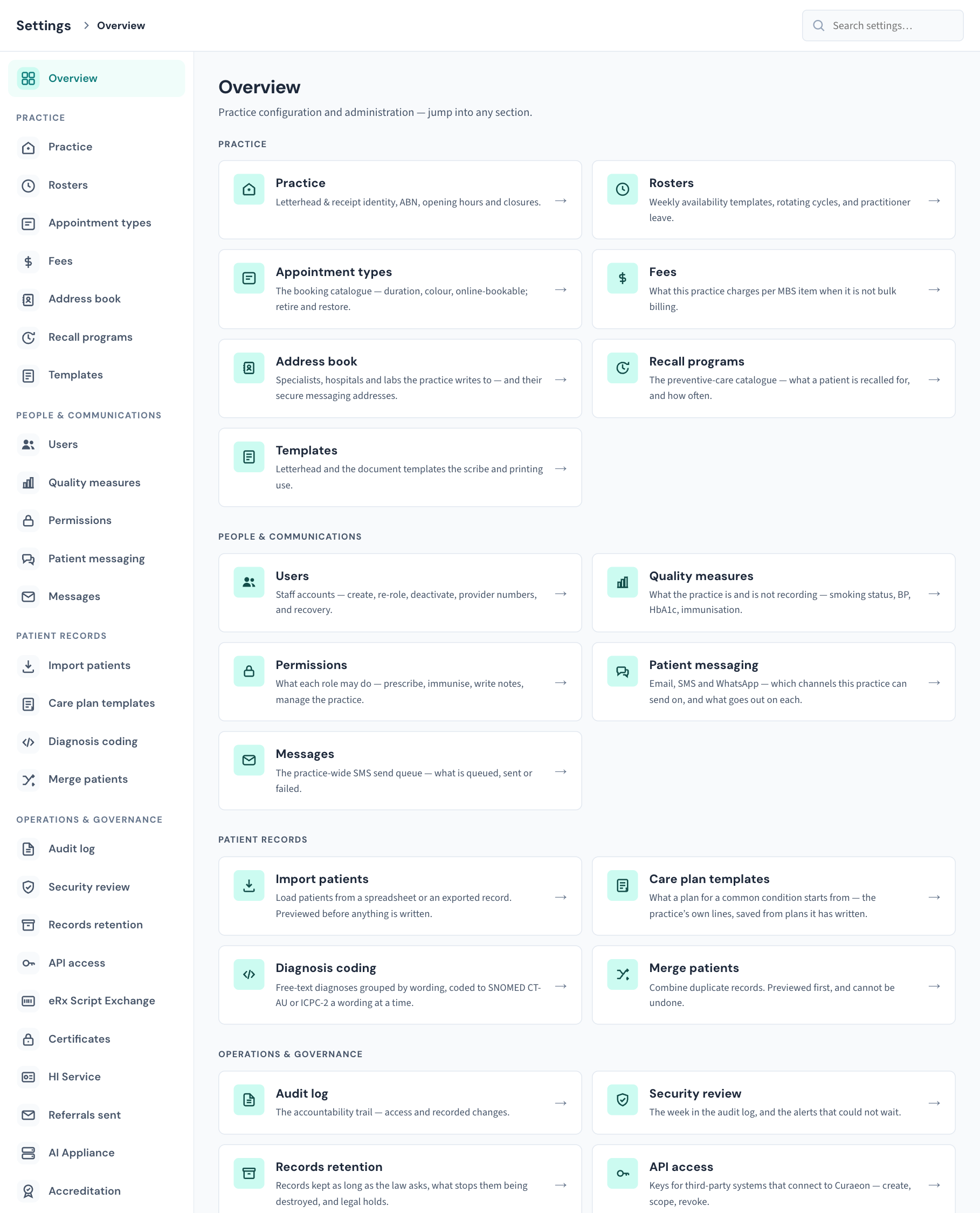
How the screen is laid out
| Part | What it does |
|---|---|
| Top bar | Says Settings and then the section you are in, so you always know where you are. |
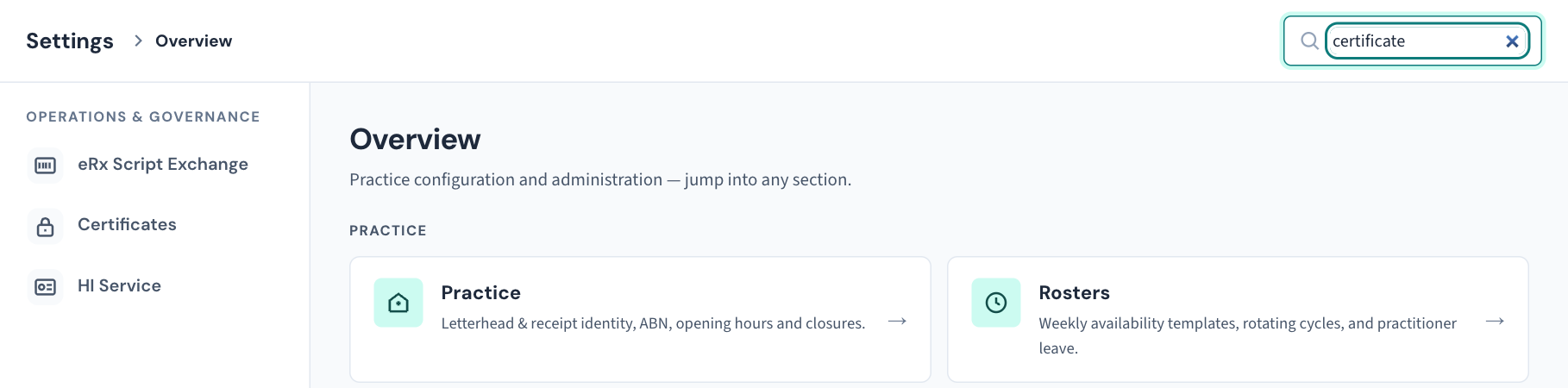
| Search settings… | Type part of a section's name or what it is about ("leave", "certificate", "SMS"). The rail on the left narrows to the sections that match. If nothing matches, the rail says No settings match "…". Clear the box to see everything again. |
| Section rail (left) | Overview at the top, then every section you may open, under four headings: Practice, People & communications, Patient records and Operations & governance. The section you are in is highlighted. The rail stays put as you move between sections. |
| Overview (the page you land on) | The same sections as cards. Each card has the section's name and one line about what it holds. Select a card to open the section. |
Tip: With keyboard shortcuts switched on in Preferences (KB-131 — Set up Preferences: your start screen, calendar view, colours, notifications and privacy), pressing / anywhere in Settings (outside a text box) puts the cursor in Search settings….
The search narrows the rail only. The cards on Overview always show every section you may open.
The four groups, section by section
In the tables below, Who can open it is how Curaeon is set up when it is installed. A practice can change what each role may do under Settings → Permissions (KB-121 — Change what each role may do in Settings → Permissions), and the list you see follows those changes.
- Everyone means any signed-in staff member: Reception, Nurse, Clinician or Admin.
- Admin means people who hold the practice administration permission. Out of the box that is the Admin role only.
- Admin and Clinician means people who may write in the chart or view reports. Out of the box that is those two roles.
Being able to open a section is not the same as being able to change everything in it. Where a section opens for everyone but only an administrator can change something, the table says so.
Practice
| Section | What it is for | Who can open it | Read |
|---|---|---|---|
| Practice | The practice's name, logo, contact details, ABN and Medicare identifiers as they print on receipts and letters; opening hours; closures; the Curaeon licence. | Everyone. Opening hours, closures, the timezone and the licence card are for administrators. | KB-116 — Set up your practice's details, opening hours and closures in Settings → Practice, and KB-114 — Your Curaeon licence: seats, renewal, and requesting more from Settings → Practice for the licence |
| Rosters | Each practitioner's working week, rotating rosters, and leave. | Admin | KB-119 — Set up rosters, rotating cycles and leave in Settings → Rosters: the complete walkthrough |
| Appointment types | The list of appointment types staff book from: name, length, calendar colour, and whether patients can book it online. | Everyone can read the list. Only an administrator can add, change, reorder or retire a type. | KB-117 — Add, change, reorder and retire appointment types in Settings → Appointment types |
| Fees | What the practice charges per MBS item for private and DVA billing. | Everyone can read the list. Only an administrator can set or clear a fee. | KB-118 — Set what your practice charges for private and DVA billing in Settings → Fees |
| Address book | The specialists, hospitals and labs the practice writes to, and their secure messaging addresses. | Everyone can look up a contact. Only an administrator can add or edit one. | KB-124 — Keep the practice address book in Settings → Address book: add, edit and retire a contact, with KB-048 — Refer a patient: find a provider in HealthLink/HealthShare, or record a referral without a letter and KB-103 — Check Directory sources when Find a provider says "extract", looks stale, or cannot reach a directory |
| Recall programs | What a patient can be recalled for, and how often. | Everyone | KB-125 — Set up recall programs in Settings → Recall programs: add a program, set its interval, retire one, with KB-051 — Run recalls: book from a recall, and why a recall stays open or comes back |
| Templates | Letterheads and the letter and document templates. | Admin and Clinician. An administrator looks after the practice's library; a clinician comes here for their own templates. | KB-049 — Build and import letter templates: Word upload, merge fields, pronoun fields, snippets, with KB-106 — Write a letter in the editor: Insert from the record, { } Field, and the formatting that survives print and email |
People & communications
Patient messaging and Messages are easy to mix up. Patient messaging is the set-up that decides what may be sent. Messages is the list of what has actually been queued and sent.
Patient records
| Section | What it is for | Who can open it | Read |
|---|---|---|---|
| Import patients | Load patients from a spreadsheet or an exported record. Everything is previewed before anything is written. | Admin | KB-070 — Import patients, documents, appointments and balances from your previous system, and read the reconciliation report |
| Care plan templates | What a care plan for a common condition starts from. | Admin and Clinician (anyone who may write in the chart) | KB-102 — Start a care plan from a template, share templates between sites, and keep Plan reviews and INR clear |
| Diagnosis coding | Free-text diagnoses grouped by wording, to be coded to SNOMED CT-AU or ICPC-2 one wording at a time. | Admin and Clinician (anyone who may write in the chart) | KB-126 — Code a backlog of free-text diagnoses in Settings → Diagnosis coding |
| Merge patients | Combine duplicate records. Previewed first; it cannot be undone. | Admin | KB-042 — Find and merge duplicate patient records |
Operations & governance
What is not in Settings
Some things people look for here live elsewhere:
| Looking for | Where it is |
|---|---|
| Your own display and working defaults | Preferences, in the sidebar under Admin (KB-131 — Set up Preferences: your start screen, calendar view, colours, notifications and privacy, KB-132 — Set up your clinical defaults and pathology favourites once, so every consult starts your way) |
| Backups, active sessions, the idle sign-out time, clearing a practitioner's day, data clean-up | Utilities, in the sidebar under Admin (KB-133 — Find your way around Utilities: every section, what it is for and who can open it) |
| The AIR backlog | The workspace sidebar, for staff who may record immunisations. It is a worklist, not a setting (KB-079 — Record an immunisation and work the AIR backlog). |
| A practitioner's own provider, prescriber and AHPRA numbers | Their account in Settings → Users (KB-120 — Manage staff accounts in Settings → Users: add, change a role, seats, provider numbers, deactivate), not Settings → Practice |
| Public holidays and days the whole practice is shut | Settings → Practice (KB-116 — Set up your practice's details, opening hours and closures in Settings → Practice), not Settings → Rosters |
Why a section is missing for you
Settings only lists what you may open. Curaeon hides a section rather than showing a card that would refuse you when you select it.
- You are not an administrator. A receptionist or nurse sees Practice, Appointment types, Fees, Address book and Recall programs. A clinician sees those plus Templates, Quality measures, Care plan templates and Diagnosis coding. An administrator sees all 26.
- Your practice has changed a role's permissions. If an administrator has given or taken away a permission under Settings → Permissions, the list follows. For example, a nurse who has been given the permission to write in the chart will also see Care plan templates, Diagnosis coding and Templates.
- A whole group is missing. A group heading is only shown when you can open at least one section in it. A receptionist sees one heading, Practice.
- You typed in the search box. The rail is narrowed to what matches. Clear the box.
The server makes the same decision as the screen. Typing a section's address into the browser does not get around it: the section either tells you it is for administrators or shows an error, and a refused attempt is recorded in the Audit log.
If you need a section you cannot see, ask your practice administrator. They can either do the task for you or grant the permission under Settings → Permissions (KB-121 — Change what each role may do in Settings → Permissions). Changes to who may do what are recorded in the Audit log and listed in the weekly Security review.
If that didn't work
- Settings is not in my sidebar. It is shown to every signed-in staff member. On a narrow window the sidebar is tucked away; open it with the menu button at the top of the screen, then look under Admin.
- I am an administrator and a section is still missing. Clear Search settings… first. If it is still missing, sign out and in again so Curaeon reads your permissions afresh, then check Settings → Permissions to see whether the Admin role has had a permission removed.
- The only thing I can open is Practice, and it shows a licence card. The installation has no confirmed Curaeon licence yet. See KB-114 — Your Curaeon licence: seats, renewal, and requesting more from Settings → Practice.
- A card opened a page that says access is for administrators. Your permissions changed while you were signed in. Ask your administrator, or see KB-034 — Choose the right role and permissions for a new staff member.
Still stuck? Raise a ticket at support.curaeon.com.au or call 1300 XXX XXX. If your clinic can't see patients right now, call and choose option 1. Support is staffed Monday to Friday, 8:00–18:00 Sydney time; outside those hours a call or text to the same number is answered on a best-effort basis.
Related articles
- KB-131 — Set up Preferences: your start screen, calendar view, colours, notifications and privacy — Set up Preferences: your start screen, calendar view, colours, notifications and privacy
- KB-133 — Find your way around Utilities: every section, what it is for and who can open it — Find your way around Utilities: every section, what it is for and who can open it
- KB-034 — Choose the right role and permissions for a new staff member — Choose the right role and permissions for a new staff member
- KB-121 — Change what each role may do in Settings → Permissions — Change what each role may do in Settings → Permissions
- KB-083 — Practice-manager setup checklist: everything to configure before your first consulting day — Practice-manager setup checklist: everything to configure before your first consulting day
- KB-112 — Quick reference: practice manager — Quick reference: practice manager