Set up recall programs in Settings → Recall programs: add a program, set its interval, retire one
Give your front desk a short, agreed list of what patients are recalled for and how often, so that filing a recall is a choice from a list and not a calculation of months.
Before you start
A recall program is a standard reason for recalling a patient, such as cervical screening or a care plan review, with a default interval in months. This screen is the catalogue. The recalls themselves are raised and worked on the Recalls worklist (KB-051 — Run recalls: book from a recall, and why a recall stays open or comes back).
- Open Settings in the sidebar, then Recall programs under Practice.
- Every role can open this screen, and add or retire a program. Recalls are front-desk work, so the people who file them can also see and maintain what the programs are. Agree in your practice who looks after the list.
A tour of the screen
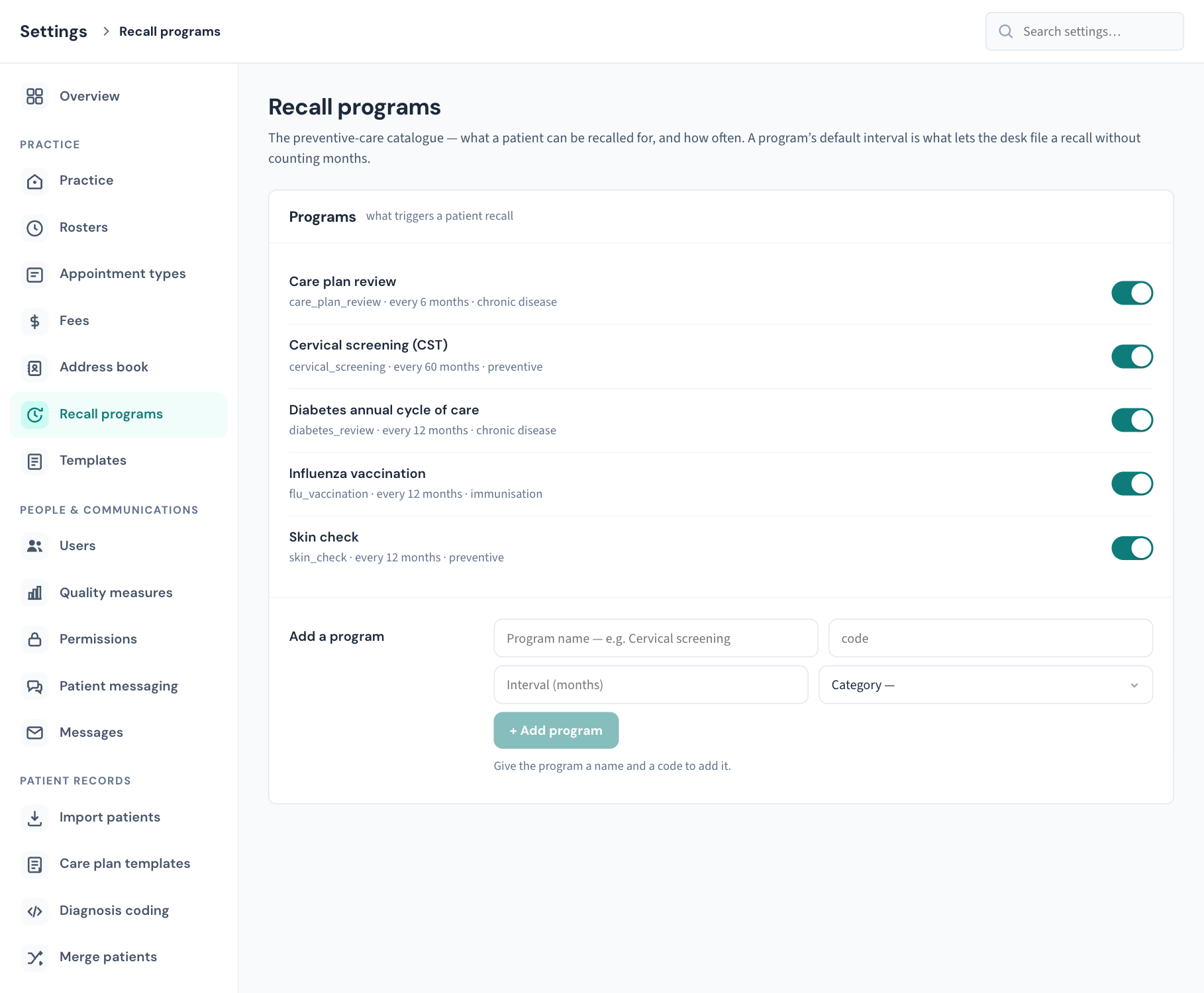
Programs. One line per program. Under each name is its code, then "every N months" if it has a default interval, then its category, and "retired" if it has been switched off. The switch on the right retires or restores the program.
Curaeon ships with five programs:
| Program | Code | Interval | Category |
|---|---|---|---|
| Cervical screening (CST) | cervical_screening | every 60 months | preventive |
| Diabetes annual cycle of care | diabetes_review | every 12 months | chronic disease |
| Skin check | skin_check | every 12 months | preventive |
| Influenza vaccination | flu_vaccination | every 12 months | immunisation |
| Care plan review | care_plan_review | every 6 months | chronic disease |
Add a program. Four fields and the + Add program button, at the foot of the card.
How a program is used
When someone files a recall with New recall on the Recalls worklist, the Program list offers every active program, with its interval in brackets. Choosing one does two things:
- it fills in the Reason with the program's name, and
- it sets the Due date to today plus the program's interval.
Both can still be changed before the recall is filed. A program with no interval fills in the reason and leaves the date for the person to set. Choosing None — free reason lets them type any reason at all, so a program is a convenience and never a restriction.
The reason matters beyond the worklist: it is what a recall reminder text says the recall is for.
Add a program
- In Add a program, enter the Program name, for example "Bowel screening". This is what staff see in the list and what goes into the recall's reason.
- Enter a code: a short label of your own for the program, such as
bowel_screening. It is saved in lower case and must be different from every other program's code. - Optionally enter the Interval (months), from 1 to 120. Five years is 60.
- Optionally choose a Category: Preventive, Chronic disease, Immunisation, Follow-up or Administrative.
- Choose + Add program.
The button stays off until there is a name and a code, and the line beneath it says which is missing. When the program is saved, a message confirms it and it is offered in New recall straight away.
Important: Check the name, code, interval and category before you add. This screen has no way to edit a program afterwards. To correct one, retire it and add a new program with a different code.
Retire and restore a program
Programs are retired, never deleted, because recalls already filed against them must keep working.
- Find the program in the list.
- Switch it off. There is no confirmation step.
The message reads that the program is retired and "existing recalls keep working". The line now ends in "retired". The program is no longer offered when someone files a new recall. Recalls already on the worklist under it are unaffected: they stay due, can be booked, and close as usual.
To bring a program back, switch it on again. It is offered in New recall immediately.
What is recorded
Adding a program is recorded in the Audit log as Recall type added. Retiring or restoring one is Recall type changed, with the old and new values. Both carry the name of whoever did it, which is how you find out who changed the list when anyone can.
If that didn't work
| What you see | What to do |
|---|---|
| "a recall program with that code already exists" | Codes are unique, and a retired program still holds its code. Choose a different code, or restore the retired program if it is the one you wanted. |
| "Give the program a name and a code to add it." | Fill in both; + Add program is off until you do. |
| A message that the interval must be 1 to 120 | Enter a whole number of months in that range, or leave the interval empty. |
| A red message at the top of the Programs list | The list could not be loaded. That is not the same as having no programs. Reload the page. |
| A program does not appear in New recall | Check it is not retired. Retired programs are shown here and hidden there. |
| A program has the wrong interval or name | Retire it and add a corrected one with a new code. Recalls already filed keep the due date they were given. |
To change which patients are due, send reminders, or work out why a recall stayed open, see KB-051 — Run recalls: book from a recall, and why a recall stays open or comes back. To change what a recall text says, see the message wording section of KB-122 — Set up Settings → Patient messaging: email, SMS and WhatsApp channels, DKIM, the bounce mailbox and message wording.
Still stuck? Raise a ticket at support.curaeon.com.au or call 1300 XXX XXX. If your clinic can't see patients right now, call and choose option 1. Support is staffed Monday to Friday, 8:00–18:00 Sydney time; outside those hours a call or text to the same number is answered on a best-effort basis.
Related articles
- KB-115 — Find your way around Settings: every section, who can open it, and where to read more — Find your way around Settings: every section, who can open it, and where to read more
- KB-051 — Run recalls: book from a recall, and why a recall stays open or comes back — Run recalls: book from a recall, and why a recall stays open or comes back
- KB-091 — Recalls and reminders FAQ — Recalls and reminders FAQ
- KB-122 — Set up Settings → Patient messaging: email, SMS and WhatsApp channels, DKIM, the bounce mailbox and message wording — Set up Settings → Patient messaging: email, SMS and WhatsApp channels, DKIM, the bounce mailbox and message wording
- KB-083 — Practice-manager setup checklist: everything to configure before your first consulting day — Practice-manager setup checklist: everything to configure before your first consulting day