Arrange WhatsApp with Meta: the account, the number and the message templates Curaeon needs before it can send
Get your practice to the point where the WhatsApp card in Settings → Patient messaging reads Can send: a WhatsApp Business account with Meta, a number registered to it, up to nine approved message templates, and the three values Curaeon asks for.
Before you start
- Who does this. The practice manager or owner, with whoever has authority to sign the practice up to a Meta business service. It is done on Meta's website, not in Curaeon, until the last section.
- How long. The setup itself is an hour or two. Allow a week all the same: Meta reviews each template (up to 24 hours each, longer if one is rejected and resubmitted), and verifying the business, if you choose to, takes Meta several days.
- Who can help. Step 4 needs a Meta developer app, which is a technical step. Whoever looks after your computers can do it, or raise a ticket and we will walk you through it.
- What it costs. Meta charges the practice for each template message that is delivered to a patient. The rate depends on the template's category and the country of the patient's number; Meta sets it, bills the payment method on your WhatsApp account, and changes its rates from time to time. Curaeon adds nothing and sees none of it. Check Meta's current rate card for utility messages to Australian numbers before you start.
- You need the Admin role in Curaeon for the last section (KB-034 — Choose the right role and permissions for a new staff member).
Important: WhatsApp is Meta's service. A message sent this way, including the patient's first name, the practitioner's name and the appointment time, passes through Meta's systems outside Australia. That is why Curaeon sends on WhatsApp only to patients whose record has WhatsApp consent ticked, which is separate from their consent to texts. Decide as a practice whether you want this channel at all, and tell patients plainly what they are agreeing to when you record that consent.
Why this takes more than a password
Email and SMS are open: give Curaeon a mail server or a gateway and it can send whatever your practice writes. WhatsApp is not. Meta allows a business to start a conversation with a person only by sending a message template that Meta has reviewed and approved in advance. The wording is fixed; only the marked gaps (the patient's name, the date, the time) are filled in for each message.
So three things have to exist at Meta before Curaeon can send anything:
| What | What it is | Who provides it |
|---|---|---|
| A WhatsApp Business account | Your practice's account on Meta's business platform | You create it with Meta |
| A registered number | The phone number patients see the messages come from | You choose it and verify it with Meta |
| Approved templates | The exact wording of each kind of message | You submit them (the wording is below); Meta approves them |
Step 1: create the Meta business account
- Go to Meta's business site (business.facebook.com) and create a business account for the practice (Meta calls this a business portfolio), in the practice's legal name. The person doing it signs in with a Facebook account or a Meta account the practice manages; use one that belongs to the practice, not one a staff member would take with them.
- Add a payment method to the WhatsApp account when you create it in Step 2. Messages are billed to it.
- Decide whether to verify the business now. You can start without it, but Meta limits a new, unverified business to messages to 250 different people in any 24 hours. Verifying the business is one of the ways to lift that to 2,000, and the limit then rises by itself as you send. For most practices 250 a day covers reminders; a recall campaign to a long list can hit it. Meta will want documents showing the practice's legal name and address.
Step 2: register a number
- In the business account, create a WhatsApp account for the practice. Meta's screens call this a WhatsApp Business account, and in some newer places a Messaging account; they are the same thing.
- Add a phone number. Choose it with care:
- It must be a number the practice owns.
- It cannot be in use on the WhatsApp app. A number already on WhatsApp has to be deleted from the app first. Once registered here, the number still works for ordinary calls and texts; it just cannot also be used in the WhatsApp app on a phone.
- Meta verifies it with a code sent by text or voice call. A landline can only take the voice call. The number must be able to receive an international call, and call forwarding and any phone menu ("press 1 for…") must be off while you verify, or the code never reaches a person. If your main practice number runs through a phone menu, either switch the menu off for the few minutes this takes or use another number the practice owns.
- Patients will see messages arrive from this number, with the practice's display name beside it.
- Enter the display name. Meta reviews it; it should be the practice's name as patients know it.
- Enter the code Meta sends.
Step 3: submit the templates
Note: There are two ways to do this step. You can create each template on Meta's website, as described here, and type its name into Curaeon in Step 5. Or you can write the templates in Curaeon and have Curaeon submit them to Meta for you: do Step 4 first, enter the values in Curaeon, then follow Write the templates in Curaeon instead below. The letter that carries its document can only be created on Meta's website.
Curaeon fills in the gaps in your templates in a fixed order, so the wording you submit must have the same numbered gaps, in the same order, as the wording below. You may change the words around the gaps (Meta sometimes asks for changes), but not the number of gaps or what each one means.
Meta has rules about gaps, and the wording below is written to pass them. Keep to them if you change anything:
- A template cannot start or end with a gap. This is why these messages begin "Hi {{1}}, this is {{2}}" where your texts begin with the practice name.
- Gaps are numbered in order with no number skipped: {{1}}, {{2}}, {{3}}.
- A short message with many gaps is rejected as having too many for its length. Do not shorten the wording.
- A template whose wording is the same as one you already have is rejected as a duplicate.
You only need a template for the messages you want sent on WhatsApp. The cancelled, missed and completed templates matter only if your practice turns those messages on (KB-122 — Set up Settings → Patient messaging: email, SMS and WhatsApp channels, DKIM, the bounce mailbox and message wording); skip them otherwise.
Create each template in the WhatsApp section of your Meta business account, with these settings:
- Category: Utility. (Not Marketing. These are reminders about care the patient already has with you, and Meta prices and treats the two categories differently.)
- Language: English. Meta offers several: English (code
en), English (UK) (en_GB) and English (US) (en_US). There is no Australian English. Choose one, use the same one for every template, and note its code; Curaeon needs it in Step 5. - Name: anything you like, in lower case with underscores. The names below are suggestions. Write down the names you use.
| Suggested name | Used for | Body to submit | What fills each gap |
|---|---|---|---|
appointment_reminder |
Appointment reminders | Hi {{1}}, this is {{2}}. A reminder of your appointment with {{3}} on {{4}}. Please call {{5}} if you need to change it. | 1 patient's first name · 2 practice name · 3 practitioner · 4 date and time, such as "Mon 5 Oct at 9:30am" · 5 the practice's phone number |
appointment_confirmation |
Appointment confirmations | Hi {{1}}, this is {{2}}. Your appointment with {{3}} is booked for {{4}}. Please call {{5}} if you need to change it. | The same five as the reminder: 1 patient's first name · 2 practice name · 3 practitioner · 4 date and time · 5 the practice's phone number |
appointment_cancelled |
Appointment cancellations | Hi {{1}}, this is {{2}}. Your appointment with {{3}} on {{4}} has been cancelled. Please call {{5}} to rebook. | The same five |
appointment_missed |
Missed appointments | Hi {{1}}, this is {{2}}. We missed you at your appointment with {{3}} on {{4}}. Please call {{5}} to rebook. | The same five |
visit_completed |
Visit completed | Hi {{1}}, this is {{2}}. Thank you for seeing {{3}} on {{4}}. Please call {{5}} if you need anything further. | The same five |
recall_reminder |
Recalls | Hi {{1}}, this is {{2}}. Our records show you're due for {{3}}. Please call {{4}} to book an appointment. | 1 patient's first name · 2 practice name · 3 what the recall is for · 4 the practice's phone number |
inr_reminder |
INR reminders | Hi {{1}}, this is {{2}}. Your INR blood test {{3}}. Please call {{4}} to arrange it. | 1 patient's first name · 2 practice name · 3 "is due" or "was due 3 days ago" · 4 the practice's phone number |
letter_with_document |
A letter or referral sent with the document attached | Hi {{1}}, this is {{2}}. A letter from your practice is attached. It opens with a password: your date of birth as eight digits (day, month, year) unless your practice has given you a different one. Call {{3}} if you cannot open it. | 1 patient's first name · 2 practice name · 3 the practice's phone number |
letter_ready |
A letter or referral sent without the document | Hi {{1}}, this is {{2}}. A letter from your practice is ready for you. Please call {{3}} to arrange a copy. | 1 patient's first name · 2 practice name · 3 the practice's phone number |
For letter_with_document, also set the template's header to Document. That is what lets the letter travel with the message. The other templates have no header.
Meta requires sample values for the gaps (Add sample). Give made-up ones: a first name such as "Alex", your practice name, "Dr Example", "Mon 5 Oct at 9:30am", your phone number, "a skin check". For the document template, upload any one-page PDF that contains nothing about a patient. Do not use a real patient's details.
Meta decides on a template within 24 hours and emails the business account's administrators. A rejected template comes back with a reason, shown in the business account's support area and in the email; change the wording as asked, keep the gaps as they are, and resubmit, or appeal if you think the rejection is wrong. If Meta files a template under Marketing, it has read the wording as promotional: take out anything that sounds like an offer and resubmit.
Note: Because the wording is fixed, two things your practice can do by text or email cannot be done on WhatsApp. A recall campaign with your own wording (KB-051 — Run recalls: book from a recall, and why a recall stays open or comes back) is not sent on WhatsApp; those patients get the next channel you have ticked. And the note a clinician types when sending a letter is not included; the patient gets the template's words.
Step 4: collect the three values Curaeon needs
Curaeon signs in to Meta with an access token, and Meta issues tokens only to an app. So this step starts by creating one. Nothing is built or installed; the app is only Meta's name for "the thing that is allowed to send".
- At Meta's developer site (developers.facebook.com), register as a developer if asked, and create an app with the WhatsApp product, linked to the practice's business account.
- From the app's WhatsApp setup page, or from the WhatsApp section of the business account, note the Phone number ID of the number you registered. It is a long number, not the phone number itself.
- Note the WhatsApp Business account ID (shown in some places as the Messaging account ID).
- Create a permanent access token:
- In the business account's settings, open System users and add a system user.
- Give that system user access to the app and to the WhatsApp account.
- Choose Generate token, select the app, set the token to never expire, and tick these three permissions:
business_management,whatsapp_business_managementandwhatsapp_business_messaging. - Copy the token when it appears. Meta shows it once.
Treat the token like a password: anyone holding it can send messages as your practice. Do not email it or put it in a ticket.
Meta's help pages walk through each of these and its screens change from time to time; search Meta's developer documentation for "WhatsApp Cloud API get started" if a screen does not match.
Step 5: enter them in Curaeon and send a test
- Open Settings → Patient messaging and find the WhatsApp card (KB-122 — Set up Settings → Patient messaging: email, SMS and WhatsApp channels, DKIM, the bounce mailbox and message wording).
- Enter the Phone number ID and the Business account ID.
- Type the Access token and click out of the field. It is stored encrypted and never shown again.
- Enter the name of each approved template in its field: Appointment reminder template, Appointment confirmation template, Appointment cancelled template, Missed appointment template, Visit completed template, Recall template, INR reminder template, Letter with document template and Letter notification template. Leave a field empty for a message you do not want sent on WhatsApp.
- Enter the Template language code you chose in Step 3 (
en,en_GBoren_US). - Leave Graph API version empty. It is the version of Meta's service Curaeon talks to, and the built-in one is right until Meta retires it. If WhatsApp stops sending and Meta's error names an unsupported or expired version, enter the current version from Meta's documentation here (it looks like
v26.0); nothing else needs changing. - Tick Enabled.
- Choose Send a test and enter a mobile number that has WhatsApp. Curaeon sends one of your templates (the appointment reminder, if you named one) with made-up details. Check it arrives.
When the test arrives, the card reads Can send. Two more things make it send to patients:
- Tick WhatsApp on the grid. Under What goes out on what, tick WhatsApp on each message you want sent that way (KB-122 — Set up Settings → Patient messaging: email, SMS and WhatsApp channels, DKIM, the bounce mailbox and message wording).
- Record each patient's consent. For a new patient, tick WhatsApp messages among the consents when you register them; it starts unticked. For an existing patient, set WhatsApp consent to Yes on their details. Do either only for patients who have agreed. It sits beside SMS and email consent and is separate from both: agreeing to texts is not agreeing to WhatsApp. No patient is sent a WhatsApp message without it.
Write the templates in Curaeon instead
You can write a template's wording in Curaeon and have Curaeon submit it to Meta. Meta still reviews and approves it; what changes is where you write it and that Curaeon puts the approved template into use for you.
Before you start: the WhatsApp card needs the Business account ID, the Access token and the Template language (Step 5, items 2, 3 and 5). The token needs the whatsapp_business_management permission from Step 4. You do not need a completed test send.
- Open Settings → Patient messaging and scroll to WhatsApp templates. The section appears once the card has an access token.
- Find the message and choose Write a template.
- The box starts with suggested wording. Change the words if you wish. The buttons under the box add a detail, such as patient first name or appointment when (the day and time).
- Read the Preview, then choose Submit to Meta.
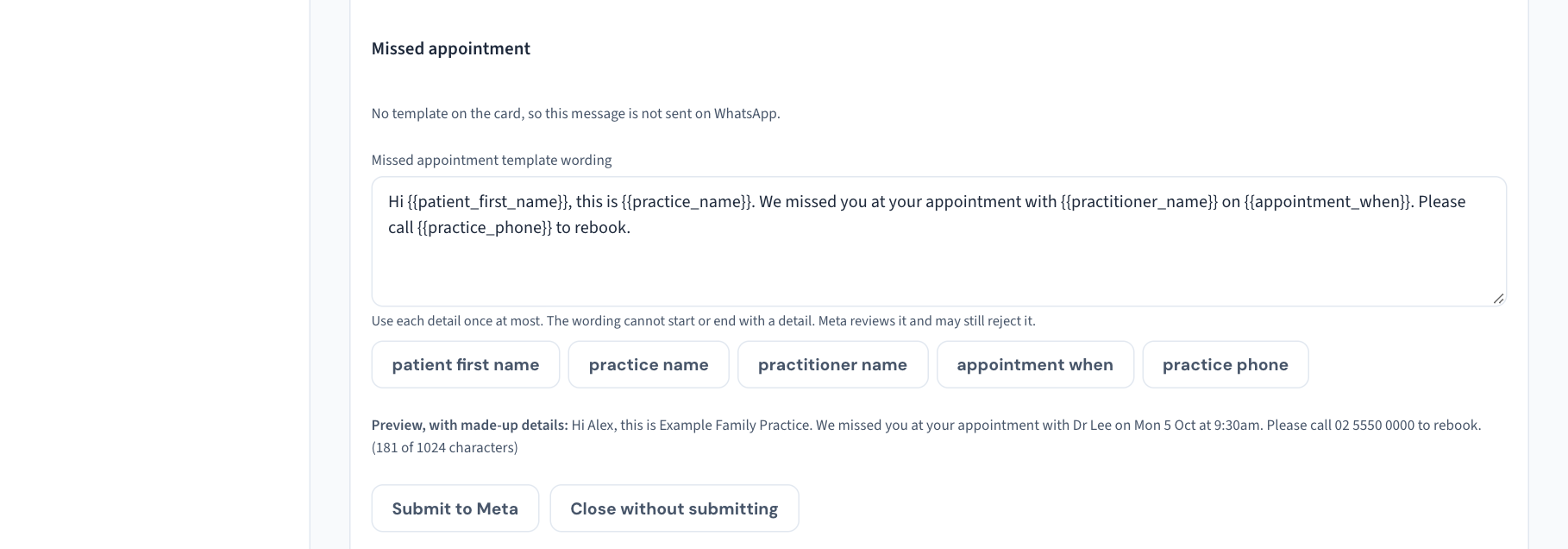
Curaeon checks the wording before it goes, and tells you what to change:
- Use each detail once at most.
- The wording cannot start or end with a detail.
- An appointment message must include appointment when, so the patient knows which appointment it is about. The visit completed message need not.
- You can use the details in any order and leave one out. Curaeon keeps track of which detail goes where.
Meta reviews the rest and may still reject a template, for example one with too many details for its length.
What happens next. The message shows that the template is with Meta for review. Meta usually decides within a day. Curaeon asks Meta every fifteen minutes while a template is under review; choose Check with Meta now to ask straight away.
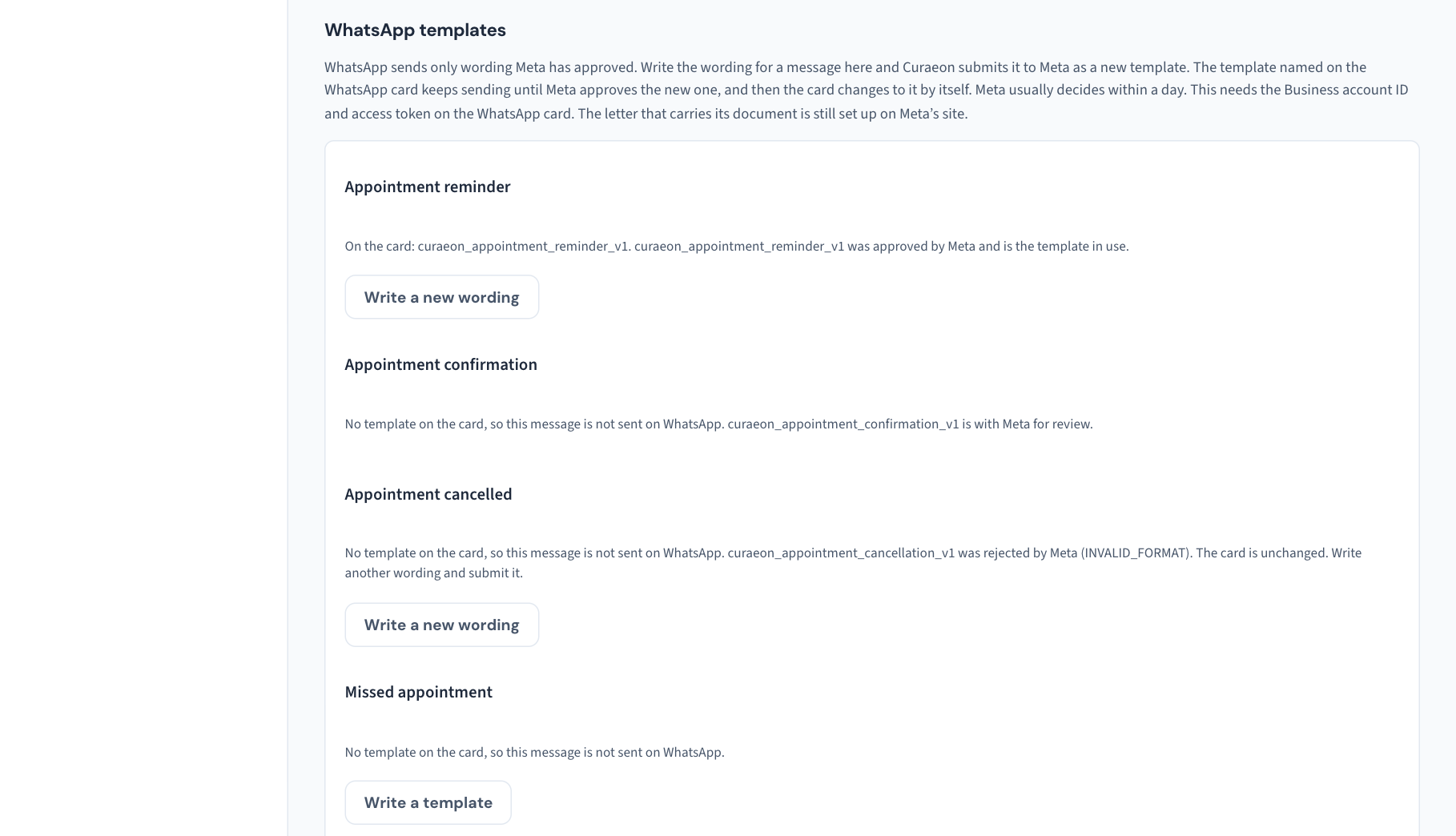
| What the message shows | What it means |
|---|---|
| with Meta for review | Meta has not decided. You cannot submit another wording for this message until it does. |
| approved by Meta and is the template in use | Curaeon has put the template's name on the WhatsApp card for you. Nothing else to do. |
| rejected by Meta, with a reason | Nothing has changed on the card. Choose Write a new wording, change it and submit again. |
| Meta would not accept the last wording | Meta refused the submission outright; its own message is shown. Fix what it names and submit again. |
| Meta filed this template as marketing | Meta read the wording as promotional. Marketing messages are charged and delivered differently. Take out anything that sounds like an offer and submit a new wording. |
Changing the wording later. Choose Write a new wording. Curaeon always submits a new template; it never edits one Meta has approved. The template on the card keeps sending until Meta approves the new one, and then the card changes to it. Earlier templates stay in your Meta account until you delete them there.
After your first template is approved, go back to Step 5 and finish from item 7: tick Enabled and Send a test.
Note: Templates you typed onto the card by name keep working exactly as before. You can mix the two: some written on Meta's website, some written here.
If that didn't work
| What you see | What it means | What to do |
|---|---|---|
| The test fails and names a template that does not exist | The template name or language in Curaeon does not match Meta exactly | Copy the name and the language code from Meta again. Names are case-sensitive |
| The test fails saying the number of parameters does not match | The approved wording has a different number of gaps from the table above | Edit the template at Meta so its gaps match, and wait for approval |
| The test fails with a permission or token error | The access token has expired, lacks a permission, or its system user has not been given access to the WhatsApp account | Check the system user has access to the app and the WhatsApp account, generate a token that never expires with the three permissions in Step 4, and enter it again |
| The test is accepted but nothing arrives | The mobile you used does not have WhatsApp, or the template is still awaiting approval | Try a number that has WhatsApp, and check the template's status at Meta |
| The card reads Cannot send after everything is entered | The line under the badge says which piece is missing: the Phone number ID, the access token, a template name, or a test that has not yet succeeded | Supply what it names, then send a test |
| The card can send but a patient gets a text or email, not a WhatsApp message | That patient has no WhatsApp consent recorded, has asked for a different preferred contact method, or the message has no template named | Check WhatsApp consent on the patient's details and the template fields on the card |
| Meta's error names an unsupported or expired API version | Meta has retired the version Curaeon was using | Enter the current version in Graph API version |
| Messages worked and then stopped | Meta has paused the template or the account, usually after patients reported or blocked the messages | Read the notice in your Meta business account. Raise a ticket if you need help reading it |
| Some patients in a large run get nothing, with a limit named as the reason | The business has reached its messaging limit: 250 different people in 24 hours until it is raised | Spread the run over several days, or verify the business with Meta (Step 1) |
Still stuck? Raise a ticket at support.curaeon.com.au or call 1300 XXX XXX. If your clinic can't see patients right now, call and choose option 1. Support is staffed Monday to Friday, 8:00–18:00 Sydney time; outside those hours a call or text to the same number is answered on a best-effort basis.
Related articles
- KB-122 — Set up Settings → Patient messaging: email, SMS and WhatsApp channels, DKIM, the bounce mailbox and message wording — Set up Settings → Patient messaging: email, SMS and WhatsApp channels, DKIM, the bounce mailbox and message wording
- KB-123 — Read the reminder queue in Settings → Messages, and know which messages screen you need — Read the reminder queue in Settings → Messages, and know which messages screen you need
- KB-051 — Run recalls: book from a recall, and why a recall stays open or comes back — Run recalls: book from a recall, and why a recall stays open or comes back
- KB-050 — Email a letter to a patient: password, refused characters, "I can't open it" — Email a letter to a patient: password, refused characters, "I can't open it"
- KB-060 — Patient emails or SMS reminders not arriving: check Settings → Patient messaging — Patient emails or SMS reminders not arriving: check Settings → Patient messaging