Read the reminder queue in Settings → Messages, and know which messages screen you need
See every reminder your practice has queued for patients, by text or by email, whether each one was sent, and why any failed. Curaeon has three screens with "messages" in the name; this article starts by sending you to the right one.
Which screen do you need?
| You want to | Open | Who can |
|---|---|---|
| Message a colleague ("room 3 is free") | Messages in the sidebar. Staff talking to staff, one conversation per pair or group. Nothing here goes to patients. | All staff |
| Chase patients a reminder never reached | Recalls in the sidebar, then the Failed reminders tab. A worklist: correct the mobile and Retry, or ring the patient and mark it Handled. | All staff |
| See what the SMS gateway is doing across the whole practice | Settings → Messages. The send queue: everything queued, sent or failed. Read-only. | Administrators |
| Set up the channels, or change the wording of recall texts | Settings → Patient messaging, and Recalls → Message wording (KB-122 — Set up Settings → Patient messaging: email, SMS and WhatsApp channels, DKIM, the bounce mailbox and message wording) | Administrators; wording needs comms.send |
| See what was sent to one patient | That patient's record | All staff |
The short version: Failed reminders answers "who do I have to ring today", and Settings → Messages answers "what is the gateway doing". The rest of this article is about the second.
Before you start
- Open Settings in the sidebar, then Messages under People & communications. The page is headed Message queue.
- You need the
practice.adminpermission (the Admin role). The queue lists every patient's texts in one place, so it is kept to administrators. - The queue holds reminders: recall reminders, appointment reminders and confirmations, INR messages and one-off messages, whether they go by text, email or WhatsApp (KB-122 — Set up Settings → Patient messaging: email, SMS and WhatsApp channels, DKIM, the bounce mailbox and message wording decides which). Letters and referrals sent to patients are not in it; those are on the patient's record.
- Nothing on this screen can be edited, retried or removed. Messages are created by the actions that queue them (a reminder run, an appointment reminder) and moved along by Curaeon's sender.
A tour of the screen
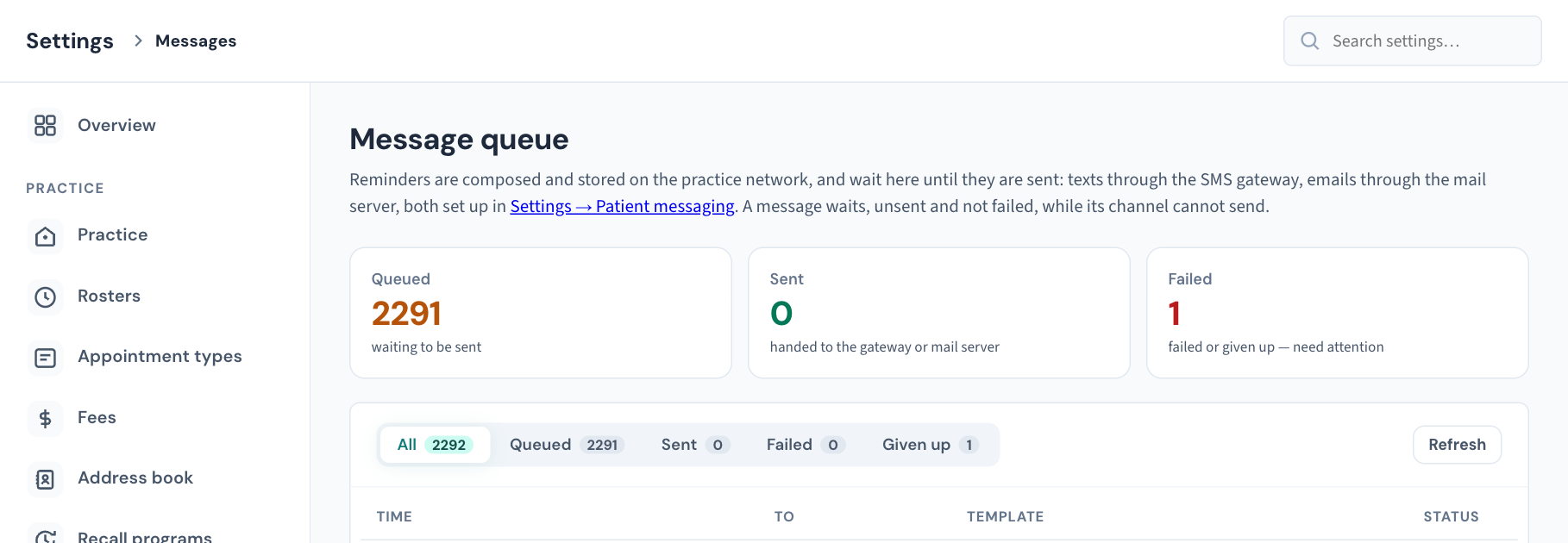
Three tiles across the top count the whole queue:
| Tile | Counts |
|---|---|
| Queued — "waiting to be sent" | Texts composed and stored, not yet sent. |
| Sent — "handed to the gateway, mail server or Meta" | Texts the SMS gateway accepted, emails the mail server accepted, and WhatsApp messages Meta accepted. |
| Failed — "failed or given up — need attention" | Texts that failed, together with those the sender has stopped trying. The Failed and Given up filters below split the two. |
The filter buttons: All, Queued, Sent, Failed and Given up, each with its count. The counts always describe the whole queue; choosing a filter changes the list, not the numbers.
Refresh re-reads the queue. The page does not update by itself.
The list shows the newest 100 messages for the filter you chose, newest first:
- Time: when the text was queued.
- To: the patient, linked to their record, then Text or WhatsApp with the mobile number, or Email with the address, the message was sent to.
- Template: what kind of text it is (Recall reminder, Appointment reminder, Appointment confirmation or Message) and its exact wording.
- Status: the state, and underneath it the number of attempts and the last error, if any.
If some patients' records are restricted to named clinicians, their texts are left out of the list and a note says how many were withheld. The counts still include them.
What each status means
| Status | Meaning | What to do |
|---|---|---|
| Queued | Waiting to be sent, or waiting for its next attempt after a failure that can be retried. | Nothing, if the number is falling. If it only grows, see below. |
| Sending | The sender has picked it up. | Nothing. It moves on within moments. |
| Sent | The gateway accepted it. | Nothing. |
| Failed | A send failed. The reason is under the badge. | Work it from Recalls → Failed reminders. |
| Given up | The sender has stopped trying: the number was refused outright, or six attempts failed. | Work it from Recalls → Failed reminders. |
How sending works
Reminders are composed and stored on your practice's own server. A sender on that server checks the queue every 20 seconds and sends up to 25 texts at a time, so a large reminder run goes out over a few minutes and not in one burst.
When a send fails for a reason that may pass, such as the gateway being busy, the text goes back to Queued and is tried again after a wait that doubles each time, up to an hour. After six attempts it is Given up. A reason that will not pass, such as a malformed number, is given up straight away: trying a bad number six times only delays the moment someone sees it failed.
A text that is given up is recorded in the Audit log against the patient as Text message not delivered, with the reason and the number tried. It also appears in Recalls → Failed reminders, which is where a person deals with it.
When everything sits at Queued
The sentence under the page heading says a message "waits, unsent and not failed, while its channel cannot send." On a practice with no SMS gateway connected yet: texts are composed, stored and counted under Queued, and none is marked failed. This is deliberate. A queue with nowhere to send must never mark a reminder as sent.
If your practice expects texts to be going out and the Queued number only grows:
- Choose Refresh a minute apart and compare the Queued and Sent tiles.
- If Sent is not rising, the SMS gateway is not connected or not answering. Open Settings → Patient messaging and look at the SMS card: it should read Can send. If it does not, enter the gateway details and send a test (KB-122 — Set up Settings → Patient messaging: email, SMS and WhatsApp channels, DKIM, the bounce mailbox and message wording).
- If the card reads Can send and texts still wait, raise a ticket with the two counts and the time. Do not include patient names or numbers (KB-007 — Why we never need patient details in a support ticket).
Once the gateway is connected, the queued texts go out without anyone re-queuing them. Email reminders do not wait for the SMS gateway: they go through the mail server on the Email card, and wait only while that cannot send.
Note: The wording under the heading is the same whether or not a gateway is connected. The Sent count and the statuses in the list tell you which.
Deal with a failed or given-up text
You cannot retry from this screen. Use the worklist built for it:
- Open Recalls in the sidebar and choose the Failed reminders tab.
- Each row leads with the patient and what they are overdue for, then the number tried and the reason. If the mobile on the patient's record has since changed, the row shows the number now on file.
- If the number was wrong, correct the mobile on the patient's record, then choose Retry. The text is queued again to the corrected number and sends on the next pass.
- If you reached the patient another way, choose Handled and say what was done, for example that you rang and booked them. A note is required. The text still shows as never delivered; the note records what happened instead.
- Tick Show handled to see the ones already dealt with.
More on recalls and their reminders is in KB-051 — Run recalls: book from a recall, and why a recall stays open or comes back and KB-091 — Recalls and reminders FAQ.
What is recorded
Opening the queue is recorded in the Audit log as a worklist viewed, because it lists patients. The outcomes are recorded too: Text message not delivered when a text is given up, Failed text sent again for a retry, and Failed text marked handled.
If that didn't work
| What you see | Meaning |
|---|---|
| "Couldn't load the queue." with a red message above | The queue could not be read. That is not the same as an empty queue. Choose Refresh. |
| "No messages have been queued yet." | Nothing has ever been queued: no reminder run has been made and no appointment reminder has fallen due. |
| "Nothing queued." (or sent, failed, given up) | No message is in that state. |
| A text you expected is missing | The list shows the newest 100 for the chosen filter. Choose a narrower filter, or look on the patient's record. If the patient's record is restricted, it is withheld from this list. |
For texts and emails that are sent and still not arriving, work through KB-060 — Patient emails or SMS reminders not arriving: check Settings → Patient messaging.
Still stuck? Raise a ticket at support.curaeon.com.au or call 1300 XXX XXX. If your clinic can't see patients right now, call and choose option 1. Support is staffed Monday to Friday, 8:00–18:00 Sydney time; outside those hours a call or text to the same number is answered on a best-effort basis.
Related articles
- KB-115 — Find your way around Settings: every section, who can open it, and where to read more — Find your way around Settings: every section, who can open it, and where to read more
- KB-122 — Set up Settings → Patient messaging: email, SMS and WhatsApp channels, DKIM, the bounce mailbox and message wording — Set up Settings → Patient messaging: email, SMS and WhatsApp channels, DKIM, the bounce mailbox and message wording
- KB-060 — Patient emails or SMS reminders not arriving: check Settings → Patient messaging — Patient emails or SMS reminders not arriving: check Settings → Patient messaging
- KB-051 — Run recalls: book from a recall, and why a recall stays open or comes back — Run recalls: book from a recall, and why a recall stays open or comes back
- KB-091 — Recalls and reminders FAQ — Recalls and reminders FAQ
- KB-007 — Why we never need patient details in a support ticket — Why we never need patient details in a support ticket
- KB-140 — Arrange WhatsApp with Meta: the account, the number and the message templates Curaeon needs before it can send — Arrange WhatsApp with Meta: the account, the number and the message templates Curaeon needs before it can send