Take a card payment on the Tyro terminal
Send an invoice's balance to your Tyro terminal from the invoice, in a box over the screen, and have the payment recorded once Tyro confirms it was taken.
Note: This applies once your practice's Tyro connection is switched on. Until then, Send to Medicare… shows what would be sent and files nothing.
Before you start
- Any signed-in member of staff can take a payment.
- Your practice needs three things in place, all arranged with Curaeon and Tyro before first use:
- the Tyro connection switched on;
- a Tyro terminal registered to your practice's Tyro Health Online account;
- your practice's payments address, set up by Curaeon when the server is installed, and told your Curaeon address so the payment can open inside it.
- The payment opens in a box over the invoice. Your browser needs to allow pop-ups for Curaeon only if that box cannot show Tyro's page (see "If the box stays empty" below).
Important: Until Curaeon has told you terminal payments are set up, take the card on the terminal by itself and record the payment by hand. See "Record a payment by hand" below.
What the payments address is
Tyro's payment form only runs on a public web address that Tyro has approved. Your Curaeon server lives on your own network, so Curaeon gives each practice a second, public address, ending in clients.curaeon.com.au, that your server answers. It serves the payment page and nothing else. No patient record can be opened through it. The box over the invoice shows that page.
That address has its own certificate, which the server obtains and renews by itself. Once the address is set up, Settings → Certificates shows it to an administrator as a fifth tile, Payments name (public). If that certificate lapses, only terminal payments stop (KB-036 — A certificate is red in Settings → Certificates: what it means and who to tell).
Take the payment
- Open the issued invoice from Billing. You can work in the small window that opens on the list, or on the invoice's full page. The small window steps aside while the payment is open, and comes back when it closes.
- Choose Take payment on the terminal. The button is there when the invoice is issued and has a balance outstanding.
- A box opens over the screen, headed Pay on the terminal and the invoice number. Inside it, the page shows the Amount and the Invoice, then Loading Tyro Health…. The first time, Tyro's form can take up to half a minute to appear.
- Tyro's card form opens straight away, with no menu to choose from. Send the payment to the terminal. The patient taps, inserts or swipes their card.
- Wait. When Tyro confirms the payment, the box closes by itself, a note says Payment taken on the terminal and recorded., and the payment appears under Payments.
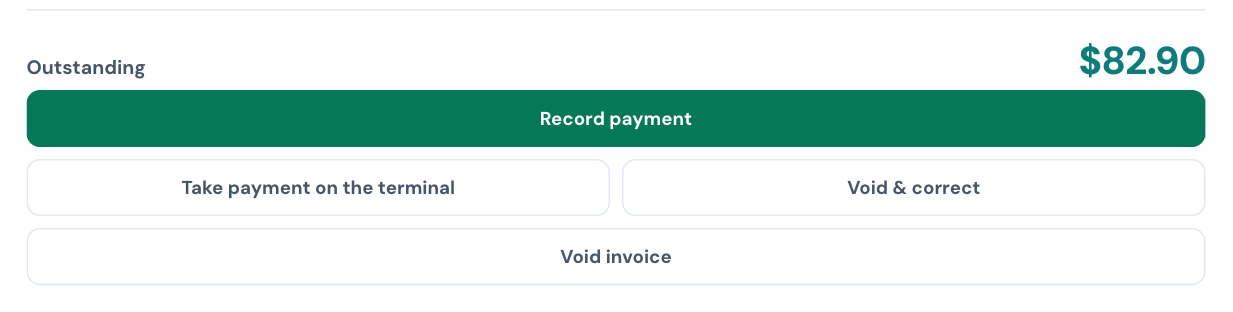
The amount is always the invoice's whole outstanding balance. For a part payment, use Record payment instead.
Important: Use this for invoices the patient pays. Do not use it on a bulk-bill or DVA invoice: the patient must not be charged for those.
Important: Do not close the box while the terminal is working on a payment. The box is where the payment is confirmed. Once Tyro's form has opened, a click outside the box does nothing, and × or Escape asks first: "Close the payment? If the terminal is taking a card, wait for it to finish: closing now stops this screen confirming the payment with Tyro, and it would have to be recorded by hand from the receipt." Press Escape again to go back to the payment. If the box was closed during a payment, check the terminal's receipt (see "If that didn't work").
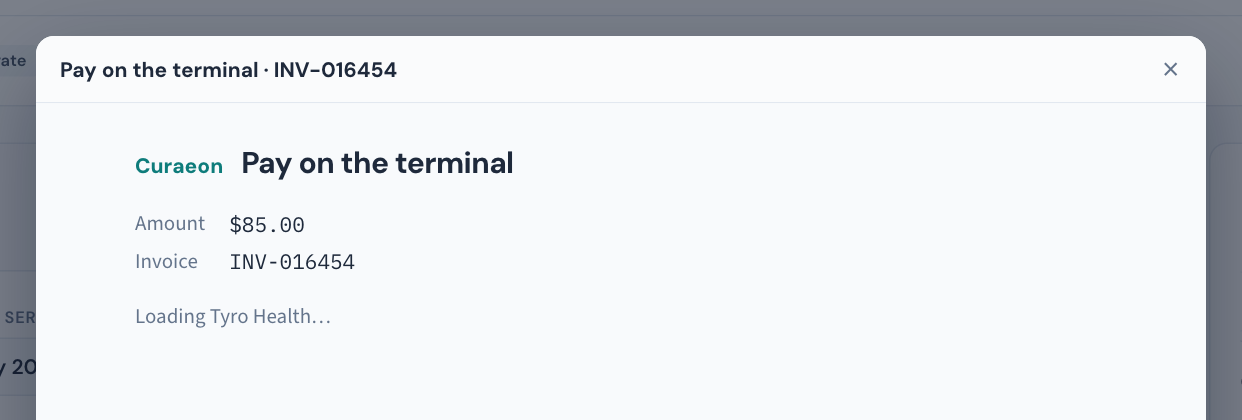
To close the box without paying, choose × or press Escape, and confirm. Before Tyro's form has opened, a click outside the box closes it too. Nothing is recorded, and the invoice is read again.
If Cancel was chosen in Tyro's form
Choosing Cancel in Tyro's form closes the form. The box stays open and says Tyro's form was closed before it reported a payment, so nothing has been recorded. If the terminal printed an approved receipt, do not start again: the desk can record that payment by hand with its reference.
- Nothing printed, or a declined receipt: choose Start again. The card form opens again for the same invoice.
- An approved receipt printed: do not start again. Close the box and record the payment by hand.
Start again is offered only when Tyro has reported nothing. After Tyro reports a payment or an error, closing its form offers nothing.
If the box stays empty
If Tyro's page has not opened in the box after 12 seconds, the box says Tyro's payment page did not open in this box. with Open it in a window. Choose it to open the payment in a window of its own instead. That needs pop-ups allowed for Curaeon. The box then says The payment is open in its own window. This box closes when the payment is recorded, or when that window is closed. In the window, wait for Paid. Invoice … is recorded as paid; the terminal prints the receipt. You can close this window.
If this happens every time, the payments address has not been told your Curaeon address. Raise a ticket.
How the payment is confirmed
The page does not record the payment on its own word. When Tyro's form reports success, Curaeon asks Tyro directly whether the payment was taken, for this invoice and for what amount. Only Tyro's answer records it. The payment is recorded as EFTPOS (Tyro) with Tyro's transaction id as its reference, under the name of the person who chose the button.
A card the terminal refuses is not a payment. Curaeon reads the terminal's own answer first, records nothing, and says so in the box.
If the card is declined
When the terminal refuses the card, the box says The terminal declined the card:, the terminal's reason and its response code, for example EXPIRED CARD (response 54), then Nothing was taken, and the invoice is still owing.
- Ask the patient for another card.
- Choose Try another card. Tyro's card form opens again for the same invoice.
When Tyro ended the transaction before the terminal gave an answer, for example after Cancel transaction in Tyro's form, the box says Tyro Health reports the transaction as cancelled (or declined), and the terminal took no payment. Nothing was taken, and the invoice is still owing. Choose Start again to open the card form again.
Neither message offers Confirm again: there is no payment to confirm. Confirming again would only be refused the same way.
What each message means
On the invoice, before the box opens:
| Message | What it means | What to do |
|---|---|---|
| Tyro Health is not connected for this practice yet, so a terminal payment cannot be taken. | The connection is not switched on. | Take the card on the terminal by itself and record it by hand. |
| The payments address … does not resolve on this network… | This computer cannot find the payments address. Some routers block it. | Ask whoever looks after your network to add a local DNS entry for the address shown. Record this payment by hand. |
| nothing is outstanding on this invoice | The balance is already paid. | Nothing to take. |
In the box, or in the window:
| Message | What it means | What to do |
|---|---|---|
| The browser blocked the payment window. Allow pop-ups for this site and try again. | You chose Open it in a window and a pop-up blocker stopped it. | Allow pop-ups for Curaeon and choose Open it in a window again. |
| Tyro's window has not appeared after 60 seconds. … | Tyro's form did not load. Nothing was charged. | Close the box and choose Take payment on the terminal again. |
| The terminal reported transaction … but it is not recorded yet, with Confirm again | Tyro has not confirmed the payment yet. | Wait a moment and choose Confirm again. Confirming twice is safe. |
| The terminal declined the card: … (response … ). Nothing was taken, and the invoice is still owing., with Try another card | The terminal refused the card. No money was taken. | Ask for another card and choose Try another card. See "If the card is declined" above. |
| Tyro Health reports the transaction as cancelled (or declined), and the terminal took no payment. …, with Start again | The transaction ended before the terminal answered. No money was taken. | Choose Start again. |
| Tyro reported an error: and a reason | Tyro's form stopped with an error. | Look at the terminal. If it printed an approved receipt, record the payment by hand. Otherwise start again from the invoice. |
| Tyro Health could not be reached to confirm the payment… | Curaeon could not ask Tyro. | If the terminal printed a receipt, choose Confirm again shortly. |
| Tyro Health holds no transaction under that id… | Tyro has no record under the id the form returned. | If the terminal printed an approved receipt, record the payment by hand. |
| This payment link has already been opened, and it opens only once. … | The page was reloaded, or opened twice. Each press of the button opens one payment, once. | Close it and start again from the invoice. |
| This payment link has expired. …, or this payment ticket has expired — open the payment again from the invoice | The payment was open too long. It can confirm a payment for 30 minutes after you chose the button. | Check the terminal's receipt first. See below. |
| payment exceeds the outstanding balance | Tyro reports more was charged than the invoice owes, for example a terminal that adds a surcharge. | The card was charged and nothing was recorded. Raise a ticket with the invoice number. |
| A sentence saying Tyro is not configured, did not answer, or that its script failed to load | The payment form could not start. Nothing was charged. | Close the box and try once more. If it repeats, raise a ticket. |
Record a payment by hand
- On the invoice, choose Record payment.
- Set Method to EFTPOS (Tyro) and check the Amount.
- Choose Record payment.
The window has no field for the receipt's reference, so keep the terminal's receipt with the day's banking (KB-148 — Take a payment, give a receipt, void or correct an invoice).
Refunds
Curaeon cannot refund a card payment. Refund it on the terminal or in Tyro's own portal. Then record the refund in Curaeon, beside the payment on the invoice, choosing EFTPOS (Tyro) — refunded on the terminal (KB-148 — Take a payment, give a receipt, void or correct an invoice). Recording it does not send anything to the terminal.
If that didn't work
If the payment does not finish, or you are not sure the card was charged:
- Look at the terminal's receipt. It is the proof of whether the card was charged.
- Approved, and the invoice shows no payment: do not send the payment to the terminal again. That would charge the card twice. Record the payment by hand.
- Declined, cancelled or no receipt: nothing was taken. Choose Try another card or Start again if the box offers it, or start again from the invoice.
Still stuck? Raise a ticket at support.curaeon.com.au or call 1300 XXX XXX. If your clinic can't see patients right now, call and choose option 1. Support is staffed Monday to Friday, 8:00–18:00 Sydney time; outside those hours a call or text to the same number is answered on a best-effort basis.
Related articles
- KB-148 — Take a payment, give a receipt, void or correct an invoice — Take a payment, give a receipt, void or correct an invoice
- KB-036 — A certificate is red in Settings → Certificates: what it means and who to tell — A certificate is red in Settings → Certificates: what it means and who to tell
- KB-053 — Month-end and end of day: aged debtors, statement runs and bank reconciliation — Month-end and end of day: aged debtors, statement runs and bank reconciliation
- KB-052 — Raise, correct and claim an invoice, including when "Send to Medicare…" is blocked — Raise, correct and claim an invoice, including when "Send to Medicare…" is blocked
- KB-156 — Follow a Medicare or DVA claim: its status, Check now and the claims list — Follow a Medicare or DVA claim: its status, Check now and the claims list