Take a payment, give a receipt, void or correct an invoice
Record what a patient paid, print their receipt, and undo an invoice that should not stand. This picks up where raising the invoice leaves off (KB-052 — Raise, correct and claim an invoice, including when "Send to Medicare…" is blocked).
Before you start
- Recording a payment and printing a receipt: any signed-in role.
- Void invoice, Void & correct, Refund…, Correct… and Credit note…: these need the
billing.adjustpermission. The Admin and Clinician roles hold it by default. Reception does not, so a receptionist does not see these buttons unless an administrator has tickedbilling.adjustfor the role in Settings → Permissions (KB-121 — Change what each role may do in Settings → Permissions). - A payment can be recorded only on an Issued invoice. A receipt is offered once the invoice is issued or paid.
- This article does not cover the card terminal (KB-160 — Take a card payment on the Tyro terminal), Medicare and DVA claims (KB-156 — Follow a Medicare or DVA claim: its status, Check now and the claims list), or money held on a patient's account that is not for an invoice (KB-168 — Hold credit on a patient's account: deposits, using credit and paying it back).
Find the invoice
- Open Billing in the menu bar.
- To find one invoice, type in Search patient, invoice no., type….
- Choose the invoice's row. A small window opens with the invoice and its buttons. Open full page ↗ shows the same invoice on its own screen.
The list shows the newest 50 invoices first. Under them it says Showing 50 of the number that match, with Load 50 more (or however many are left). The counts on the tabs are for the whole practice.
Tip: The list starts with Hide paid & void ticked. If a paid or voided invoice seems to have vanished, untick it, or choose Show all on the line that says how many are hidden.
Needs attention, beside the list, counts every draft and every issued invoice still owed something. It lists the newest six, and says Showing the newest 6 of the count when there are more.
Record a payment
- On the issued invoice, choose Record payment.
- Choose the Method: EFTPOS (Tyro), Cash, Card (manual) or Direct deposit.
- Check the Amount. It starts at what is still outstanding.
- Choose Record payment.
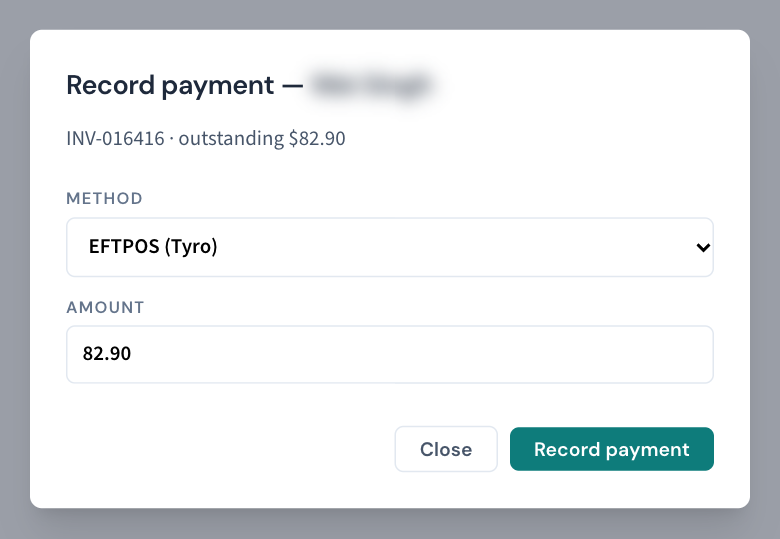
Curaeon answers Paid in full. and the invoice becomes Paid, or Partial payment recorded. and the invoice stays Issued with the balance shown as Outstanding.
Good to know:
- Record payment writes down a payment. It does not take one. Choosing EFTPOS (Tyro) here does not start the terminal. To charge a card on the practice's Tyro terminal, use Take payment on the terminal, in the small window or on the full page. It records the payment itself once Tyro confirms it (KB-160 — Take a card payment on the Tyro terminal).
- The method starts where the money usually comes from: EFTPOS (Tyro) on a private invoice, Direct deposit on a bulk bill, DVA or WorkCover invoice, because Medicare, the department or the insurer pays, not the patient. Do not charge a bulk-billed patient. Billing a WorkCover consultation is in KB-179 — Bill a WorkCover consultation: the state's rates and its own codes.
- Part payments are fine. Record what the patient pays today and the rest when it arrives. Each payment is listed under Payments with its method and date.
- You cannot record more than is owed. Curaeon refuses the payment. Change the amount to the balance or less.
- A payment locks the invoice's items. Once a payment or a claim exists, items can no longer be added or removed.
Give a receipt
- On an issued or paid invoice, choose View receipt.
- The Receipt · print preview window shows the receipt as it will print.
- Choose Print. Open in tab ↗ opens it on its own if you prefer to print from there.
The receipt is headed Tax Invoice / Receipt on your practice's letterhead. It shows the patient, the invoice number and date issued, each item with its fee, the amount payable, and each payment with its method. A private or bulk-billed invoice also shows each item's rebate and gap. A part-paid invoice shows Paid and Balance due. A bulk-billed or DVA invoice says nothing is payable by the patient. A WorkCover invoice shows no Medicare rebate: the insurer pays it (KB-179 — Bill a WorkCover consultation: the state's rates and its own codes). Your ABN is in the footer once it is set in Settings → Practice (KB-116 — Set up your practice's details, opening hours and closures in Settings → Practice).
There is no button to email a receipt. Print it. Each print is recorded in the Audit log.
A receipt does not say what happened to a Medicare or DVA claim. For that, a claim that has been sent has Statement and Summary on its row on the invoice's full page. Statement opens Tyro Health's form for the patient and Summary opens Curaeon's page for the file (KB-169 — Print the form for a patient, or a summary, for a Medicare or DVA claim).
Change an invoice: which way
What you can do depends on how far the invoice has gone.
| The invoice is | You can | How |
|---|---|---|
| Draft | Change items freely, or void it | Add and remove items on the invoice |
| Issued, with no payment and no claim | Still change items in place, or replace it | Add and remove items on the invoice, or Void & correct |
| Issued, with a claim still queued and no payment | Replace it | Void & correct |
| Issued, with a claim that was rejected and no payment | Replace it, or void it | Void & correct, or Void invoice if the invoice should not exist |
| Issued, a private or WorkCover invoice with something owing, and the patient should owe less | Take an amount off it, and leave the invoice standing | Credit note…. See "Credit notes" |
| Issued, with money still recorded on it, in part or in full | Refund the payment first | Refund… beside the payment. Once nothing is held, Void & correct and Void invoice are offered again. See "Refunds" |
| Issued, with a claim that is with Medicare or DVA, or one that has been paid | Nothing yet | Neither button is offered. A line under the buttons says why. Follow the claim (KB-156 — Follow a Medicare or DVA claim: its status, Check now and the claims list) |
| Paid | Refund the payment first | Refund… beside the payment. The invoice goes back to Issued. See "Refunds" |
| Paid, with no money on it, settled by a credit note | Cancel the credit note first | Cancel… beside the credit note. See "Credit notes" |

Void & correct
Use this when an issued invoice is wrong, nothing has been paid, and no claim on it is with Medicare or DVA. It is the way to fix an invoice whose claim was rejected for an item, a fee or the provider number (KB-156 — Follow a Medicare or DVA claim: its status, Check now and the claims list).
- Choose Void & correct.
- Type the Reason. It is required and stays on the voided invoice.
- Choose Void & correct again, or Keep invoice to back out.
Curaeon voids the original, cancels its queued claim if it has one, and opens a new draft with the same patient, provider, billing type, items and date of service. Fix the draft and issue it. The original stays on the record as void, with your reason.
A rejected claim is not cancelled. The window says The rejected claim stays on the voided invoice. Queue a new claim once the corrected invoice is issued. The rejected claim leaves the claims list, and the corrected invoice is claimed on its own.
Void & correct keeps the same patient and provider. It cannot fix an invoice raised for the wrong patient or under the wrong provider. Void that one and raise a new invoice.
Void invoice
Use this when the invoice should not exist at all: a duplicate, or the wrong patient.
- Choose Void invoice.
- Type the Reason. It is required.
- Choose Void invoice, or Keep invoice.
The invoice is marked Void and shows your reason. It is never deleted.
If the invoice has a claim that is still queued, the window says Its queued claim is cancelled and will not be sent. Voiding cancels that claim with the invoice.
Void invoice is not offered while a claim on the invoice is with Medicare or DVA, or after one has been paid. A line under the buttons says which. A sent claim cannot be withdrawn from Curaeon: wait for its answer. If it is rejected, the invoice can be voided, and the rejected claim then leaves the claims list (KB-156 — Follow a Medicare or DVA claim: its status, Check now and the claims list).
Important: An invoice with money still recorded on it cannot be voided, whether it is paid in part or in full. Void invoice is not shown, and a line under the buttons reads Money is still recorded on this invoice, so it cannot be voided. Give the money back and record the refund. Once the invoice holds nothing, it can be voided. See "Refunds".
Let a patient pay in instalments
Where a patient cannot pay an issued private or WorkCover invoice at once, Payment plan… on the invoice records what was agreed — so much a week, a fortnight or a month, from a date — and shows whether they are keeping to it. It is an agreement about when, not a payment: each instalment is still recorded with Record payment as it comes. See KB-181 — Payment plans: let a patient pay an invoice in instalments, and remind them.
Refunds
Record a refund when money has gone back to the person who paid: the wrong amount was charged, a payment was taken twice, or the invoice should never have been raised.
Important: Curaeon records a refund. It does not move money. Give the money back first: a card payment is refunded on the terminal (KB-160 — Take a card payment on the Tyro terminal), cash from the till, a transfer from your bank. Then record it, so Curaeon stops showing money you no longer hold.
You need the billing.adjust permission.
- Open the invoice's full page from Billing.
- Under Payments, find the payment the money came from and choose Refund… beside it.
- Check the Amount. It starts at what that payment has left. Lower it for a part refund.
- Under How the money went back, choose the method. It starts on the method the payment came by. Change it if the money went back another way, for example a card payment refunded in cash. If the patient would rather leave the money with the practice, choose Keep it on the patient's account — no money goes back (KB-168 — Hold credit on a patient's account: deposits, using credit and paying it back).
- Type the Reason. It is required and stays on the refund.
- Choose Record refund.
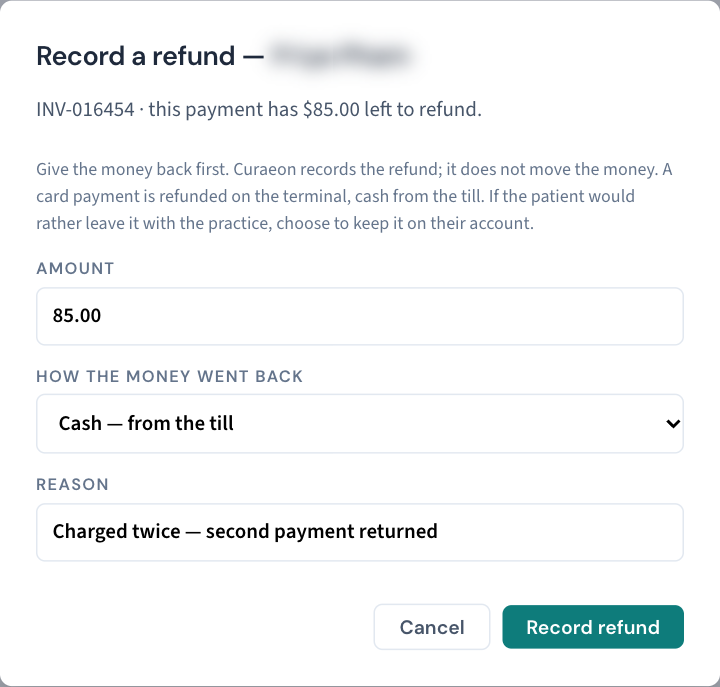
The refund appears under Payments as its own entry, marked REFUND, with the reason. The payment it came from stays, and reads refunded in full or says how much it has left.
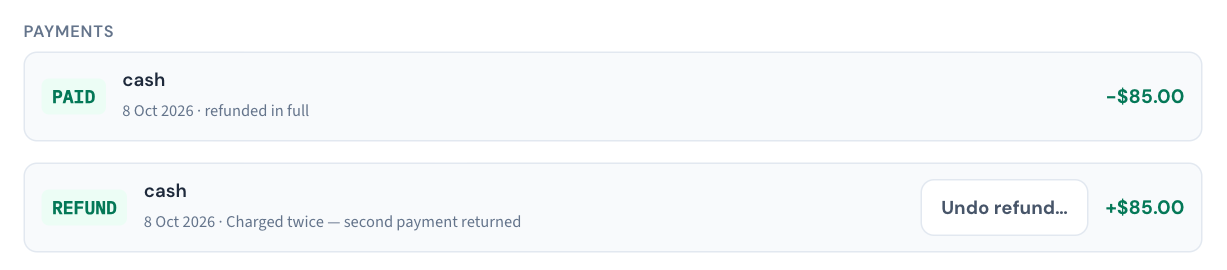
What changes:
- The invoice's balance. A Paid invoice goes back to Issued, and the refunded amount is owing again. It shows in Aged debtors and on statements until it is paid or the invoice is voided (KB-108 — Bank lines that won't match, statement reprints and brought-forward balances: the ledger FAQ).
- The receipt. It shows the refund on its own line, and its Paid figure is what is still held.
- End of day. Refunds are listed by method under Refunds given, beside the takings, with the total Net of refunds (KB-053 — Month-end and end of day: aged debtors, statement runs and bank reconciliation).
- The Audit log. The refund is recorded with your name, the amount, the method and the reason (KB-101 — Find who did what in the Audit log: kinds, Sign-ins, Exactly, Who and a bookmarkable view).
Undo a refund recorded by mistake
If a refund was recorded but the money did not go back, or it was recorded on the wrong invoice, undo it. Do not record the payment again: that would show a refund you did not give and a payment you did not take.
- Under Payments, find the refund and choose Undo refund… beside it.
- Type the Reason. It is required.
- Choose Undo refund.
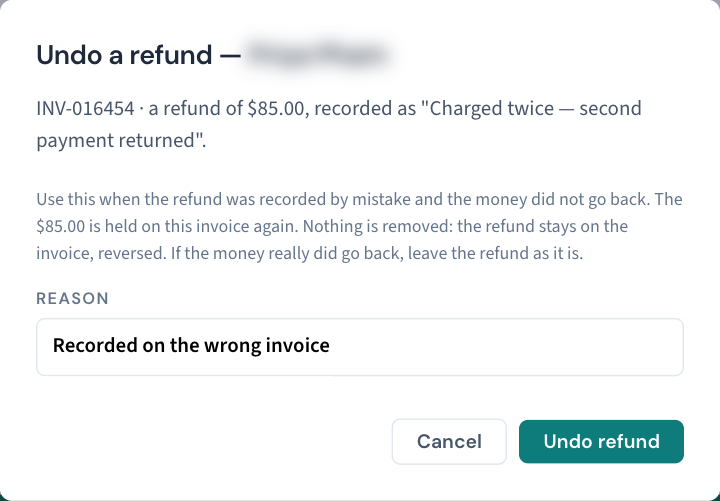
The refund stays on the invoice, now reading recorded in error, undone. An entry marked REVERSED is added that takes it out, with your reason. What changes:
- The invoice's balance. The refunded amount is held on the invoice again. An invoice the refund had reopened becomes Paid again.
- The payment. It has its whole amount left to refund again.
- The receipt. It no longer shows the refund.
- End of day. The undo is listed under Corrections on the day you made it. The refund stays under Refunds given on the day it was recorded (KB-053 — Month-end and end of day: aged debtors, statement runs and bank reconciliation).
- A refund kept on the patient's account. The amount comes back off the patient's account (KB-168 — Hold credit on a patient's account: deposits, using credit and paying it back).
Undo refund… is refused, with a message that says why, when:
- the refunded amount has been paid again, or credited, since. Undoing would put more on the invoice than it is for;
- the refund is matched to a line in bank reconciliation. Unmatch it first;
- the refund was kept on the patient's account and that credit has since been used or paid back.
Close an invoice that should not stand
An invoice with money on it cannot be voided or corrected. Refund it first:
- Refund every payment on the invoice in full.
- The line under the buttons changes to say the money has been refunded, and Void & correct and Void invoice are offered.
- Choose Void invoice if the invoice should not exist, or Void & correct to reissue it with the right items.
The payment and its refund stay on the voided invoice as the record.
Correct a payment entered wrongly
Use Correct… when a payment was typed in wrongly and no money needs to move: cash recorded as EFTPOS, or $58 recorded as $85. This is not a refund. A refund says money went back, and End of day would then list a refund nobody gave.
You need the billing.adjust permission.
- Open the invoice's full page from Billing.
- Under Payments, find the payment and choose Correct… beside it.
- The window opens on the payment as it was recorded. Change what is wrong: the Amount it should have been, How it was really paid, or both.
- Type the Reason. It is required and stays on the correction.
- Choose Correct payment.
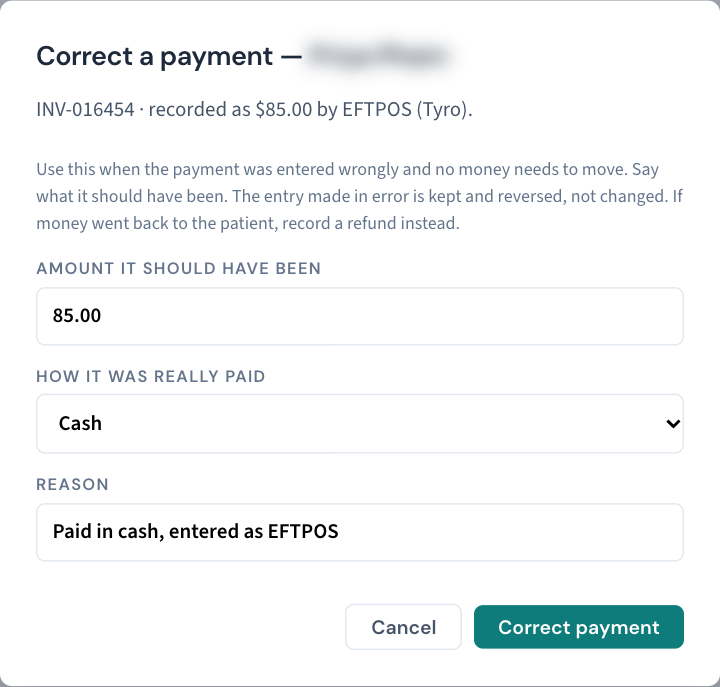
Curaeon does not change the entry you made. It keeps it, and adds two more beside it, so the invoice shows all three:
- The payment as you first recorded it, now reading entered in error, corrected.
- An entry marked REVERSED, which takes that payment out. It reads takes out the entry made in error, with your reason.
- The payment as it should have been, reading replaces the entry made in error, with your reason.
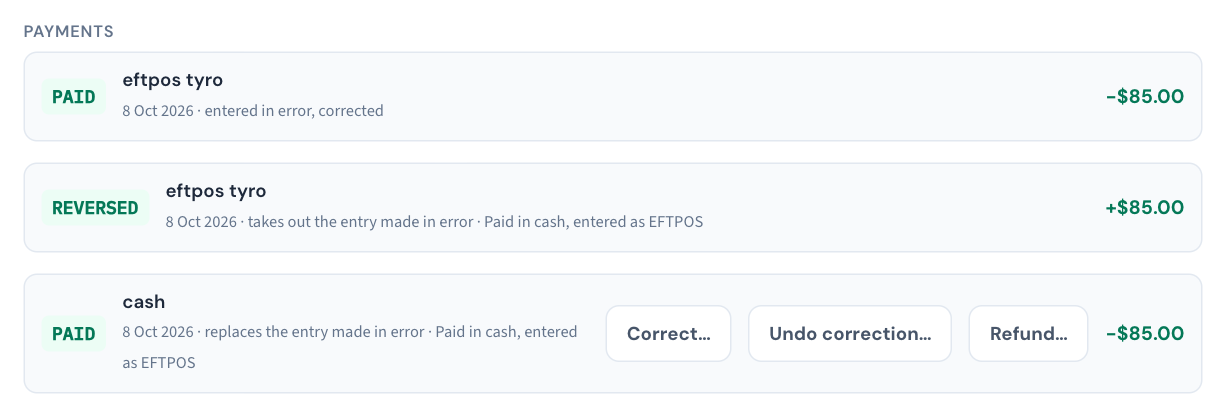
What changes:
- The invoice's balance. It follows the corrected amount. If the payment was really less than you recorded, a Paid invoice goes back to Issued with the difference owing. If it was really more, the invoice may become Paid.
- The receipt. It shows only the payment as it should have been.
- End of day. The correction is listed under Corrections on the day you made it, by method. The day you first recorded the payment is not changed (KB-053 — Month-end and end of day: aged debtors, statement runs and bank reconciliation).
- The Audit log. The correction is recorded with your name, the amount and method before and after, and the reason (KB-101 — Find who did what in the Audit log: kinds, Sign-ins, Exactly, Who and a bookmarkable view).
The payment that replaces the wrong one is an ordinary payment. It has Refund… and Correct… of its own.
Correct… is not offered on:
- A payment the card terminal took. Its amount is what the card was charged. If money went back, refund it (KB-160 — Take a card payment on the Tyro terminal). An EFTPOS payment you typed in by hand can be corrected.
- A payment that has a refund against it, or has already been corrected. Correct the payment that replaced it.
- A refund, or a REVERSED entry.
Note: A payment that has been matched to a line in bank reconciliation cannot be corrected until it is unmatched. The message says so.
Undo a correction
If the correction itself was the mistake, undo it:
- Under Payments, find the payment that reads replaces the entry made in error and choose Undo correction… beside it.
- The window shows the payment now and the payment before the correction. Check that the one it will restore is right.
- Type the Reason. It is required.
- Choose Undo correction.
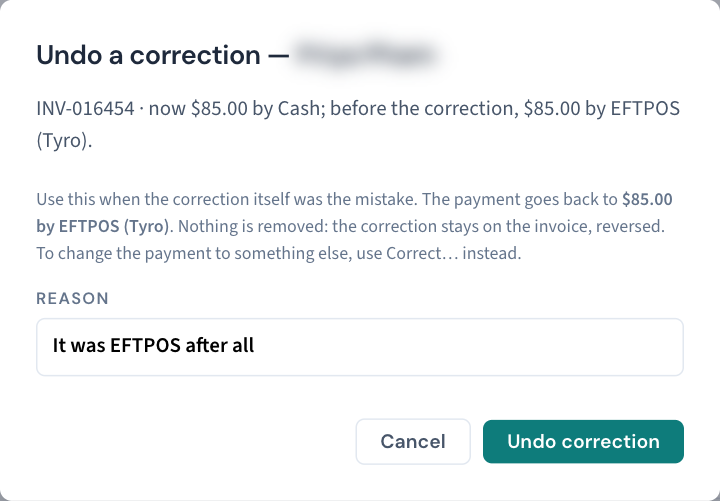
The payment goes back to the amount and method it had before the correction. You do not type them again. Nothing is removed: the correction stays on the invoice, reversed, and two more entries are added. The invoice's balance follows, so an invoice the mistaken correction reopened may become Paid again. End of day lists the undo as another correction.
Undo correction… is offered only on the payment a correction left, and only while nothing has been recorded against it. Once it has a refund or another correction, use Refund… or Correct… on the payment that stands.
Credit notes
A credit note takes an amount off what an invoice is owed, and leaves the invoice standing. Use one when the invoice is right to exist but the patient should owe less: the doctor reduced the fee afterwards, you agreed a discount, or the practice has decided not to pursue a balance.
A credit note is not money. Nothing is received and nothing goes back, so it does not appear in the day's takings.
Important: If the patient has already paid and money is going back to them, that is a refund, not a credit note. Record the refund first ("Refunds"). The refunded amount is then owing again, and you can raise a credit note for it.
You need the billing.adjust permission.
- Open the invoice's full page from Billing.
- Choose Credit note….
- Check the Amount to credit. It starts at everything that is owing. Lower it to credit part.
- Type the Reason. It is required and is printed on the credit note.
- Choose Raise credit note.
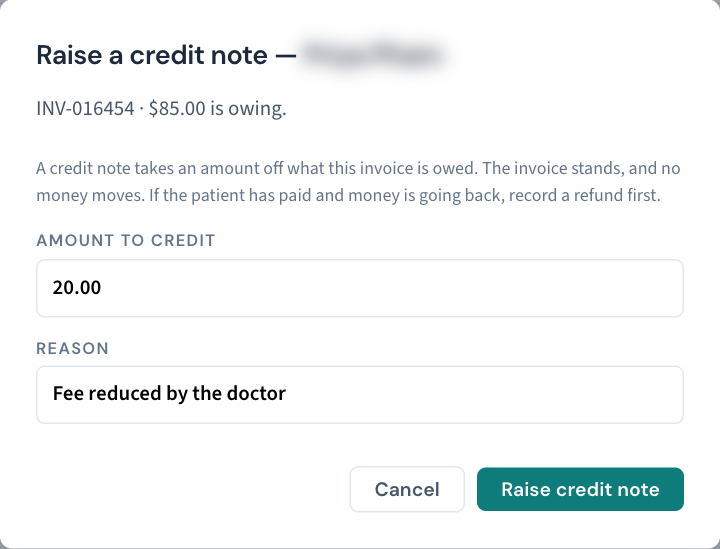
The credit note gets its own number, starting at CN-000001. It appears on the invoice under Credit notes, with its reason and amount.
Note: Credit note… is not offered on a bulk-bill or DVA invoice. On those, Curaeon raises a credit note itself when a claim is paid for less than it claimed. Its reason ends Raised by Curaeon when the claim was paid. (KB-156 — Follow a Medicare or DVA claim: its status, Check now and the claims list)

What changes:
- What is owing. The amount comes off the balance on the invoice, the receipt, the patient's statement and Aged debtors (KB-053 — Month-end and end of day: aged debtors, statement runs and bank reconciliation). The invoice's items and its total are not changed.
- The invoice's status. A credit note for everything owing settles the invoice, and it becomes Paid. A smaller one leaves it Issued with the rest owing.
- The card terminal. Take payment on the terminal charges what is owing after the credit (KB-160 — Take a card payment on the Tyro terminal).
- End of day. The day's credit notes are counted beside the invoices, under Credit notes raised on the date. They are not in the takings (KB-053 — Month-end and end of day: aged debtors, statement runs and bank reconciliation).
- The Audit log. The credit note is recorded with your name, its number, the amount and the reason (KB-101 — Find who did what in the Audit log: kinds, Sign-ins, Exactly, Who and a bookmarkable view).
Give the patient a copy
Choose Print beside the credit note. The printed page shows your practice, the patient, the credit note's number and date, the invoice it is against, the reason and the amount. Each print is recorded in the Audit log.
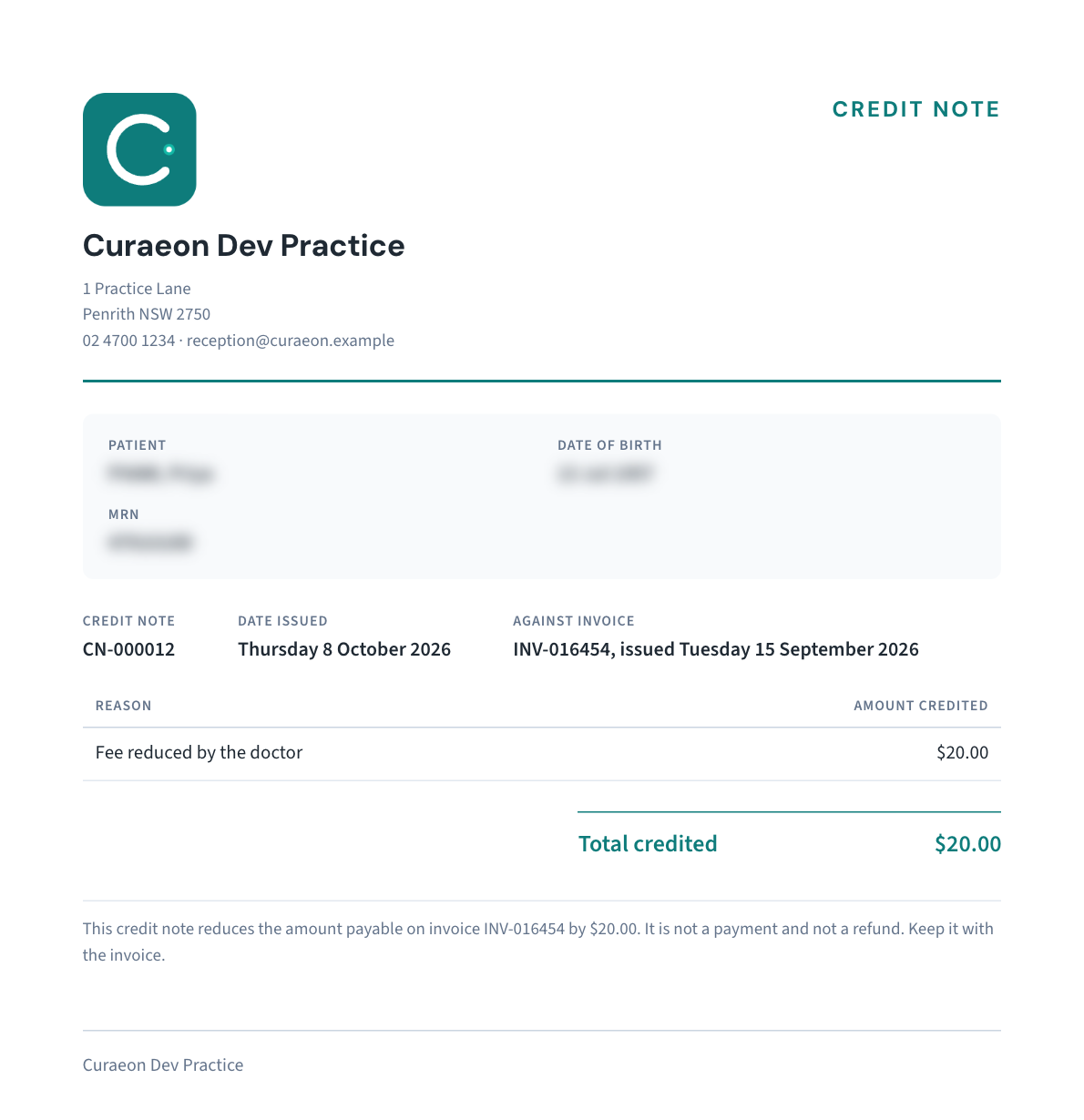
If the invoice included GST, the page is titled Adjustment note instead of Credit note. It reads Adjusts tax invoice and shows the GST in this adjustment on its own line. Curaeon works out the GST part for you. You do not choose which it is.
Cancel a credit note raised by mistake
A credit note cannot be edited or deleted. If one was raised by mistake, cancel it:
- Under Credit notes on the invoice, choose Cancel… beside it.
- Type the Reason. It is required.
- Choose Cancel credit note.
The credit note stays on the invoice, marked CANCELLED, with your reason. Its number is not used again. The amount is owing again, and an invoice it had settled goes back to Issued. If you gave the patient a copy, tell them it is cancelled. Printing a cancelled credit note marks the page CANCELLED.
Undo a cancellation made by mistake
If you cancelled a credit note by mistake, undo the cancellation. The same credit note stands again, under the same number, so a copy the patient holds is still right.
- Under Credit notes on the invoice, choose Undo cancellation… beside the cancelled credit note.
- Type the Reason. It is required.
- Choose Undo cancellation.
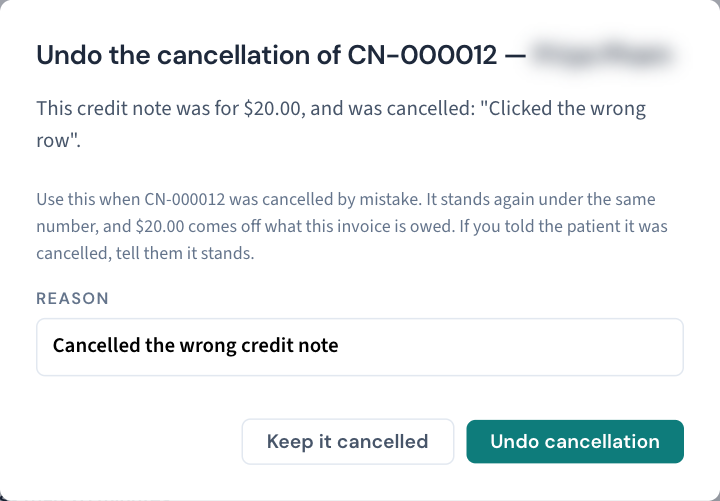
The credit note is no longer marked CANCELLED. Its amount comes off what the invoice is owed again, and the line beside it reads cancellation undone, with the date and your reason. If it covers everything owing, the invoice becomes Paid. If you told the patient it was cancelled, tell them it stands.
Undo cancellation… is offered only while the credit note still fits, which means its amount is no more than is owing on the invoice now. If some of that amount has been paid or credited since you cancelled it, the same credit note cannot stand again. Raise again… is offered in its place: the Raise a credit note window opens on what is owing and the cancelled note's reason, and the new credit note gets a new number. You are offered one or the other, never both.
Neither is offered when nothing is owing on the invoice.
Void an invoice that a credit note settled
An invoice settled by a credit note is Paid but has no money on it. Void invoice and Void & correct are not offered, and a line under the buttons reads This invoice is settled by a credit note and holds no money. To void or correct it, cancel the credit note first. Cancel the credit note, and both buttons come back.
Where Credit note… is not offered
- A bulk-bill or DVA invoice. Medicare or DVA owes that balance under a claim, not the patient. If the claim will not be paid, void the invoice or use Void & correct.
- An invoice with nothing owing. There is nothing to credit. If the patient paid and is owed money back, record a refund.
- A draft. Change its items instead.
What Curaeon does not do
A payment cannot be more than is owing on its invoice. Record the extra as a deposit on the patient's account (KB-168 — Hold credit on a patient's account: deposits, using credit and paying it back). A refund, a correction and the cancellation of a credit note can each be undone: see "Undo a refund recorded by mistake", "Undo a correction" and "Undo a cancellation made by mistake". If the figures then need explaining, raise a ticket with the invoice number. Do not include the patient's name.
What each message means
| Message | What it means | What to do |
|---|---|---|
| payment exceeds the outstanding balance | The amount is more than is owed | Enter the balance or less. Record anything extra as a deposit on the patient's account (KB-168 — Hold credit on a patient's account: deposits, using credit and paying it back) |
| amount must be a positive amount like 85.00 | The amount is blank, zero, negative or not a number | Type dollars and cents, no dollar sign |
| invoice is already paid | It was paid in full, perhaps by a colleague a moment ago | Nothing. Reopen the invoice |
| cannot correct: money is still recorded on the invoice (refund it first) or a Medicare claim is already submitted | Void & correct cannot be used on this invoice as it stands | Refund what is held, or see the table above |
| This invoice has a claim that Medicare or DVA has not answered yet, so it cannot be voided. … | A claim on the invoice was sent after you opened the page | Use Check now on the claim. The invoice can be voided if the claim is rejected |
| Money is still recorded on this invoice, so it cannot be voided. … | A payment was recorded after you opened the page, or a refund left some of it held | Refund what is still held. See "Refunds" |
| That is more than this payment has left to refund. It has $… left. | The amount is more than the payment, less any refunds already recorded against it | Enter that amount or less |
| Undoing this refund would put more on the invoice than it is for … | The refunded amount has been paid again, or credited, since the refund | Leave the refund as it is, or refund or correct the later entry first |
| That refund has already been undone. | A colleague undid it a moment ago | Nothing. Reopen the invoice |
| That entry is itself a refund or a reversal. … | A refund or a REVERSED entry cannot be refunded | Record the refund against the payment that was taken |
| A warning that a reason is required | The Reason box is empty | Type why the money went back, why the payment was wrong, or why the credit note is raised or cancelled |
| That is more than is owing on this invoice. $… is owing. … | The credit note's amount is more than the balance | Enter that amount or less. If the patient has paid and money is going back, record a refund first |
| Nothing is owing on this invoice, so there is nothing to credit. … | The invoice was paid, or credited in full, after you opened the page | Reopen the invoice. If money is going back, record a refund |
| This invoice is billed to Medicare or DVA, so its balance is not the patient's to be credited. … | A credit note cannot be raised on a bulk-bill or DVA invoice | Void the invoice or use Void & correct |
| This invoice is settled by a credit note and holds no money. … | You tried to void or correct an invoice a credit note settled | Cancel the credit note, then void or correct |
| That is more than is owing on this invoice. $… is owing, and this credit note is for $…. … | You tried to undo a cancellation, but some of the credit note's amount has been paid or credited since | Use Raise again… to raise a new credit note for what is owing |
| That credit note has not been cancelled, so there is no cancellation to undo. | A colleague undid the cancellation a moment ago | Nothing. Reopen the invoice |
| That credit note has already been cancelled. | A colleague cancelled it a moment ago | Nothing. Reopen the invoice |
| That is the amount and method the payment already has, so there is nothing to correct. | Nothing was changed in the Correct a payment window | Change the amount or the method, or choose Cancel |
| This payment already has a refund or a correction against it, so it cannot be corrected. … | A colleague refunded or corrected it after you opened the page | Reopen the invoice. Correct the payment that replaced it, or record a refund |
| This payment came from the terminal, and its amount is Tyro's record of what was charged. … | A terminal payment cannot be corrected | If money went back, record a refund |
| This payment is matched to a bank line. … | It was matched in bank reconciliation | Unmatch it there, then correct it or undo the correction |
| That entry is not the result of a correction, so there is no correction to undo. … | Undo correction… reached a payment that was never corrected | Use Correct… |
| A claim on this invoice has been paid, so it cannot be voided. … | The claim was paid after you opened the page | Record the benefit as a payment on the invoice |
| your role does not permit this action | Your role lacks billing.adjust |
Ask someone who holds it |
If that didn't work
If Record payment is missing, the invoice is not issued, or is already paid. If both void buttons are missing on an issued invoice, money is still recorded on it, or a claim on it is with Medicare or DVA, or has been paid. A line under the buttons says which. If only Void & correct is missing, the invoice is still a draft: change it in place.
If the Billing list, or the small window for an invoice, shows a red message where the invoices or the invoice should be, it could not be read. Choose Try again beside the message (KB-170 — When part of a screen says it could not be loaded: Try again, and what Loading… means).
If the message reads The invoices could not be read: the server did not say how many there are. Reload the page; if this continues, the server needs restarting., reload the page. If it comes back, your Curaeon server is probably running an older version than the screens (KB-037 — Screens blank or behaving oddly after an update: restart the server program). Raise a ticket.
Still stuck? Raise a ticket at support.curaeon.com.au or call 1300 XXX XXX. If your clinic can't see patients right now, call and choose option 1. Support is staffed Monday to Friday, 8:00–18:00 Sydney time; outside those hours a call or text to the same number is answered on a best-effort basis.
Related articles
- KB-052 — Raise, correct and claim an invoice, including when "Send to Medicare…" is blocked — Raise, correct and claim an invoice, including when "Send to Medicare…" is blocked
- KB-160 — Take a card payment on the Tyro terminal — Take a card payment on the Tyro terminal
- KB-168 — Hold credit on a patient's account: deposits, using credit and paying it back — Hold credit on a patient's account: deposits, using credit and paying it back
- KB-156 — Follow a Medicare or DVA claim: its status, Check now and the claims list — Follow a Medicare or DVA claim: its status, Check now and the claims list
- KB-169 — Print the form for a patient, or a summary, for a Medicare or DVA claim — Print the form for a patient, or a summary, for a Medicare or DVA claim
- KB-053 — Month-end and end of day: aged debtors, statement runs and bank reconciliation — Month-end and end of day: aged debtors, statement runs and bank reconciliation
- KB-108 — Bank lines that won't match, statement reprints and brought-forward balances: the ledger FAQ — Bank lines that won't match, statement reprints and brought-forward balances: the ledger FAQ
- KB-161 — Find consults that were never billed: the Consults to bill list — Find consults that were never billed: the Consults to bill list
- KB-181 — Payment plans: let a patient pay an invoice in instalments, and remind them — Payment plans: let a patient pay an invoice in instalments