Build and import letter templates: Word upload, merge fields, pronoun fields, snippets
Bring your existing letter library into Curaeon, write templates that read correctly for every patient, and know why a Word file was refused.
Before you start
Templates live in Settings → Templates, an Admin task. Have your existing templates to hand as Word (.docx), RTF or plain-text files.
Import a library from Word
- Open Settings → Templates and choose Upload.
- Select one file, or several at once.
- Read the result for each file. A file that holds something a template cannot — a picture, a header, tracked changes, or merged table cells — is refused, and the reason is named.
- For a refused file, remove that element in Word (accept the tracked changes, drop the picture from the header, unmerge the cells), save, and upload it again.
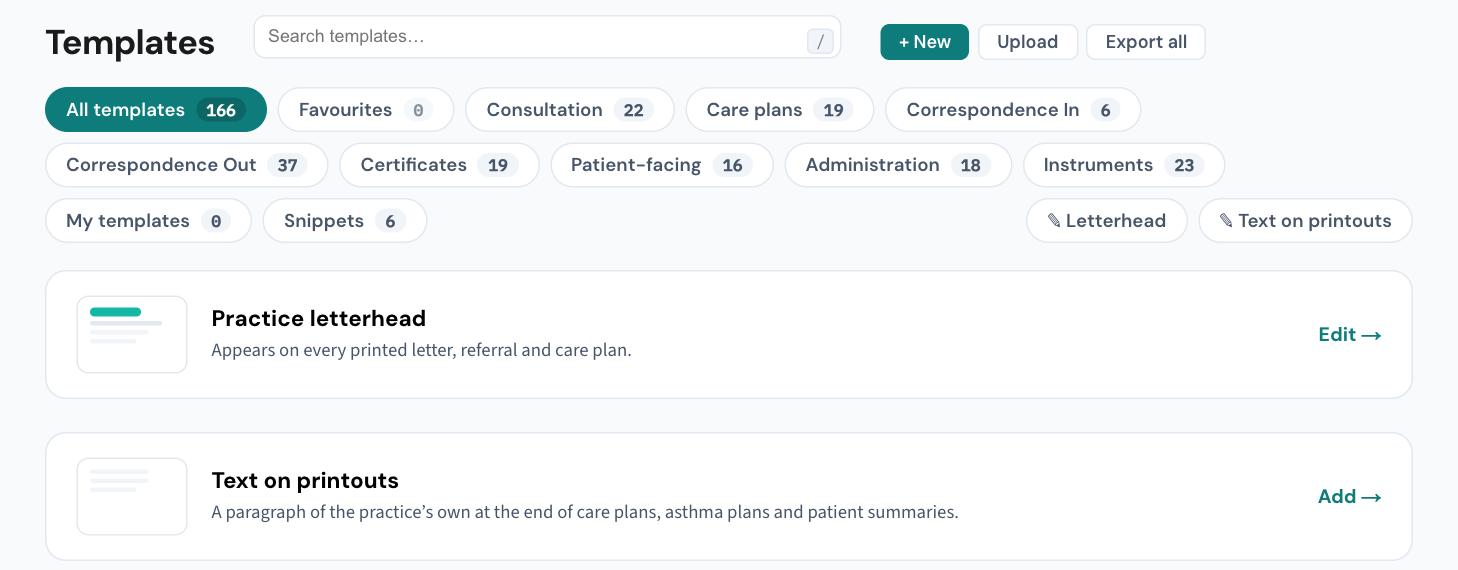
Export all downloads every template as an RTF in one zip, with a manifest saying what each file is — a backup before a tidy-up, or a way to move a library to another Curaeon site.
Add merge fields
Open a template in the editor and use { } Field on the toolbar. The picker lists every administrative field in the record, grouped (patient, pronouns, contact, identifiers and funding, the signing doctor, the practice, the recipient, the referral, dates) and searchable. In a template the picker inserts the {{placeholder}}; in a letter the same picker inserts the value, and shows the current value beside each field so a blank is seen before it goes in.
Clinical content is deliberately not a merge field. Diagnoses, medications, allergies, observations, immunisations, family and social history and recent results are placed with Insert from the record, by an explicit click, so the clinician sees exactly what enters the letter. Confidential diagnoses are never inserted.
Write with pronoun fields
The pronoun fields — {{patient.they}}, {{patient.them}}, {{patient.their}}, {{patient.theirs}} and {{patient.themself}}, each with a capitalised twin such as {{patient.They}} for the start of a sentence — take their value from the pronouns recorded on the patient and from nothing else. Sex and gender are never used to choose one.
When no pronouns are recorded, or what is recorded is not a set of pronouns ("any pronouns", "use my name"), the field prints the patient's first name instead, and the possessive prints the name with 's.
One writing tip: present-tense verbs after {{patient.they}} need care ("they are" versus "she is"), so write template sentences in the past tense and they read correctly for every patient.
Snippets
Quick-text snippets — a paragraph the practice types often — are kept under Settings → Templates → Snippets. In the letter editor, Snippet… on the same toolbar inserts one at the cursor with its fields already filled in.
If that didn't work
A template that is refused for a reason you cannot find in the file, or a merge field that prints blank when the record holds a value, is worth a ticket — say which template and which field, never the patient.
Still stuck? Raise a ticket at support.curaeon.com.au or call 1300 XXX XXX. If your clinic can't see patients right now, call and choose option 1. Support is staffed Monday to Friday, 8:00–18:00 Sydney time; outside those hours a call or text to the same number is answered on a best-effort basis.
Related articles
- KB-048 — Refer a patient: find a provider in HealthLink/HealthShare, or record a referral without a letter — Refer a patient: find a provider in HealthLink/HealthShare, or record a referral without a letter
- KB-050 — Email a letter to a patient: password, refused characters, "I can't open it" — Email a letter to a patient: password, refused characters, "I can't open it"
- KB-034 — Choose the right role and permissions for a new staff member — Choose the right role and permissions for a new staff member
- KB-106 — Write a letter in the editor: Insert from the record, { } Field, and the formatting that survives print and email — Write a letter in the editor: Insert from the record, { } Field, and the formatting that survives print and email