Find your way around Utilities: every section, what it is for and who can open it
Know what each of the fourteen Utilities sections does, why some staff see only a few of them, and which article walks you through each one.
Before you start
- Where it is. In the sidebar, under the Admin heading, choose Utilities.
- Who sees the link. Anyone who can open at least one section. With the standard roles that is everyone: reception and practice managers for the front-desk tools, and clinicians and nurses for Scanning.
- You only see the sections you can open. Three audiences share the one screen, each behind its own permission. The list on the left hides what your role cannot use, and the server refuses it as well, so a section that is not listed is not available to you by any other route.
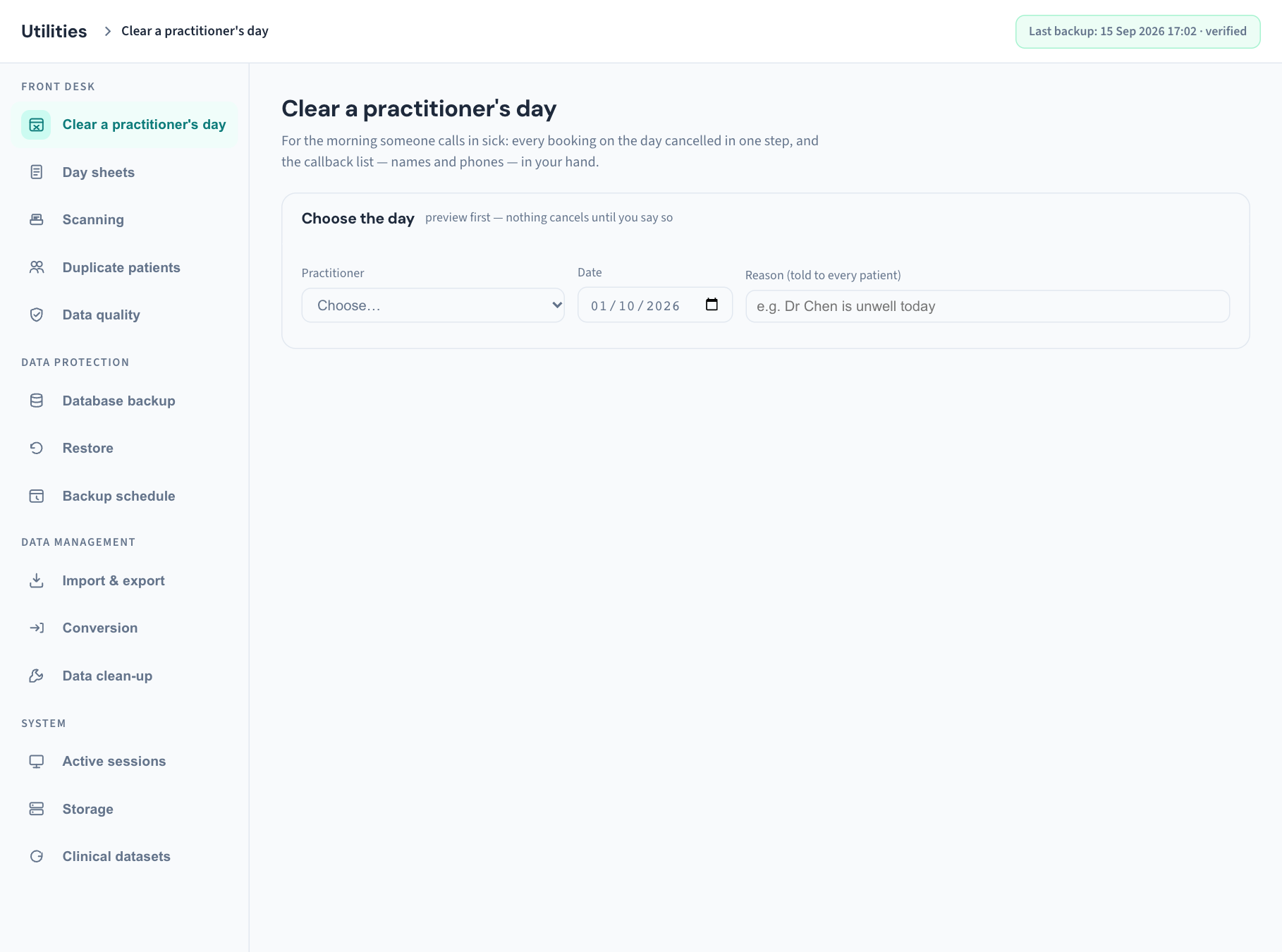
How the screen is laid out
- The section list on the left, in four groups: Front desk, Data protection, Data management and System. A group with nothing you can open is left out altogether.
- The content on the right. Each section opens with its name and a one-line description, then its cards.
- The top bar shows Utilities, then the name of the section you are in.
- The backup chip (practice administrators only) sits in the top bar on every section. It reads Last backup: with the date and time, followed by verified, not yet verified, overdue or last run FAILED; or No backup on disk yet. It turns to a warning colour for anything other than a good recent backup. If it is warning you, go to Database backup (KB-139 — A tour of Utilities → Database backup, Restore and Backup schedule: every control and status, KB-067 — Set up nightly backups, a second copy and a monthly restore drill).
Utilities opens on Clear a practitioner's day. If you cannot open that section, it opens on the first one you can. For a clinician or nurse that is Scanning.
The three permissions
| Permission | What it opens | Who holds it in the standard roles |
|---|---|---|
Front-desk utilities (utilities.run) |
Clear a practitioner's day, Day sheets, Duplicate patients, Data quality | Administrator, Reception |
Filing correspondence (correspondence.file) |
Scanning | Administrator, Clinician, Nurse, Reception |
Practice administration (practice.admin) |
Everything in Data protection, Data management and System | Administrator only |
The split is deliberate. The front-desk tools exist for reception, so putting them behind the administrator permission would lock out the people they are for. Backups, sessions and whole-practice exports stay with administrators, because "reception can clear a sick doctor's day" and "reception can download the database" are different decisions.
Giving another role the front-desk tools. A practice administrator can grant front-desk utilities to another role, a senior nurse for example, in Settings → Permissions (KB-121 — Change what each role may do in Settings → Permissions). The sections appear for those staff the next time they open Utilities. For how roles and permissions fit together, see KB-034 — Choose the right role and permissions for a new staff member.
Front desk
| Section | What it is for | Who can open it | Read |
|---|---|---|---|
| Clear a practitioner's day | For the morning someone calls in sick. Preview the day, give one reason, cancel every booking in one step and get the callback list with names and phones. Patients already in the building are never cancelled from here. | Front-desk utilities | KB-039 — Clear a practitioner's day when they call in sick |
| Day sheets | Print each practitioner's list for a day, with times, phones and a notes column. Whole practice or one practitioner. | Front-desk utilities | KB-134 — Print a day sheet for the front desk |
| Scanning | The day's paper. Upload what the scanner produced, open each page and file it to its patient. Filing also queues it in the clinical inbox for review. | Filing correspondence | KB-047 — Scan and file paper letters, including the appliance's pre-filled suggestions |
| Duplicate patients | Records that look like one person: the same Medicare number, or the same family name and date of birth. Nothing merges from here. Each pair has Open merge, which goes to Settings → Merge patients, where an administrator compares and decides. | Front-desk utilities | KB-042 — Find and merge duplicate patient records |
| Data quality | Worklists of gaps worth fixing while the patient is at the desk, such as a missing Medicare number or mobile, and addresses that cannot be right. confirmed correct takes a record that is right as it stands off the list. | Front-desk utilities | KB-081 — Fix data-quality gaps before they become rejected claims or lost letters |
Data protection
| Section | What it is for | Who can open it | Read |
|---|---|---|---|
| Database backup | Run a backup now, see the backup history, verify a backup and download a copy to keep off the server. | Practice administration | KB-139 — A tour of Utilities → Database backup, Restore and Backup schedule: every control and status, KB-067 — Set up nightly backups, a second copy and a monthly restore drill |
| Restore | Choose a backup and see the exact command that restores it. Restoring is done at the practice server, not by a button, because a one-click restore would pull the database out from under running consults. | Practice administration | KB-139 — A tour of Utilities → Database backup, Restore and Backup schedule: every control and status, KB-069 — Request a restore from backup |
| Backup schedule | When automatic backups run, where the second copy goes and how long backups are kept. | Practice administration | KB-139 — A tour of Utilities → Database backup, Restore and Backup schedule: every control and status, KB-067 — Set up nightly backups, a second copy and a monthly restore drill |
Data management
| Section | What it is for | Who can open it | Read |
|---|---|---|---|
| Import & export | Export your own data: the patient list and billing history as CSV files. Imports are not run from here; they go through the preview-first screens under Settings. | Practice administration | KB-135 — Export the patient list, billing history or the whole database from Utilities → Import & export |
| Conversion | Moving from Best Practice to Curaeon. Rehearse as often as you like, then cut over. Every run is reconciled, and only a signed cutover changes what staff see. | Practice administration | KB-136 — Run a rehearsal and a cutover from Utilities → Conversion, and how it differs from Import |
| Data clean-up | Housekeeping: reclaim space, rebuild the search indexes, preview archive candidates under the 7-year rule, and list scans left unfiled. Nothing is changed without your review. | Practice administration | KB-137 — Tidy the database from Utilities → Data clean-up: reclaim space, rebuild search, and find dormant records and forgotten scans |
System
| Section | What it is for | Who can open it | Read |
|---|---|---|---|
| Active sessions | Who is signed in right now, on which device. End a session for a computer left unlocked, and set Sign-out after inactivity for the practice. | Practice administration | KB-033 — Change how long Curaeon waits before signing you out, and end a session left open |
| Storage | What is using disk in the practice database and the backup directory. Measured, not estimated. | Practice administration | KB-138 — Read Utilities → Storage and Clinical datasets: how big the database is, and which reference data is loaded |
| Clinical datasets | Which reference data (MBS, PBS and the like) is actually loaded, and the command that refreshes each. | Practice administration | KB-138 — Read Utilities → Storage and Clinical datasets: how big the database is, and which reference data is loaded |
Link straight to a section
Add ?sec= and the section's short name to the Utilities address to open on that section. This is handy for a bookmark or a line in your procedures manual.
| Section | Address ends with |
|---|---|
| Clear a practitioner's day | /utilities?sec=clear-day |
| Day sheets | /utilities?sec=day-sheets |
| Scanning | /utilities?sec=scanning |
| Duplicate patients | /utilities?sec=duplicates |
| Data quality | /utilities?sec=data-quality |
| Database backup | /utilities?sec=backup |
| Restore | /utilities?sec=restore |
| Backup schedule | /utilities?sec=schedule |
| Import & export | /utilities?sec=import-export |
| Conversion | /utilities?sec=conversion |
| Data clean-up | /utilities?sec=cleanup |
| Active sessions | /utilities?sec=sessions |
| Storage | /utilities?sec=storage |
| Clinical datasets | /utilities?sec=datasets |
A link to a section the person cannot open does not show an error. Utilities simply opens on the first section they can use.
The standalone console
The administrator sections also exist outside the main app, on a page served by the practice server itself at http://<practice-server>:8080/admin. It uses the same sign-in and the same practice-administrator permission, and it keeps working when the main app will not load, which is when backups and sessions matter most. The front-desk tools are not part of it. Bookmark the address before you need it: KB-068 — Use the standalone admin console when the main app won't load.
If that didn't work
- There is no Utilities link in my sidebar. Your role can open none of the sections. Ask your practice manager.
- I can only see Scanning. That is expected for a clinician or nurse. The other front-desk tools need the front-desk utilities permission, which an administrator can grant in Settings → Permissions (KB-121 — Change what each role may do in Settings → Permissions).
- I'm at reception and can't see the backup sections. That is expected. They are for practice administrators.
- A link I was sent opens the wrong section. You cannot open the one it points to, so Utilities chose the first one you can.
- A section shows a red message instead of its content. The list could not be loaded, and Curaeon says so rather than showing an empty list that could be mistaken for "nothing to do". Reload the page. If it persists, raise a ticket with the wording of the message.
Still stuck? Raise a ticket at support.curaeon.com.au or call 1300 XXX XXX. If your clinic can't see patients right now, call and choose option 1. Support is staffed Monday to Friday, 8:00–18:00 Sydney time; outside those hours a call or text to the same number is answered on a best-effort basis.
Related articles
- KB-039 — Clear a practitioner's day when they call in sick — Clear a practitioner's day when they call in sick
- KB-134 — Print a day sheet for the front desk — Print a day sheet for the front desk
- KB-047 — Scan and file paper letters, including the appliance's pre-filled suggestions — Scan and file paper letters, including the appliance's pre-filled suggestions
- KB-042 — Find and merge duplicate patient records — Find and merge duplicate patient records
- KB-081 — Fix data-quality gaps before they become rejected claims or lost letters — Fix data-quality gaps before they become rejected claims or lost letters
- KB-139 — A tour of Utilities → Database backup, Restore and Backup schedule: every control and status — A tour of Utilities → Database backup, Restore and Backup schedule: every control and status
- KB-067 — Set up nightly backups, a second copy and a monthly restore drill — Set up nightly backups, a second copy and a monthly restore drill
- KB-069 — Request a restore from backup — Request a restore from backup
- KB-135 — Export the patient list, billing history or the whole database from Utilities → Import & export — Export the patient list, billing history or the whole database from Utilities → Import & export
- KB-136 — Run a rehearsal and a cutover from Utilities → Conversion, and how it differs from Import — Run a rehearsal and a cutover from Utilities → Conversion, and how it differs from Import
- KB-137 — Tidy the database from Utilities → Data clean-up: reclaim space, rebuild search, and find dormant records and forgotten scans — Tidy the database from Utilities → Data clean-up: reclaim space, rebuild search, and find dormant records and forgotten scans
- KB-033 — Change how long Curaeon waits before signing you out, and end a session left open — Change how long Curaeon waits before signing you out, and end a session left open
- KB-138 — Read Utilities → Storage and Clinical datasets: how big the database is, and which reference data is loaded — Read Utilities → Storage and Clinical datasets: how big the database is, and which reference data is loaded
- KB-068 — Use the standalone admin console when the main app won't load — Use the standalone admin console when the main app won't load
- KB-121 — Change what each role may do in Settings → Permissions — Change what each role may do in Settings → Permissions
- KB-115 — Find your way around Settings: every section, who can open it, and where to read more — Find your way around Settings: every section, who can open it, and where to read more