Screens blank or behaving oddly after an update: the version-mismatch banner
If a banner at the top of every screen says the server and the web are running different versions, the fix is a restart of the server program — not a support call — and this is how to read it.
What the banner means
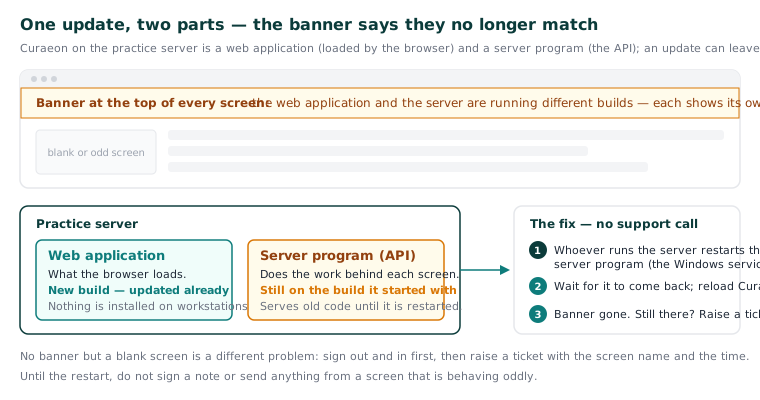
Curaeon is two parts on your practice server: the web application your browser loads, and the server (the API) that does the work. After an update the web part can be new while the server is still running the build it started with. When the two are on different builds, a banner says so at the top of every screen, naming the build each side is running.
The manual is blunt about how common this is: that mismatch explains most "the screen has gone blank" reports. Screens can behave oddly until it is fixed — a page that loads but shows nothing, a button that does nothing, a list that will not fill. The server itself looks perfectly healthy the whole time, which is why the banner exists.
The check that saves a call
- Look at the top of any Curaeon screen. If the banner is there, you have your answer — keep reading.
- If there is no banner and a screen is blank, this is a different problem. Sign out and in again first (KB-033 — Change how long Curaeon waits before signing you out, and end a session left open explains what a sign-out preserves), then raise a ticket with the screen name and the time.
The fix
The server was not restarted after the update, so it needs restarting now.
- Tell whoever looks after your server. The manual's instruction is "restart the API": on a Windows Server installation the API runs as a Windows service that starts with the machine, so restarting that service is the job. The manual does not give the service name, so if the person is unsure, that is a fair question for a ticket.
- Wait for the server to come back, then reload Curaeon in the browser.
- The banner should be gone. If screens still misbehave with no banner, raise a ticket rather than restarting again and again.
Staff do not need to do anything on their own computers. Nothing is installed on a workstation, so there is nothing there to update. The banner does not restart or reload anything itself — it only tells you.
Why a restart and not a support call
Your server runs in your own practice, so its status is visible on site rather than on Curaeon's status page (KB-009 — Subscribe to status updates for your clinic), which covers the services we run and national ones: the version banner, and Settings → AI Appliance for the scribe appliance's health, show it directly. A version banner is the practice's own signal that an update is half-applied, and the person who ran the update is the person who can finish it.
Until the restart, do not sign a note or send anything from a screen that is behaving oddly — wait, reload, then carry on.
If that didn't work
If the banner stays after a restart, or comes back, note what it says (the build on each side), when the update was applied and who applied it, and raise a ticket. Please do not keep restarting the server during clinic hours hoping for a different result.
Still stuck? Raise a ticket at support.curaeon.com.au or call 1300 XXX XXX. If your clinic can't see patients right now, call and choose option 1. Support is staffed Monday to Friday, 8:00–18:00 Sydney time; outside those hours a call or text to the same number is answered on a best-effort basis.
Related articles
- KB-068 — Use the standalone admin console when the main app won't load — Use the standalone admin console when the main app won't load
- KB-054 — Scribe option missing, "appliance is busy", or the draft never arrives — Scribe option missing, "appliance is busy", or the draft never arrives
- KB-006 — How to report a clinic-down emergency (and what happens next) — How to report a clinic-down emergency (and what happens next)
- KB-097 — Release notes: Curaeon 1.0, the first release — Release notes: Curaeon 1.0, the first release