Print a staff member's activity report for an investigation or a handover
Produce, on your letterhead, everything one staff member opened, sent and changed — with why they opened each record — for a complaint, a departure or an accreditation question.
Before you start
Only administrators can read the Audit log, and your own reading of it is recorded too. The report is built by the practice from its own server; nothing here needs a ticket, and no staff member's name should ever go in one (KB-007 — Why we never need patient details in a support ticket).
A staff member's report is the mirror image of a patient's access report (KB-063 — Answer "who has seen my record?": print a patient access report): the access report starts from a record and lists who touched it; the activity report starts from a person and lists what they touched.
Steps
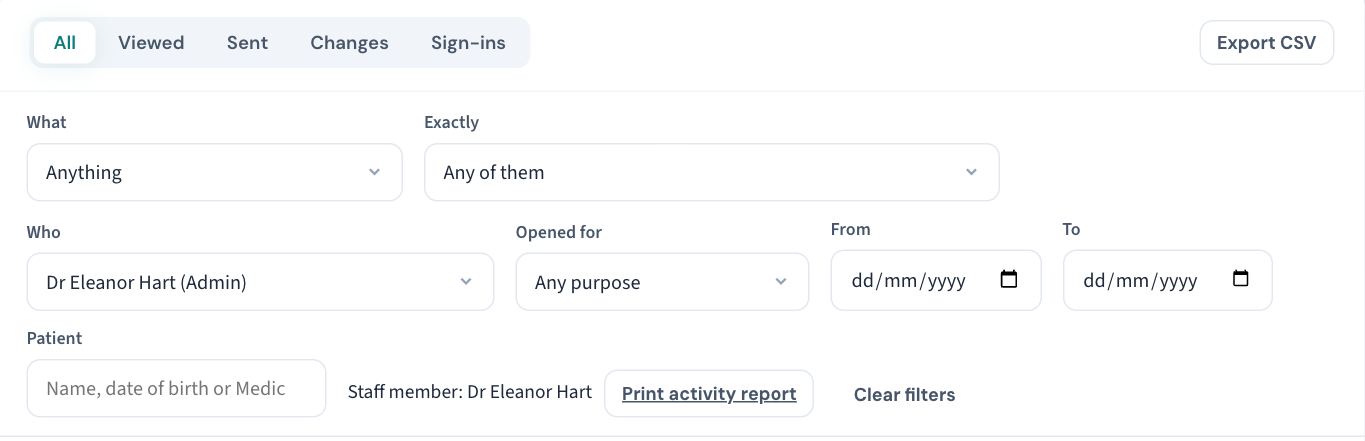
- Open Settings → Users and choose Activity beside the staff member. This opens the Audit log already narrowed to them — Who shows their name. You can also open the log and set Who yourself; it includes API keys as well as staff. For someone who has left, use the Deactivated filter on Users to find them — an investigation into who opened what is as often about a departed account.
- Set From and To if the question is about a period. The dates are the practice's days.
- To ask what that person did in one patient's record alone, search the patient under Patient as well. Finding a patient this way does not open their record.
- Choose Print activity report. The dates carry across to the report.
What the report contains
On the letterhead:
- The records they opened and how often, with the Purpose they gave for each opening (KB-062 — Why Curaeon asks your reason for opening a record) — or Consult in progress and Booked in that day, marked (not asked), when the day answered for them.
- Documents, searches, reports and prints — a patient search, each page of the patient list they looked at, a worklist, a day sheet, a report that lists patients.
- What they sent out of the practice and to whom: letters and referrals to patients (by email or SMS, to which address, and whether that address was typed at the time rather than the one on file), secure messages one row per recipient, and the scripts eRx accepted from their prints and cancellations.
- Every change, with what it was before and after.
- Their sign-ins, including refused passwords and codes and sessions ended.
Where the dates reach back before the practice began recording in Curaeon, or before openings of a record were recorded, the report says from what date — so an empty section is not read as nothing having happened. An API key is named as an API key, not by the role it borrows.
Reading it fairly
The report puts the log in front of someone who knows the practice; it does not accuse anyone. An after-hours opening may be the on-call doctor; a hundred records in a day may be a recall run. Two things to keep in mind:
- A missing look is possible; a missing change is not. A change is written in the same step as the change itself, so it cannot be absent. A look — a record opened, a search — is written straight afterwards, and one the server could not write at that moment went unrecorded.
- The same chart opened again from the same sign-in within 15 minutes is listed once. A high count is openings across time, not clicks.
The weekly view of the same thing
You do not have to wait for a question. The weekly Security review (KB-064 — Sign off the weekly Security review, and act on alerts and audit-log check warnings) already lists, by staff member, records opened with no purpose given, documents sent to a typed address, records opened after hours, and staff who opened records of possible relatives — each name opening those rows in the Audit log.
If you need the raw rows
Export CSV on the same filtered view downloads every matching event, readable without Curaeon. The export is recorded in the log with its filters and row count.
Still stuck? Raise a ticket at support.curaeon.com.au or call 1300 XXX XXX. If your clinic can't see patients right now, call and choose option 1. Support is staffed Monday to Friday, 8:00–18:00 Sydney time; outside those hours a call or text to the same number is answered on a best-effort basis.
Related articles
- KB-063 — Answer "who has seen my record?": print a patient access report — Answer "who has seen my record?": print a patient access report
- KB-101 — Find who did what in the Audit log: kinds, Sign-ins, Exactly, Who and a bookmarkable view — Find who did what in the Audit log: kinds, Sign-ins, Exactly, Who and a bookmarkable view
- KB-084 — New staff onboarding and offboarding checklist — New staff onboarding and offboarding checklist