Set up rosters, rotating cycles and leave in Settings → Rosters: the complete walkthrough
Give every doctor and nurse a working week the calendar can book against, including split days, lunch breaks and fortnightly or longer rotations, change a roster without losing its history, and record leave so nobody is booked with someone who is away.
Before you start
- Open Settings → Rosters. The page is headed Rosters & Availability.
- Administrators only, reading included. A roster is staff employment information: hours, days off, the reason someone is away. Anyone else who opens the page sees "Practice-manager access only. Rosters and leave are maintained by admin accounts — ask an administrator to change who works when." Reception does not need this page to book: the calendar reads the roster for them.
- Set your opening hours first, in Settings → Practice (KB-116 — Set up your practice's details, opening hours and closures in Settings → Practice). Once opening hours are saved, a roster line cannot reach outside them.
- The person must already have an account in Settings → Users (KB-120 — Manage staff accounts in Settings → Users: add, change a role, seats, provider numbers, deactivate). Doctors, nurses and administrators all appear here.
- KB-040 — Set up rosters, leave and online-bookable appointment types, and handle online booking requests is the short version of this article. This one covers the whole screen.
How the roster affects booking
Three rules explain almost everything on this page.
| Situation | What happens when someone tries to book |
|---|---|
| The practitioner has no roster line covering that day, or no roster at all | The booking is refused. There is no "book anyway" for this. The message says whether they are simply off that day or have never had a roster set up. |
| The practitioner is rostered that day, and the time is inside their hours | The time is offered as normal. |
| The practitioner is rostered that day, and the time is outside their hours (before they start, in their lunch break, during part-day leave) | The time is marked in the booking window as outside their available hours, and can still be booked. |
On top of that, whole-day leave and practice closures refuse bookings for that day, and the practice's opening hours are the outer limit for everyone.
So the roster decides which days a practitioner can be booked, and guides which times are offered first.
A tour of the screen
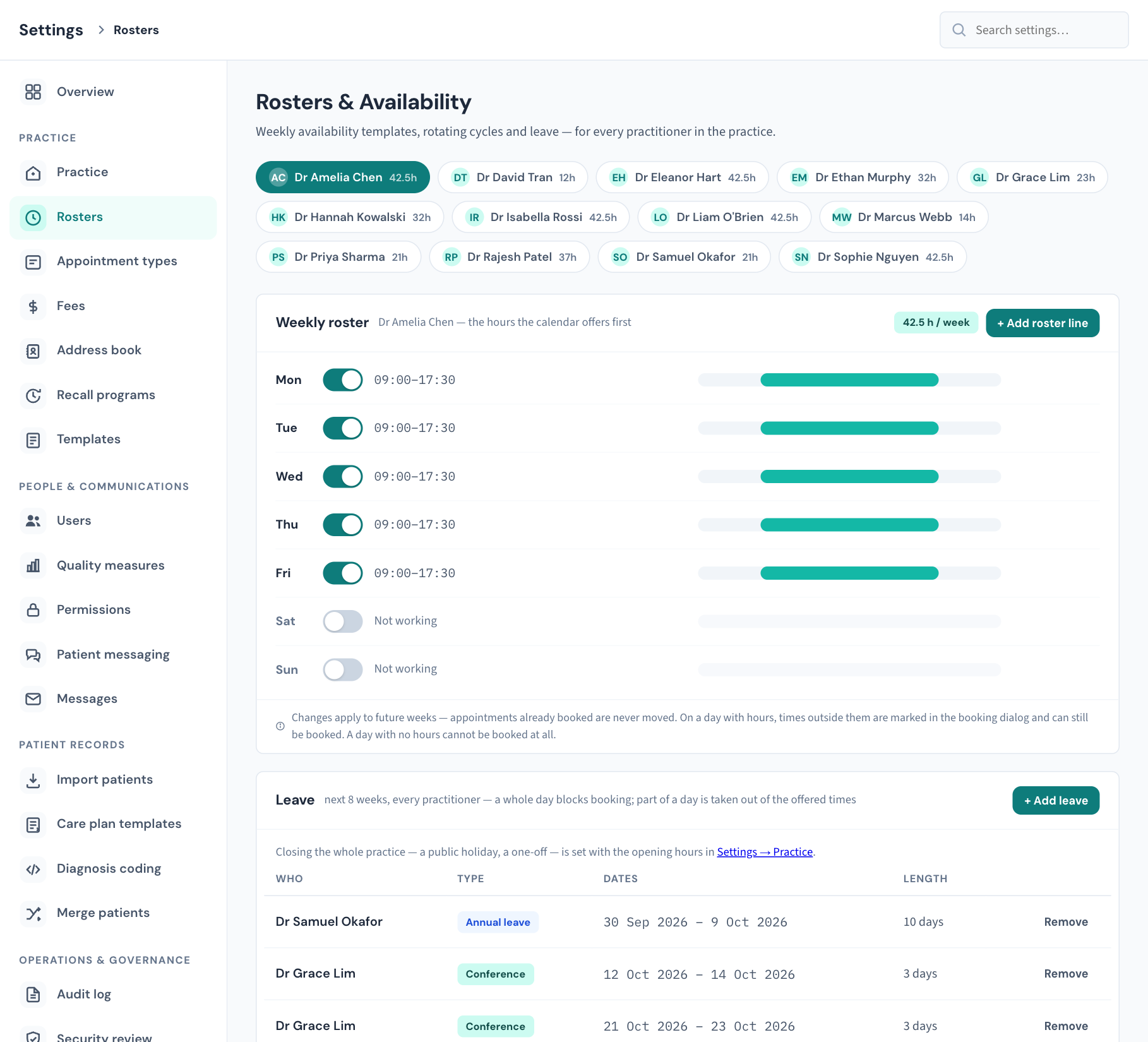
The practitioner pills
Across the top is a pill for each practitioner, with their initials, name and a figure:
- a number of hours, such as 38h: their average working hours a week right now;
- no roster: nothing has been set up for them.
Select a pill to show that person's roster in the card below. If there are many practitioners the row scrolls.
The hours figure is worked out, not typed. It counts only roster lines in force today, counts overlapping lines once, and averages a rotating roster over its whole cycle, so a fortnightly roster can be compared with a fixed one. It is rounded to the nearest half hour.
If nobody is listed, the page says "No practitioners yet. Add one in Settings → Users, then set their hours here."
The Weekly roster card
The heading names the practitioner you chose. At the right is a badge with their hours (… h / week, with avg added when the roster rotates) or No hours set, and the + Add roster line button.
Below is a row for every day, Monday to Sunday, including the days nobody works.
| On the row | What it means |
|---|---|
| The switch beside the day | On means the practitioner works that day. Flip it on to add hours; flip it off to stop them working that day. |
| Not working | No roster line is in force on that day today. |
| A time range, such as 09:00–12:30 | One roster line. A day with a lunch break has two rows: morning and afternoon. |
| The bar at the right | A picture of the line across the day, from 6:00 am to 8:30 pm. |
| A location, such as Room 2 | Where the practitioner sits for that line. It is a label for reception. It does not reserve the room or stop two people being rostered in it. |
| Week 1 of 2 (or similar) | The line is part of a rotation and applies only in that week of the cycle. |
| from and a date | The line has been added but has not started yet. A day whose only line starts later reads Not working and shows this badge. |
| ends and a date | The line has been ended. That date is its last working day. |
| duplicate | The line is identical to the one above it. It adds no hours and no times. End or delete it. |
Each line has up to three small buttons at the right:
| Button | What it does |
|---|---|
| + (first line of the day only) | Adds a second block on that day: a split shift. |
| ⊖ (a circle with a line) | Ends this line from today. History stays on the record. Not shown on a line that already has an end date. |
| × | Deletes the line outright. For entry mistakes only. |
Under the rows is a reminder: changes apply to future weeks, and appointments already booked are never moved.
The Leave card
Lists leave, training and meetings for every practitioner over the next 8 weeks, earliest first, with + Add leave at the top right. It is covered under "Record leave" below.
Give a practitioner their first roster
- Select the practitioner's pill. The card says No roster yet.
- Choose the quickest starting point:
- Use Mon–Fri, 9:00 – 17:00 creates five lines, Monday to Friday, 9:00 to 17:00, every week, from today, with no lunch break. You will see "Mon–Fri roster created — adjust any day below."
- Copy …'s roster copies another practitioner's current weekly hours to this one, from today. The button names whose roster it copies; you do not choose. It copies days and times only, and leaves out any rotating lines.
- + Add roster line lets you build it yourself, with a lunch break, a location and a start date. This is the next section.
- Check the hours badge at the top of the card reads what you expect.
If their days differ from the starting point, change the days that are wrong: see "Change a roster" below.
Note: Until a practitioner has a roster, no day can be booked with them, and the calendar tells reception to ask the practice manager to add their availability. The No roster yet panel says the same.
Add a roster line
One roster "line" is one block of hours on one day of the week. The Add roster line window writes several at once: one per day you tick, or two per day when there is a lunch break.
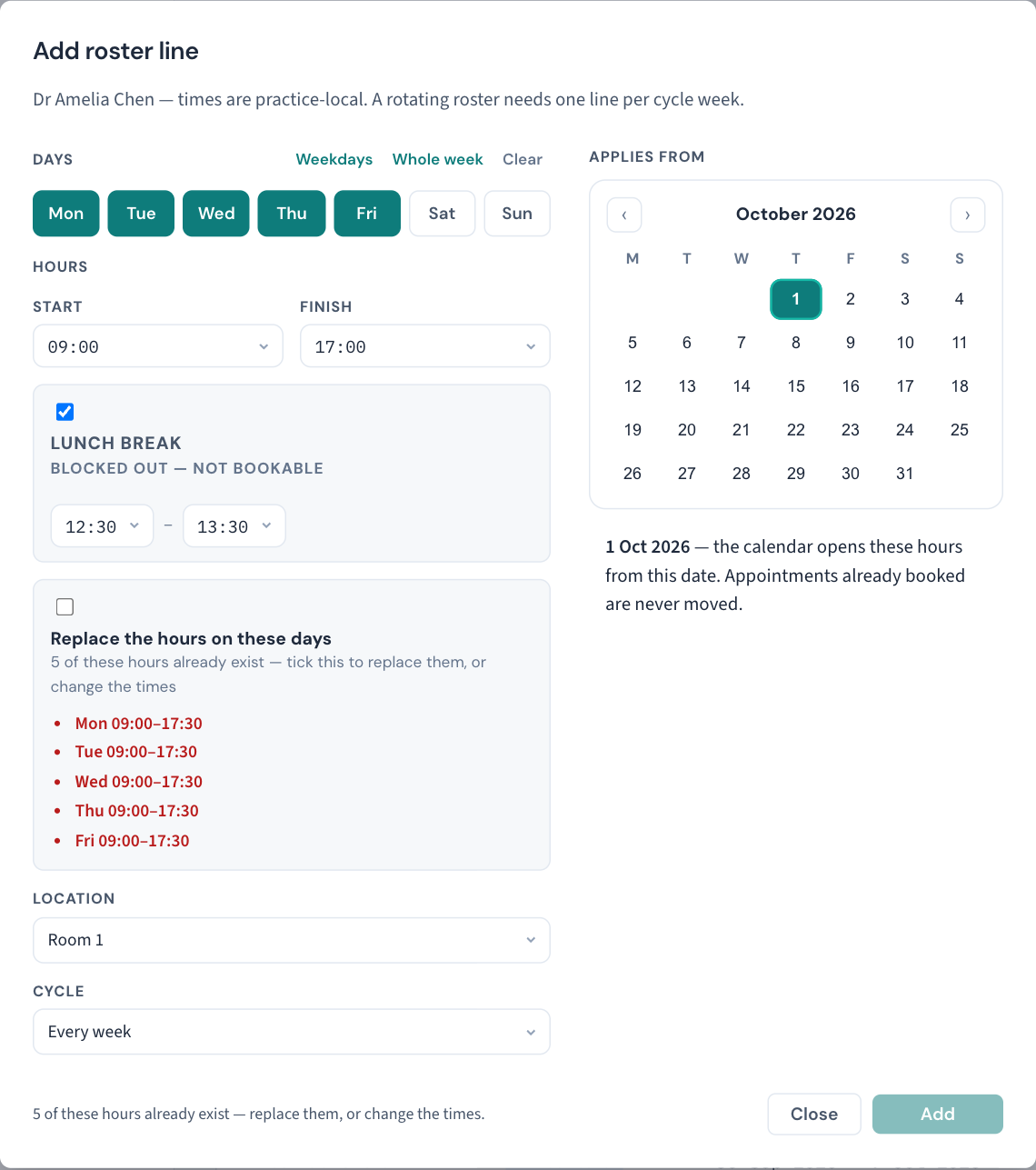
- Select the practitioner's pill.
- Select + Add roster line. Monday to Friday start ticked. (If you opened the window from a day's switch or its + button, only that day is ticked.)
- Under Days, tick the days these hours apply to. Weekdays, Whole week and Clear are shortcuts.
- Under Hours, choose Start and Finish. Times are offered in half hours from 06:00 to 20:30, and are always the practice's own time.
- Lunch break starts ticked, from 12:30 to 13:30. Change the two times, or untick it for a day worked straight through. The break is saved as a gap between a morning line and an afternoon line, so those times are not offered for booking.
- Under Location, choose Room 1, Room 2, Rooms 1–2, Rooms 1–3 or Telehealth.
- Under Cycle, leave Every week unless the roster rotates. For a rotation see "Set up a rotating roster" below.
- Under Applies from, pick the first date these hours apply. It starts on today. Use the arrows to change month. Past dates cannot be picked.
- Read the line at the bottom of the window. It adds up what you are about to save, for example "5 days × 7 h = 35 h / week". If that is not the number you expect, something above is wrong.
- Select Add.
You will see "Roster line added — slots appear on the calendar." The new lines appear on their days. If they start in the future, each shows a from badge until that date.
When the days you picked already have hours
If any of the days you ticked already has a roster line, a tick box appears: Replace the hours on these days (or this day).
- Left unticked, your new hours are added alongside what is there. That is right for a second block on a day. It is refused if the new hours overlap an existing line in the same cycle position: the window lists the lines in the way, switches Add off, and says "… of these hours already exist — replace them, or change the times."
- Ticked, the window lists by name every existing line on those days. They are all ended on the day before your Applies from date, and the new hours take over from that date. The old lines are ended, not deleted, so the record still says what the practitioner used to work.
Important: Replace ends every line on the days you ticked, including rotating ones. If one of them is part of a rotation the window warns: "That includes a rotating line. Replacing removes the rotation as well as the weekly hours." Read the list before you select Add.
What stops Add
Add is switched off, and the bottom of the window says why, when:
| Message | Fix |
|---|---|
| Pick at least one day. | Tick a day. |
| Finish must be after start. | Check the two times. |
| Lunch must end after it starts. | Check the lunch times. |
| Lunch sits outside the working hours. | Move lunch inside start and finish, or untick it. |
| … of these hours already exist — replace them, or change the times. | Tick Replace the hours on these days, or choose times that do not overlap. |
Curaeon can also refuse a line when you select Add:
| Message says | What it means |
|---|---|
| The hours are outside the practice's … hours, with the practice's hours for that day | A roster cannot promise more than the building is open for. Shorten the line, or widen the opening hours in Settings → Practice (KB-116 — Set up your practice's details, opening hours and closures in Settings → Practice). |
| The practice is closed on …s, so nobody can be rostered then | That day has no opening hours. Open the day in Settings → Practice first. |
| The hours overlap the existing line on that day, or are already on that day | Tick Replace the hours on these days, or end the existing line first. |
| "… of … lines added — the rest were refused." | Some days saved and some did not. Look at the roster to see which days are missing, then add those again; the message for a single day will say why. |
A lunch closure in the practice's opening hours does not get in the way. A doctor rostered 9:00 to 17:00 straight through, at a practice shut from 12:30 to 13:30, is accepted; nobody can be booked during the closure either way.
Set up a rotating roster
A rotating roster is one where the weeks differ: Mondays one week and Tuesdays the next, or a Saturday every fourth week. Curaeon supports cycles of 2, 3 or 4 weeks. You add one set of lines for each week of the cycle.
Decide first which date week 1 starts on. Curaeon counts the cycle in blocks of seven days from the Applies from date, so use the same Applies from date for every week of the rotation, and make it the first day of week 1 (a Monday is easiest).
For a two-week rotation:
- Select + Add roster line.
- Tick the days worked in week 1 and set their hours.
- Under Cycle, choose 2-week rotation. A Week of cycle list appears.
- Choose Week 1.
- Under Applies from, pick the day week 1 starts.
- Check the bottom line. It now reads, for example, "2 days × 7 h = 14 h on week 1 of 2".
- Select Add.
- Select + Add roster line again.
- Tick the days worked in week 2, set their hours, choose 2-week rotation and Week 2.
- Pick the same Applies from date as before.
- If a day is worked in both weeks, the Replace the hours on these days box appears. Leave it unticked, or the week 1 lines on that day are ended.
- Select Add.
Each rotating line shows a Week 1 of 2 or Week 2 of 2 badge, and the hours badge reads avg, because it is the average across the cycle.
For three or four weeks, do the same once per week of the cycle. Days that are the same every week can stay as ordinary Every week lines beside the rotating ones.
Tip: After setting up a rotation, open the Calendar and look two or three weeks ahead to check the right days come up in the right weeks.
Change a roster
Roster lines cannot be edited in place. That is deliberate: overwriting a line would erase what the practitioner used to work, and the roster's history is how you explain an old booking. You change a roster by ending what is there and adding what replaces it.
Change the hours on a day
- Select + Add roster line (or the + button on that day).
- Tick the day or days, and set the new hours.
- Tick Replace the hours on these days.
- Pick the Applies from date the new hours start.
- Select Add.
The old lines end the day before, and the new ones start on the date you picked.
Add a second block to a day (a split shift)
- Select the + button on the day's first line.
- Untick Lunch break, and set Start and Finish for the extra block.
- Leave Replace the hours on this day unticked.
- Select Add.
Stop working one day of the week
- Flip the day's switch off. A window asks Stop working and the day.
- Select Stop working that day.
Every block on that day is ended from today, and you will see the day "ended as of today". Keep working closes the window without changing anything.
End one line
- Select the ⊖ button on the line. A window asks End this … roster line?
- Select End roster line.
The line's last working date is set to today. History stays on the record; future weeks lose those times. Keep closes the window without changing anything.
The line stays in the list for the rest of today with an ends badge, and is gone from the list tomorrow.
Start working a new day
- Flip the switch on a Not working day. The Add roster line window opens with that day ticked.
- Set the hours and the Applies from date, and select Add.
Delete a line entered by mistake
- Select the × button on the line.
Important: Delete acts at once. There is no confirmation and no undo. It removes the line as if it had never been there, so use it only for something entered wrongly a moment ago. For a real change to someone's hours, use End. The deletion is still recorded in the Audit log, with what the line said.
What happens to appointments already booked
Nothing. Changing, ending or deleting a roster line never moves or cancels an appointment. If you take a day off someone's roster and they have patients booked on future dates for that day, those appointments stay in the diary. Check the calendar and rebook them (KB-038 — Book, reschedule and track appointments in the Calendar).
Record leave
Leave is an exception to the roster for particular dates. A whole day of leave refuses bookings with that practitioner for that day, for staff and for the online booking page alike.
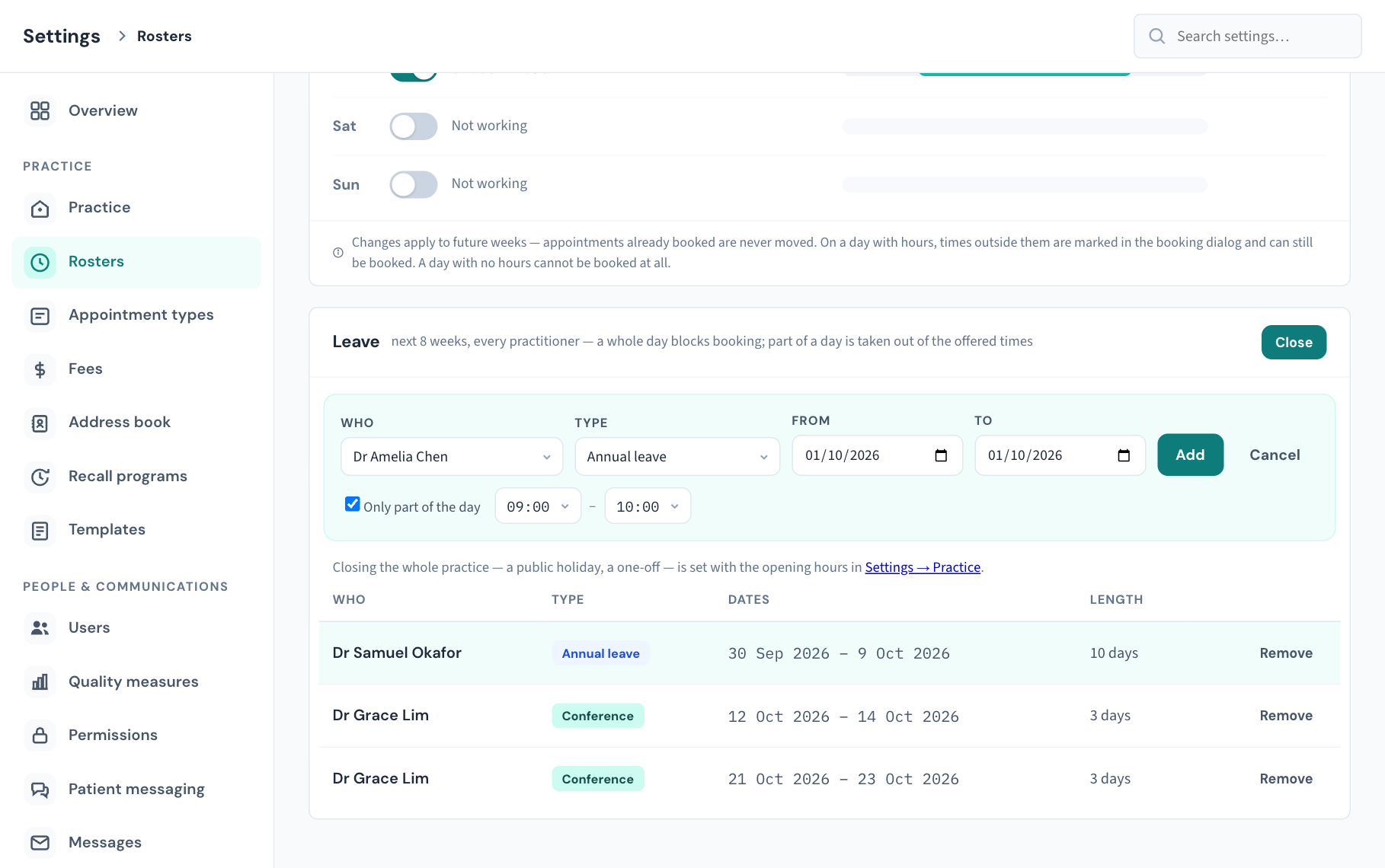
- In the Leave card, select + Add leave. A form opens inside the card.
- Under Who, choose the practitioner. It starts on the one whose roster you are looking at.
- Under Type, choose Annual leave, Sick leave, Conference, Training or Meeting.
- Set From and To. For a single day, make them the same date. Both dates are included.
- For something that takes only part of a day, tick Only part of the day and choose the times it runs from and until.
- Select Add.
You will see "Exception added — those slots are now blocked." The form closes and the entry joins the list. Select + Add leave again for the next one.
If To is before From, or the part-day times run backwards, Add is switched off and the form says "Check the dates — the range runs backwards."
Whole days and part days behave differently
| Leave | Effect on booking |
|---|---|
| Whole day (the tick box left empty) | The practitioner cannot be booked on those dates. The refusal says they are on leave, with the type. |
| Part of the day | The day stays bookable. Those hours are taken out of the times offered and marked as outside the practitioner's available hours, the same as time outside their roster. |
Use part-day entries for a meeting or a training session. Use whole days for an absence.
Read the leave list
| Column | What it shows |
|---|---|
| Who | The practitioner. |
| Type | A badge: Annual leave, Sick leave, Conference, Training or Meeting. |
| Dates | The date or the range, and the times for a part-day entry. |
| Length | 1 day, a number of days, or part day. Days are counted on the calendar, first and last included, so a Friday-to-Monday entry reads 4 days. |
| Remove | Takes the entry off. |
When there is nothing in the next 8 weeks the card says "No leave, training or meetings scheduled."
Note: The list shows the next 8 weeks only. Leave you enter for a later date is saved and will block booking when the time comes, but it does not appear in the list, and so cannot be removed here, until it is within 8 weeks. If you need to take back leave entered further ahead than that, raise a ticket.
Remove leave
- Find the entry in the list.
- Select Remove.
It is removed at once, without a confirmation. You will see "Exception removed — the underlying availability is restored." The practitioner can be booked on those dates again, according to their roster.
There is no edit. To change the dates of a leave entry, remove it and add it again.
Leave does not cancel existing appointments
Recording leave stops new bookings. Patients who are already booked on those dates stay booked.
- For leave planned ahead, check the practitioner's calendar for those dates and rebook (KB-038 — Book, reschedule and track appointments in the Calendar).
- For someone who rings in sick today, use Utilities → Clear a practitioner's day (KB-039 — Clear a practitioner's day when they call in sick). It cancels the day's bookings and gives you a list of patients to call.
Closing the whole practice is not leave
A public holiday or a day the whole practice shuts is a closure, not leave. It is set once, in Settings → Practice under Holidays & one-off closures (KB-116 — Set up your practice's details, opening hours and closures in Settings → Practice), and applies to everyone. The Who list here has no "whole practice" option on purpose, so the same closure cannot be created in two places.
Nurses
Nurses are rostered exactly like doctors. They appear as pills, have their own roster lines and leave, and book like any other practitioner in their own calendar columns. Size their appointment types for the work (KB-117 — Add, change, reorder and retire appointment types in Settings → Appointment types).
What is recorded
Every change is in the Audit log, naming the practitioner and the day:
| What you did | How it reads in the Audit log |
|---|---|
| Added a roster line | Roster line added |
| Ended a line, stopped working a day, or replaced hours | Roster line ended, with the end date |
| Deleted a line | Roster line deleted, keeping what the line said |
| Added leave | Roster exception added |
| Removed leave | Roster exception deleted, keeping what it said |
If that didn't work
- Reception is told a practitioner "has no roster set up, so no day is bookable". Give them a roster: see "Give a practitioner their first roster".
- Reception is told the practitioner "is not rostered on this day". They have a roster but no line for that weekday, or for a rotating roster, not in that week of the cycle. Add the day, or check the rotation's Week of cycle and Applies from date.
- Reception is told the practitioner "is on leave on this day". There is whole-day leave covering the date. Remove it from the Leave card if it is wrong.
- Reception is told the practice is closed. That comes from opening hours or a closure, not the roster. See KB-116 — Set up your practice's details, opening hours and closures in Settings → Practice.
- Patients are booking a practitioner who is away. Check the leave is in the list for those dates, as whole days, under the right person.
- A new line is refused as outside the practice's hours. The roster must fit inside the day's opening hours. Change one or the other.
- The hours figure looks too low. It counts only lines in force today. Lines with a from badge are not counted until they start. A rotating roster shows its average.
- The hours figure looks too high, or a day shows the same times twice. Look for a duplicate badge and for overlapping lines, and end the extra one.
- A day I just ended still shows. An ended line stays for the rest of its last day, with an ends badge.
- I cannot open a normally closed day for a one-off clinic. Neither this screen nor Settings → Practice has a control for opening a single date. Raise a ticket.
- The location I need is not in the list. The list is fixed at five choices. Pick the nearest; it is a label only and does not affect booking.
- A nurse or doctor is missing from the pills. Check they have an account, and the right role, in Settings → Users (KB-120 — Manage staff accounts in Settings → Users: add, change a role, seats, provider numbers, deactivate).
Still stuck? Raise a ticket at support.curaeon.com.au or call 1300 XXX XXX. If your clinic can't see patients right now, call and choose option 1. Support is staffed Monday to Friday, 8:00–18:00 Sydney time; outside those hours a call or text to the same number is answered on a best-effort basis.
Related articles
- KB-115 — Find your way around Settings: every section, who can open it, and where to read more — Find your way around Settings: every section, who can open it, and where to read more
- KB-040 — Set up rosters, leave and online-bookable appointment types, and handle online booking requests — Set up rosters, leave and online-bookable appointment types, and handle online booking requests
- KB-116 — Set up your practice's details, opening hours and closures in Settings → Practice — Set up your practice's details, opening hours and closures in Settings → Practice
- KB-117 — Add, change, reorder and retire appointment types in Settings → Appointment types — Add, change, reorder and retire appointment types in Settings → Appointment types
- KB-039 — Clear a practitioner's day when they call in sick — Clear a practitioner's day when they call in sick
- KB-038 — Book, reschedule and track appointments in the Calendar — Book, reschedule and track appointments in the Calendar
- KB-120 — Manage staff accounts in Settings → Users: add, change a role, seats, provider numbers, deactivate — Manage staff accounts in Settings → Users: add, change a role, seats, provider numbers, deactivate