Set up rosters, leave and online-bookable appointment types, and handle online booking requests
Get each practitioner's availability, their leave and the appointment types patients may book online set up correctly, so the calendar offers the right slots and the Bookings queue only holds requests you actually want.
Before you start
Both live under Settings. Rosters is for administrators only; Appointment types opens for every role to read, and is changed by administrators. The full walkthroughs are KB-119 — Set up rosters, rotating cycles and leave in Settings → Rosters: the complete walkthrough (rosters, rotating cycles and leave) and KB-117 — Add, change, reorder and retire appointment types in Settings → Appointment types (appointment types). Confirming booking requests is front-desk work. A booking checks three things: the practitioner's roster, the practice's opening hours (Settings → Practice) and the appointments already in the book. If any is wrong, the calendar offers times you didn't intend — or none at all.
Set up a practitioner's roster
- Open Settings → Rosters.
- Enter the practitioner's availability — the days and times they consult.
- Record leave on the same page, as an exception to the roster. Leave is what tells the calendar (and the online portal) not to offer that practitioner while they're away. Closing the whole practice for a public holiday or a one-off day is not done here: it is set in Settings → Practice (KB-116 — Set up your practice's details, opening hours and closures in Settings → Practice).
- Do the same for nurses. Nurse clinics book like any other appointment: nurses have their own calendar columns and their own rosters.
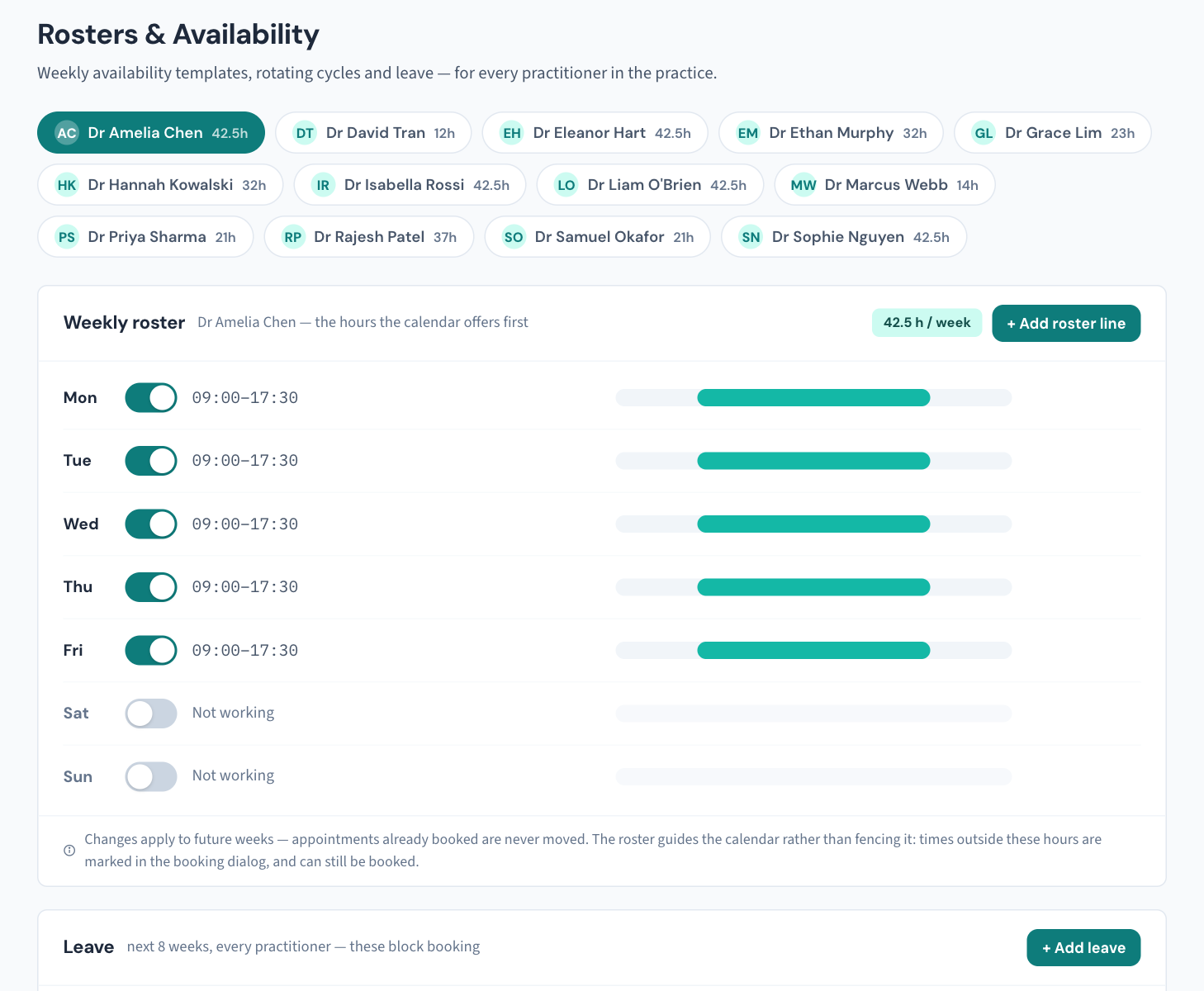
Every roster line and leave entry is recorded in the Audit log with its old and new values.
For a practitioner who calls in sick today, a roster exception is not enough — patients are already booked. Use Utilities → Clear a practitioner's day (KB-039 — Clear a practitioner's day when they call in sick); it cancels the day's bookings and gives you a callback list.
Set up appointment types
- Open Settings → Appointment types.
- Give each type a name and a duration. Duration matters: the time grid offers start times stepped by the type's own length. A 10-minute type offers 9:00, 9:10, 9:20; a 45-minute assessment offers three starts an hour that actually fit.
- Size nurse types for the work — dressings, INR checks, ECGs, spirometry, health assessments.
- Switch Online on only for the types you want patients to request themselves. Anything with Online off is never offered on the portal.
Changes to appointment types are in the Audit log too, so "who switched the long-consult type off?" has an answer.
Handle online booking requests
If your practice runs the public booking portal — a separate web address patients use to request an appointment — requests arrive in Bookings (there is also an Online bookings button on the calendar).
- Open Bookings.
- For each request, choose confirm, decline or reschedule. A request is not in the diary until someone confirms it.
- Watch for the double-booking warning. Curaeon lets reception double-book on purpose, but always tells you that's what you're doing.
Does the patient hear back? Only if your practice has turned it on: Tell the patient when their online booking request is confirmed or declined, under Settings → Patient messaging (KB-122 — Set up Settings → Patient messaging: email, SMS and WhatsApp channels, DKIM, the bounce mailbox and message wording). With it on:
- Confirm sends the patient one appointment confirmation.
- Decline sends the patient a message saying the appointment could not be booked and asking them to call. The note at the foot of the screen then reads either They have been sent a message or No message could be sent, so please phone them. The second appears when the request does not match exactly one patient in your records, or that patient has no mobile or email that can be used. The reason you type when declining is never included in the message.
With it off, nobody is messaged, and it is up to the front desk to let the patient know.
The booking page's own wording. Your practice can add a note at the top of the booking page and one shown after a request is sent. The practice manager writes them under Online booking page in Settings → Patient messaging (KB-122 — Set up Settings → Patient messaging: email, SMS and WhatsApp channels, DKIM, the bounce mailbox and message wording).
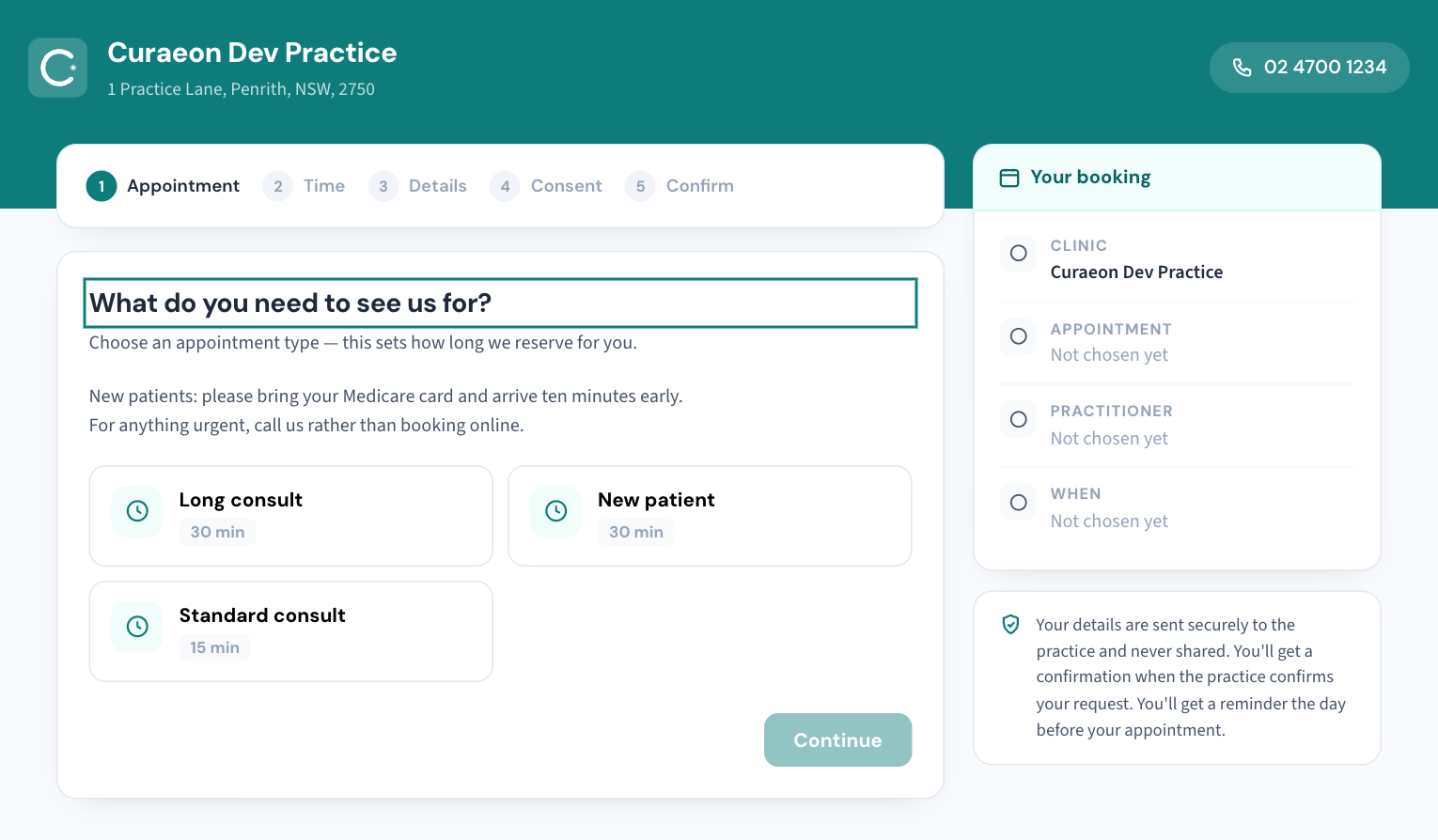
The panel on the right of the booking page only promises what your practice sends:
- It mentions a confirmation only when your practice sends one: that is, when either Tell the patient when their online booking request is confirmed or declined or Send a confirmation when an appointment is booked or moved is ticked.
- It mentions a reminder only when automatic appointment reminders are on for your practice, and says "the day before" only when that is when they go. The practice manager sets the time under Send the reminder in Settings → Patient messaging (KB-122 — Set up Settings → Patient messaging: email, SMS and WhatsApp channels, DKIM, the bounce mailbox and message wording).
The reception dashboard under Reports counts waiting requests, and the Audit log's Nobody signed in filter shows what came in from the public booking page.
If that didn't work
- Patients are booking a GP who is on leave. Check the leave exists as an exception in Settings → Rosters for those dates.
- Patients can't see any availability. Check the type still has Online on, then the roster and opening hours.
- A request never reached the diary. It's almost always still in Bookings, unconfirmed — see KB-022 — Booking system sync issues — first steps.
Still stuck? Raise a ticket at support.curaeon.com.au or call 1300 XXX XXX. If your clinic can't see patients right now, call and choose option 1. Support is staffed Monday to Friday, 8:00–18:00 Sydney time; outside those hours a call or text to the same number is answered on a best-effort basis.
Related articles
- KB-022 — Booking system sync issues — first steps — Booking system sync issues — first steps
- KB-038 — Book, reschedule and track appointments in the Calendar — Book, reschedule and track appointments in the Calendar
- KB-039 — Clear a practitioner's day when they call in sick — Clear a practitioner's day when they call in sick
- KB-117 — Add, change, reorder and retire appointment types in Settings → Appointment types — Add, change, reorder and retire appointment types in Settings → Appointment types
- KB-119 — Set up rosters, rotating cycles and leave in Settings → Rosters: the complete walkthrough — Set up rosters, rotating cycles and leave in Settings → Rosters: the complete walkthrough
- KB-116 — Set up your practice's details, opening hours and closures in Settings → Practice — Set up your practice's details, opening hours and closures in Settings → Practice