Book, reschedule and track appointments in the Calendar
Run the appointment book from the front desk: book into the right slot, follow a patient through the day's statuses, and know what a cancellation or no-show does behind the scenes.
Before you start
The Calendar is part of the Reception role, so any front-desk account can do all of this. Practitioners appear as columns once they have a roster (Settings → Rosters); durations come from Settings → Appointment types. A doctor missing from the Calendar is a roster question for an administrator.
Book an appointment
- Open the Calendar for the day. It shows the day's appointments per practitioner.
- Pick the practitioner's column and the appointment type.
- Choose a start time. The time grid steps by the appointment's own length — a 10-minute type offers 9:00, 9:10, 9:20; a 45-minute assessment offers three starts an hour that actually fit. If you only see 9:00 and 9:20, the type you chose is 20 minutes long: change the type, not the clock.
- Confirm. Booking checks the practitioner's roster, the practice's opening hours and existing appointments.
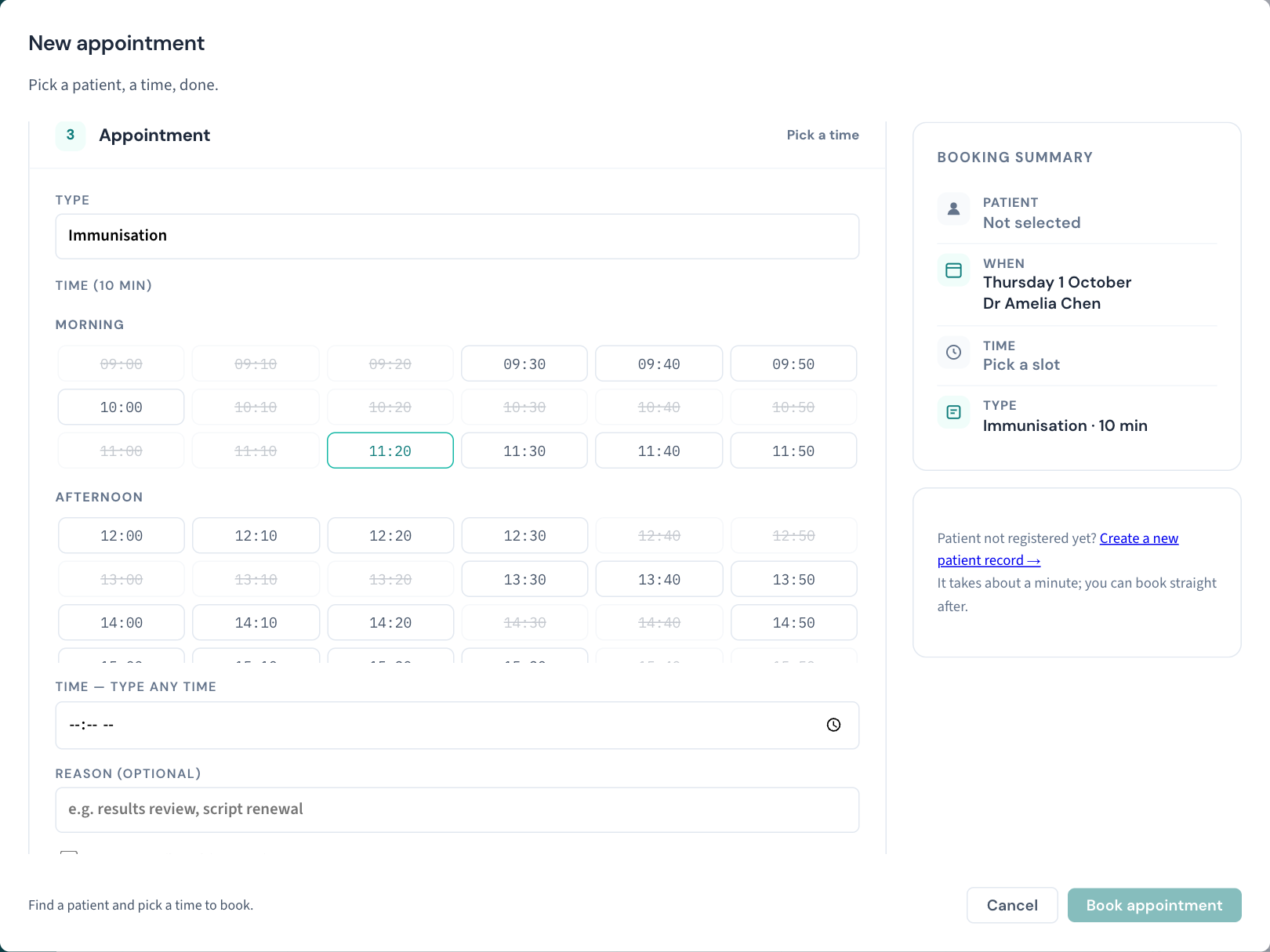
Double-booking is possible on purpose — it is reception's call — but Curaeon tells you that you are making one.
Nurse clinics book the same way: nurses have their own columns, rosters, and appointment types sized for the work — dressings, INR checks, ECGs, spirometry, health assessments.
Booking from a recall (Book appointment on the recall) links the two, and the recall closes itself when the visit is completed (KB-051 — Run recalls: book from a recall, and why a recall stays open or comes back).
Follow the patient through the day
Statuses run in one direction. The manual describes them as:
pending → confirmed → arrived → in progress → at reception → completed
The Calendar's own legend uses front-desk words for the same steps — Booked, Confirmed, Arrived, In consult, At reception, Done — with Cancelled and No show beside them. Read across:
- Booked (pending) then Confirmed — the booking exists, then it stands.
- Arrived — mark this from the Calendar when the patient checks in.
- In consult (in progress) — the clinician has started the consult.
- At reception — the gap between the clinician finishing and the patient paying and rebooking, so the desk can see who is standing in front of them.
- Done (completed) — a linked recall closes here.
The appointment's own history records who took the patient in and who sent them to reception. The full table, and what each status means for the desk, is in KB-076 — Appointment statuses from pending to completed, and what "At reception" means.
Reschedule, cancel or record a no-show
Reschedule and cancel from the appointment in the Calendar. Two things happen behind a cancellation or a no-show:
- Any recall the appointment was answering goes back on the recalls worklist, so somebody rebooks it (KB-051 — Run recalls: book from a recall, and why a recall stays open or comes back).
- A reminder or a confirmation not yet sent for that appointment is withdrawn.
- If your practice has turned it on, the patient is told: a cancellation sends a message saying the appointment has been cancelled, and a no-show sends one saying they were missed, each asking them to call to rebook. Both are off unless your practice manager ticks them (KB-122 — Set up Settings → Patient messaging: email, SMS and WhatsApp channels, DKIM, the bounce mailbox and message wording). A visit marked Done can send a short thank-you the same way.
When you move an appointment to a new time or practitioner, a patient who was sent a confirmation is sent a new one with the new time. You do not need to choose Send confirmation again. A patient who was never sent one is not messaged by the move, unless your practice confirms appointments automatically (KB-122 — Set up Settings → Patient messaging: email, SMS and WhatsApp channels, DKIM, the bounce mailbox and message wording). The reminder for the new time goes out ahead of it as usual. Changing only the length or the room of an appointment sends nothing.
If a whole day needs clearing because a practitioner is unwell, do not cancel one by one — use Utilities → Clear a practitioner's day (KB-039 — Clear a practitioner's day when they call in sick).
Tell the patient it is booked
Open the appointment. While it is Booked or Confirmed, two messages are offered:
- Send confirmation tells the patient the appointment is booked: who with, the date and time, and the practice's number to call. Use it when you book for someone who is not in front of you.
- Send reminder sends the reminder now, rather than waiting for the automatic one that goes out ahead of the appointment.
Each goes on the channel your practice has chosen for it in Settings → Patient messaging (KB-122 — Set up Settings → Patient messaging: email, SMS and WhatsApp channels, DKIM, the bounce mailbox and message wording), by text unless something else is ticked. Choosing either twice while the first is still waiting to send does not send two. If the patient cannot be reached on those channels, you are told so and nothing is queued. What was sent is on the appointment's history and in Settings → Messages (KB-123 — Read the reminder queue in Settings → Messages, and know which messages screen you need).
Note: Send confirmation is not Confirm booking. Confirm booking changes the appointment's status from Booked to Confirmed and messages nobody.
Your practice manager can have a confirmation sent by itself whenever an appointment is booked. It is off unless they turn it on (KB-122 — Set up Settings → Patient messaging: email, SMS and WhatsApp channels, DKIM, the bounce mailbox and message wording).
Online requests
If the practice runs the public booking portal, requests arrive under Bookings — confirm, decline or reschedule each one. Patients only request there; nothing lands in the Calendar until you confirm it (KB-040 — Set up rosters, leave and online-bookable appointment types, and handle online booking requests).
Where the manual is silent
The manual does not describe the exact reschedule gesture, how an appointment moves from Booked to Confirmed, or how a walk-in is added. If your practice needs those written down, raise a ticket.
Still stuck? Raise a ticket at support.curaeon.com.au or call 1300 XXX XXX. If your clinic can't see patients right now, call and choose option 1. Support is staffed Monday to Friday, 8:00–18:00 Sydney time; outside those hours a call or text to the same number is answered on a best-effort basis.
Related articles
- KB-039 — Clear a practitioner's day when they call in sick — Clear a practitioner's day when they call in sick
- KB-040 — Set up rosters, leave and online-bookable appointment types, and handle online booking requests — Set up rosters, leave and online-bookable appointment types, and handle online booking requests
- KB-051 — Run recalls: book from a recall, and why a recall stays open or comes back — Run recalls: book from a recall, and why a recall stays open or comes back
- KB-076 — Appointment statuses from pending to completed, and what "At reception" means — Appointment statuses from pending to completed, and what "At reception" means
- KB-122 — Set up Settings → Patient messaging: email, SMS and WhatsApp channels, DKIM, the bounce mailbox and message wording — Set up Settings → Patient messaging: email, SMS and WhatsApp channels, DKIM, the bounce mailbox and message wording
- KB-123 — Read the reminder queue in Settings → Messages, and know which messages screen you need — Read the reminder queue in Settings → Messages, and know which messages screen you need