Add, change, reorder and retire appointment types in Settings → Appointment types
Build the list of appointment types your staff book from, each with the right length, put the common ones at the top, decide which ones patients may request online, and retire the ones you no longer use without disturbing past bookings.
Before you start
- Open Settings → Appointment types. The section opens for every staff member, because everyone who books reads this list. Changing it is for practice administrators: only they see + New type, the move, Edit, Retire and Restore buttons, and only they can switch Online on or off. Other staff see a line saying so.
- Every change is recorded in the Audit log with who made it and the old and new values, so "who switched the long consult off online?" has an answer.
- KB-040 — Set up rosters, leave and online-bookable appointment types, and handle online booking requests is the short version of this article, alongside rosters and online booking requests. This is the full walkthrough of the screen.
A tour of the screen
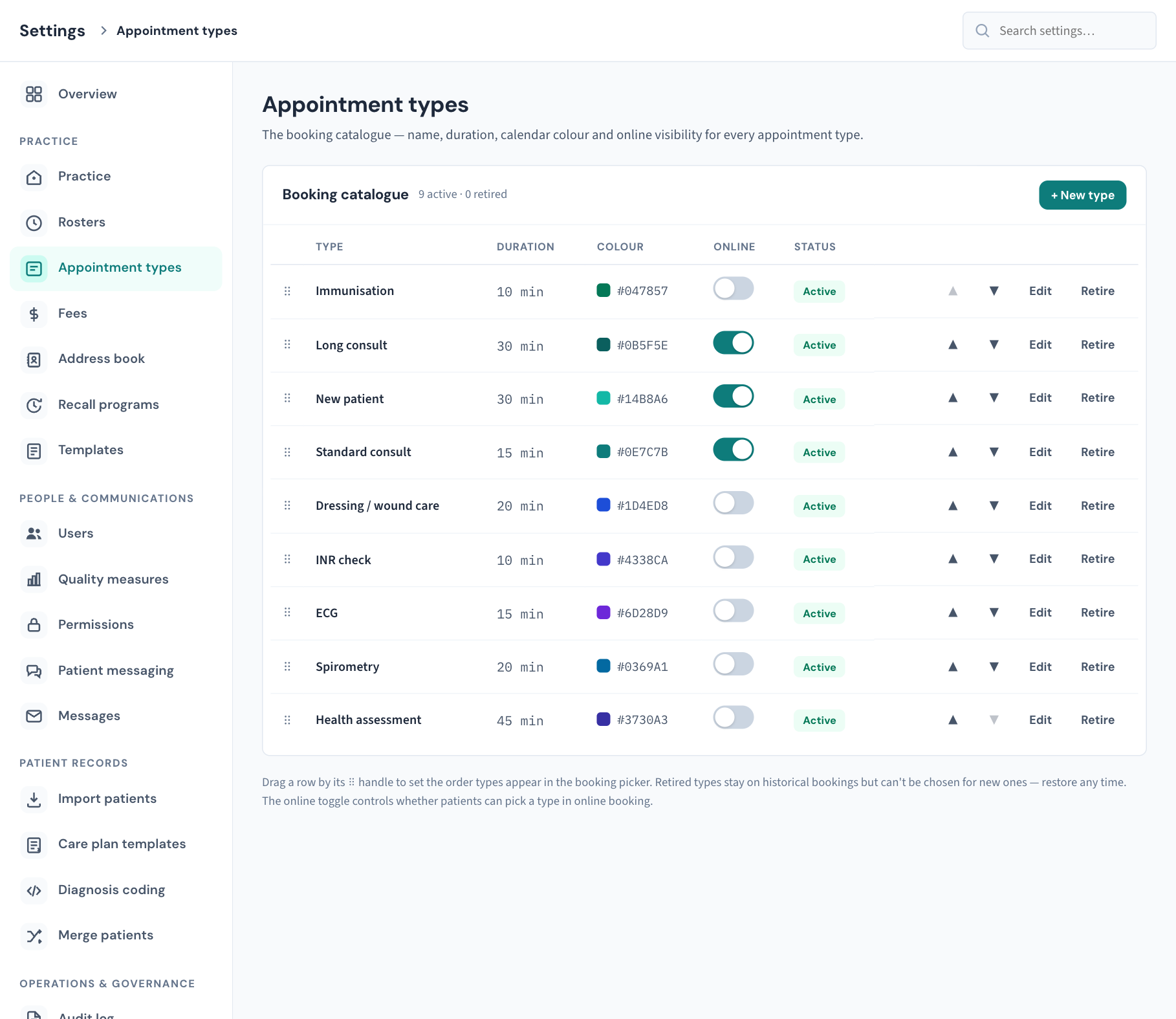
The screen is one card, Booking catalogue. Its heading counts the types: for example "6 active · 1 retired". + New type is at the top right.
Each row is one appointment type:
| Column | What it shows |
|---|---|
| ⠿ (the handle at the left) | Drag the row by it to change the order. |
| Type | The name staff see when they book. |
| Duration | The length in minutes. |
| Colour | The colour saved with the type, as a swatch and its code. |
| Online | A switch. On means patients can pick this type in online booking. |
| Status | Active or Retired. Retired rows are greyed. |
| (buttons at the right) | ▲ and ▼ move the row up or down one place. Edit opens the type. Retire or Restore switches it off or back on. |
Retired types stay in the list, so you can always see what the practice used to offer and bring one back.
If there are no types at all, the card says "No appointment types — the booking modal and online booking have nothing to offer until one exists."
Add an appointment type
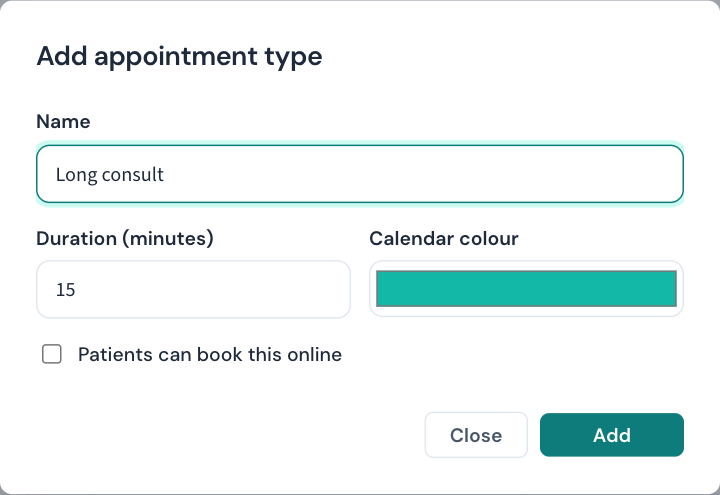
- Select + New type. The Add appointment type window opens.
- In Name, type what staff will look for, such as "Long consult".
- In Duration (minutes), enter the length. A new type starts at 15.
- In Calendar colour, pick a colour.
- Tick Patients can book this online only if patients should be able to request this type themselves.
- Select Add.
You will see "Appointment type added." The new type goes to the bottom of the list and is available for booking straight away. Move it up if it is a common one.
What each field does
Name. Required, and no two types can share a name. Curaeon answers "an appointment type with that name already exists" if you try.
Duration. Between 5 and 240 minutes. The length matters more than it looks: when someone books this type, the calendar offers start times stepped by the type's own length. A 10-minute type offers 9:00, 9:10, 9:20; a 45-minute assessment offers the starts that actually fit. Size nurse types for the work, such as dressings, INR checks, ECGs, spirometry and health assessments.
Calendar colour. The colour is saved with the type and shown in this list. On the Calendar itself, appointments are coloured by their status (booked, arrived, completed and so on), not by their type (KB-076 — Appointment statuses from pending to completed, and what "At reception" means). So do not rely on this colour to tell types apart on the day's diary.
Patients can book this online. Off unless you tick it. See "Choose which types patients can book online" below.
Change an appointment type
- Find the type and select Edit. The window is titled Edit and the type's name.
- Change the name, duration, colour or online tick box.
- Select Save.
You will see "Appointment type updated."
A change applies to bookings made from now on. Appointments already in the diary keep the start and finish times they were booked with; changing a type from 15 to 20 minutes does not stretch last week's or next week's existing bookings.
Change the order
The order of this list is the order types appear in when staff choose a type while booking. Put the ones used all day at the top.
Either:
- drag a row by its ⠿ handle and drop it on the row where it should sit; or
- select ▲ or ▼ on the row to move it one place. This works from the keyboard, and anywhere dragging does not.
The new order is saved as soon as you drop or press. There is no save button. If the order could not be saved, the list goes back to how it was and a message says why.
Choose which types patients can book online
This matters only if your practice runs the public booking page, where patients request an appointment (KB-040 — Set up rosters, leave and online-bookable appointment types, and handle online booking requests).
- Find the type.
- Flip the Online switch.
It saves at once. You will see either "… can now be booked online." or "… hidden from online booking."
- A type with Online off is never offered on the booking page.
- A type with Online on is offered by name and duration.
- A retired type is never offered online, whatever its switch says.
Switch Online on only for the types you are happy for patients to choose themselves, typically a standard consult. Leave it off for anything that needs a conversation first, such as procedures, long assessments and nurse clinics with preparation.
A patient's online request is not in the diary until someone confirms it in Bookings. See KB-040 — Set up rosters, leave and online-bookable appointment types, and handle online booking requests and KB-022 — Booking system sync issues — first steps.
Retire a type you no longer use
Appointment types are never deleted, because past appointments still refer to them. You retire a type instead.
- Find the type.
- Select Retire.
It happens at once, without a confirmation. You will see "… retired — existing bookings keep it; new ones can't choose it."
After that:
- the type disappears from the list staff choose from when booking, and from online booking;
- appointments already booked with it, past and future, keep it and are not changed;
- the row stays in this list, marked Retired.
Restore a retired type
- Find the retired row.
- Select Restore.
You will see "… restored." The type is back in the booking list straight away, in the position it holds in this list, with the Online setting it had before.
What each badge and message means
| You see | It means |
|---|---|
| Active | Staff can book this type. |
| Retired | Kept for the record; cannot be chosen for a new booking. |
| Online switch on | Patients can pick it on the public booking page (if the type is active). |
| "an appointment type must run between 5 and 240 minutes" | The duration is outside the range. |
| "an appointment type with that name already exists" | Another type, active or retired, already has that name. Restore the old one or choose a different name. |
| "name is required" or "name cannot be empty" | The name is blank. |
| A red line at the top of the page instead of the list | Curaeon could not load the types. Reload the page. It does not mean there are none. |
What is recorded
| What you did | How it reads in the Audit log |
|---|---|
| Added a type | Appointment type added |
| Edited, retired, restored, or flipped Online | Appointment type changed, with what changed and its old and new value |
| Changed the order | Appointment types reordered, with the whole list before and after |
Filter the Audit log by settings changes to find them (KB-101 — Find who did what in the Audit log: kinds, Sign-ins, Exactly, Who and a bookmarkable view).
What the screen does not do
- It does not link a type to particular practitioners. There is no setting here that limits who a type can be booked with; who is available when is set in Settings → Rosters (KB-119 — Set up rosters, rotating cycles and leave in Settings → Rosters: the complete walkthrough).
- It does not set a fee or an MBS item for a type. What is billed is chosen when the invoice is raised (KB-052 — Raise, correct and claim an invoice, including when "Send to Medicare…" is blocked), and the practice's prices are in Settings → Fees (KB-118 — Set what your practice charges for private and DVA billing in Settings → Fees).
- It does not delete a type. Retire it.
If that didn't work
- A type is missing when staff book. It has been retired. Open this screen and select Restore.
- Patients can't see a type on the booking page. Check it is Active and its Online switch is on. If patients see no times at all, the cause is the roster or the opening hours: see KB-119 — Set up rosters, rotating cycles and leave in Settings → Rosters: the complete walkthrough and KB-116 — Set up your practice's details, opening hours and closures in Settings → Practice.
- Dragging a row does nothing. Use ▲ and ▼ instead.
- The calendar offers odd start times for a type. Check its Duration. The offered starts step by that length.
- I added a type and can't find it. New types go to the bottom of the list.
Still stuck? Raise a ticket at support.curaeon.com.au or call 1300 XXX XXX. If your clinic can't see patients right now, call and choose option 1. Support is staffed Monday to Friday, 8:00–18:00 Sydney time; outside those hours a call or text to the same number is answered on a best-effort basis.
Related articles
- KB-115 — Find your way around Settings: every section, who can open it, and where to read more — Find your way around Settings: every section, who can open it, and where to read more
- KB-040 — Set up rosters, leave and online-bookable appointment types, and handle online booking requests — Set up rosters, leave and online-bookable appointment types, and handle online booking requests
- KB-119 — Set up rosters, rotating cycles and leave in Settings → Rosters: the complete walkthrough — Set up rosters, rotating cycles and leave in Settings → Rosters: the complete walkthrough
- KB-038 — Book, reschedule and track appointments in the Calendar — Book, reschedule and track appointments in the Calendar
- KB-076 — Appointment statuses from pending to completed, and what "At reception" means — Appointment statuses from pending to completed, and what "At reception" means
- KB-022 — Booking system sync issues — first steps — Booking system sync issues — first steps