Code a backlog of free-text diagnoses in Settings → Diagnosis coding
Give every diagnosis that was typed as free text a SNOMED CT-AU or ICPC-2 code, one wording at a time instead of one patient at a time, and know exactly what each click changes.
Before you start
- Who can open it. Anyone with the chart.write permission. By default that is the Clinician and Admin roles; nurses and reception do not have it unless the practice has granted it in Settings → Permissions (KB-034 — Choose the right role and permissions for a new staff member). This is deliberate: deciding that a wording means a particular concept is a clinical judgement, not an administrative task. Someone without the permission does not see the card in Settings, and if they reach the page another way it says Coding a diagnosis is a clinical decision — clinician or admin only.
- Where it is. Settings → Diagnosis coding, in the Patient records group. An old bookmark to the earlier address still lands here.
- What you need loaded. A clinical terminology: SNOMED CT-AU or ICPC-2. Neither ships with Curaeon, because each is licensed to the practice. Without one, the screen lists the backlog but there is nothing to code against (see When no terminology is loaded, below).
- When to use it. After importing records from a previous system (KB-070 — Import patients, documents, appointments and balances from your previous system, and read the reconciliation report), or after the practice first loads a terminology. It is a job a practice does once or twice, not daily. To code a single patient's diagnosis, use the Code button on that diagnosis in their chart instead.
Important: Coding a wording here changes every chart that carries that wording, at once, and there is no undo. Codes cannot be removed in bulk. Read the number on the button before you click it.
What the screen shows
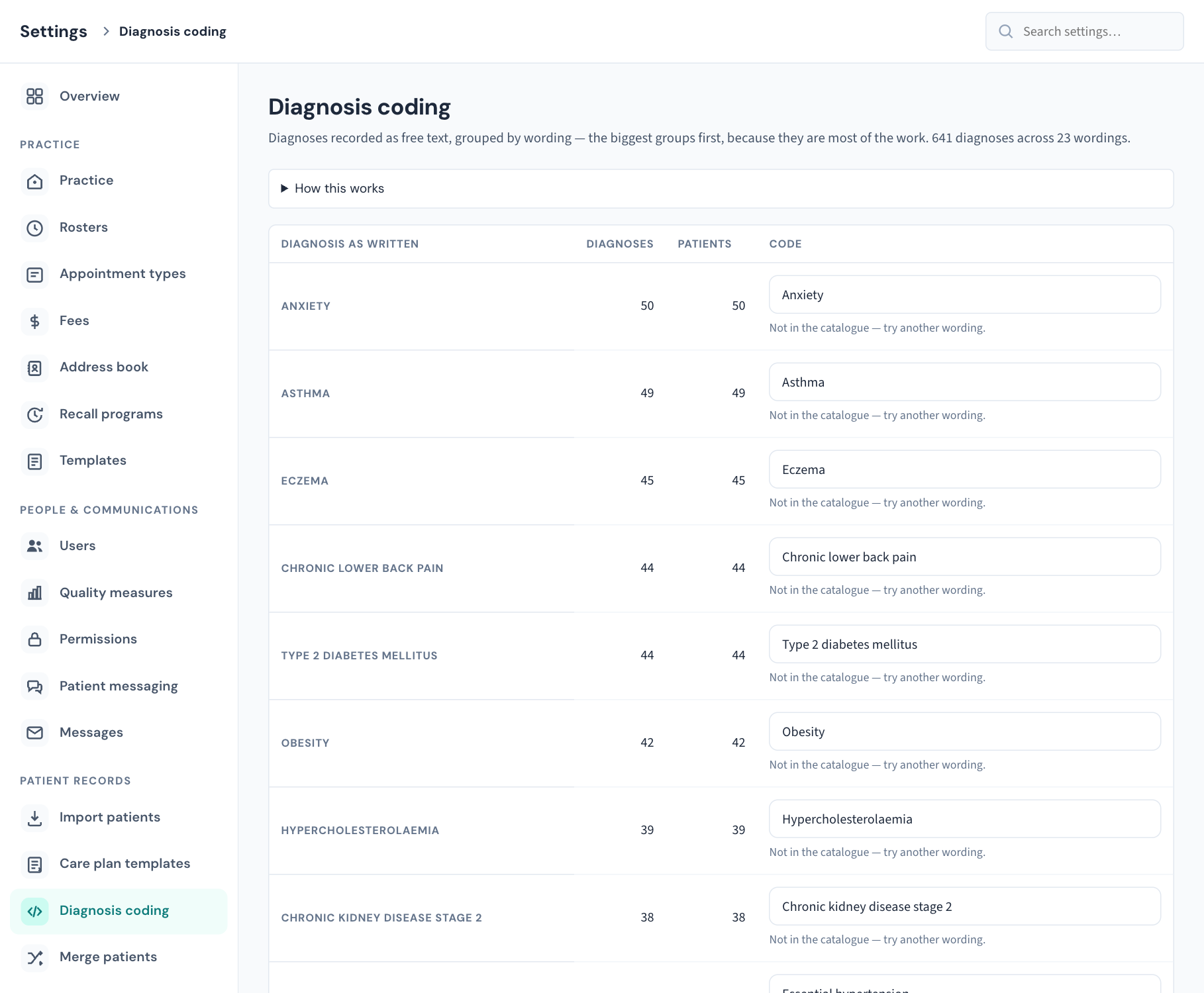
The line under the heading tells you the size of the job, for example "1,240 diagnoses across 86 wordings". Below it:
- How this works is a short fold-out with the same three steps as this article. Open it the first time.
- The table has one row per wording, biggest group first, because a handful of rows is usually most of the backlog.
| Column | What it is |
|---|---|
| Diagnosis as written | The exact wording as it was typed into charts. Where the same wording was typed with different capitals or stray spaces, the rows are one group and the most common spelling is shown. |
| Diagnoses | How many uncoded diagnoses carry this wording. |
| Patients | How many different patients those diagnoses belong to. |
| Code | A search box for the terminology, filled in with the practice's own wording to start you off. |
What is and is not in the list:
- Diagnoses that are resolved are included. Coding a chart's history is much of the reason to code at all.
- Diagnoses marked entered in error are left out.
- Diagnoses that already have a code never appear, and are never changed from this screen.
- The screen lists the 200 largest wordings at a time. As you code them, reload the page to bring up the next ones.
Code one wording
- Find the row. Start at the top: the largest groups clear the most work.
- In the Code column, look at the matches under the search box. The box starts with the practice's wording; edit it until the right concept appears. A search needs at least two characters, and up to five matches are shown. Each match shows the term, the terminology it comes from (SNOMED CT-AU or ICPC-2), its code, and for SNOMED terms the kind of concept (for example disorder).
- Click the matching term. Nothing is written yet. The row now shows the term and code you picked, with two buttons.
- Check the number on the button, for example Code 28 diagnoses. That is how many charts' diagnoses you are about to change.
- Click Code N diagnoses. A message confirms "Coded N diagnoses as" followed by the code, and the row leaves the list.
Picked the wrong term? Click Change before step 5 and search again.
If nothing matches, the screen says Not in the catalogue — try another wording. Try the clinical term rather than the abbreviation, or a shorter phrase. If the wording is too vague to code safely as a group, leave it and code those diagnoses patient by patient from each chart.
Two things you do not have to check for
- The match is exact. Upper and lower case and surrounding spaces are ignored; nothing else is. Coding "Asthma" never catches "Asthma, mild". Similar-looking wordings are separate rows, and each is your decision.
- Existing codes are never overwritten. A diagnosis that somebody already coded for one patient is left exactly as it is. This screen only fills gaps.
Restricted records
If some uncoded diagnoses belong to patients whose records are restricted to named clinicians (KB-061 — Restrict a patient's record, and open one in an emergency), and you are not one of them, those diagnoses are left out of the list and out of the counts. A line under the heading says how many, for example "3 diagnoses for restricted records are not shown". A bulk pass you run leaves them uncoded; they stay in the backlog of the clinicians the record is open to. When the only diagnoses left are ones you cannot see, the screen says Nothing open to you is left to code.
When no terminology is loaded
The screen shows this note above the table:
No clinical terminology is loaded. These diagnoses are fine as free text — coding them needs SNOMED CT-AU or ICPC-2, loaded with
make condition-importonce the practice has a licence.
In that state the backlog is still listed, but the search finds nothing because there is nothing to search. That is the normal state of a new installation, not a fault, and free-text diagnoses work everywhere else in Curaeon in the meantime.
Loading a terminology is done on the practice server, by whoever looks after it, from the licensed release file. It is not something this screen can do. SNOMED CT-AU is licensed through the National Clinical Terminology Service and ICPC-2 PLUS through the University of Sydney. If you are not sure whether your practice has a licence or who should load the file, raise a ticket.
What is recorded
- Each diagnosis that is coded gets its own Diagnosis recoded row in the Audit log, under your name, showing the code it was given. Five hundred diagnoses coded in one click are five hundred rows, all at the same moment (KB-101 — Find who did what in the Audit log: kinds, Sign-ins, Exactly, Who and a bookmarkable view).
- Opening this screen is recorded as a worklist being viewed. It records the list, not the individual patients: the screen shows wordings, never names.
- The change is saved together with its audit rows. Either both happen or neither does.
What each message means
| You see | What it means | What to do |
|---|---|---|
| Nothing left to code. and Every diagnosis on file carries a code. | The backlog is empty. | Nothing. New free-text diagnoses will appear here as they are recorded. |
| Nothing open to you is left to code. | The only uncoded diagnoses left are on restricted records you are not named on. | Ask a clinician named on those records to finish them. |
| No clinical terminology is loaded. | Neither SNOMED CT-AU nor ICPC-2 has been loaded on the server. | See the section above. |
| Not in the catalogue — try another wording. | The terminology is loaded and has no term matching what is in the box. | Edit the search text. |
| Couldn't load the backlog — followed by a reason | The list could not be fetched. It is not the same as an empty backlog. | Click Retry. |
| Coding a diagnosis is a clinical decision — clinician or admin only. | Your role does not hold chart.write. | Ask a clinician to do the coding, or an administrator to review your permissions (KB-034 — Choose the right role and permissions for a new staff member). |
If that didn't work
- A wording was coded to the wrong term. There is no bulk undo. Tell us before coding anything further, with the wording and the code that was applied (not patient names). Each affected diagnosis can be corrected on its own chart with the Recode button, and the Audit log lists exactly which diagnoses the bulk pass changed.
- The search finds nothing for any row, and there is no "No clinical terminology is loaded" note. The check with the server may have failed. Reload the page. If it persists, raise a ticket.
- The count on the button is higher than you expected. It includes resolved diagnoses and every patient with that exact wording, including former patients. Check the Diagnoses and Patients columns before clicking.
Still stuck? Raise a ticket at support.curaeon.com.au or call 1300 XXX XXX. If your clinic can't see patients right now, call and choose option 1. Support is staffed Monday to Friday, 8:00–18:00 Sydney time; outside those hours a call or text to the same number is answered on a best-effort basis.
Related articles
- KB-115 — Find your way around Settings: every section, who can open it, and where to read more — Find your way around Settings: every section, who can open it, and where to read more
- KB-034 — Choose the right role and permissions for a new staff member — Choose the right role and permissions for a new staff member
- KB-061 — Restrict a patient's record, and open one in an emergency — Restrict a patient's record, and open one in an emergency
- KB-070 — Import patients, documents, appointments and balances from your previous system, and read the reconciliation report — Import patients, documents, appointments and balances from your previous system, and read the reconciliation report
- KB-081 — Fix data-quality gaps before they become rejected claims or lost letters — Fix data-quality gaps before they become rejected claims or lost letters
- KB-101 — Find who did what in the Audit log: kinds, Sign-ins, Exactly, Who and a bookmarkable view — Find who did what in the Audit log: kinds, Sign-ins, Exactly, Who and a bookmarkable view