Connect an outside system: create, scope, rotate and revoke API keys and webhooks in Settings → API access
Give a booking platform, a data-extraction tool, a results feed or an accounting bridge its own key to Curaeon, limited to the areas it needs, and take that access away again the moment you need to.
Before you start
- Who can do this. Practice administrators only (the practice.admin permission, KB-034 — Choose the right role and permissions for a new staff member). Everyone else sees Practice-manager access only. Ask an administrator to create or revoke API keys. A key cannot create, rotate or revoke keys, whatever it is allowed to do elsewhere.
- Where it is. Settings → API access, in the Operations & governance group.
- What a key is. A long secret that an outside system sends with every request instead of signing in. Each key acts as its own account, named by the label you give it, so the Audit log names the integration the way it names a person. That account cannot sign in and does not appear in Settings → Users.
- Have ready. The name of the system, what it needs to read and write (ask the vendor for the minimum), and somewhere to put the secret straight away: the vendor's own settings screen or their secure upload. You get one chance to copy it.
Important: Treat a key's secret like a password to your patient records. Never email it, paste it into a chat or a support ticket, or store it in a document. We will never ask you for one.
What the screen shows
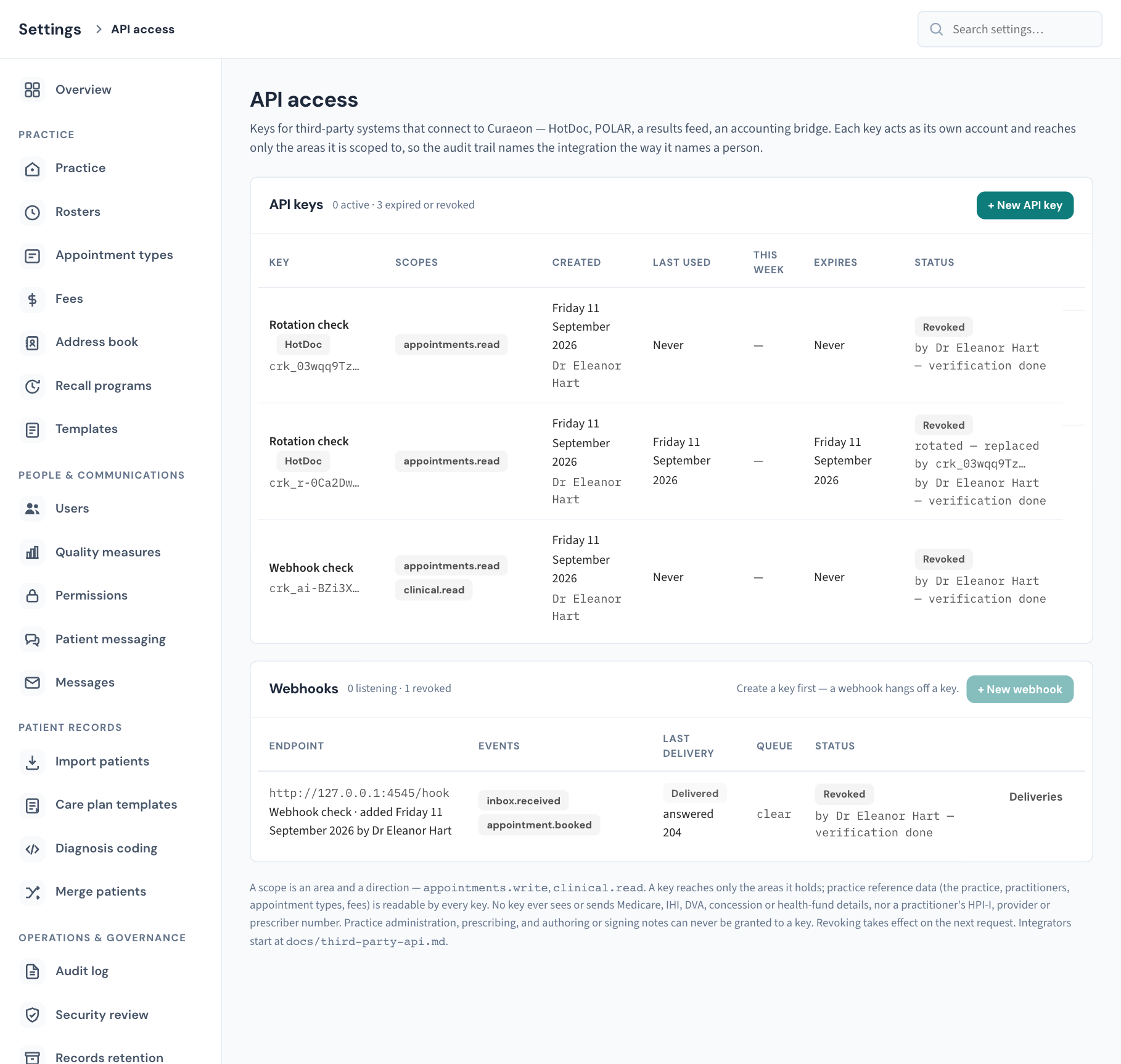
The API keys card
The card heading counts the keys: so many active, so many expired or revoked. Revoked and expired keys stay listed, greyed, because the Audit log still names them and this is the one place that says what they were.
| Column | What it shows |
|---|---|
| Key | The label, a badge for the preset it was made from (if any), and the first characters of the secret. The prefix is safe to read out when someone needs to say which key they mean. The rest of the secret is never shown again. |
| Scopes | What the key may reach, for example appointments.read. reference data only means it holds no scopes at all. |
| Created | The date, and who created it. |
| Last used | The date of its last request, or Never. |
| This week | Requests in the last seven days, with a Usage button when there are any. |
| Expires | The date it stops working, or Never. |
| Status | Active, Retiring, Expired or Revoked (see the table further down). A revoked key shows who revoked it and the reason given. |
Each active key has Rotate and Revoke at the end of its row.
The Webhooks card
A webhook is the reverse direction: an address in the outside system that Curaeon posts to when something happens, so the integration does not have to keep asking. The card counts how many are listening and how many are revoked, and lists each with its Endpoint, the Events it hears, its Last delivery, the Queue behind it and its Status.
The note at the foot
The last paragraph on the screen is the rule book in brief, and worth reading once: what a scope is, what every key can read, and what no key can ever be given.
What a key can and cannot reach
A scope is an area and a direction. A key reaches exactly the areas it holds, in the direction named, and nothing else.
| Area on screen | Read | Write |
|---|---|---|
| Appointments | The diary: appointments, rostered availability and free slots, the waiting list, booking requests | Book, reschedule, confirm and cancel appointments; manage the waiting list; confirm or decline booking requests |
| Patients | Search patients and read demographics, contacts and relationships | Create patients and update demographics, contacts and relationships |
| Clinical record | Diagnoses, medications, allergies, observations, results, immunisations, documents, care plans, notes | Problems, the medications list, allergies, histories, observations, immunisations, results and orders, documents, care plans. Never notes, prescribing or sign-off |
| Billing | Invoices, payments, claims, debtors and statements | Create and issue invoices, record payments, run statements, reconcile bank imports |
| Communications | Recalls, reminders, patient messages and campaign history | Send reminders and recall campaigns, and action recalls |
| Reports | The aggregate, quality measures, registers and cohort search | (there is no write scope) |
Every key can read practice reference data: the practice, practitioners, appointment types and fees. No integration can work without them, and none of it is patient data.
No key can ever, whatever you tick:
- see or send Medicare, IHI, DVA, concession or health-fund details, or a practitioner's HPI-I, provider or prescriber number. Those fields are removed from everything a key receives, and a key cannot search by them, only by name and date of birth;
- administer the practice (users, roles, other keys, settings, backups, the Audit log);
- prescribe, or author, amend or sign notes.
So a booking platform that collects a Medicare number keeps it on its own side. It creates the patient with name, date of birth and contact details, and your front desk completes the identifiers.
Create a key
- Open Settings → API access and click + New API key.
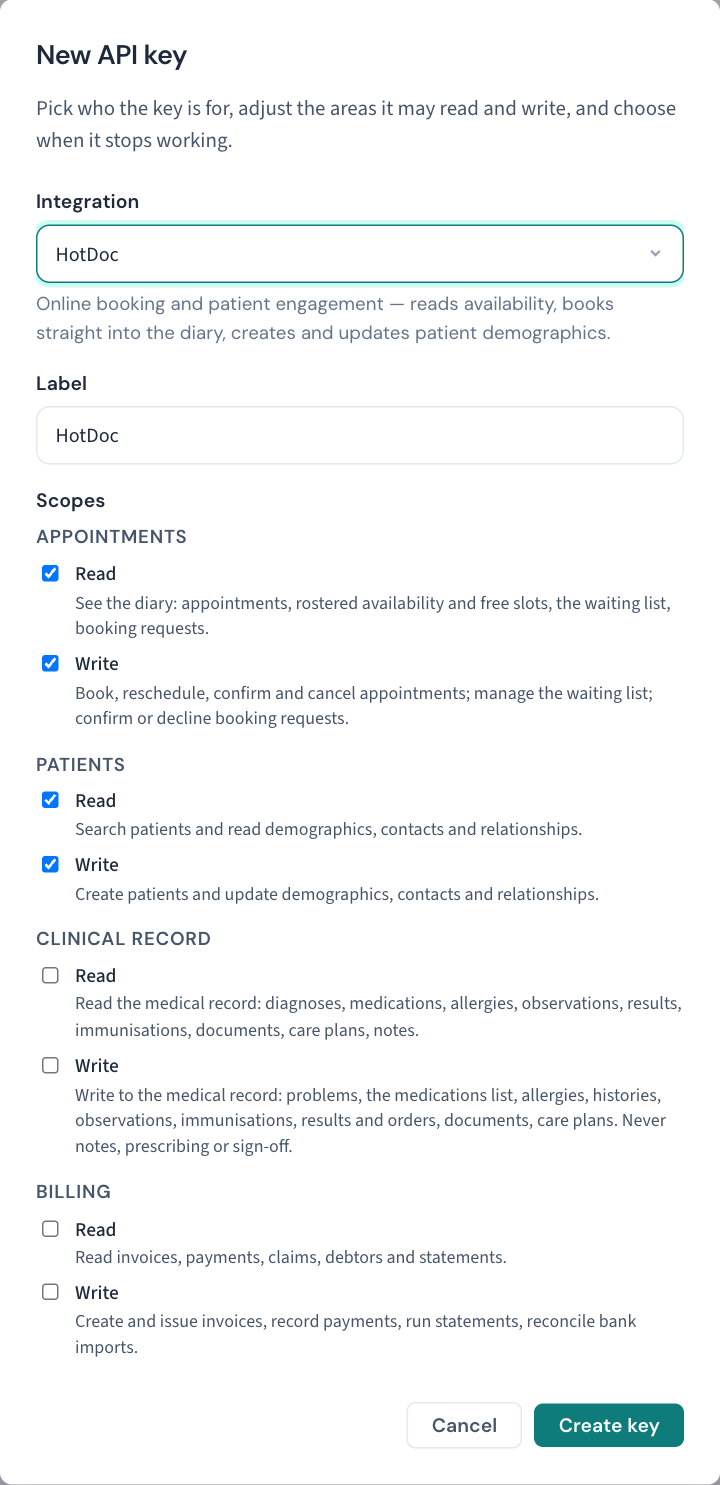
- Under Integration, choose who the key is for. A preset ticks the scopes that job needs and shows a line saying what it does; Custom — choose the scopes yourself starts with nothing ticked.
| Preset | Scopes it ticks |
|---|---|
| HotDoc, HealthEngine | Appointments read and write, Patients read and write |
| POLAR (Outcome Health), PenCS CAT4 | Patients read, Clinical record read, Appointments read, Billing read |
| Pathology / radiology results feed | Patients read, Clinical record read and write |
| SMS reminder / recall service | Appointments read, Patients read, Communications read and write |
| Accounting (Xero, MYOB) | Billing read, Patients read |
- Type a Label (up to 80 characters): the name of the system that will hold the key. Choosing a preset fills this in for you. The label becomes the name the Audit log shows for everything the key does, so make it one a colleague will recognise in a year.
- Under Scopes, review the ticks. Each area has Read and Write with a line saying what it covers. Untick anything the system does not need. Tick nothing at all for a key that should see only practice reference data.
- Choose Expires: Never, 30 days, 90 days or 1 year. Set an expiry when the integration is a project with an end rather than a permanent fixture.
- Click Create key. The button stays unavailable until the key has a label.
Copy the secret (you see it once)
The window changes to (label) — copy the secret now.
- Click Copy. If the browser cannot reach the clipboard, select the secret and copy it by hand.
- Paste it straight into the integrating system's settings.
- Click Done.
This is the only time the secret is shown. Curaeon keeps a fingerprint (a hash) of it, not the secret itself, so nobody, including us, can show it to you again. If it is lost before the other system has it, revoke the key and create another.
Every secret begins with crk_, which is how to recognise one if you ever find it somewhere it should not be. The window also shows a one-line test command the vendor's technician can run to confirm the key works without touching a patient record.
Tip: One key per system. A key shared between two vendors cannot be revoked for one of them.
See what a key has been doing
- In the key's row, click Usage (it appears when the key has made requests this week).
- The window lists the last 30 days: one line per Day and Area, with the number of Requests.
An area of practice is reference-data reads. An area of refused counts requests that were turned away, usually because the system asked for something outside its scopes. A steady run of refusals is worth a call to the vendor.
Usage is a count, not a log. For what a key actually changed, use the Audit log (see What is recorded, below).
Each key also has a speed limit: a burst of 300 requests, then five a second. Past that, Curaeon tells the system to wait and try again. A full-practice data extract is therefore slow but bounded, and cannot crowd out the front desk.
Rotate a key (replace the secret without an outage)
Rotate when a secret is due for replacement but has not leaked: a vendor's routine, a staff change on their side.
- In the key's row, click Rotate.
- Choose Old secret keeps working for: 24 hours (the default), 1 hour, 3 days, 7 days, or Now — the old secret stops working immediately.
- Click Rotate. A new key is made with the same label, scopes and expiry, and the key's webhooks move to it.
- Copy the new secret, exactly as when creating a key, and give it to the vendor. Click Done.
The old key now shows Retiring, with the prefix of the key that replaced it, and stops working when the period you chose runs out. The vendor switches over at any point inside it.
Important: If a secret may have leaked, revoke, do not rotate. Revoking is immediate and leaves no old secret working. Then create a fresh key.
Revoke a key
- In the key's row, click Revoke.
- Type a Reason (optional), for example "vendor contract ended". It is optional, but give one: the reason is shown on the key's row and in the Audit log, and it is what your successor will read.
- Click Revoke. (Keep it closes the window without changing anything.)
The very next request using that secret is refused. The key stays in the list as Revoked, with who revoked it and why. Its webhooks stop too. This cannot be undone: to reconnect, create a new key.
Webhooks: have Curaeon tell the other system
Without a webhook an integration can only ask Curaeon repeatedly whether anything has changed. With one, Curaeon posts each event to it as it happens.
Register a webhook
You need at least one active key first; until then the screen says Create a key first — a webhook hangs off a key.
- Click + New webhook.
- Choose the Key the webhook belongs to.
- Type the Endpoint URL the vendor gave you. It must start with
https://. - Under Events, tick what the system should be told:
| Event | When it is sent | The key must hold |
|---|---|---|
appointment.booked |
An appointment was booked, by the front desk, by the patient online, or by another key | appointments.read |
appointment.changed |
An appointment moved: its time, practitioner, room, type or status | appointments.read |
appointment.cancelled |
An appointment was cancelled | appointments.read |
inbox.received |
A result, document or letter arrived in the clinical inbox | clinical.read |
A key hears only what it may read. An event the chosen key cannot hear is greyed out with the scope it would need. 5. Click Register. 6. The window changes to Copy the signing secret now. Click Copy, give it to the vendor, then Done. Like a key's secret, it is shown once. Curaeon signs every delivery with it so the receiving system can prove the event came from your practice.
What is sent is deliberately thin: identifiers, times and a status, never a name, a phone number or an address. The receiving system fetches anything more with its key, through the same limits as any other request.
Check that deliveries are arriving
The Last delivery and Queue columns give the picture at a glance. For the detail, click Deliveries on the webhook's row: the last 50 events sent to that address, newest first, with the number of attempts and the outcome.
| Outcome | Meaning |
|---|---|
| Delivered | The other system answered that it received the event. |
| Pending | Not yet delivered. Either it is waiting its turn, or the other system did not answer and Curaeon will try again; the row says when. |
| Dead | Curaeon gave up after six attempts spread over about a day, and shows the last error. The other system missed this event. |
| Nothing sent yet | No event of the chosen kinds has happened since the webhook was registered. |
A failed delivery is retried after 1 minute, then 5 minutes, 30 minutes, 2 hours and 12 hours. One or two Pending rows during a vendor's outage sort themselves out. Dead rows do not: tell the vendor, with the times, so they can catch up from their side.
Stop a webhook
- Click Revoke on the webhook's row.
- Give a Reason (optional) and click Revoke.
Nothing more is sent to that address, and deliveries still queued are dropped. The row stays, marked Revoked, so what was listening is on record. To change a webhook's address or events, register a new one and revoke the old.
What each status means
| Status | Meaning |
|---|---|
| Active | The key works. |
| Retiring | The key has been rotated. Its old secret still works until its shortened expiry date. |
| Expired | The expiry date has passed. Requests are refused. Create a new key if the integration is still wanted. |
| Revoked | Switched off by an administrator. Requests are refused. Cannot be reversed. |
What is recorded
In the Audit log (KB-101 — Find who did what in the Audit log: kinds, Sign-ins, Exactly, Who and a bookmarkable view), under Staff, roles and API keys:
- API key created, with its label, preset, scopes and expiry;
- API key rotated, with the date the old key stops working;
- API key revoked, with the reason you gave;
- Webhook added, with the address and events, and Webhook removed, with the reason;
- Refused API key used, when a secret is presented after its key was revoked or expired;
- Refused: API key not permitted, when a working key asks for something outside its scopes, or for something only a person may do.
Everything a key itself does is in the log under the key's label, marked as an API key rather than as a staff member. The Who filter includes keys, and Only this record on a key's row narrows the log to it. On a patient's access report, a record opened by a key is listed as opened by an API key, with the purpose shown as not asked.
In the weekly Security review (KB-064 — Sign off the weekly Security review, and act on alerts and audit-log check warnings), keys issued, rotated or revoked, and webhooks added to them, are listed with the other changes to who may do what. Expect to explain each one in your sign-off note.
If that didn't work
- The vendor says the key is rejected. Check the row's Status and Expires. A wrongly pasted secret, an expired key and a revoked key all look the same to the vendor, on purpose. If the secret may have been mangled in transit, revoke the key and create a new one; do not try to recover the old one.
- The vendor says the key is "not scoped". Their error names the scope it needed. A key's scopes cannot be edited after it is created: create a new key with the right scopes, hand it over, then revoke the old one.
- The vendor is told an action "is not available to an API key". They are asking for something only a person can do, such as prescribing or changing practice settings. No key can be given that.
- + New webhook is greyed out. There is no active key. Create one first.
- Register stays unavailable. The screen says why beside the button: enter an
httpsaddress and tick at least one event the key may hear. - A red message appears at the top of the screen instead of the list. The list could not be loaded; it does not mean there are no keys. Reload the page.
- You do not know what a key is for. Check Created for who made it and ask them; check Last used. A key nobody can account for, that has never been used, is one to revoke.
For anything else, raise a ticket and quote the key's label and prefix (the few characters shown under the label). Never include a secret.
Still stuck? Raise a ticket at support.curaeon.com.au or call 1300 XXX XXX. If your clinic can't see patients right now, call and choose option 1. Support is staffed Monday to Friday, 8:00–18:00 Sydney time; outside those hours a call or text to the same number is answered on a best-effort basis.
Related articles
- KB-115 — Find your way around Settings: every section, who can open it, and where to read more — Find your way around Settings: every section, who can open it, and where to read more
- KB-022 — Booking system sync issues — first steps — Booking system sync issues — first steps
- KB-034 — Choose the right role and permissions for a new staff member — Choose the right role and permissions for a new staff member
- KB-064 — Sign off the weekly Security review, and act on alerts and audit-log check warnings — Sign off the weekly Security review, and act on alerts and audit-log check warnings
- KB-065 — Assess a possible data breach: the 30-day NDB and 12-hour Services Australia clocks — Assess a possible data breach: the 30-day NDB and 12-hour Services Australia clocks
- KB-101 — Find who did what in the Audit log: kinds, Sign-ins, Exactly, Who and a bookmarkable view — Find who did what in the Audit log: kinds, Sign-ins, Exactly, Who and a bookmarkable view