Set up your clinical defaults and pathology favourites once, so every consult starts your way
Spend five minutes in Preferences so that the scribe starts on your usual template, the prescriber opens on the search you use, your scripts open ready to print, your letters close the way you sign them, and the tests you order every day are at the top of the request form.
Before you start
- Open Preferences from the sidebar, under Admin. The two sections here are Clinical defaults and Pathology favourites, in the Clinical group.
- You see them only if your role can order investigations. With the standard roles that is clinicians and administrators.
- Both are saved to your account. They follow you to every computer you sign in on, unlike the rest of Preferences (KB-131 — Set up Preferences: your start screen, calendar view, colours, notifications and privacy).
- They are yours alone. Nobody else can see or edit your list, and you cannot set one for a colleague.
Clinical defaults
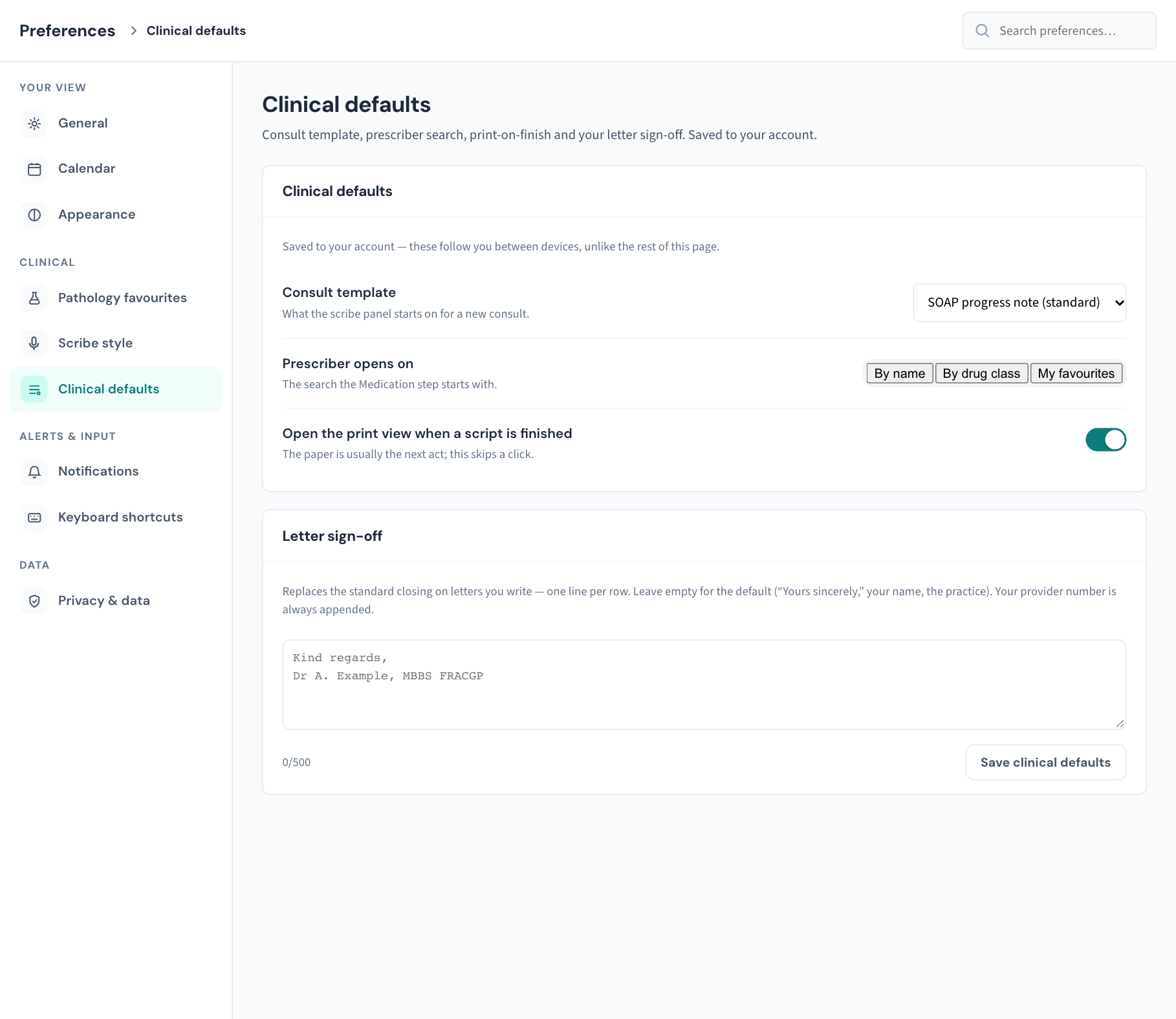
Set them
- Open Preferences → Clinical defaults.
- Choose your Consult template.
- Choose what the Prescriber opens on.
- Switch Open the print view when a script is finished on or off.
- Type your Letter sign-off, or leave it empty.
- Press Save clinical defaults, at the bottom of the Letter sign-off card. A Clinical defaults saved message confirms it.
The one button saves all four settings. Nothing is kept until you press it, so if you change a setting and leave the page, the change is lost.
A consult screen that is already open keeps the defaults it loaded with. Reload it, or open the next consult, to see a change.
What each one does in the consult
Consult template — what the scribe panel starts on for a new consult. The default is SOAP progress note (standard). The list holds the consult templates the scribe can draft into, such as Brief consult, Long / complex consult, Telehealth consult, Home visit and RACF visit.
Your choice is the middle of three rules, most specific first:
- If the practice has set a template for the appointment type being seen (in Settings → Templates), that one is used. It says something about this consult; yours says something about every consult.
- Otherwise, your Consult template.
- Otherwise, the SOAP progress note.
Two further things to know. If the practice has switched your chosen template off, the scribe starts on SOAP instead. And if you pick a template by hand in the consult, your pick stays; the default never replaces a choice you have already made.
Prescriber opens on — the search the Medication step of the prescribing wizard starts with when you prescribe from a consult.
| Choose | The wizard opens with Search by set to | Good for |
|---|---|---|
| By name (the default) | Product name | Typing a product or generic name |
| By drug class | Therapeutic class | Searching by class, such as statin or ACE inhibitor |
| My favourites | Favourites | Picking from the products you have starred |
You can still switch the search in the wizard each time. My favourites shows the products you have starred with ☆ in the wizard; until you have starred one it reads "None yet — star a product with ☆ and it appears here."
Note: This default applies when you prescribe from the consult screen. The wizard opened from the patient's chart always starts on Product name.
Open the print view when a script is finished — default off. With it on, the printable script opens in a new browser tab as soon as you finish the wizard, which saves a click when paper is the next step.
Browsers sometimes block a tab that a page opens by itself. If that happens Curaeon tells you: "The print view was blocked by the browser. Use Print on the message above, or allow pop-ups for Curaeon." The script is saved either way. Use Print on the confirmation message this time, and allow pop-ups for your Curaeon address in the browser so it works from then on.
Letter sign-off — replaces the standard closing on letters you write. Put each line of the closing on its own row. The limit is 500 characters and the counter shows how many you have used.
- Left empty, a letter closes with "Yours sincerely,", your name and the practice name.
- With a sign-off saved, your lines are used instead of all three, so include your name if you want it shown.
- Your provider number is always added on the last line, whichever closing is used. You do not need to type it.
To go back to the standard closing, empty the box and press Save clinical defaults. For writing the letter itself, see KB-106 — Write a letter in the editor: Insert from the record, { } Field, and the formatting that survives print and email.
Pathology favourites
The tests that appear under Your favourites on a pathology request, so the dozen you order every day are one click away rather than a search.
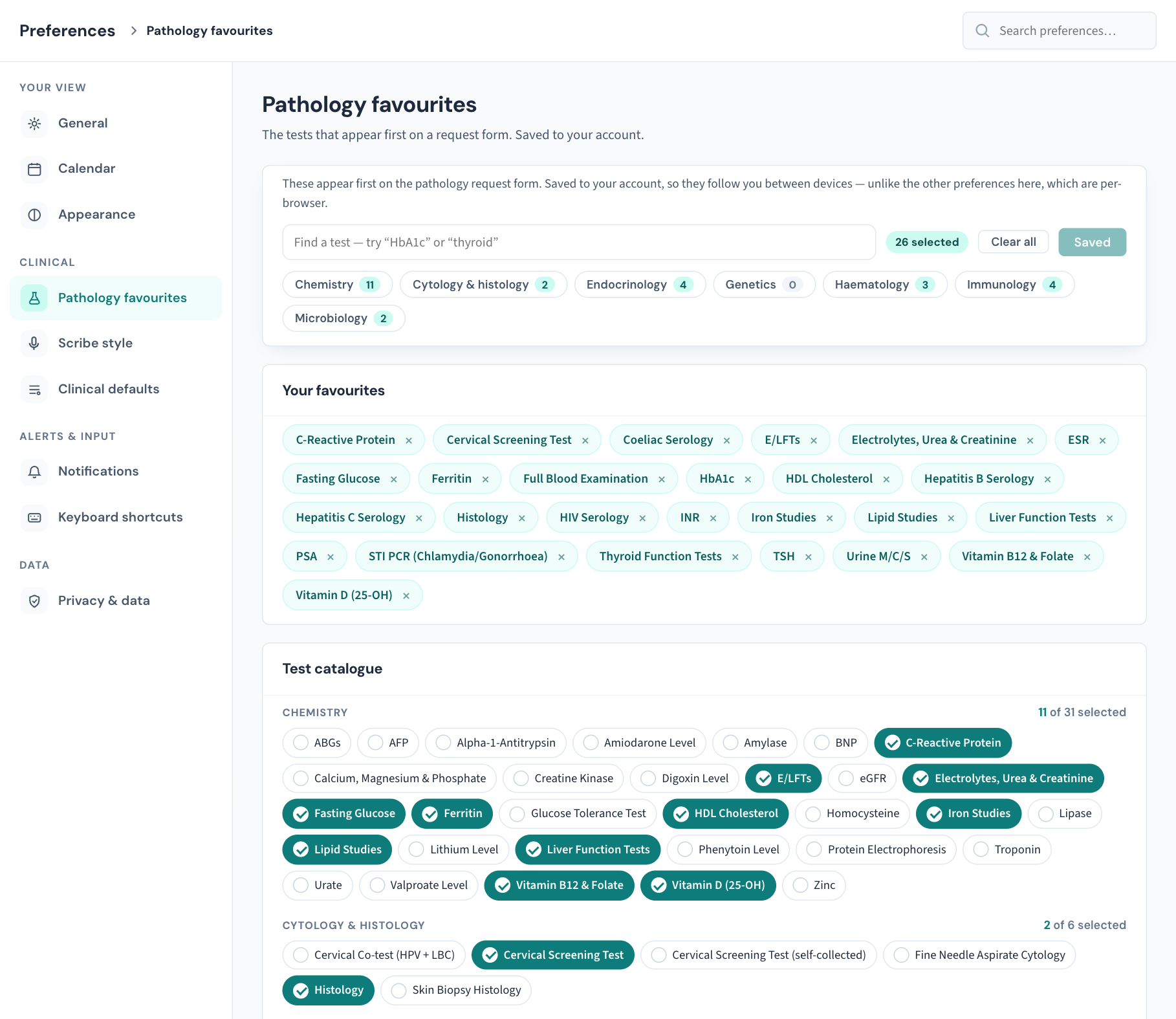
What you see
- A toolbar that stays at the top as you scroll, with the search box, a count (12 selected), Clear all and the save button. Below it is a row of discipline buttons (Chemistry, Haematology, Microbiology and so on), each showing how many of its tests you have chosen. Press one to jump to that part of the catalogue.
- Your favourites — the tests currently chosen, as chips. The × on a chip removes it.
- Test catalogue — every orderable pathology test, grouped by discipline, each group showing how many are selected.
If you have never made a list, the practice's default set is already ticked. Your first save is an edit of that set, not a start from nothing.
Choose your favourites
- Open Preferences → Pathology favourites.
- Find a test. Type part of its name in the search box (try "HbA1c" or "thyroid"), or press a discipline button to jump to its group.
- Tick the test. It appears as a chip under Your favourites. Untick it, or press the chip's ×, to remove it.
- Repeat for each test you order regularly.
- Press Save favourites. A message confirms how many were saved, for example 12 favourites saved.
The button tells you where you stand: Save favourites when there are changes to save, Saving… while it works, and Saved (greyed out) when the list on screen matches what is stored. If you leave the page while it still reads Save favourites, your changes are lost.
Where they show up
When you raise a pathology request, from Order investigations in a consult, from the chart, or from the Requests screen, the picker is laid out in this order:
- Common sets — groups of tests added with one click.
- Your favourites — the list you saved here, labelled "set in Preferences".
- Full catalogue — everything else, folded up by discipline.
The favourites you set here are pathology tests. There is no equivalent list to set for imaging. For the request form and chasing results, see KB-107 — Order a test, add copy-to recipients, and chase a result that never came back on the Requests screen.
If you clear the list
Clear all unticks everything. If you save with nothing chosen, the screen says "No favourites yet. With none selected the request form falls back to the practice defaults, so the column is never empty." So an empty list is not a way to hide the favourites row. It puts you back on the practice defaults.
What the messages mean
| You see | What it means |
|---|---|
| Clinical defaults saved | All four clinical defaults are stored on your account |
| N favourites saved | Your favourites list was replaced with the N tests shown |
| Saved on the favourites button | Nothing has changed since the last save |
| Loading the test catalogue… | The catalogue is being fetched; wait a moment |
| No test matches that search. | Nothing in the catalogue contains what you typed. Try fewer letters |
| A red message with Retry in Clinical defaults | Your saved defaults could not be loaded. The controls stay switched off so that a save cannot overwrite them with blanks. Press Retry |
| A red message in place of the catalogue | The test catalogue could not be loaded. Reload the page |
If that didn't work
- The scribe did not start on my template. Check whether the appointment type has its own template set by the practice; that wins. Then check the template is still offered by your practice in Settings → Templates (KB-049 — Build and import letter templates: Word upload, merge fields, pronoun fields, snippets).
- The prescriber still opens on Product name. You may have opened it from the chart rather than the consult, or the consult screen was open before you saved. Reload the consult.
- The script did not open for printing. Allow pop-ups for your Curaeon address, and use Print on the confirmation message in the meantime.
- My sign-off is not on a letter. Check you pressed Save clinical defaults, then reopen the letter. A letter composer that was already open keeps the sign-off it loaded with.
- A save is refused. Raise a ticket with the wording of the message.
Still stuck? Raise a ticket at support.curaeon.com.au or call 1300 XXX XXX. If your clinic can't see patients right now, call and choose option 1. Support is staffed Monday to Friday, 8:00–18:00 Sydney time; outside those hours a call or text to the same number is answered on a best-effort basis.
Related articles
- KB-131 — Set up Preferences: your start screen, calendar view, colours, notifications and privacy — Set up Preferences: your start screen, calendar view, colours, notifications and privacy
- KB-107 — Order a test, add copy-to recipients, and chase a result that never came back on the Requests screen — Order a test, add copy-to recipients, and chase a result that never came back on the Requests screen
- KB-106 — Write a letter in the editor: Insert from the record, { } Field, and the formatting that survives print and email — Write a letter in the editor: Insert from the record, { } Field, and the formatting that survives print and email
- KB-049 — Build and import letter templates: Word upload, merge fields, pronoun fields, snippets — Build and import letter templates: Word upload, merge fields, pronoun fields, snippets
- KB-055 — Dictate into a section, refine a draft, and manage style memory and suggested follow-ups — Dictate into a section, refine a draft, and manage style memory and suggested follow-ups
- KB-111 — Quick reference: GP or nurse — Quick reference: GP or nurse