Set up Preferences: your start screen, calendar view, colours, notifications and privacy
Make Curaeon open where you want, look the way you like and alert you about the right things, and know which of those choices stay on this computer and which follow you to the next one.
Before you start
- Where it is. In the sidebar, under the Admin heading, choose Preferences. Every staff member has it, whatever their role.
- These are your settings, not the practice's. Nothing here changes what a colleague sees. Practice-wide settings are under Settings (KB-115 — Find your way around Settings: every section, who can open it, and where to read more).
- Most of this page is saved in the browser you are using. It is not sent to the server and it is not recorded in the Audit log. Sign in on another computer, or in a different browser on the same computer, and those choices start again from the defaults.
- Three sections are saved to your account instead and follow you everywhere: Pathology favourites, Scribe style and Clinical defaults. Each says "Saved to your account" on the screen. Only staff who can order investigations see them; with the standard roles that is clinicians and administrators.
A tour of the screen
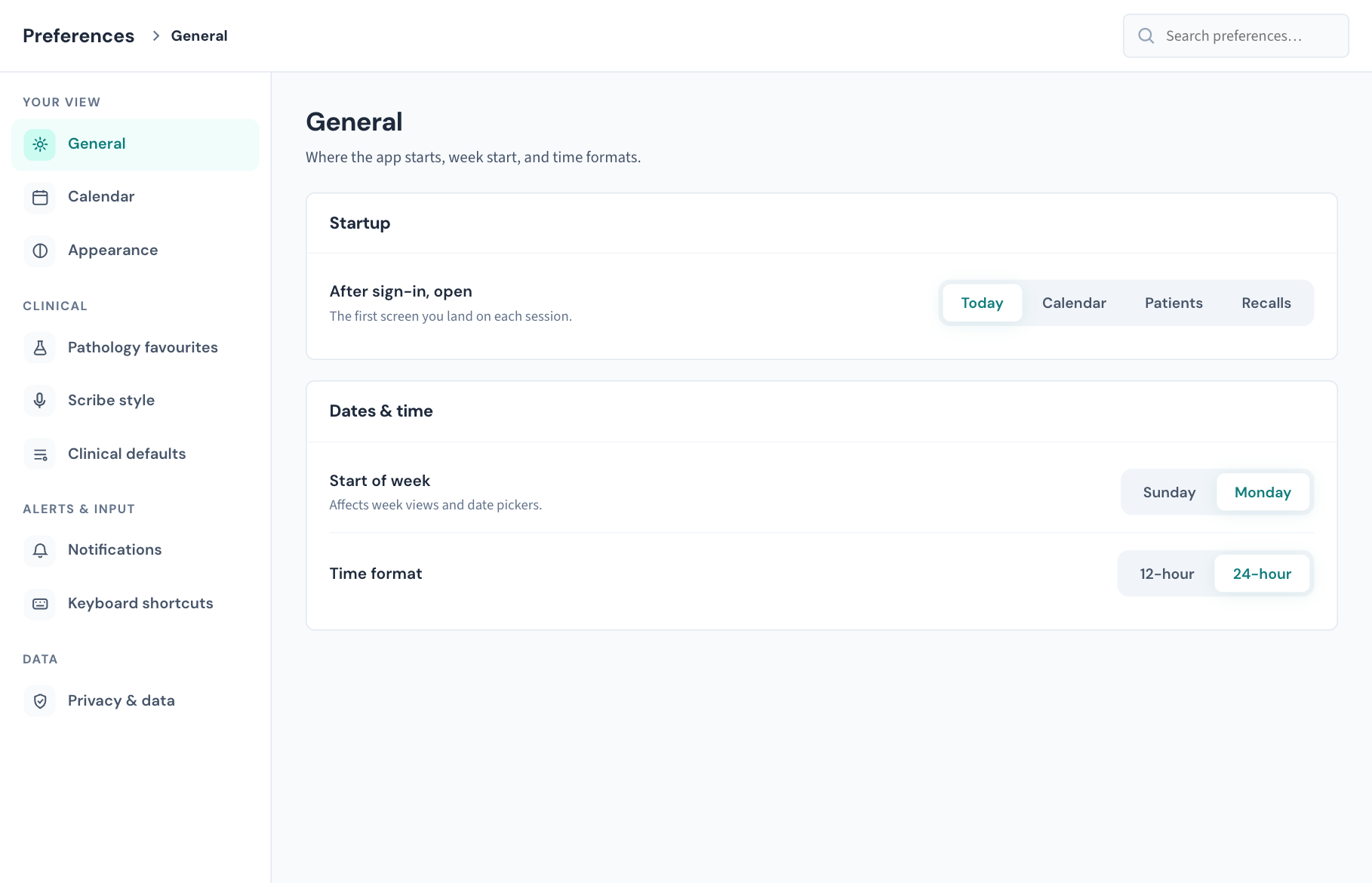
The left-hand list has four groups. Choose a section and its settings appear on the right. The box at the top, Search preferences…, narrows the list to sections whose name or description matches what you type.
| Group | Section | What it holds | Where it is saved |
|---|---|---|---|
| Your view | General | Start screen, start of week, time format | This browser |
| Your view | Calendar | How the calendar opens and what it shows | This browser |
| Your view | Appearance | Accent colour, skin, density, text size | This browser |
| Clinical | Pathology favourites | The tests shown first on a request form | Your account |
| Clinical | Scribe style | Standing wording preferences for the AI scribe | Your account |
| Clinical | Clinical defaults | Consult template, prescriber search, print-on-finish, letter sign-off | Your account |
| Alerts & input | Notifications | Desktop alerts and sound | This browser |
| Alerts & input | Keyboard shortcuts | Turn shortcuts on or off; the reference list | This browser |
| Data | Privacy & data | Blur when idle; reset this browser's preferences | This browser |
Settings saved in the browser take effect as soon as you choose them. There is no Save button. A switch shows a brief On or Off message at the bottom of the screen. The three account sections each have their own Save button, and nothing in them is kept until you press it.
General
Startup
- After sign-in, open — the first screen you land on each session: Today, Calendar, Patients or Recalls. The default is Today. If you were signed out for inactivity and sign in again, Curaeon takes you back to the page you were on rather than to this screen (KB-033 — Change how long Curaeon waits before signing you out, and end a session left open).
Dates & time
- Start of week — Sunday or Monday. The default is Monday. It sets which day the calendar's week view begins on.
- Time format — 12-hour or 24-hour. The default is 24-hour. It changes how times read across Curaeon in this browser.
There is no date format choice, on purpose. Every date in Curaeon is written with the month spelled out (for example 03 Apr 2026), because a date written 03/04 can be read two ways, and on a date of birth that is how the wrong patient gets matched.
Calendar
Default views
- Calendar opens in — Day or Week. Default Day.
- Calendar shows — All practitioners or Just me. Default All practitioners. Just me only applies if you are a practitioner with a column on the calendar. Reception and administrators always open to the whole practice. It sets how the calendar opens, not what you are allowed to see: you can show your colleagues' columns again from the calendar at any time.
- Time slot size — 10 min, 15 min or 30 min. Default 15 min. This is the height of the grid rows in day and week views. It does not change appointment lengths, which come from Settings → Appointment types (KB-117 — Add, change, reorder and retire appointment types in Settings → Appointment types).
Display
- Show weekends — include Saturday and Sunday columns in week view. Default off.
- Shade working hours — dim the time outside rostered hours. Default on.
Calendar preferences are read when the calendar opens. If the calendar is already open in another tab, reload it to see a change. For working in the calendar itself, see KB-038 — Book, reschedule and track appointments in the Calendar.
Appearance
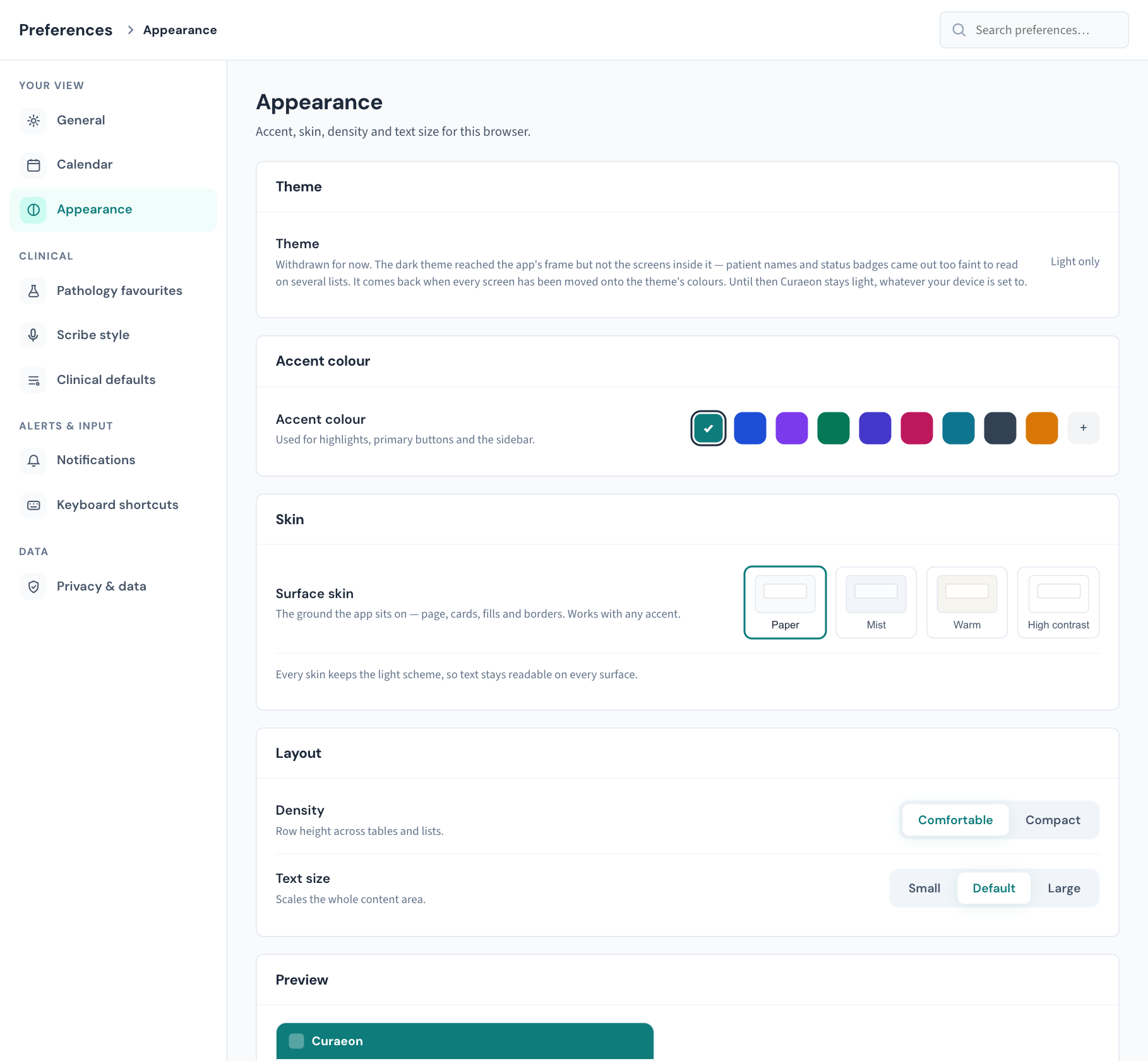
- Theme — shows Light only. The dark theme has been withdrawn for now: on several lists it left patient names and status badges too faint to read. Curaeon stays light whatever your device is set to, and the choice returns when every screen is ready for it.
- Accent colour — the colour of highlights, primary buttons and the sidebar. Nine presets: Teal (the default), Blue, Violet, Green, Indigo, Rose, Cyan, Slate and Amber. The + swatch lets you pick any colour of your own. Curaeon builds the lighter and darker shades from your pick and darkens the main shade until white button text is readable on it, so a custom colour may come out a little darker than the one you chose. Choose any preset to go back.
- Surface skin — the background the app sits on: Paper (the default, cool white on soft grey), Mist (a cooler blue-grey, easier in bright rooms), Warm (cream tones, gentler under evening light) and High contrast (pure white, darker text and borders). A skin works with any accent.
- Density — Comfortable or Compact row height in tables and lists. Default Comfortable.
- Text size — Small, Default or Large. It scales the content area of every screen.
- Preview — a small sample that shows your accent as you change it.
Notifications
Desktop notifications are the small alerts your computer shows in the corner of the screen. Curaeon can only show them while it is open in a browser tab.
- Enable notifications — the master switch. Default on. With it off, the switches below are greyed out and the screen says "Turn on notifications to choose which ones you get."
- New secure message — when your unread count in Messages goes up and you are not already looking at Messages. Default on.
- Recall due today — a once-a-day summary of how many recalls fall due today. It appears the first time Curaeon is open that day, and only if there is at least one. Default on.
- Appointment booked or changed — when an appointment in your own column today is booked, moved to a new time or cancelled. A patient arriving or being checked out does not notify. Default on.
- AI scribe finished — when a consult note draft is ready to review. Default off.
- Play a sound — a soft chime with each notification. Default off.
Several alerts of the same type are shown as one, updated, rather than a stack.
Turn desktop notifications on
Your browser has to give permission before any notification can appear.
- Open Preferences → Notifications.
- If Enable notifications is on and the browser has not been asked yet, a line says so. Choose Allow notifications in this browser.
- When the browser asks whether Curaeon may show notifications, choose Allow.
- Switch on the types you want.
If the line says the browser is blocking notifications, allow them for Curaeon in the browser's site settings, then reload.
Note: Notifications are per browser. Do this once on each computer you use. On a shared front-desk computer, think about who else will see an alert pop up before you allow them.
Keyboard shortcuts
- Enable keyboard shortcuts — default on.
- Reference — the shortcuts that work today:
| Shortcut | What it does |
|---|---|
| / | Puts the cursor in the search box on screens that have one, such as Patients, Settings, Users and Preferences |
| Esc | Closes a panel or clears a selection |
Switching shortcuts off stops / from jumping to search, which is useful if you find it catching stray keystrokes.
Privacy & data
- Blur sensitive info when idle — after 2 minutes with no mouse or keyboard input, the content of the screen is blurred so a passer-by cannot read it. Any movement brings it straight back. Default off. It takes effect from the next page load, so reload the page after switching it on.
This does not sign you out. The practice's inactivity sign-out does that, whatever this switch is set to (KB-033 — Change how long Curaeon waits before signing you out, and end a session left open).
- Reset preferences — restores every browser-saved preference on this page to its default, at once and without asking again. It affects this browser only. It does not touch your pathology favourites, scribe style or clinical defaults, which are saved to your account.
The Clinical sections
These appear only if your role can order investigations.
Pathology favourites
The tests that appear first on a pathology request form. You tick tests in the catalogue and press Save favourites. Until you make your own list you see the practice defaults. The full walkthrough is in KB-132 — Set up your clinical defaults and pathology favourites once, so every consult starts your way.
Scribe style
Standing instructions about how the AI scribe should word and lay out the drafts it writes for you, for example "Bullet points in the plan. No abbreviations. Spell out left and right." It is about phrasing and layout, not content, and it never makes the scribe write an Assessment (KB-056 — Why the scribe never writes the Assessment or suggests item numbers).
- Open Preferences → Scribe style.
- Type your preferences in the box. The limit is 1,000 characters; the counter underneath shows how many you have used.
- Press Save style. A Scribe style saved message confirms it.
What you save applies from your next recording. A recording already under way keeps the style it started with. The style used is that of the clinician the consult belongs to.
To clear it, empty the box and press Save style. The message reads Scribe style cleared and the scribe goes back to its standard drafting. For the rest of what the scribe can do, see KB-055 — Dictate into a section, refine a draft, and manage style memory and suggested follow-ups.
Clinical defaults
Four settings: the Consult template the scribe panel starts on, which search the Prescriber opens on, Open the print view when a script is finished, and your Letter sign-off. One button, Save clinical defaults, saves all four. The walkthrough and what each does in a consult are in KB-132 — Set up your clinical defaults and pathology favourites once, so every consult starts your way.
What the messages mean
| You see | What it means |
|---|---|
| On / Off | A switch was changed and saved in this browser |
| Preferences reset to defaults | The browser-saved preferences were reset |
| Light only beside Theme | The dark theme is withdrawn; there is nothing to choose |
| Scribe style saved / Scribe style cleared | Your scribe style was saved to your account, or emptied |
| Clinical defaults saved | All four clinical defaults were saved to your account |
| A red message with a Retry button in a Clinical section | That section could not be loaded from the server. The controls stay switched off so that a save cannot overwrite what you already have. Press Retry |
If that didn't work
- My preferences have gone back to the defaults. They live in the browser. A different computer, a different browser, a private window or clearing the browser's site data all start from the defaults. Set them again; they are quick to redo.
- I can't see Pathology favourites, Scribe style or Clinical defaults. Your role does not include ordering investigations. If you need it, ask your practice manager about your role (KB-034 — Choose the right role and permissions for a new staff member).
- No notifications appear. Check that Enable notifications and the type are both on, then follow "Turn desktop notifications on" above. If the browser never asks, it has probably been told to block notifications for Curaeon; change that in the browser's site settings, and check that your computer's own do-not-disturb mode is off.
- The calendar still opens the old way. Reload the calendar. Calendar preferences are read when it opens.
- Blur when idle isn't blurring. Reload the page after switching it on.
- A Clinical section shows an error that Retry does not clear. Raise a ticket with the wording of the message.
Still stuck? Raise a ticket at support.curaeon.com.au or call 1300 XXX XXX. If your clinic can't see patients right now, call and choose option 1. Support is staffed Monday to Friday, 8:00–18:00 Sydney time; outside those hours a call or text to the same number is answered on a best-effort basis.
Related articles
- KB-132 — Set up your clinical defaults and pathology favourites once, so every consult starts your way — Set up your clinical defaults and pathology favourites once, so every consult starts your way
- KB-115 — Find your way around Settings: every section, who can open it, and where to read more — Find your way around Settings: every section, who can open it, and where to read more
- KB-033 — Change how long Curaeon waits before signing you out, and end a session left open — Change how long Curaeon waits before signing you out, and end a session left open
- KB-038 — Book, reschedule and track appointments in the Calendar — Book, reschedule and track appointments in the Calendar
- KB-055 — Dictate into a section, refine a draft, and manage style memory and suggested follow-ups — Dictate into a section, refine a draft, and manage style memory and suggested follow-ups
- KB-056 — Why the scribe never writes the Assessment or suggests item numbers — Why the scribe never writes the Assessment or suggests item numbers
- KB-034 — Choose the right role and permissions for a new staff member — Choose the right role and permissions for a new staff member